pm is the PushMetrics command-line tool. It talks to the same REST API the web app uses, with your permissions: it sees the reports, databases and users you can see in the app, in one workspace, and nothing else. Use it to run and debug reports from a shell, keep report definitions in git, feed a CI pipeline, or give an AI coding agent a safe, scriptable handle on your workspace.
This guide covers everything pm does. If you only want the raw HTTP API, see the Reports API and Run History API pages.
Install
pm is published on PyPI as pushmetrics-cli. It needs Python 3.9 or newer and runs on macOS, Linux and Windows. The recommended way to install it is pipx, which gives pm its own environment and puts it on your PATH:
pipx install pushmetrics-cli
pm --version
With uv:
uv tool install pushmetrics-cli
Or with plain pip:
pip install --user pushmetrics-cli
Python from Homebrew, and from some Linux distributions, refuses pip install --user with an externally-managed-environment error; use pipx or uv there. After a pip install --user, pip tells you if the directory it put pm in is not on your PATH.
pm needs an active PushMetrics subscription for your workspace's organization. Without one, PushMetrics refuses your personal access token: pm cannot log in, its commands stop working when the current session expires or sooner (within an hour at most), and no new tokens can be created.
Create a personal access token
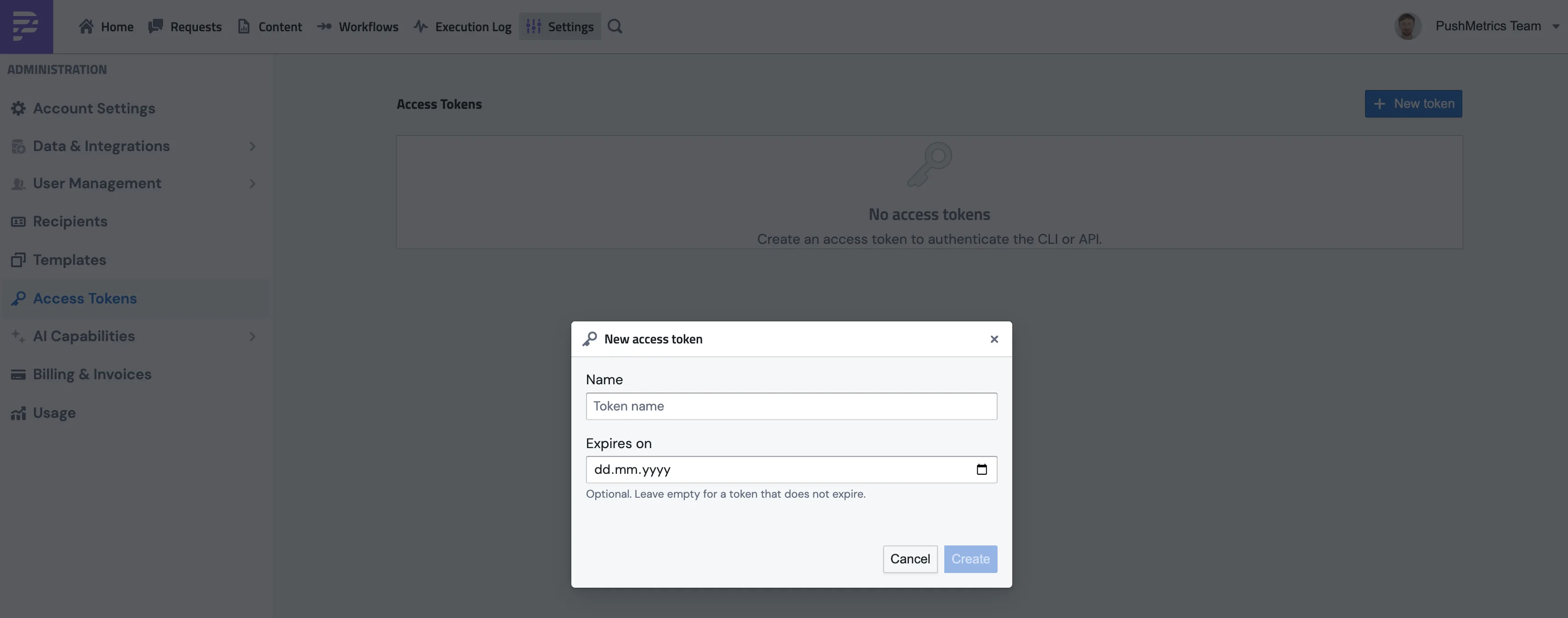
pm logs in with a personal access token. In the app, open Settings and pick CLI & API (or go to /a/tokens). Click New token, give it a name, and optionally an expiry date.
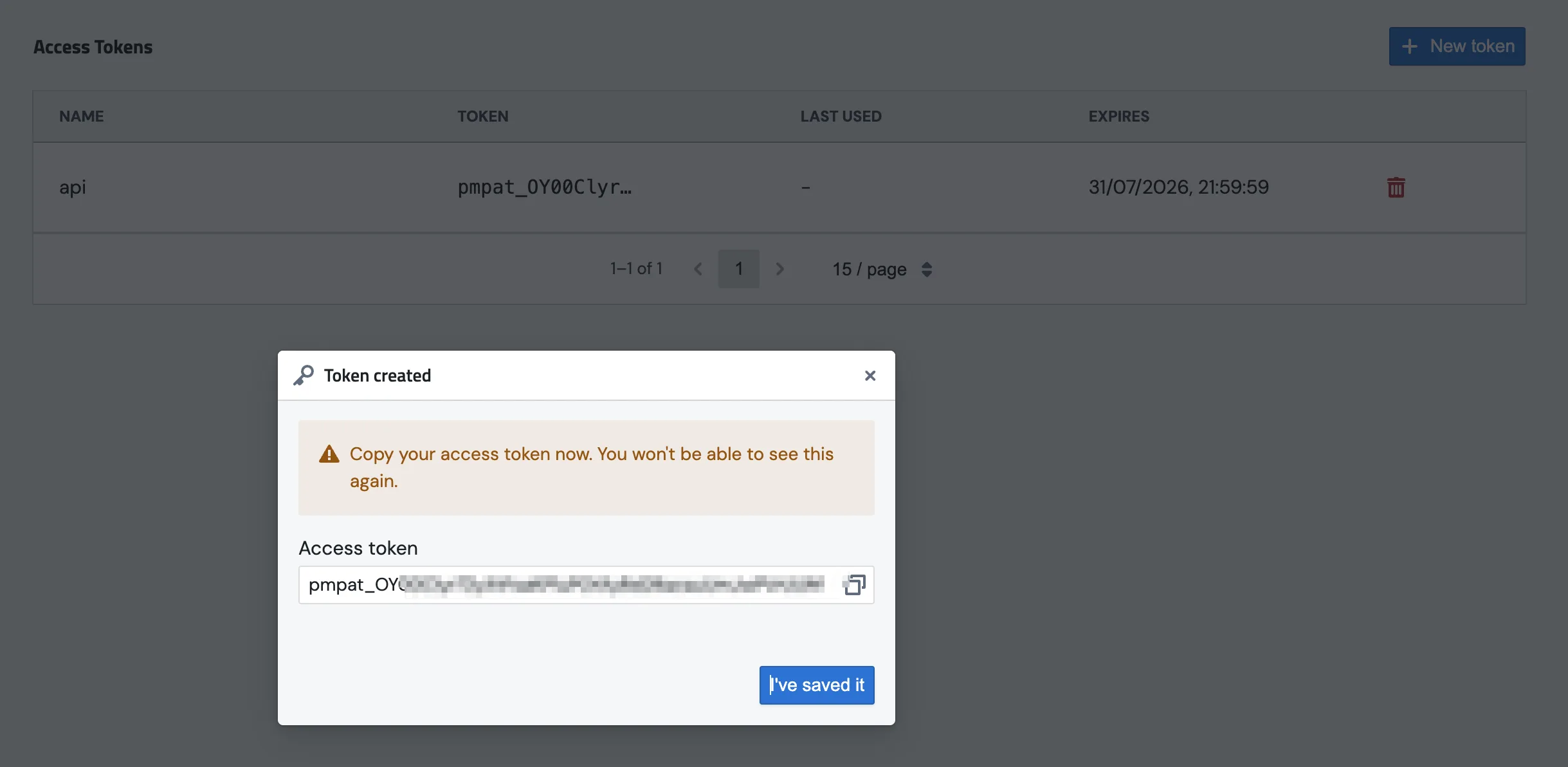
Copy the pmpat_... value from the confirmation dialog. It is shown once.
A token is bound to the workspace that was active when you created it. Everything pm does with it happens in that workspace. To work in two workspaces, create one token in each (see Working in several workspaces).
Log in
pm login --token
pm asks for the token in a hidden prompt, checks it with PushMetrics, and stores it in your operating system's credential store. Then check who you are:
pm whoami
pm whoami prints your email, your name, the workspace the token is bound to, the profile, and the PushMetrics address it talks to.
Without storing anything. Put the token in the PM_API_TOKEN environment variable instead and skip pm login. Every pm command picks it up, and it wins over a stored token. This is the right choice for CI and other automation.
From a secrets manager. pm login --token also reads the token from stdin when it is piped, so it never appears on your screen, in your shell history or in a file. For example, with the 1Password CLI:
op read op://private/pushmetrics/token | pm login --token
pm logs in with personal access tokens only. pm login without --token answers: Browser login is not set up for profile 'default'. Use a personal access token instead: create one at https://pushmetrics.io/a/tokens, then run `pm login --token`.
How commands are organized
pm --help lists everything. Commands are grouped by what they manage, always as pm <group> <action>:
| Group | What it manages |
|---|---|
login, logout, whoami, token, config |
Your login, tokens and profiles |
report, run |
Reports, and their runs, results and logs |
sql, chart, email, slack, sftp, explore, metrics-view, tableau, slides |
The blocks a report is made of, one group per block type |
block |
Blocks of any type at once |
database |
Databases, their schemas and tables |
folder, favorite, saved-block, recipient, webhook, integration |
Things around reports |
workspace, organization, user, role |
Your workspace, organization, people and roles |
Most groups have list and get; many have create, update and delete. pm <group> --help lists a group's actions, and pm <group> <action> --help lists the options of one action. pm help <group> shows a compact page with examples.
Identifiers: wherever a command asks for a UID, use the identifier from the object's URL in the app or from pm <group> list. A few commands ask for a numeric ID instead; their help says where to find it.
Reports and runs
pm report list                         # every report in the workspace
pm report list --name weekly           # name contains "weekly" (case-insensitive)
pm report get <report-uid>             # key fields; --json for the full record
pm report runs <report-uid>            # the runs of one report
Run a report now. pm report run starts the run and prints the new run's uid straight away; the run itself happens in the background. The uid is the only thing on stdout (a reminder of the next command goes to stderr), so a script can capture it:
run=$(pm report run <report-uid>)
pm run get "$run"                      # status and timing
pm run results "$run"                  # what each block produced
Preview without notifying anyone. --send-to-me sends the report's email blocks to you instead of their recipients and skips every other destination (Slack, webhooks, SFTP, cloud storage). Add --email to preview as one of your saved recipients:
pm report run <report-uid> --send-to-me
pm report run <report-uid> --send-to-me --email anna@example.com
Find out why a run failed. pm run list filters combine, and pm run logs takes a run uid:
pm run list --report <report-uid> --last-days 2 --status failed
pm run logs <run-uid> --level ERROR
pm run list shows the 25 most recent runs by default; --limit raises that up to 5000.
Keep report definitions in git. pm report yaml exports a report's full configuration, and pm report apply writes it back:
pm report yaml <report-uid> > weekly-kpis.yaml
pm report apply weekly-kpis.yaml --uid <report-uid> --dry-run   # show the diff, save nothing
pm report apply weekly-kpis.yaml --uid <report-uid>             # replace the report
pm report apply weekly-kpis.yaml                                # create a new report
--no-prune keeps blocks that are in the report but not in the file; by default they are removed. --allow-create-folder creates the folder named in the file if it does not exist.
Blocks
A report is a sequence of blocks: SQL queries, charts, emails, Slack messages, and so on. Each block type has its own group with list, get and create. Most also have run (sql, chart, tableau, slides) or send (email, slack, sftp) to execute the block, and results to read what it produced. chart, explore and metrics-view also have update, and a metrics view is read with query. pm <group> --help lists each group's actions.
pm sql list --name revenue
pm sql run <block-uid>                 # run a saved SQL block
pm sql results <block-uid> --last      # its most recent result
pm chart list
pm explore get <block-uid>
pm email list
pm slack list
pm sftp list
pm block list --type sql --limit 20    # any block type, filtered
pm email send, pm slack send and pm sftp send deliver for real, to the block's real recipients. Use pm report run --send-to-me to preview a whole report instead.
Metrics views are queried by measures and dimensions instead of SQL:
pm metrics-view schema <view-uid>      # what the view can be queried by
pm metrics-view query <view-uid> --measure revenue --dimension country --time-range last_30d --time-grain month
Tableau views are found through the Tableau integration:
pm integration list
pm tableau search --integration <integration-uid> --keyword sales
Google Slides blocks can be exported once they have run:
pm slides export <block-uid> --filename q4-review.pdf
create and update on block groups read a JSON body on stdin (--stdin); pm help <group> shows the body's shape with an example.
Databases
pm database list
pm database schemas <database>
pm database tables <database> public
pm database describe <database> public orders
pm database search <database> order
<database> is the database's uid or its name. These commands read metadata only; to run a query, use a SQL block.
People, workspace and the rest
pm workspace list                      # workspaces you belong to
pm workspace current                   # the one this token works in
pm organization current
pm user list
pm role list
pm recipient list --name finance
pm folder list
pm favorite list
pm saved-block list
pm webhook list
Write actions such as pm user create, pm folder create or pm webhook create exist too, with the same permissions as in the app; --help on each lists its options. Commands that delete something ask for confirmation; --yes skips the prompt, and is required when pm is not running in a terminal.
Output: tables, JSON and filters
Without options, pm prints a short table or a key: value listing meant for reading. --json prints the full API objects instead, and works before or after the action:
pm report list --json
pm --json run get <run-uid>
On list commands, --name keeps rows whose name contains the text, case-insensitive; on pm user list it also matches email, first and last name, and on block lists the display name. --limit caps the number of rows. Together with jq:
# uid and name of every report
pm report list --json | jq -r '.[] | [.uid, .name] | @tsv'

# every report's YAML in its own file
for uid in $(pm report list --json | jq -r '.[].uid'); do
  pm report yaml "$uid" > "$uid.yaml"
done
Data goes to stdout; messages and errors go to stderr, so piping is safe. --quiet silences the informational messages (errors still print). pm exits with 0 on success, 1 when a command fails, and 2 when the command line itself is wrong.
Tokens
pm token list                          # your tokens in this workspace: id, name, prefix, created, last used, expiry
pm token create ci-nightly --expires-on 2027-01-31
pm token revoke <token-id>             # the numeric ID from pm token list
pm token create prints the new token on stdout, once, and its reminders on stderr, so you can hand it to another profile without it touching your screen or a file:
pm config set ci api_url https://pushmetrics.io
pm token create ci-nightly | pm --profile ci login --token
The LAST_USED column is approximate: it is updated when a token is exchanged for a session, not on every request.
Profiles and configuration
A profile is a named set of settings: which PushMetrics address pm talks to, and which stored token it uses. The built-in default profile talks to https://pushmetrics.io and is used unless you pass --profile <name> or set PM_PROFILE.
pm config list # every profile; * marks the active one
pm config list also shows which environment variables are overriding the profiles right now, which helps when a script behaves differently from your terminal.
| Environment variable | Effect |
|---|---|
PM_API_TOKEN |
Use this personal access token. Wins over a stored token. |
PM_PROFILE |
Use this profile when no --profile is given. |
PM_API_URL |
Talk to this address instead of the profile's. Same as --api-url on one command. |
PM_CONFIG_HOME |
Where pm keeps its configuration. Default: ~/.pm. |
Profiles live in ~/.pm/config.toml.
Working in several workspaces
A token works in one workspace, so working in two means two tokens and two profiles. Create the token in the other workspace in the app, then add a profile for it:
pm config set acme api_url https://pushmetrics.io
pm --profile acme login --token
pm --profile acme report list
pm workspace switch is for browser login only. Do not use it with a token: the token decides the workspace.
Logging out
pm logout
This forgets the token stored for the active profile, together with the short-lived session pm keeps next to it. It does not revoke the token: do that with pm token revoke or on the CLI & API page.
Using pm in CI
Store the token as a secret in your CI system and expose it as PM_API_TOKEN; no pm login is needed. For example, in GitHub Actions:
- name: Export report definitions
  env:
    PM_API_TOKEN: ${{ secrets.PUSHMETRICS_TOKEN }}
  run: |
    for uid in $(pm report list --json | jq -r '.[].uid'); do
      pm report yaml "$uid" > "reports/$uid.yaml"
    done
Give CI its own token, named after the pipeline and with an expiry, so you can revoke it without touching anyone's personal token. pm exits non-zero on any failure, so the step fails when a command fails.
Each pm process exchanges its token for a short-lived session and reuses it for a few minutes. Too many logins from one network address within a minute are refused with: Too many login attempts from this network address (10 per minute). Wait a minute and run pm login --token again.
Using pm from an AI agent
pm works well as a tool for an AI coding agent such as Claude Code: every action is a plain command, --json gives structured output, and pm help <group> prints a compact page with examples that fits in an agent's context.
pm help                                # the map of every group
pm help report                         # one group, with examples
Before handing pm to an agent:
- Give it its own token, created for the purpose, with an expiry. The agent can do everything that token's user can do in that workspace, including deleting reports and creating more tokens, so pick the user and workspace accordingly.
- Pass the token as
PM_API_TOKENin the agent's environment rather than logging in on your account.PM_API_TOKENalways takes priority over a token stored withpm login, but if it is not set, the agent'spmuses your own stored login on that computer. Have the agent runpm whoamifirst to confirm whose token it is using. - Never paste the token into the conversation or into a file the agent can commit.
- Ask for
--jsonso the agent reads structured output, and--quietif its tool output should carry data only. - Revoke the token on the CLI & API page when the work is done.
Usage mistakes in block commands (pm sql, pm chart and the other block groups), such as a missing uid or a malformed body, are reported on stderr as one JSON line with a message and often a help or example field, so an agent can correct itself. API errors are an Error: line followed by a Hint: line, like every other command.
Troubleshooting
Every error says what failed and what to do next. The ones you are most likely to meet:
Not logged in. Run pm login --token with a personal access token, or set PM_API_TOKEN. No token is stored for the active profile and PM_API_TOKEN is not set. Tokens are stored per profile, so check pm config list if you logged in under a different one.
That does not look like a personal access token (expected pmpat_ followed by 40-64 letters, digits, - or _, on one line)… The value pasted or piped into pm login --token, or set in PM_API_TOKEN, is not a token. Copy it again from where you saved it; spaces or line breaks inside it are rejected.
Personal access token rejected (invalid, expired, or revoked). The token is well-formed but PushMetrics does not accept it. Create a new one on the CLI & API page and log in again.
Too many login attempts from this network address (10 per minute). Wait a minute. If it happens in a loop or in CI, check that the token is valid and that the job does not log in again for every command.
Could not reach https://... (ConnectionError). Check your network and the API URL… pm cannot connect to the address it is configured for. pm config list shows the address and any PM_API_URL override.
Refusing to send a bearer credential over plain http to ... The configured address starts with http://. pm only sends tokens over https://, except to localhost.
Unknown profile: 'acme'. Known profiles: agent, default, local… The profile named by --profile or PM_PROFILE does not exist yet. The message ends with the pm config set command that creates it; see also Working in several workspaces.
Profile 'acme' has no api_url… The profile exists but has no address. Run the pm config set command the message names, or set PM_API_URL.
An API ... failed: 403 line followed by Hint: You do not have permission for this in the active workspace. Your user cannot do this in the token's workspace, the same as in the app. pm whoami shows which user and workspace the token is for.
An API ... failed: 404 line followed by Hint: Nothing with that id is visible in the active workspace. The uid is wrong, or the object belongs to a different workspace than the token's. The list command of that group shows what exists.
Hint: PushMetrics returned a server error. Retry in a minute… pm already retries reads on temporary server errors. If it keeps failing, email support@pushmetrics.io with the command and the time.
Anything else. Run the command again with -v: pm prints each request, the response status and its timing to stderr, and the response body on errors. Tokens are never printed; check the output for your own data before sharing it.
Security notes
- Where the token lives.
pm login --tokenstores the token in your operating system's credential store: Keychain on macOS, Credential Manager on Windows, Secret Service on Linux. Where none is available, it falls back to~/.pm/tokens.json, readable only by you (file mode0600). The short-lived sessionpmderives from the token is kept the same way. - Off the command line.
pmnever takes a token as a command-line argument, so it does not end up in shell history or process lists. Use the prompt, a pipe, orPM_API_TOKEN. - Only over https.
pmrefuses to send a token to anhttp://address, except to your own computer (localhost). - Never printed. Tokens do not appear in
-voutput or in error messages. - One workspace, your permissions. A token can only act in its workspace, with the permissions of the user who created it. Anyone holding it can do what that user can do there, including creating more tokens.
- Revoking.
pm logoutonly removes the token from this computer. To make a token stop working everywhere, revoke it withpm token revokeor on the CLI & API page. Revoke a token you think was exposed, and give every script, pipeline and agent its own token so you can revoke one without breaking the others.
Related
- Digest API — personal access tokens with curl or any HTTP client, and run health as JSON.
- Run History API — the data behind
pm run list, for raw HTTP. - Reports API — the data behind
pm report listandpm report yaml.