Some reports should only go out when there's something to say. A data-quality alert that's only relevant when checks fail, a sales digest that should skip quiet days, a reminder that stops once the underlying issue is resolved. The Condition Check handles this: before a report is generated, PushMetrics runs a SQL query you define, and only if the condition is met does the report run and send. Otherwise the run stops right there — nothing is generated, nothing is delivered.
Setting up a condition check
Open the report in the editor and find the Condition Check section. Toggle on Perform condition check before report generation.
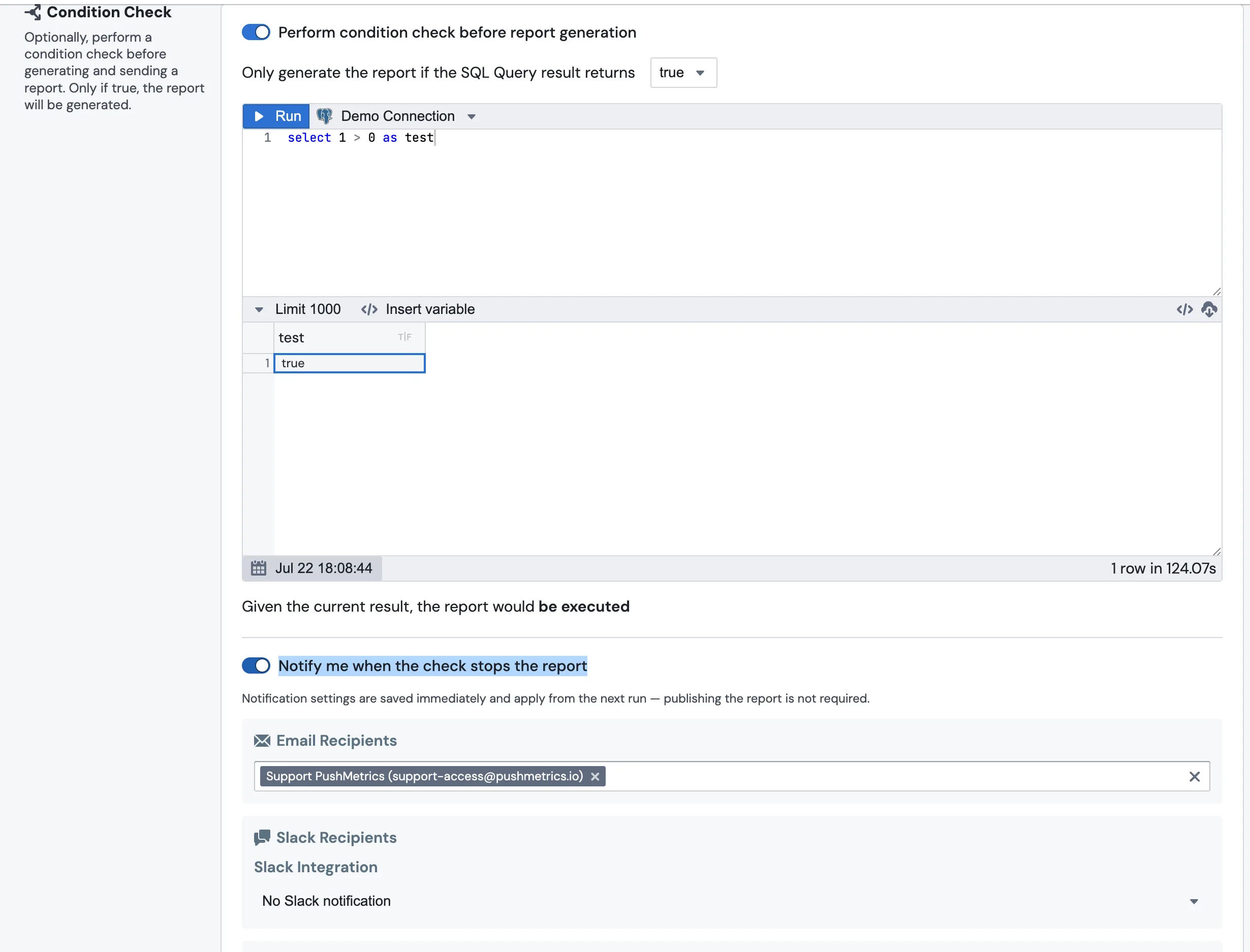
Then configure two things:
- The SQL query. Pick a database connection and write the query that decides whether the report should run. It executes at the start of every run, so the decision is always based on fresh data.
- The condition. In "Only generate the report if the SQL Query result returns …", choose what counts as a pass:
- true — the first value of the result (first row, first column) is true.
- false — the first value of the result is false.
- Any values — the query returns at least one row. Handy for alert-style reports: "send if there are any failed orders".
- No values — the query returns no rows at all.
Click Run to test the query. Below the result, a live preview tells you what would happen on the next run: "Given the current result, the report would be executed" — or be stopped.
What happens when the check stops a report
If the condition isn't met, the run ends before any content is generated: no attachments are built, no emails, Slack messages, or file uploads go out. This is the intended behavior — the run is considered successful, just intentionally stopped.
In the Execution Log, such runs are marked with a "Stopped by condition check — the report was not sent" tag next to the run status, so you can always tell an intentional stop apart from a failure. See Auditing Reports and Run Status for more on monitoring runs.
Getting notified when the check stops the report
A silently skipped report is usually what you want — but not always. If recipients expect the report and it doesn't arrive, "did it fail or was it skipped?" shouldn't require opening the Execution Log. Turn on Notify me when the check stops the report to get an explicit notification whenever a run is halted by the condition check.
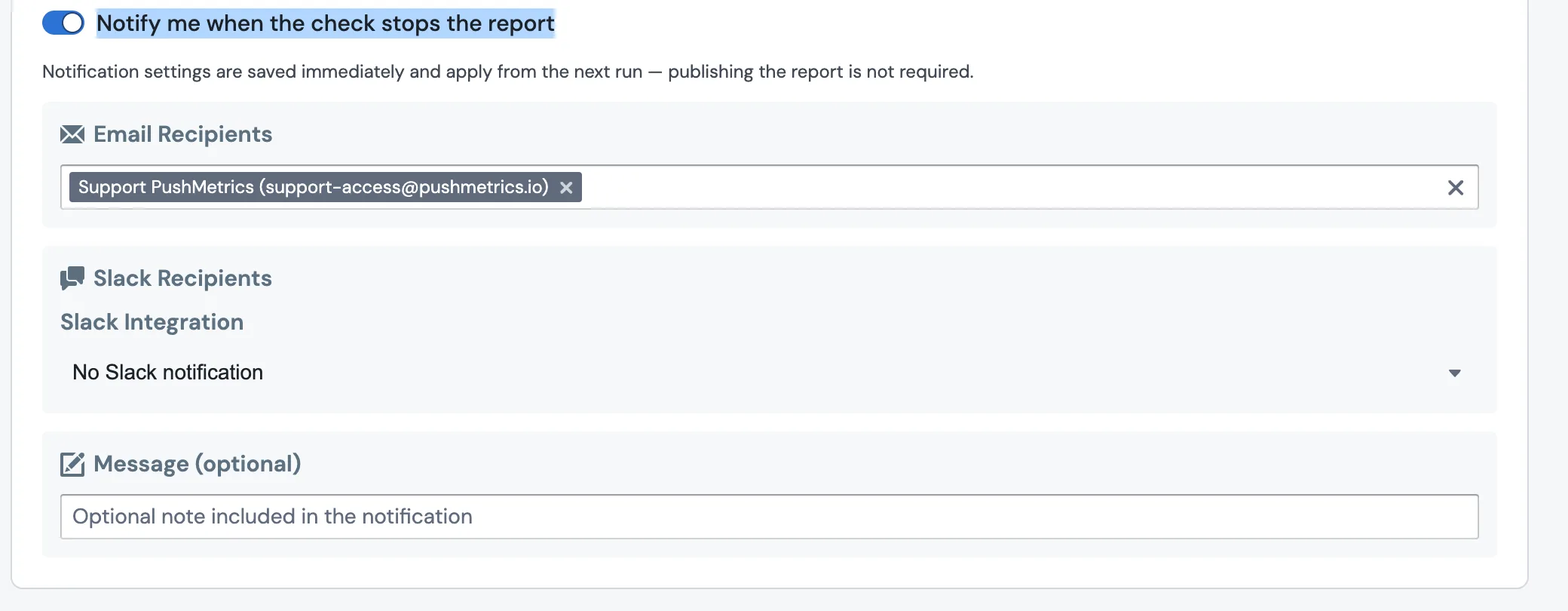
You can configure:
- Email Recipients — any email addresses that should be alerted. When you first enable the toggle, your own address is added as a default.
- Slack Recipients — pick a Slack integration and one or more channels to post the alert to (requires the Slack integration).
- Message (optional) — a note included in the notification, e.g. "No new signups today, so the daily signup report was skipped."
The notification states that the report was not sent because its condition check was not met, includes your optional note, and links back to the report. It is only sent when the check stops the report — you won't be notified on runs where the condition passes and the report goes out normally. Each stopped run triggers at most one notification.
A few details worth knowing:
- Settings apply immediately. Notification settings are saved as you change them and apply from the next run — publishing the report is not required, and they take effect even for reports whose scheduled runs use an older published version.
- At least one recipient is required. With no email address and no Slack channel configured, the toggle has no effect — the editor warns you about this.
- It complements run notifications. Send notification after scheduled run on the schedule alerts you about failed (or successful) runs; the condition-check notification covers the third case — runs that succeeded but were intentionally stopped.
Condition check vs. conditional attachments
The Condition Check gates the entire report: if the condition fails, nothing is sent to anyone. If you only want to leave out individual files while the rest of the report still goes out — for example, skip an empty CSV but send the email anyway — use Conditional Attachments on the Email or Slack task instead. The two features work independently and can be combined.