When you edit a scheduled report, you usually want to take your time - try a new query, tweak the email body, change the recipients - without your next scheduled run going out with half-finished changes. Publishing solves that. Your edits autosave to a working draft of the report; once you publish, the scheduler switches to that published version and keeps using it until you publish again. If a report has never been published, the scheduler simply runs the draft.
This page explains what publishing does, the three states a report can be in, and how to use the Publish, Diff, and Revert actions.
What publishing does
Every report now has two versions side by side:
- Draft - what you see and edit in the report builder. Your changes autosave to this version as you work.
- Published - a snapshot of the report content taken the last time you clicked Publish. This is what scheduled runs use. Schedules and webhook triggers are not part of the snapshot - they always reflect what's live (more on this below).
Clicking Run Now always executes the draft version, so you can test your in-progress edits immediately. Scheduled executions only switch to the new version after you publish.

If a report has never been published, scheduled runs use the draft version - same as before. Publishing is opt-in per report.
The three states
A small badge next to the report title tells you which state you're in.

Draft
The report has never been published. Scheduled runs (if any) use the draft version because there is nothing else to fall back to. The Publish button is available - click it to take your first snapshot.
Published
The draft and the published version are identical. Nothing to publish, nothing to revert. The Publish button stays clickable - re-publishing is safe; it just refreshes the snapshot without changing the report content.
Unpublished changes
The report has been published before, but you've edited it since. Scheduled runs continue to use the previous published version. Your in-progress edits are safe - they're saved as you go - and they don't affect scheduled deliveries until you publish them.
How to publish
- Open the report.
- Make your changes - they autosave automatically.
- Click Publish in the top-right header.
The badge flips to Published, and the next scheduled run will use this version.
Seeing what will change - the Diff view
After you've published a report at least once, you can preview exactly what would change at the next publish.
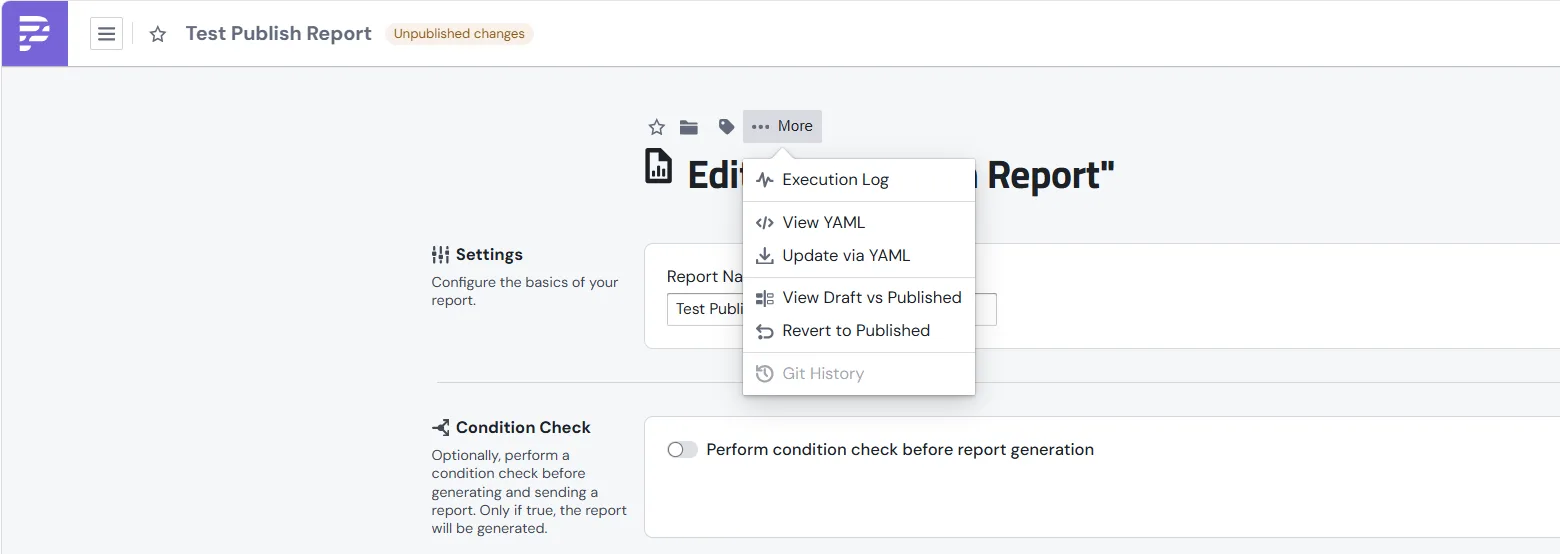
- Open the More menu next to the report title.
- Choose View Draft vs Published. (This item is disabled until the report has been published once.)
You'll see the report's YAML with the differences highlighted: green (+) lines were added in your draft, red (-) lines were removed. Anything highlighted is what the next Publish will capture. Schedules and webhook triggers are not shown - they're always live and never part of the snapshot.
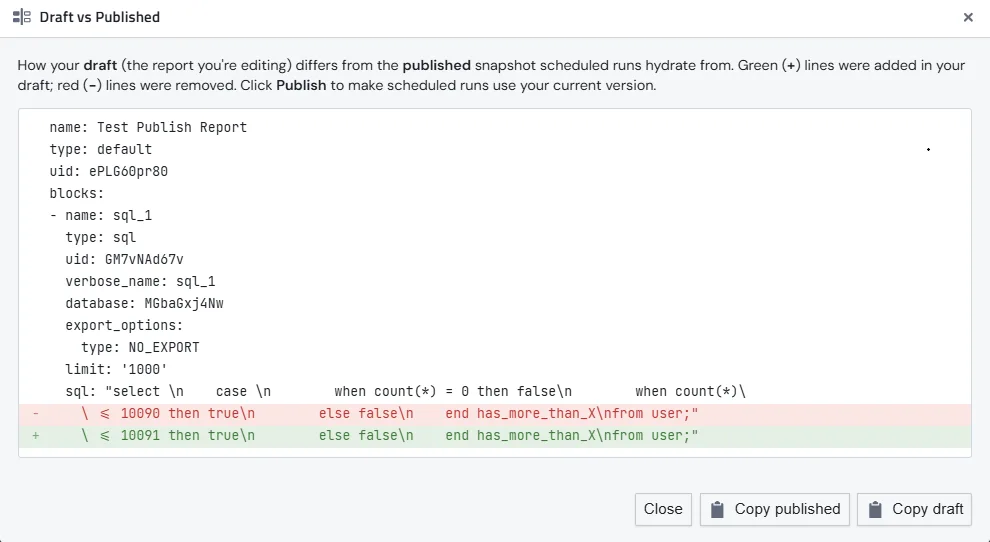
The diff is also useful for code review - use Copy draft or Copy published at the bottom of the dialog to share either version in Slack or paste it into a pull request.
Reverting to the published version
Sometimes a series of edits doesn't work out and you want to throw them away. Revert to Published restores the report content to the latest published snapshot. Schedules and webhook triggers are left alone - they always stay on whatever you've configured live.
- Make sure the badge says Unpublished changes (revert is only useful in this state - there's nothing to revert to in Draft, and nothing to revert from in Published).
- Open the More menu next to the report title.
- Choose Revert to Published.
- Confirm the warning dialog.
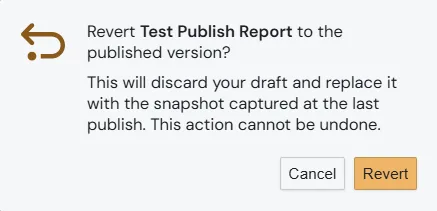
This action cannot be undone. Anything you've edited since the last publish will be overwritten. If a block was added to the report after the last publish, it is removed from the report (the underlying block record is not hard-deleted).
After a successful revert, the badge flips back to Published.
Schedules and webhooks are always live
A few parts of a report are deliberately not included in the publish/draft snapshot:
- Schedules - when and how often the report runs.
- Webhook triggers - external URLs that fire the report.
These always reflect the live configuration, so a quick schedule change takes effect immediately and doesn't make the badge flip to Unpublished changes. The Diff view also hides these - it focuses on the actual report content (blocks, queries, message bodies, recipients, destinations) that publishing is designed to control.
When to use publishing
A few common patterns:
- You have a scheduled report you trust. Publish it once, then edit freely between releases. Your stakeholders keep getting the version they signed off on.
- You want to experiment. Try a new query or layout, click Run Now to see the result in your inbox, iterate. The schedule keeps running the old version while you work.
- You want to roll back. A change didn't work out - open the Diff to confirm, then Revert to Published.
- You collaborate with others. Publishing makes it explicit when a new version "goes live". For a longer-term audit trail of every change to every report, see Git Integration - it commits a full workspace snapshot to a GitHub repository whenever you sync.
Frequently asked questions
Does publishing change what Run Now does? No. Run Now always uses the draft version, so you can test in-progress edits immediately.
What happens if I never publish? Nothing changes from the old behaviour - scheduled runs use the draft version. Publishing is opt-in.
Can I keep multiple published versions? The publish/revert cycle keeps a single rolling published snapshot per report. For a longer history of every change, connect Git Integration - its workspace-level sync commits the whole workspace to a GitHub repository, and per-report Git History lets you preview and revert any past version.
Can I unpublish a report? There's no "unpublish" action - once a report is published, the snapshot stays attached to the report. If you want the published version to stop running, pause the schedule (and any webhook trigger). To replace the snapshot with a new version, click Publish again. To replace your draft with the snapshot, use Revert to Published.
Does publishing affect other reports? No. Each report has its own published version. Publishing one report has no effect on any other.
Are my edits lost if I close the tab? No. Edits autosave to the draft as you work. The published version only updates when you click Publish.
Preview email recipients
When you override an email destination for a preview, every address must already be saved as an email recipient in the report's workspace. A recipient is a contact in PushMetrics; they do not need a PushMetrics user account. A contact saved only in another workspace does not qualify. Your own verified account email can also receive a preview without a separate contact entry.
The server checks this before creating or queuing the run. An unknown address causes the whole request to fail; PushMetrics does not automatically create a contact or fall back to sending to the report's original recipients.
CLI
# Preview to your own verified account email
pm report run REPORT_UID --send-to-me

# Preview to an existing email recipient in this report's workspace
pm report run REPORT_UID --send-to-me --email saved-recipient@example.com
Use pm recipient list in the appropriate workspace to inspect saved recipients.
--email requires --send-to-me. For multiple addresses, use a quoted,
comma-separated list of at most 50 addresses; every address must qualify.
Templates and display-name syntax are not accepted in preview overrides.
Existing scripts using an unsaved override address must first have that contact added to the report's workspace. Normal report delivery and schedules continue using their configured recipients. Saving a recipient does not verify consent or reveal whether the address forwards to a distribution list; organization sending controls still apply.