Sharing a report one at a time is fine for one report. It is not fine for thirty. If you have just moved a quarter's worth of reports into a folder and a new colleague needs to see all of them, opening thirty Share popovers is not a good use of your afternoon.
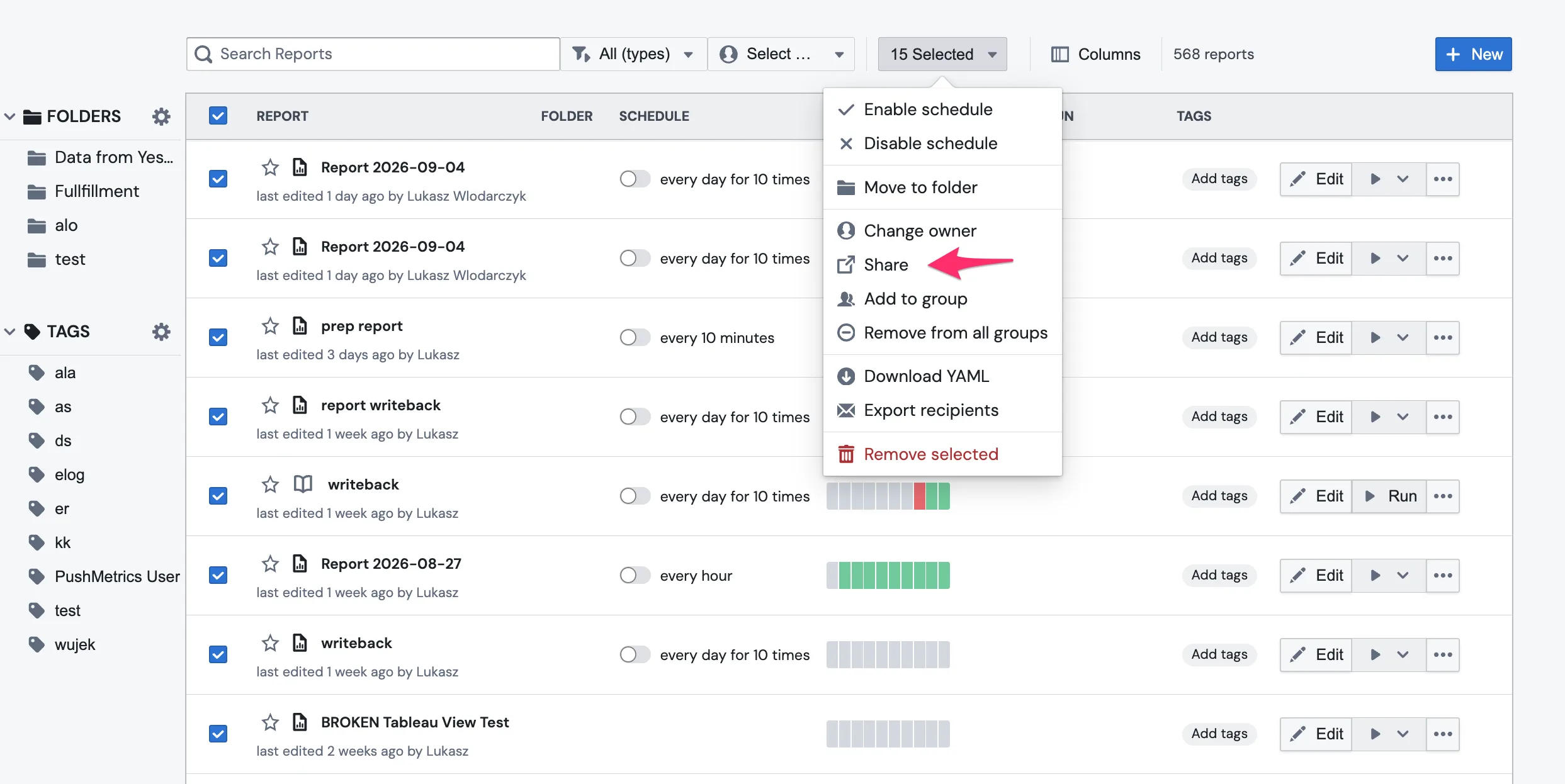
The report list can now do it in one action. Select the reports, open the bulk actions menu, and choose Share. Everything you select is shared in a single step — with your whole workspace, with one user, or with a group.
This is the same permission model described in Sharing & Permissions, applied to many reports at once. Nothing about how sharing works changes; only how many reports you can do it to in one go.
Sharing a selection
- Open the report list.
- Tick the reports you want. Use the checkbox in the header row to select everything currently listed.
- Open the bulk actions menu (the n Selected button) and choose Share.
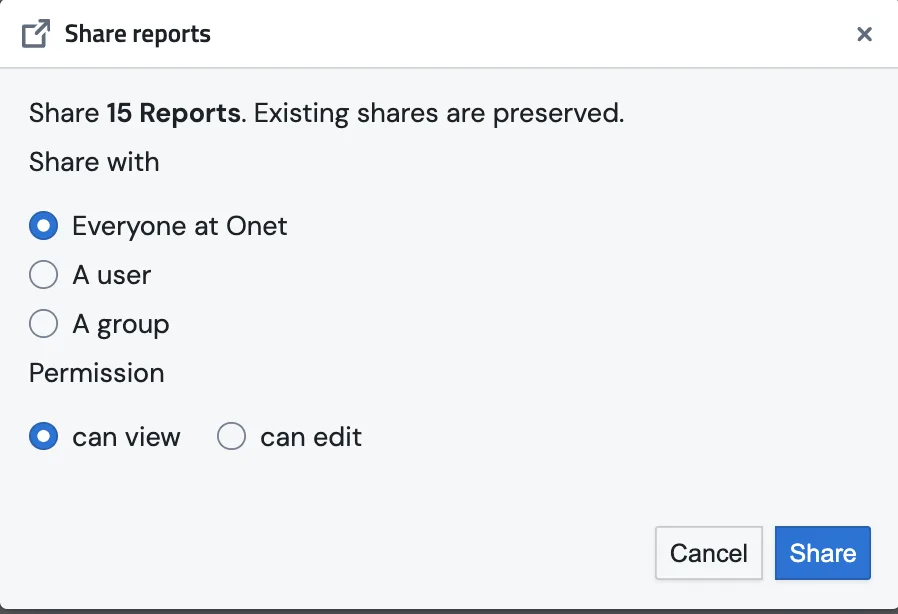
- In the Share reports dialog, pick who you are sharing with under Share with, and the Permission level.
- Confirm.
The dialog tells you how many reports it is about to act on, and restates the rule that matters most:
Share 15 Reports. Existing shares are preserved.
Who you can share with
Under Share with there are three options:
| Option | What it does |
|---|---|
| Everyone at your workspace | Grants every user in your workspace access to all selected reports. This is the same option, with the same wording, that the single-report Share popover offers. It names your own workspace, so you will usually see something like Everyone at Acme Analytics; where no workspace name is available it reads Everyone at this workspace. |
| A user | Grants one specific user access to all selected reports. Choose them with Select user. |
| A group | Grants a group access to all selected reports. Choose it with Select group. Everyone in the group gets access, including people who join the group later. |
Permission level
Permission offers the same two levels, with the same names, that the Share popover uses:
| Permission | What it allows |
|---|---|
| can view | See the reports and their contents |
| can edit | Everything in can view, plus modify the reports and manage their sharing settings |
can edit includes can view. The default is can view.
The third level, can use, does not apply to reports at all — it applies to database connections and integrations, where it means "may run queries through this". Reports are shared as can view or can edit, in bulk and one at a time alike. See Sharing & Permissions.
Reports and their data connections are shared separately. Bulk sharing grants access to the reports. It does not grant access to the database connections behind them. If your colleagues also need to run those reports, share the database connections too — see Sharing & Permissions.
Bulk sharing only ever adds access
This is the one rule worth internalising, because it is deliberately different from the single-report Share popover.
Bulk sharing is additive. It never removes access.
Shares that already exist on the selected reports are preserved. If half your selection is already shared with the Marketing group and you bulk-share the whole selection with Priya, the Marketing group keeps its access and Priya is added to all of them.
The single-report workspace toggle behaves differently: switching Everyone at ... off in the Share popover removes that share. Bulk sharing has no equivalent, and that is on purpose. Across a mixed selection a toggle would share some reports and unshare others in the same click — which is almost never what anyone means by "share these".
To remove access, use the Share popover on the individual report. There is no bulk un-share.
All of it, or none of it
Before anything is changed, PushMetrics checks the entire selection: every report must exist, and you must have edit permission on every one of them.
If any single report fails that check, the whole action stops and nothing is changed — not even the reports that would have passed. You get an error instead of a half-applied share, so you never have to work out which reports in a selection of forty actually went through.
In practice you will see this when a selection includes a report you can only view. Admins have edit access to everything in the workspace, so this mostly affects non-admin users sharing a mixed selection.
Sharing every report in a folder
There is no separate "share this folder" action, because folders do not carry sharing settings of their own — the reports do. The way to share a folder's contents is to filter the list down to it and select all:
- In the report list, filter by the folder.
- Select all the listed reports with the header checkbox.
- Bulk actions → Share.
One thing to know about this: it shares the reports that are in the folder right now. A report you move into that folder next week is not shared automatically — folders are not a live permission boundary. When you add reports to a shared folder, share them too.
Who can bulk-share
The permission model is the one described in Sharing & Permissions:
- You need edit permission on every report in the selection. Admins have it on every report in the workspace.
- Guest users cannot share reports, in bulk or otherwise.
- Sharing is scoped to your current workspace: you can only share with users and groups that belong to it.
One rule is specific to bulk sharing: you cannot pick a Guest as the target of a bulk share. Guests are read-only accounts, so granting one can edit on a batch of reports is never what is intended. If a Guest needs to see the reports, share with a group they belong to, or with the workspace.
Related
- Sharing & Permissions — the permission model, roles, and the single-report Share popover
- User Management — inviting users, groups, and roles
- Organizing Your Content — folders, tags, and filtering the report list