Skills tell an agent when to run a workflow and what to do. Forms give that workflow a structured input step: buttons, dropdowns, radio groups, checkboxes, date pickers, and text fields that work in the PushMetrics chat UI and in Slack.
Put them together and you get a lightweight app inside a conversation. A user can type a short trigger like tableau-form, pick a few options, and the agent has enough structured input to run the right export, query, alert, or report without a long back-and-forth.
This guide walks through the pattern using a Tableau export workflow, then shows the form options you can reuse for other workflows.
The pattern
A good skill-plus-form workflow has four parts:
- Trigger: the phrase or request that should activate the skill.
- First choice: usually a small button choice that decides which path the user wants.
- Form: the structured fields needed for that path.
- Action: what the agent should do with the answers.
In plain English:
When the user asks for X:
1. Ask them which variant they want.
2. Show the form for that variant.
3. Use the submitted answers to run the correct tool or workflow.
4. Reply with the result.
The skill is the durable part. Once it is assigned to an agent, everyone who talks to that agent can use the same workflow from chat or Slack.
Example: Tableau export form
Imagine you want a Slack-friendly Tableau export flow. Instead of teaching every user the workbook names, view names, filters, and export formats, you create a skill called tableau-form.
When someone types tableau-form, the agent first asks which workbook they want:
- Superstore
- Regional
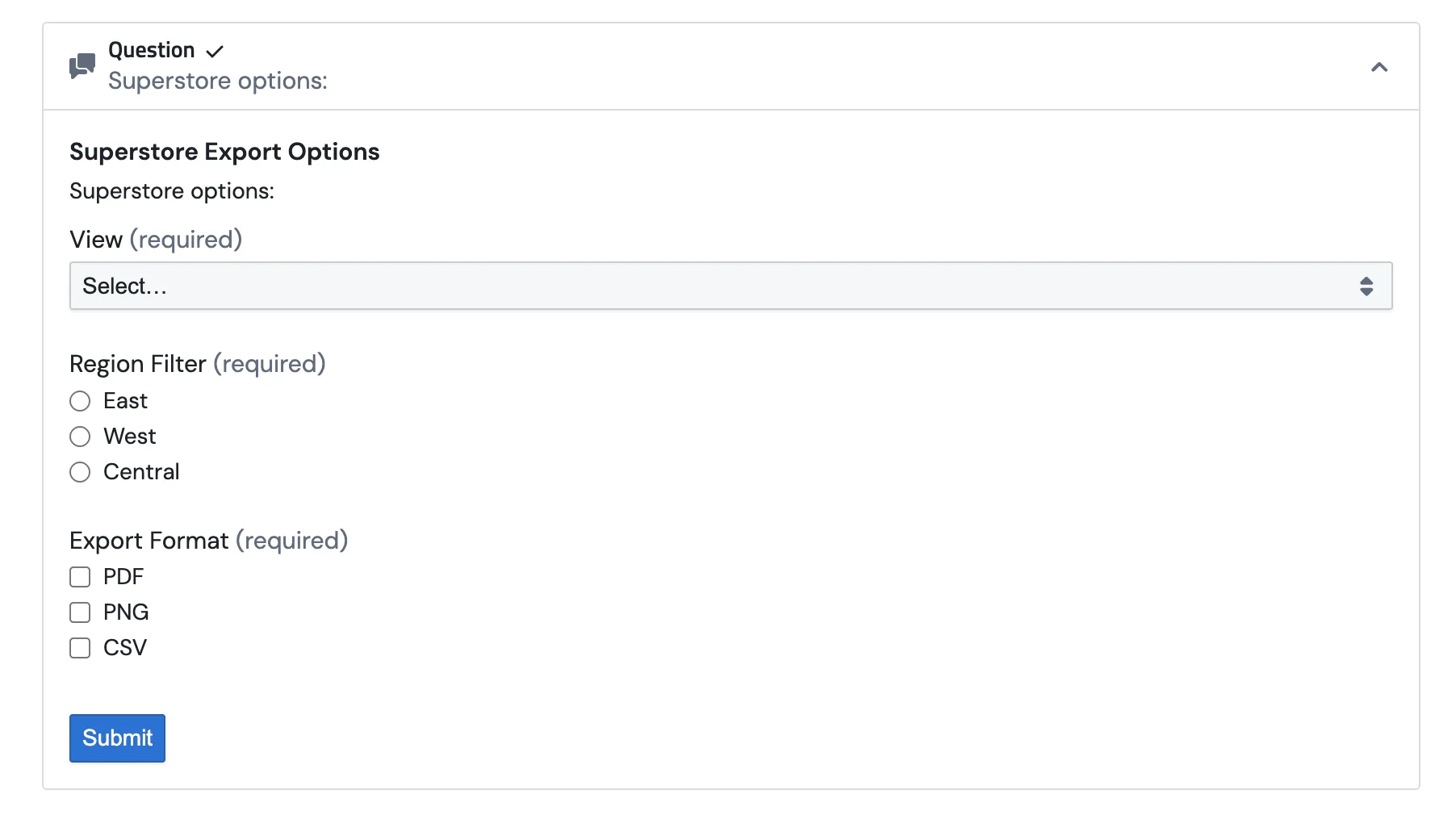
If they pick Superstore, it shows a form with:
- A view dropdown: Overview, Product, Customers, Shipping
- A region radio group: East, West, Central
- Export format checkboxes: PDF, PNG, CSV
If they pick Regional, it shows a smaller form with:
- A view dropdown: Economy, Stocks
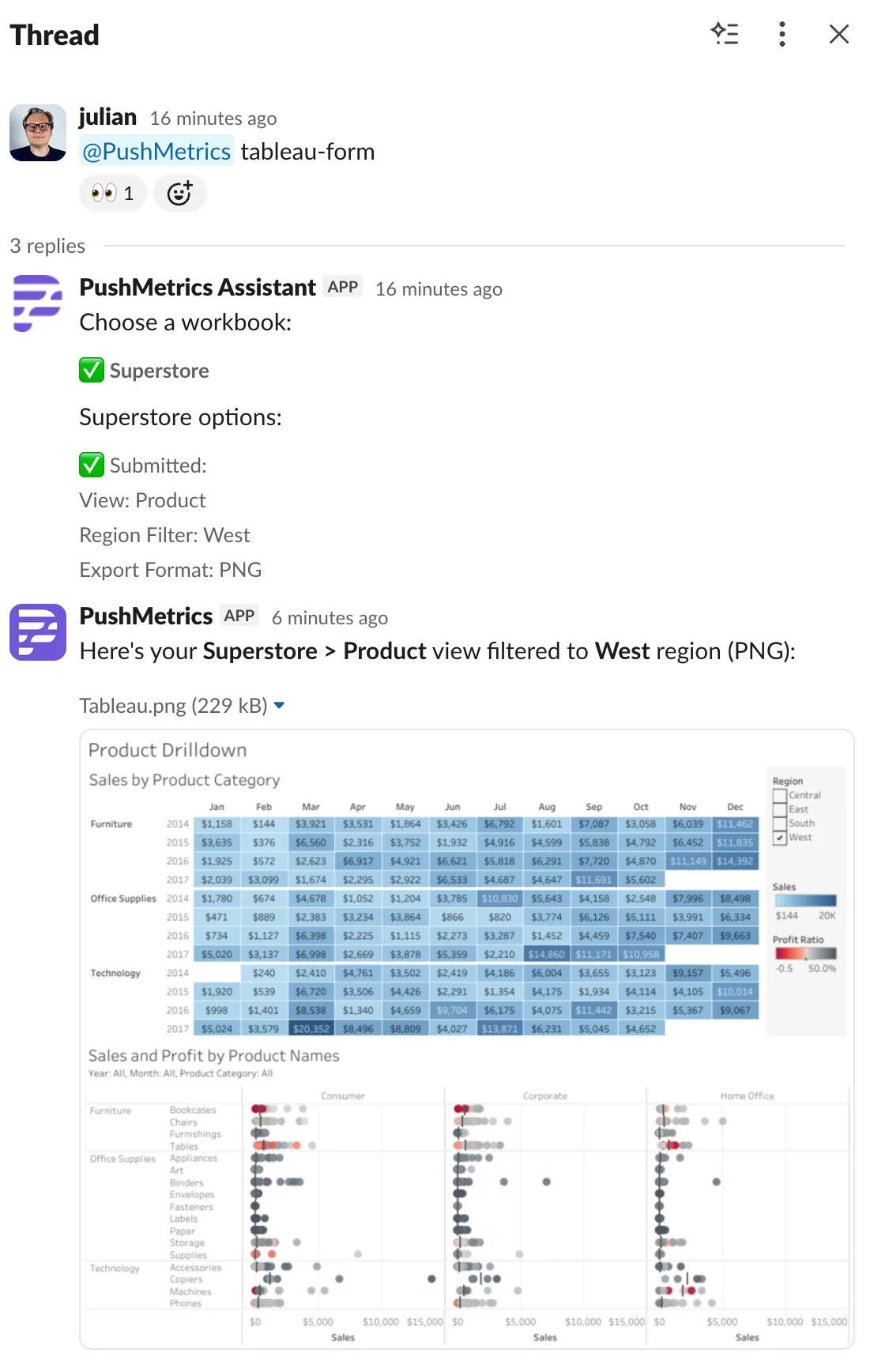
After the user submits the form, the agent searches the right Tableau view, applies the selected filters, exports the requested format, and replies with the file. In Slack, the file is posted back into the same thread.
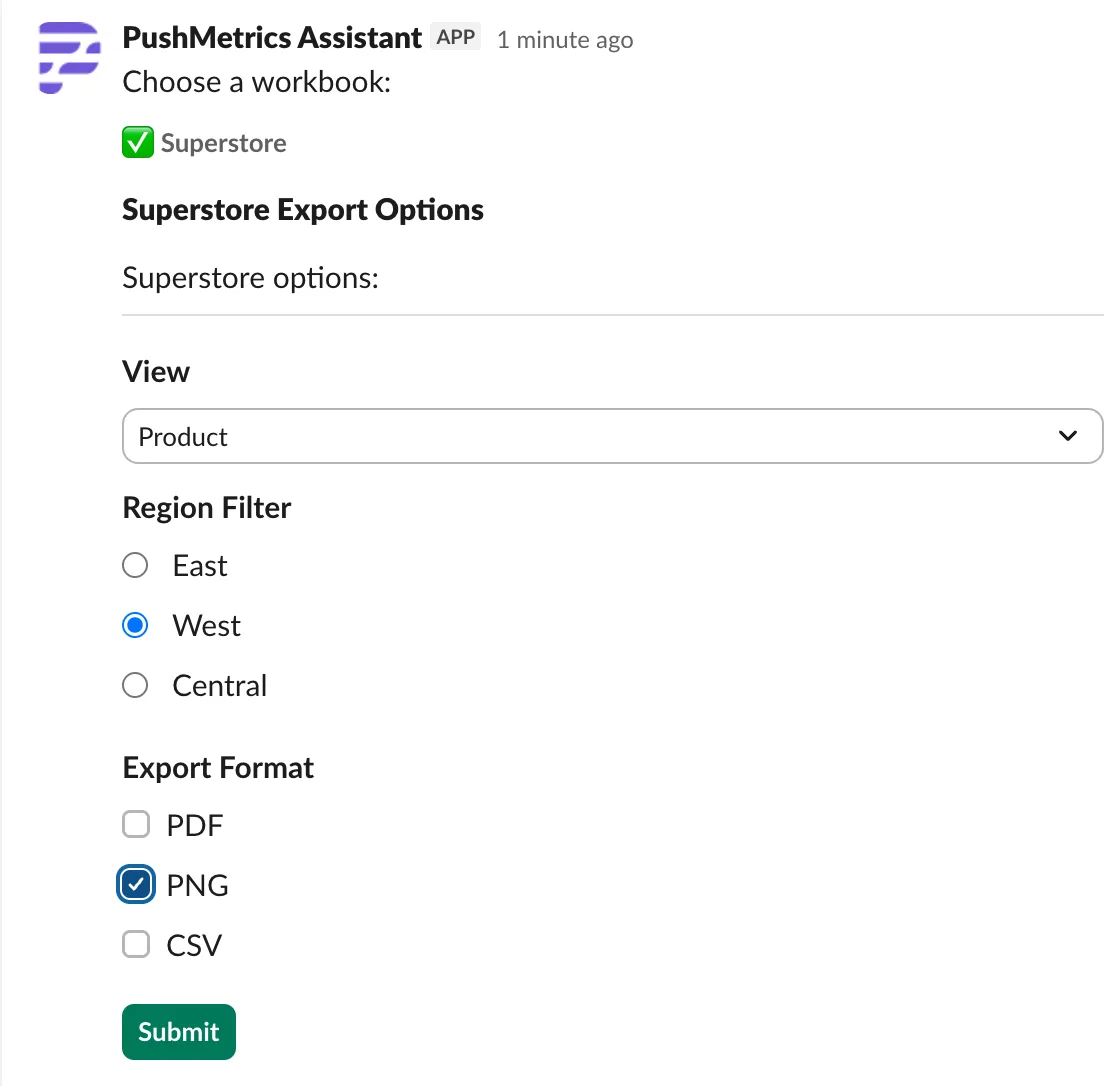
The same skill works in Slack. The agent renders the workbook choice, then the export options form directly in the thread:
When the export is done, the agent sends back the generated Tableau result:
The skill
Create a new skill under Settings -> AI Capabilities -> Skills. A complete version could look like this:
---
name: tableau-form
description: Use when a user types "tableau-form" or asks for the Tableau export form.
category: Integrations
---

# Tableau Export Form

When a user types `tableau-form` or asks for the Tableau form, run this workflow.

## Step 1: choose a workbook

Ask the user:

> Choose a workbook:

Use button options:

```json
["Superstore", "Regional"]
```

## Step 2A: Superstore form

If the user chooses `Superstore`, ask for the export settings with this form:

```yaml
title: Superstore Export Options
description: Choose the Tableau view, region filter, and export format.
submit_label: Export
fields:
  - name: view
    type: select
    label: View
    required: true
    options:
      - Overview
      - Product
      - Customers
      - Shipping

  - name: region
    type: radio
    label: Region Filter
    required: true
    options:
      - East
      - West
      - Central

  - name: export_formats
    type: checkboxes
    label: Export Format
    required: true
    options:
      - PDF
      - PNG
      - CSV
```

After the form is submitted:

1. Search Tableau for the selected Superstore view.
2. Apply the selected region filter.
3. Export one file for each selected export format.
4. Reply with the exported file or files.
5. If the conversation is in Slack, send the exported files back to the current Slack thread.

Use descriptive filenames in this format:

```text
Superstore - <View> - Region <Region>
```

## Step 2B: Regional form

If the user chooses `Regional`, ask for the view with this form:

```yaml
title: Regional Export Options
description: Choose the Regional Tableau view to export.
submit_label: Export
fields:
  - name: view
    type: select
    label: View
    required: true
    options:
      - Economy
      - Stocks
```

After the form is submitted:

1. Search Tableau for the selected Regional view.
2. Export the view as a PNG unless the user asked for another format.
3. Reply with the exported file.
4. If the conversation is in Slack, send the exported file back to the current Slack thread.
Two details are doing the work here.
First, the skill description is explicit. The agent sees that short description in its skill index, so phrases like tableau-form, "show me the Tableau form", or "I need the Tableau export form" route to the right skill.
Second, the workflow separates the first choice from the detailed form. The workbook choice is a small one-click decision, so it should be buttons. The export settings need several answers at once, so they belong in a form.
Assign the skill to an agent
Open the agent that should run the workflow and find the Skills section.
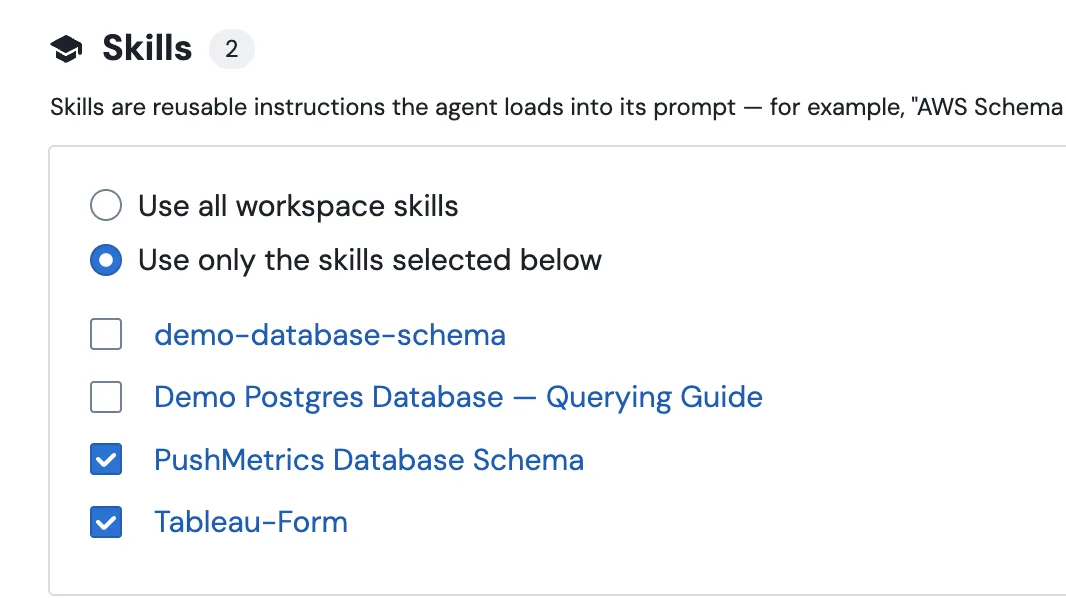
You have two choices:
- Use all workspace skills: the agent automatically sees
tableau-formand every other workspace skill. - Use only selected skills: tick
tableau-formin the checklist so this agent can use it.
For Slack workflows, the second option is usually cleaner. A channel-specific agent with only the relevant skills behaves more predictably than a general-purpose agent with every playbook in the workspace.
Once the skill is assigned, connect Slack under Settings -> AI Capabilities -> Inbound Channels and route the Slack channel to that agent. Now people can mention the agent in Slack and type:
tableau-form
The agent will start the same form flow in the Slack thread.
Choosing the right input type
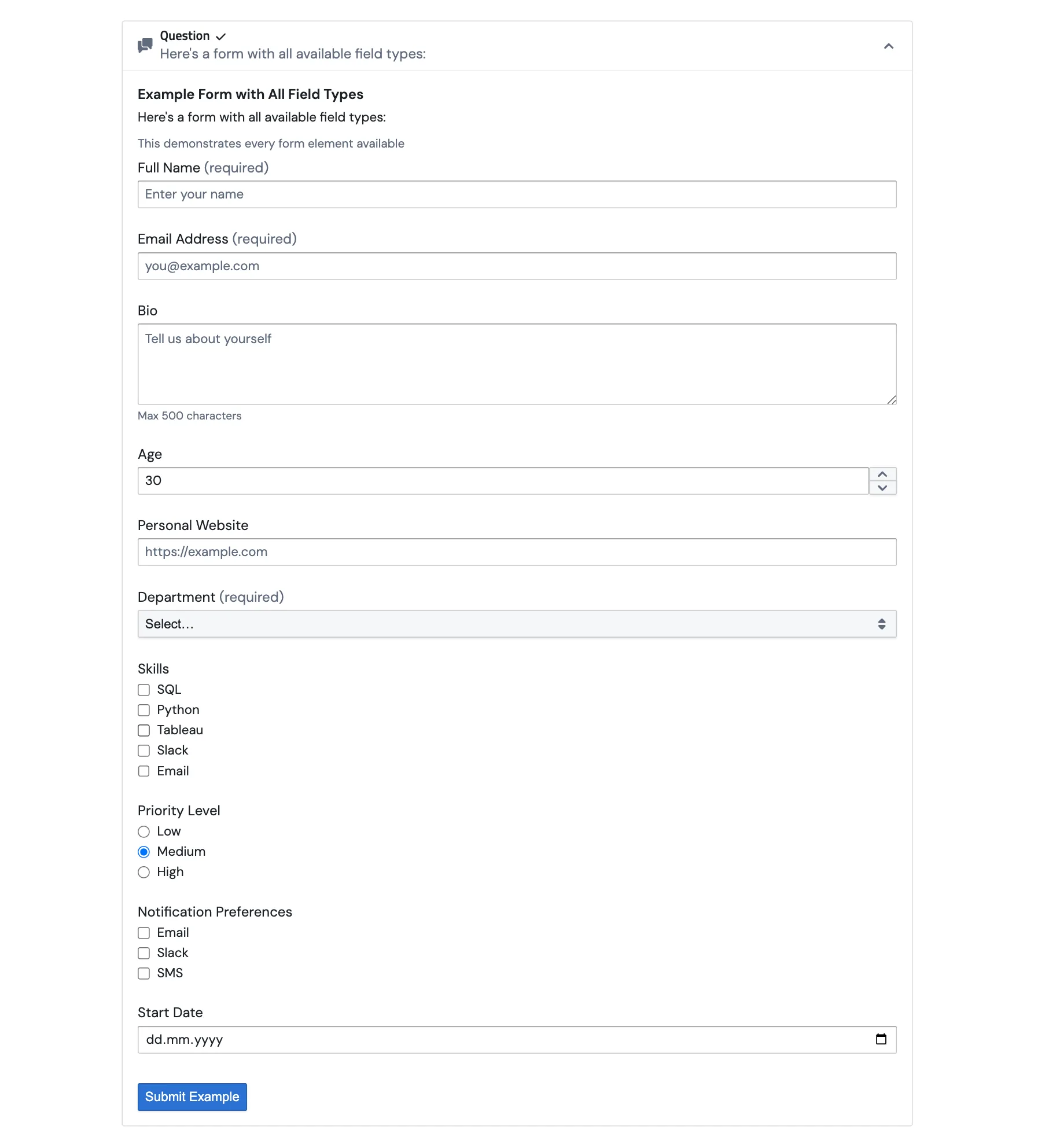
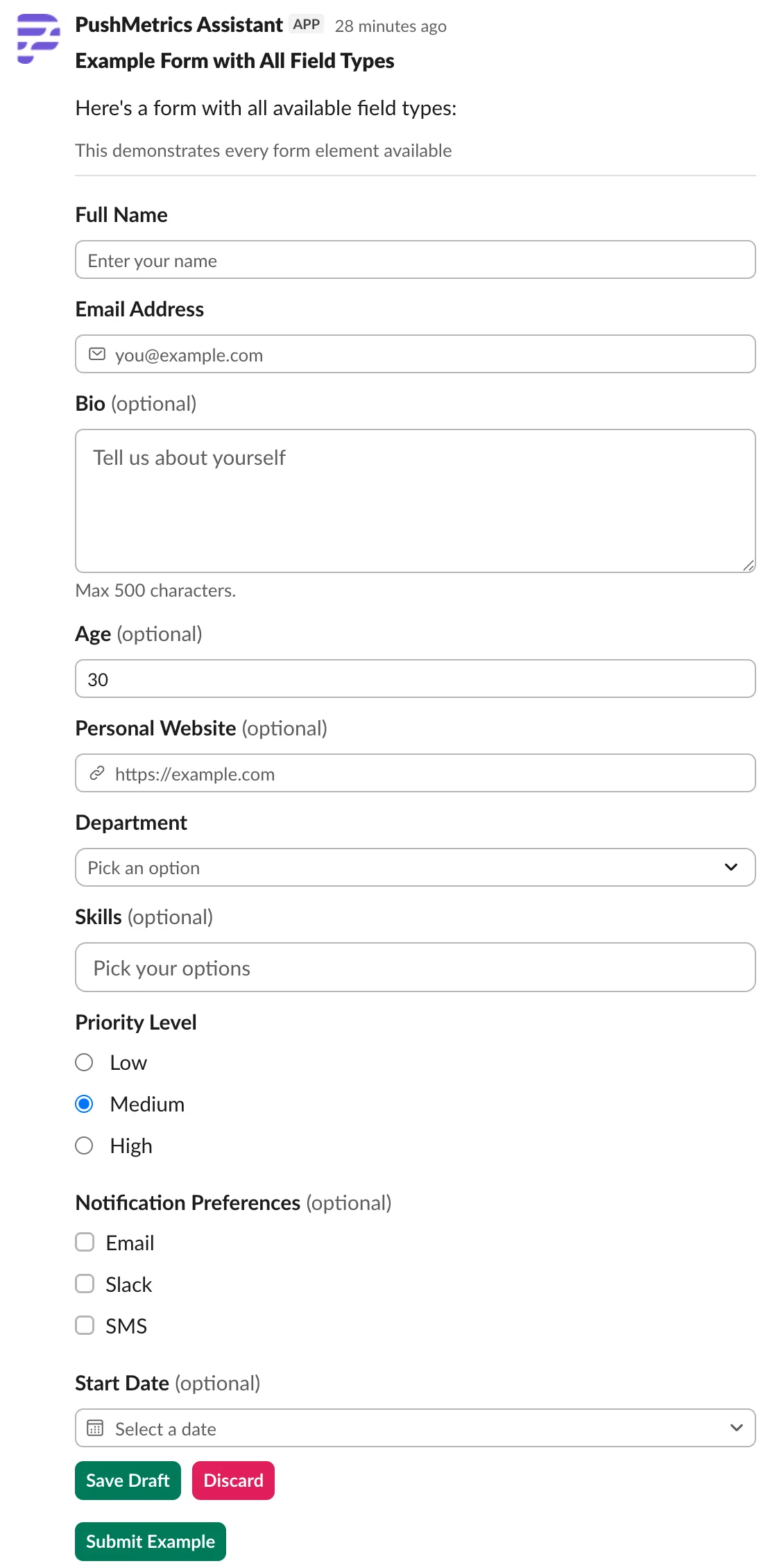
Forms support a few field types. Pick the smallest one that captures the user's intent.
In the web app, form fields render as normal chat UI controls:
In Slack, the same form definition maps to Slack Block Kit controls:
| Input type | Best for | Notes |
|---|---|---|
options |
A short one-step choice before a form | Renders as clickable buttons. Use for 2-5 choices. This is not part of the YAML form. |
buttons |
Submit-style decisions inside a form | Up to 5 buttons. Can use intent: primary or intent: danger. |
select |
One choice from a longer list | Up to 100 options. Good for workspaces, reports, views, or owners. |
multi_select |
Several choices from a longer list | Up to 100 options. Good for channels, recipients, or tags. |
radio |
One visible choice from a short list | Up to 10 options. Good when users should see all choices at once. |
checkboxes |
Several visible choices from a short list | Up to 10 options. Good for formats, destinations, or flags. |
text |
One-line text input | Good for names, IDs, or short labels. |
textarea |
Longer free text | Good for notes, instructions, or context. |
email |
Email address input | Use when the value should be an email. |
url |
URL input | Use for links to docs, dashboards, or tickets. |
number |
Numeric input | Supports min, max, and default. |
datepicker |
Date input | Supports min_date, max_date, and default. |
The practical rule:
- Use button options for a single quick branch.
- Use a form when you need multiple answers in one round trip.
- Use radio or checkboxes when there are only a few choices and seeing all of them helps.
- Use select or multi_select when the list is longer.
Form YAML basics
Every form has a title, optional description, optional submit label, and a list of fields.
title: Configure alert
description: Pick the slice and threshold for this alert.
submit_label: Create alert
fields:
  - name: alert_name
    type: text
    label: Name
    required: true
    placeholder: Daily revenue dip

  - name: threshold
    type: number
    label: "Threshold (%)"
    min: 0
    max: 100
    default: 10

  - name: channels
    type: checkboxes
    label: Notify
    options:
      - Slack
      - Email
      - PagerDuty
Field name is the machine-readable key the agent receives after submission. Keep it stable and simple: view, region, export_formats, starts_on.
Field label is what the user sees. Make labels human-friendly: Export Format, Starts on, Region Filter.
For choice fields, options can be simple strings:
options:
  - East
  - West
  - Central
Or label/value pairs:
options:
  - {label: "US East", value: us_east}
  - {label: "US West", value: us_west}
Use label/value pairs when the user-facing label differs from the value the agent should pass to a tool.
More workflow examples
The same pattern works beyond Tableau.
Weekly KPI pack
Trigger: weekly-kpi-pack
Form fields:
team: select from Sales, Product, Support, Financedate_range: select from Last week, Last month, Quarter to dateinclude_sections: checkboxes for Revenue, Usage, Churn, Pipelinedestination: radio for Slack or Email
Action:
The agent runs the relevant metric queries, creates charts, writes a short summary, and sends the pack to the chosen destination.
Customer health check
Trigger: customer-health
Form fields:
account: text or selectlookback_days: numberinclude_tickets: checkboxes for Open tickets, Escalations, Feature requestsoutput_style: radio for Executive summary, Detailed analysis, Renewal risk
Action:
The agent pulls usage, tickets, revenue, and notes, then replies with a structured account summary.
Incident update
Trigger: incident-update
Form fields:
severity: radio for P0, P1, P2, P3affected_area: selectsummary: textareastatus_page: checkbox for Publish status-page draftnotify: checkboxes for Slack, Email, PagerDuty
Action:
The agent drafts the incident update, formats it for each destination, and asks for confirmation before sending anything public.
Tips for reliable form workflows
Keep the trigger phrase obvious. A skill named tableau-form should say "Use when the user types tableau-form" in the description.
Keep forms short. If a form has more than 8-10 fields, split it into a first choice plus a smaller follow-up form.
Use required fields for anything the downstream tool needs. If Tableau export needs a view, mark view as required: true.
Prefer explicit option values when calling tools. A label like Product Detail can map to a value like product_detail, which is easier for the agent to pass into an API.
Tell the agent what to do after submission. The form collects input, but the skill still needs the action: search the view, apply filters, export, attach the file, reply in Slack.
Add confirmation before destructive or public actions. Exports are safe to run immediately. Sending a company-wide announcement or changing data should usually end with a confirmation button.
Why this works well in Slack
Slack is a high-friction place to collect structured input if users have to type everything manually. Forms remove the guesswork.
Instead of this:
Can you export the Product view from Superstore for West as a PNG?
Users can type:
tableau-form
Then click through the workflow. The agent receives clean structured values, which means fewer clarification questions, fewer spelling issues, and more repeatable results.
For teams, that is the real benefit: you turn a fragile prompt into a reusable workflow that lives behind a short phrase.