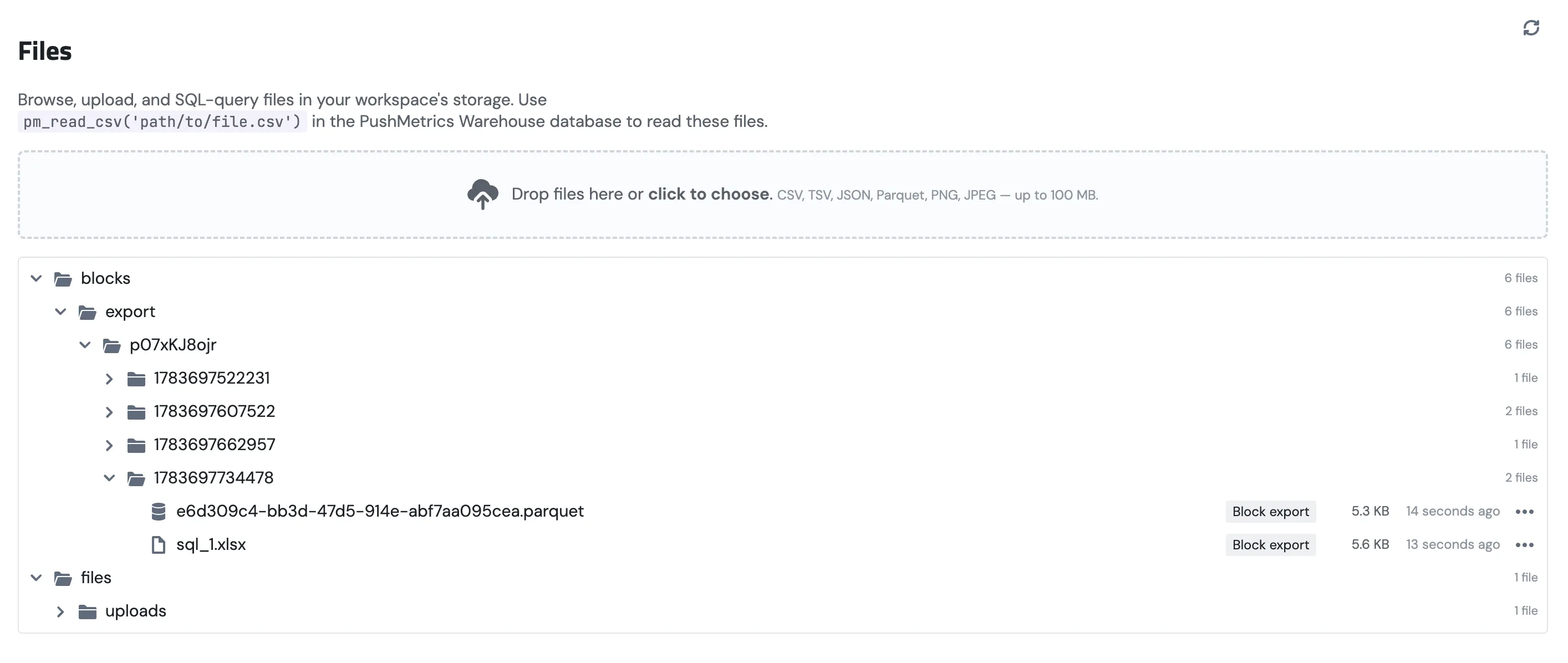
The PushMetrics Warehouse turns the files in your workspace's storage into a database you can query with SQL. There's no separate data warehouse to set up, no ETL, and no credentials to wire up. Upload a CSV or Parquet file (or use the exports your scheduled reports already produce) and read it with a simple pm_read_csv('sales/q1.csv').
It comes with a Files page for browsing, previewing, and uploading those files, and a matching PushMetrics Warehouse connection that shows up automatically in the database picker. You get one per workspace, already scoped to your own data.
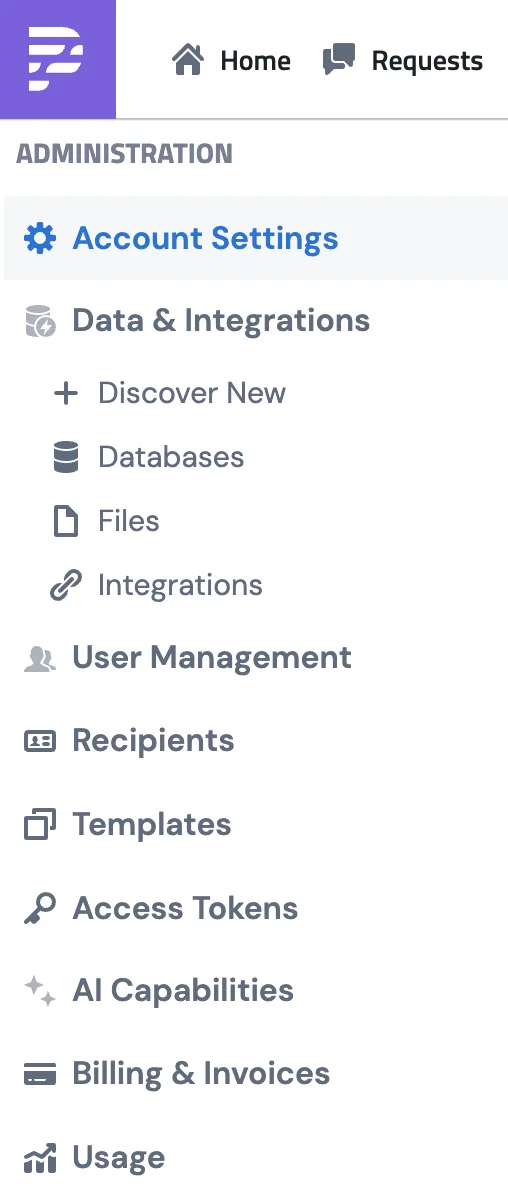
Rolling out gradually. The Warehouse is being enabled workspace by workspace. If you don't see the Files item under Data & Integrations yet and would like it switched on, contact support via the in-app chat.
What you can do with it
- Query files you upload. Drop a CSV, TSV, Parquet, or Excel (.xlsx) file onto the Files page and read it with
pm_read_csv(...),pm_read_parquet(...), orpm_read_xlsx(...). - Query your report exports. Every file a scheduled report writes to storage shows up here automatically and is queryable too, so you can join yesterday's export against a lookup table without leaving PushMetrics.
- Browse and preview. See a folder tree of everything in your workspace storage, preview CSV, Parquet, and Excel files as tables (and JSON as text, images inline), and download any file with a secure, time-limited link.
- Find files fast. Search by file name, filter by type, format, or date, and sort the tree by newest or oldest. Expand all opens every folder in one click when you'd rather scan the whole tree.
Where to find it
Open the left sidebar and expand Data & Integrations, then click Files. The matching database shows up in the SQL editor and under Data & Integrations → Databases as PushMetrics Warehouse.
Before you start
- The Warehouse needs your workspace to have file storage configured. This is set up for you by default, and workspaces on the Professional plan can point it at their own S3 bucket. See Private S3 Connection for that.
- Any workspace member who can use the SQL editor can query the Warehouse. Uploading and deleting files is available to members with edit access.
- Supported upload types are CSV, TSV, JSON, Parquet, Excel (.xlsx), PNG, and JPEG, up to 100 MB per file.
Upload a file
- Go to Data & Integrations → Files.
- Drag a file onto the dropzone, or click click to choose to pick one. You can drop several at once.
- The file appears in the tree under Uploads with an Upload tag once it finishes.

Files you upload are yours to change, so you can delete them from the row menu whenever you like. Files that came from report exports are tagged Block export and are read-only. You can preview, query, and download them, but the delete action stays disabled so a scheduled report's output is never removed by accident.
Find a file: search, filter, and sort
The toolbar above the file tree narrows down what you see. All of it combines, so you can search within a type, format, and date range at once:
- Search matches against the file's name (not its folder path), case-insensitively.
- Type filters by where the file came from: Uploads, Block exports, Chart renders, Reports, Tableau, or Other.
- Format filters by file extension (.csv, .tsv, .json, .parquet, .xlsx, .png, .jpg, .jpeg).
- The time picker limits results to the last 24 hours, 7 days, 30 days, or a custom date range.
- Newest / Oldest sorts the whole tree by modified time. Folders order by their most recent file, so with Newest selected the folder that just received an export is always at the top.
A Clear button appears whenever a search or filter is active, and resets everything except the sort order.
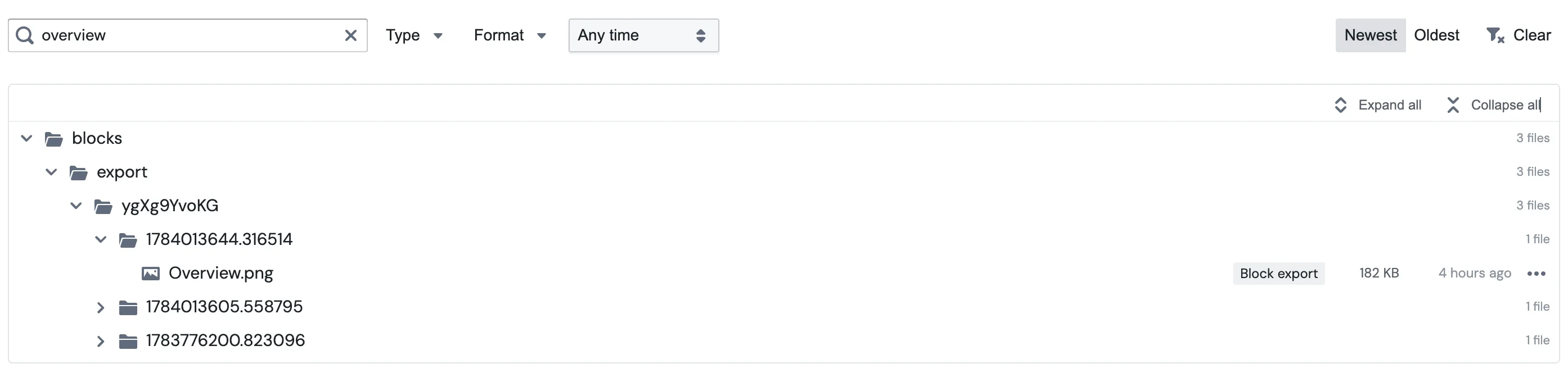
Above the tree itself, Expand all opens every folder at every depth — handy for the deeply nested paths report exports create — and Collapse all folds the tree back up.
File actions
Each file has a row menu, the ⋯ button on the right, with everything you can do with it: Preview, Copy SQL query, Download, and Delete. Delete is disabled (shown as Delete (read-only)) for report exports, so a scheduled report's output can't be removed by accident.

Preview a file
Click Preview in a file's row menu to look inside without downloading:
- CSV and TSV open as a table, and JSON opens as text.
- Parquet and Excel (.xlsx) show the first rows as a table, read live through the warehouse. The preview is capped at the first 20 rows, so run a query (or the Copy SQL query action) to see the whole file.
- PNG and JPEG render as an image.
- Anything else shows a short note so you can confirm what it is, and you can download it to inspect the rest.
Query a file
The Warehouse gives you a few safe helpers. You never type an s3:// path or a bucket name. You always reference a file by its path within your workspace.
Read a CSV or TSV:
SELECT *
FROM pm_read_csv('sales/q1.csv')
LIMIT 100;
Read a Parquet file:
SELECT region, SUM(amount) AS total
FROM pm_read_parquet('exports/orders.parquet')
GROUP BY region
ORDER BY total DESC;
Read an Excel file (pm_read_xlsx reads the first worksheet, using its first row as the column headers):
SELECT *
FROM pm_read_xlsx('reports/q1.xlsx')
LIMIT 100;
List everything available to query:
SELECT * FROM workspace_files;
workspace_files returns one row per file (key, size, last_modified, source), so you can see exactly what's queryable. On large workspaces, narrow it down with something like WHERE key LIKE 'sales/%'.
Tip: the fastest way to get a correct query is the Copy SQL query action in a CSV, Parquet, or Excel file's row menu on the Files page. It copies a ready-to-run SELECT with the right reader for that file type.
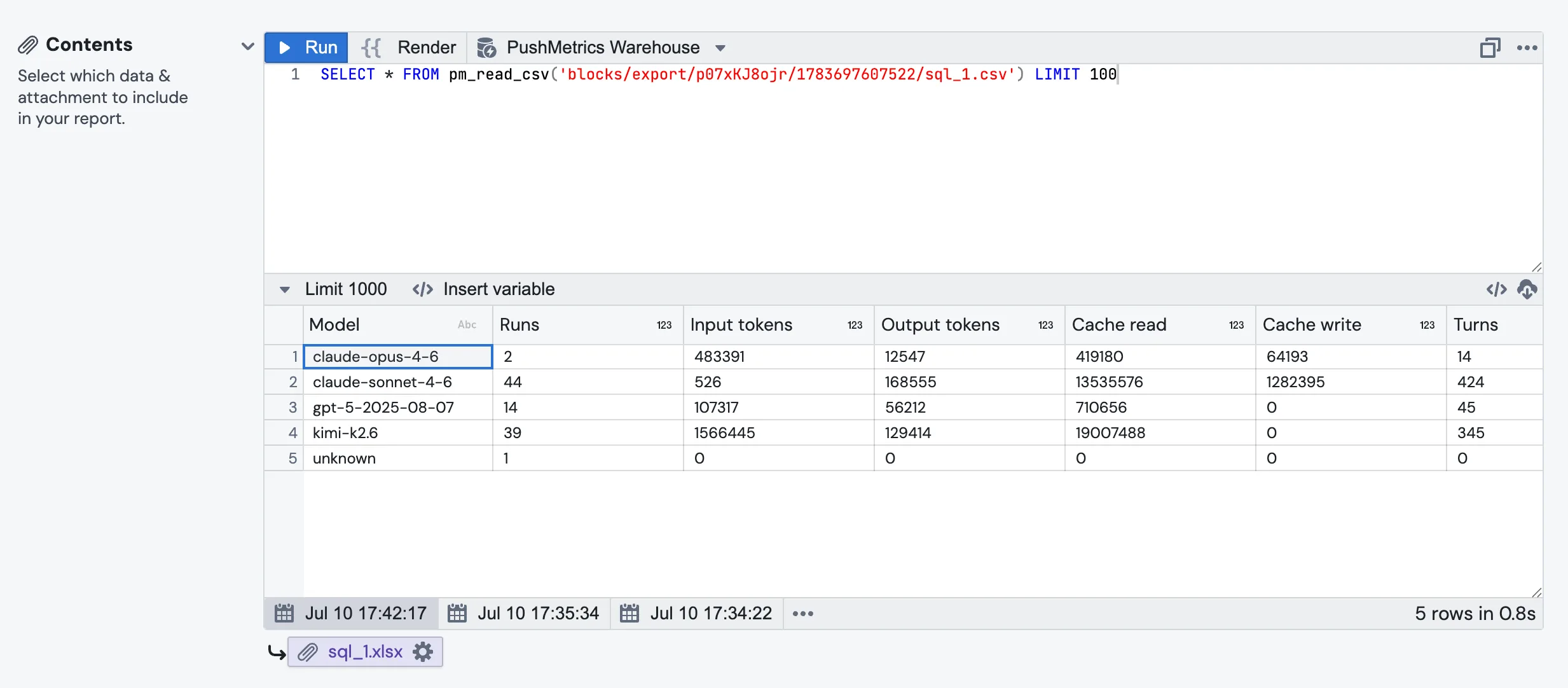
The Warehouse is just a normal PushMetrics database connection, so once your query works you can build charts, notebooks, and scheduled reports on top of it exactly like any other data source.
Download a file
Choose Download from a file's row menu. PushMetrics generates a secure, time-limited link and opens it. The link expires shortly after, so it's safe to use even for private data.
Security and isolation
The Warehouse is built so that one workspace can only ever read its own files:
- Scoped to your workspace. Every query, listing, upload, and download is confined to your workspace's own storage. There's no way to reach another workspace's files, another bucket, or an arbitrary URL from Warehouse SQL.
- No raw file access. Only the
pm_read_csv,pm_read_parquet, andpm_read_xlsxhelpers and theworkspace_fileslisting are allowed. Raw file-reading functions, external URLs, and the server's local filesystem are all blocked. - Read only. You can't write, drop, or alter data through the Warehouse. Report exports are additionally protected from deletion in the UI.
- Private links. Downloads always use short-lived, signed URLs, and files are never made public.
Troubleshooting
- The Files menu item isn't visible. The Warehouse is rolling out gradually. Contact support to have it enabled for your workspace.
- "File type … is not allowed" on upload. Only CSV, TSV, JSON, Parquet, Excel (.xlsx), PNG, and JPEG are accepted, and the file has to have the matching extension. Rename the file to the correct extension and try again.
- My upload is rejected as too large. The per-file limit is 100 MB. For bigger datasets, convert to Parquet (which is far more compact) or split the file.
- A query fails with a path error. Reference the file by its workspace-relative path exactly as shown on the Files page (for example
sales/q1.csv), not a fulls3://URL. Use Copy SQL query to get a snippet that's already correct. - I can't delete a file. Files tagged Block export are read-only report outputs and can't be deleted here. Only files you uploaded, tagged Upload, can be removed.