The Knowledge page in PushMetrics, listing knowledge entries the agent can search

Agents in PushMetrics get smarter over time because they have two ways of remembering things.

  • Memory is the agent's personal notebook. One per agent. Both you and the agent itself can write to it.
  • Knowledge Base is the team's shared library. One per workspace, searchable by every agent. You can write entries through the UI, and the agent can also create and edit entries on your behalf when it learns something new about how the team works.

This page covers both: what they are, how to fill them in, and when to use which.


Memory: the agent's own notebook

Every agent has its own private memory. It's a folder of markdown notes the agent can read at any time and update as it learns. Use memory for things like:

  • Workflows the agent should always follow ("the weekly report goes to #analytics first").
  • Numbers and definitions you want it to keep straight ("Q4 starts October 1st").
  • Templates and standard wording.
  • Rules ("never email customers without my approval").
  • Notes the agent writes for itself as it picks things up.

Adding a memory note

You manage an agent's memory from its edit page.

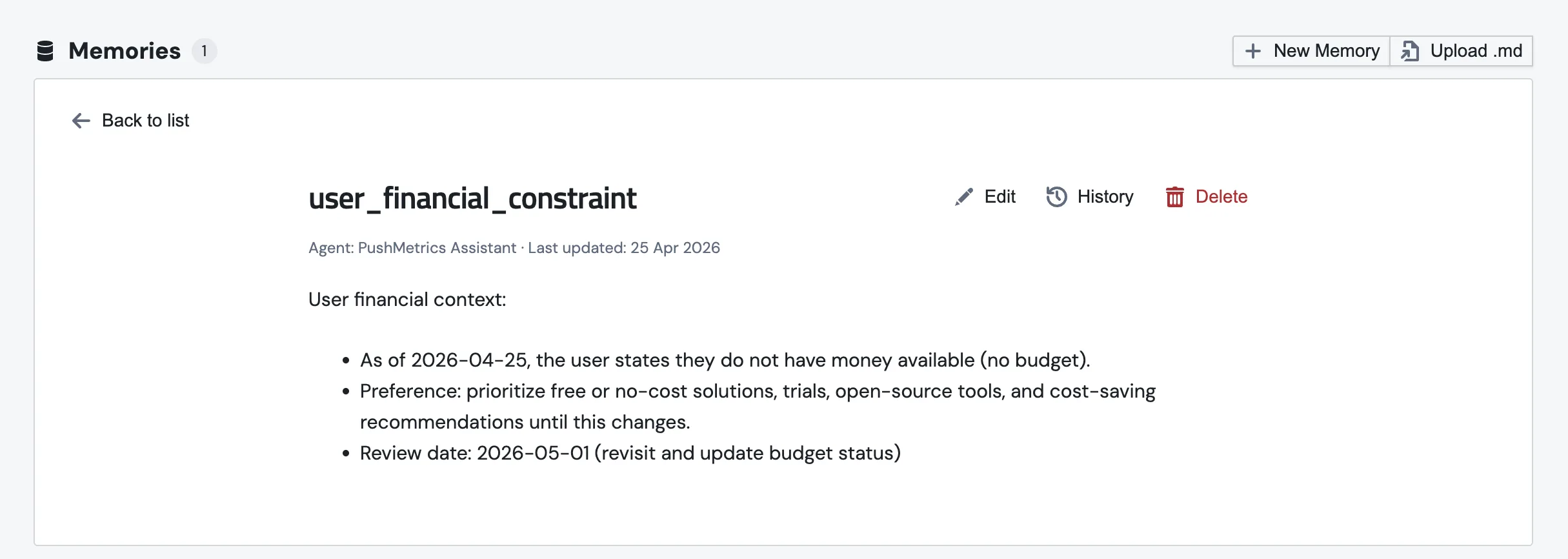
The Memories section on an agent's edit page, listing the agent's saved memory files with a name and last-modified date
1
Open the agent in Settings → AI Capabilities → Agents.
2
Scroll to the Memories section.
3
Click + New Memory to write a note in the editor, or Upload .md to import an existing markdown file.
4
Save. The next conversation with the agent will use it.

How memory keeps the agent on track

The whole point of memory is that it's already in the agent's head before the conversation begins. As soon as someone opens a chat, the contents of every memory note are part of the system prompt. The agent isn't relying on remembering to "go and look something up", because the rules are right there from message one.

A few things worth knowing:

  • Notes are loaded up front. Whatever you've written is part of the agent's starting context, so it doesn't forget rules just because the question was short.
  • The agent can update its own notes. When it learns something new mid-conversation, it can save it for next time using the same write tools you'd use through the UI.
  • Every change is saved with history. You can see every edit the agent made and when, and roll one back if it went sideways.
  • One notebook per agent. Two different agents have two different notebooks. Things one agent learns aren't visible to the other.
⏱️
Why memory works. Just telling an AI "check your notes first" is not reliable. The agent might skip the check if it thinks it already knows. Putting the notes directly into the conversation upfront is what makes the rules stick.

A real example

How to send the weekly report
1. Always use the "Weekly Metrics" SQL block for data.
2. Format currency to 2 decimal places.
3. Post the Slack summary to #analytics before sending the email.
4. Email goes to the "Leadership" recipient group.
5. Include a comparison chart (bar, not pie).
6. If any KPI dropped more than 10%, flag it in red.

Once you've saved this note, the agent follows all six rules every time someone asks for the weekly report. You don't have to repeat them.


Knowledge Base: the team's shared library

The Knowledge Base is for the things every agent in your workspace might need to know. Glossaries, definitions, runbooks, policies, anything that's "the source of truth for our team".

You'll find it under the Content page in the top nav. The Knowledge tab there lists every entry, who created it, and when it last changed.

Creating a knowledge entry

Creating a new knowledge entry in PushMetrics: a markdown editor with the title, body, and a save button

To add one:

1
Open Content → Knowledge in the top nav.
2
Click + New Knowledge.
3
Give it a clear title. The title is what the agent searches against, so make it descriptive ("Revenue glossary", not "doc 7").
4
Write the body in markdown. Plain text, lists, tables, links, all work. Save when you're happy.

How an agent uses the knowledge base

When an agent's session starts, the system prompt already contains a small index of every knowledge entry available to it: title, link, and a short hint of what's inside. The full bodies aren't loaded up front, since that would burn tokens.

When the agent decides it needs an answer, it goes through three steps:

SEARCH find relevant entries READ open the best matches ANSWER use the content in the reply

To make sure the agent doesn't miss anything important, the system runs that search for it on the very first message of every conversation. After that, the agent searches whenever it thinks it might need to.

📚
What to put in the knowledge base. Anything that's true for your whole company and any agent might need: definitions, glossaries, table descriptions, escalation procedures, FAQs, policies. If only one agent needs it, put it in that agent's memory instead.

Agents can write to it too

You're not the only one who can add to the knowledge base. When an agent learns something useful during a conversation (a new business term, a clarified definition, a process you've just walked it through), it can save the entry itself. It uses the same write tools you would, so the result lands in the same Knowledge tab and you can review or roll it back later.

Two practical points:

  • Every change is saved with history and tagged with whether a person or an agent made it. So if an agent invented something, you can spot it.
  • Knowledge is workspace-wide. Anything the agent saves is immediately visible to every other agent that has the Knowledge permission on. That's the point, but it means you'll want to keep an eye on what's getting added.

What people typically put there

Glossary
Business terms and what they mean for your team.
Data dictionary
What each table or column actually represents.
Standard processes
Things every agent should know how to do.
FAQs and policies
Common questions and the approved answers.

Turning knowledge on for an agent

Both memory and the knowledge base are switched on with the same thing: the Knowledge permission on the agent.

  1. Open the agent in Settings → AI Capabilities → Agents.
  2. Scroll to Agent Permissions → Knowledge.
  3. Turn on Use Knowledge Base.
  4. Click Save Changes.

That's enough for the agent to read its own memory notes and search the workspace knowledge base.


Memory or knowledge base?

A quick guide to which one to use:

Memory
Knowledge Base
Who can see it
Just one agent
Every agent in the workspace
When the agent uses it
From message #1, every time
When it needs to look something up
Who writes it
You and that one agent
You and any agent
Best for
"This agent always does it this way"
"This is how our company works"
💡
Use memory for things specific to one agent's job. Use the knowledge base for facts every agent in your workspace might need.