A scheduled report normally starts at its scheduled time and is delivered whenever generation finishes. For most reports that is a matter of seconds. But if your queries are slow, your Tableau exports are large, or the report goes out at a busy hour, "starts at 08:00" can quietly turn into "arrives at 08:12".
Early data preparation flips the guarantee around. When you enable it on a schedule, PushMetrics may start generating the report up to N minutes before the scheduled time, hold the finished output, and deliver it at the scheduled time. Your recipients get the report when they expect it, and the data is never older than N minutes.
The option is off by default. Schedules that do not use it behave exactly as before.
Turning it on
Open the report, scroll to the Schedule row at the bottom and click edit to open the Execution Trigger dialog. Below the schedule fields there is a new Early data preparation section with a toggle:
Allow early data preparation To improve on-time delivery, PushMetrics will generate the data & attachments needed ahead of the scheduled time.
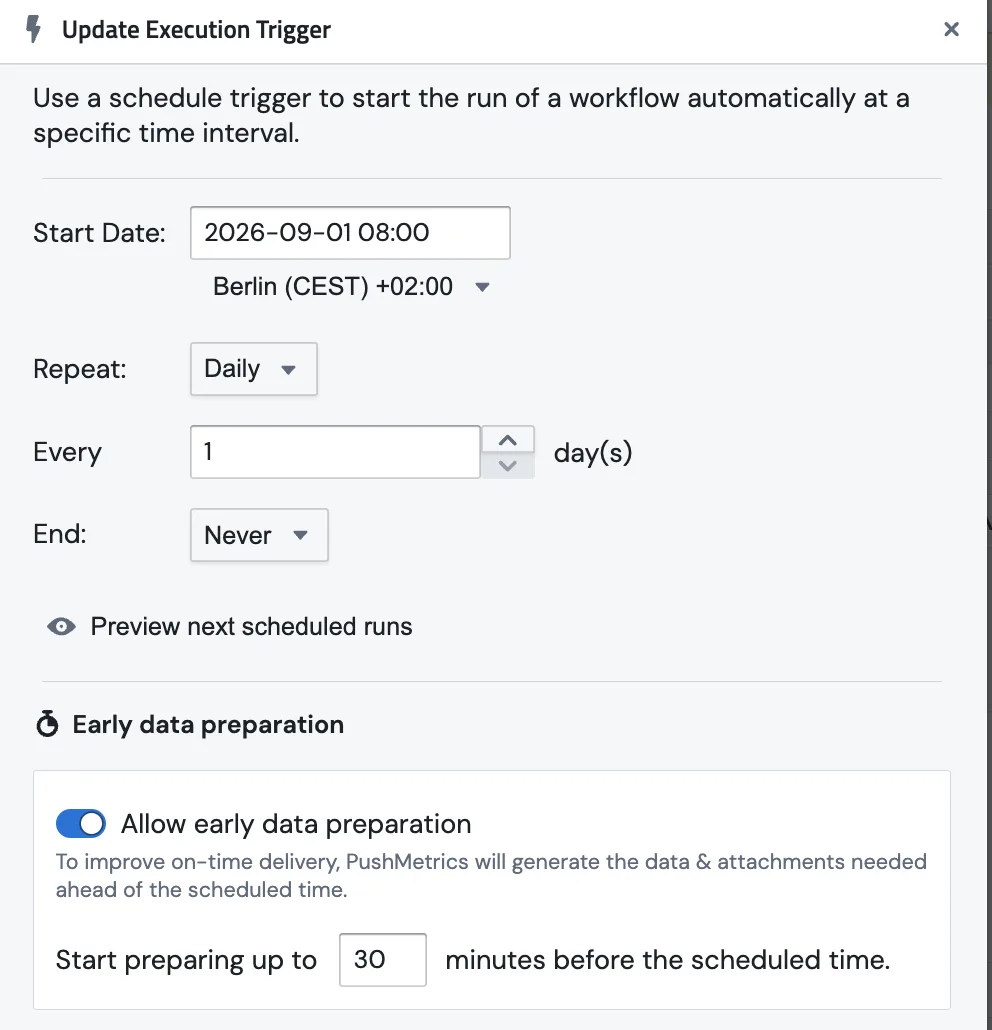
When you switch it on, an input appears:
Start preparing up to [ 30 ] minutes before the scheduled time.
- The default is 30 minutes.
- Any whole number from 1 to 45 is accepted. Values outside that range show Enter a whole number between 1 and 45 minutes. and the schedule cannot be saved until you fix it.
- Switching the toggle off again clears the value; the schedule goes back to starting at the scheduled time.
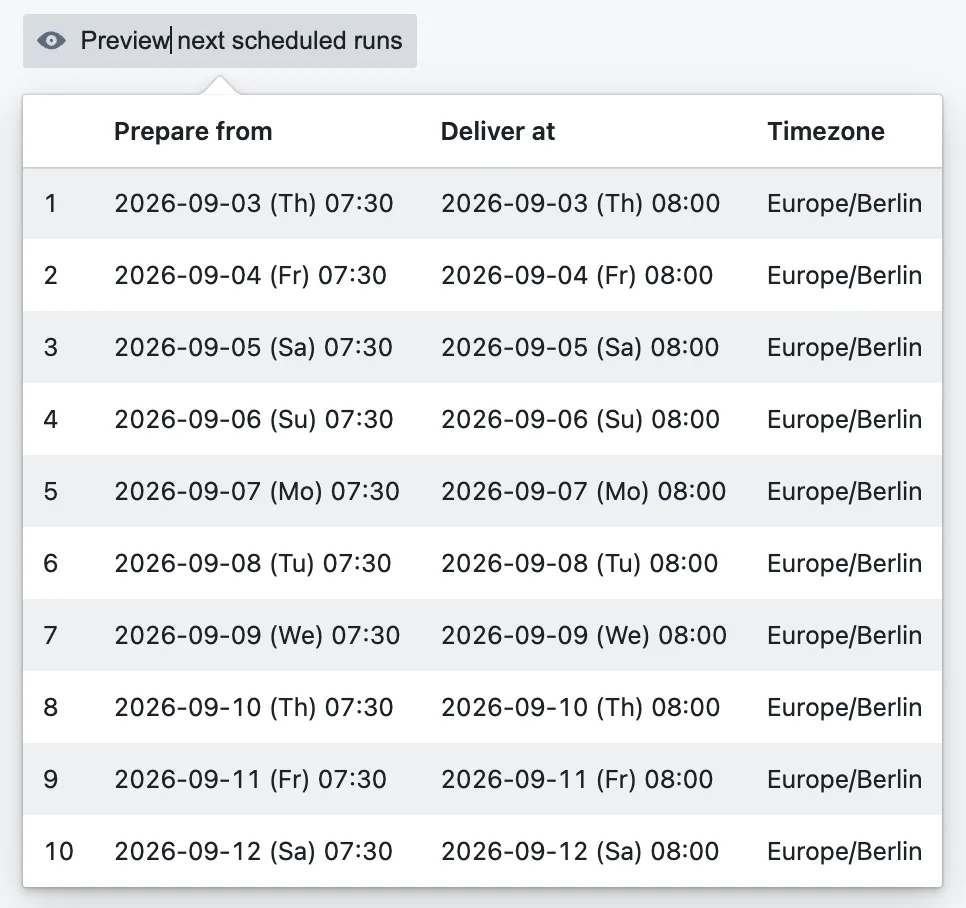
Preview next scheduled runs now shows both moments for every upcoming run in two columns, Prepare from and Deliver at, for example 2026-09-03 (Th) 07:30 next to 2026-09-03 (Th) 08:00. The dates make it clear when preparation starts on the day before delivery, such as a schedule for 00:15 with 30 minutes of preparation.
Once saved, the Schedule row summary in the report editor mentions it too: every day at 08:00 (prep from 07:30).

What happens at run time
Take a schedule for 08:00 with 30 minutes of early preparation.
- 07:30 – the run starts. PushMetrics queues the run 30 minutes before the scheduled time and executes every generation step: SQL queries, Tableau and chart exports, attachments, and all mail-merge iterations.
- Generation finishes early – the run waits. The run enters the Waiting for delivery state. Nothing is sent anywhere while it waits.
- 08:00 – delivery. The hold is released and the run delivers to all of its destinations, then completes as usual. Success and error notifications go out after delivery, not after generation.
- Generation finishes late – deliver right away. If generation is still running at 08:00, the run never waits: it delivers the moment generation finishes, exactly as a schedule without early preparation would. How late it was is recorded on the run (see below).
- Generation fails – the run fails. A failed query or export fails the run in the usual way; there is nothing to hold.
A few things do not change:
- The schedule's next run is still the scheduled delivery time. Only the moment the work starts moves earlier.
- Run now and webhook triggers never wait. They run and deliver immediately, as always.
- The delivery hold is released exactly once, even when the platform retries work behind the scenes.
Which steps are held back
The hold sits between generation and delivery. Every outbound destination waits for the scheduled time:
- Slack
- Webhook
- SFTP
- AWS S3
- Google Drive
- Google Cloud Storage
- Azure Blob Storage
Any task that depends on one of these is held as well, and the order between them is preserved: an email that links to a file the same run uploaded still sees that file, both simply happen at the scheduled time.
Writeback tasks and Google Slides updates are treated as part of generation and run as soon as their inputs are ready. Tell us if your workflow needs them held back too.
What you see in the run history
The Execution Log shows the whole timeline of a prepared run.
- Status: Waiting for delivery. While the output is held, the run carries the
waitingstatus, filterable through the status filter as Waiting for delivery. A lock marker next to the status explains it on hover: Waiting for delivery — data is prepared; delivery opens at 08:00. Times are shown in your local time zone. - After delivery the marker turns into a stopwatch and reads Prepared early — delivered at 08:00. If generation overran the scheduled time it adds the lateness, for example delivered at 08:07, 7 min after the scheduled time.
- Started At is when preparation began (07:30 in the example), so the difference between Started At and the delivery time is the time the data was held.

The same information is available to your own tooling through the Run History API, which returns the waiting status and the gate fields on every run.
Cancelling a held run
While a run is waiting you can still stop it:
- Mark as failed on the run in the Execution Log cancels the delivery. Nothing is sent.
- Disabling the schedule while a run is waiting also cancels the delivery. The run is marked as cancelled with the note Delivery cancelled: the schedule was disabled while the run was waiting for its delivery time.
The one exception is a schedule that simply reached its last occurrence. That switches the schedule off automatically, and a run that is already waiting for that final delivery still goes out.
Choosing the number of minutes
- Look at how long the report usually takes in the Execution Log and add a comfortable margin. If generation typically takes 6 minutes and you want it delivered at 08:00 even on a slow morning, 15 to 20 minutes is plenty.
- Pick the smallest window that reliably finishes in time. The data in the report is as old as the moment generation ran, so a 45-minute window means the numbers can be up to 45 minutes behind the delivery time.
- If your source data lands shortly before the delivery time, set the window so preparation cannot start before the data is ready. For a report that must not start before 07:45 and goes out at 08:00, use 15 minutes.
- The maximum is 45 minutes. A run keeps its worker while it waits, so longer holds are not allowed in this version.
What is coming next
The hold is built as a generic delivery gate. Today the gate opens on time; a planned follow-up lets a person open it instead, so a report can be reviewed and approved before it goes out. Approvals are not available yet, and the gate_type value manual you may notice in the API is reserved for that feature.
Related
- Run History API: the
waitingstatus and the gate fields on every run. - Reports API: reading and setting early preparation on a schedule from your own scripts.
- Workflow Logic Overview: how tasks and dependencies inside a report are ordered.