PushMetrics integrates with Microsoft Power BI, so you can export standard and paginated reports and send them in emails, Slack messages, or scheduled reports.
PushMetrics connects as a Microsoft Entra service principal (an app registration with a client secret). It does not use a person's Power BI password, and nobody needs to stay signed in for scheduled exports to run.
Once the integration is set up, see Power BI Export to add the block to a Notebook or Report.
Prerequisites
Before you start, make sure you have:
- Permission to register an application in your Microsoft Entra tenant
- A Power BI or Fabric administrator who can allow service principals to use the Power BI APIs
- Permission to add the application to the Power BI workspace that holds your reports
- A workspace on Microsoft Fabric, Power BI Premium, or Power BI Embedded capacity
Steps to Connect Power BI
1. Register an application in Microsoft Entra
- Open the Microsoft Entra admin center and go to Identity → Applications → App registrations.
- Select New registration, give it a recognizable name such as
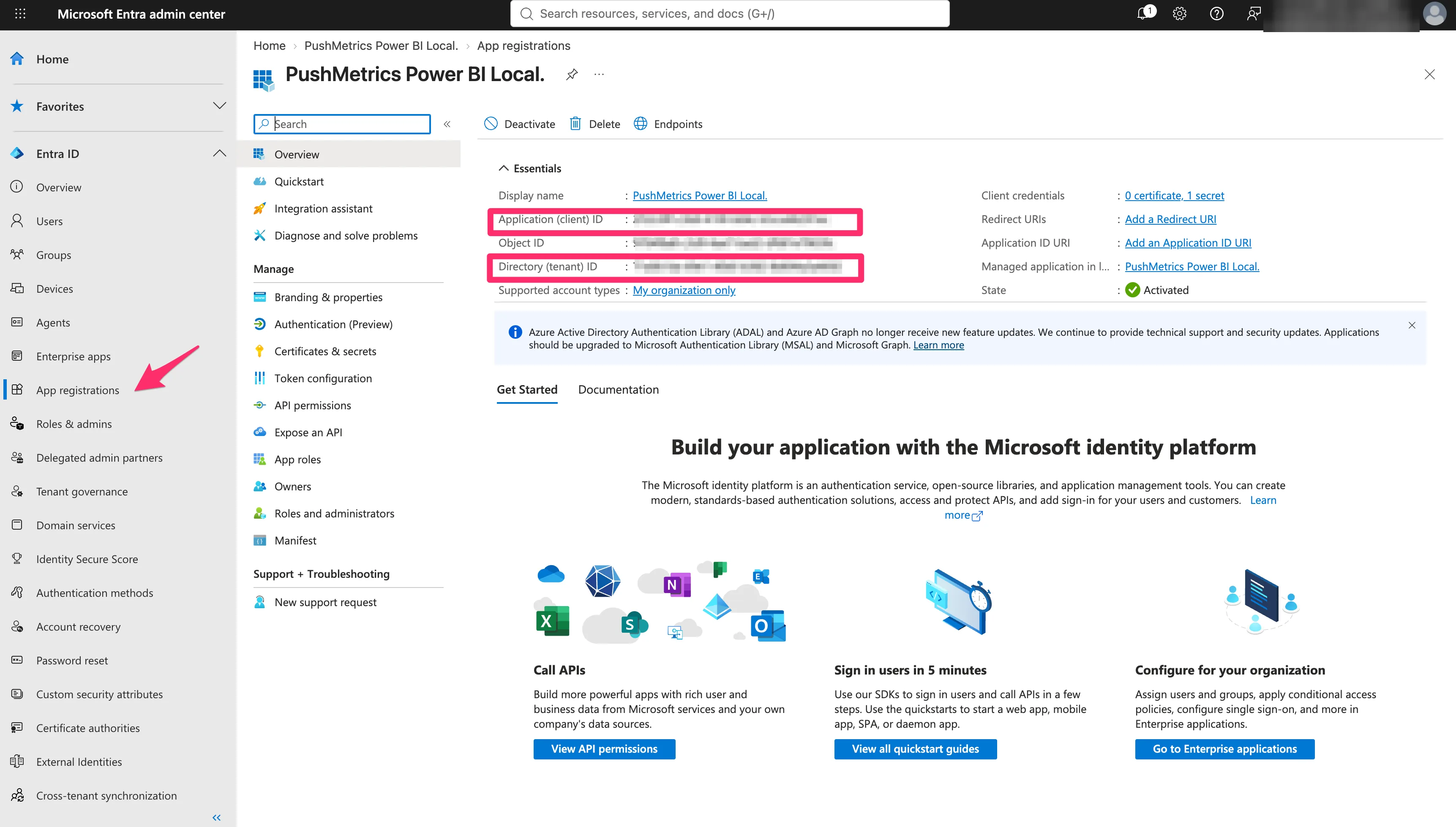
PushMetrics Power BI, and register it. A redirect URI is not needed. - On the application's Overview page, copy the Application (client) ID and the Directory (tenant) ID.
- Open Certificates & secrets → Client secrets → New client secret, choose an expiry that follows your security policy, and copy the secret's Value right away.
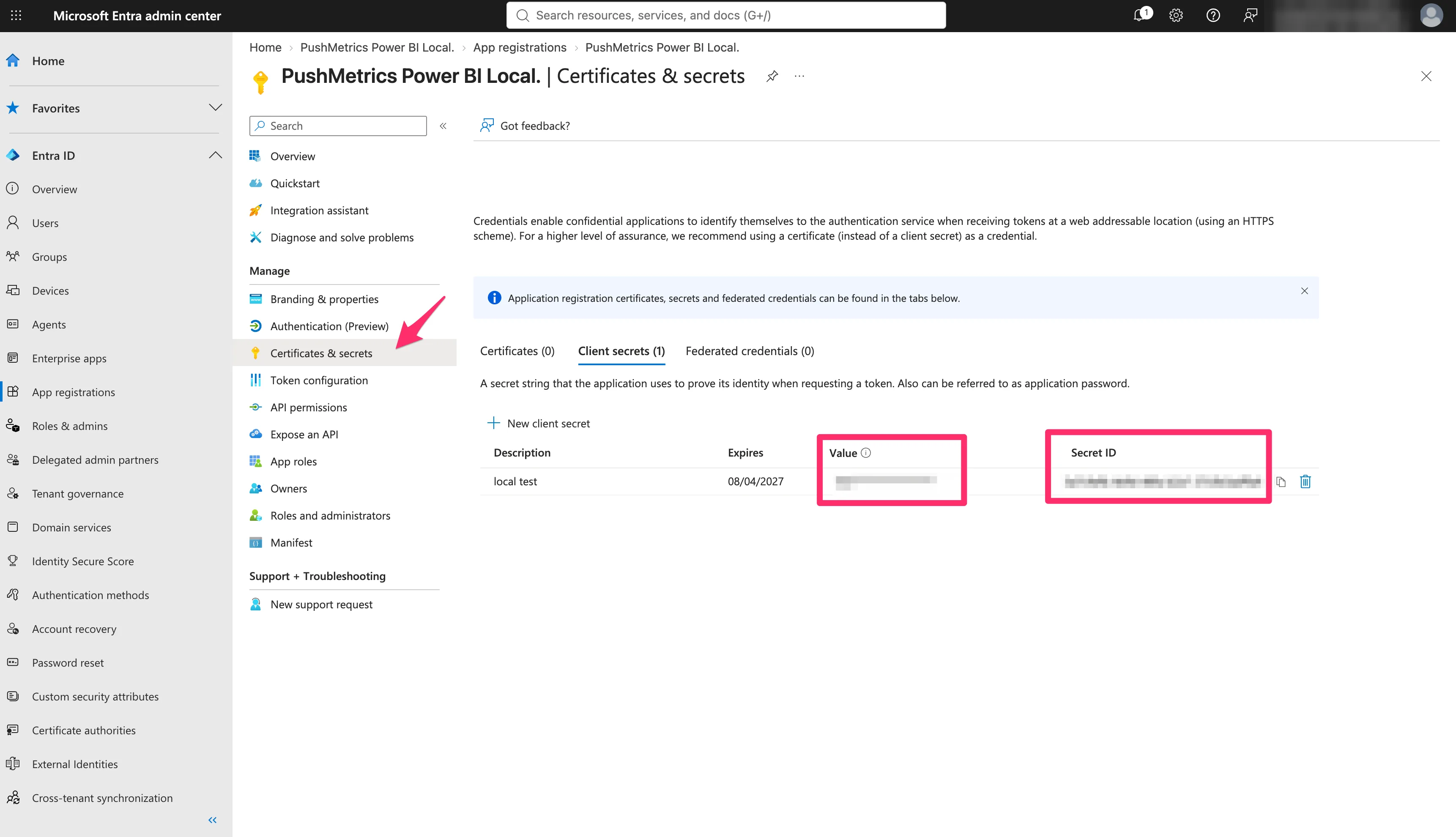
Microsoft shows the secret Value only once. The Secret ID next to it is not the secret, and the connection test rejects it.
2. Allow service principals to use the Power BI APIs
A Power BI or Fabric administrator enables this once for the tenant:
- Open the Admin portal in Power BI (or the Fabric admin portal) and go to Tenant settings → Developer settings.
- Enable Service principals can call Fabric public APIs. Microsoft renamed this setting; it was previously called Allow service principals to use Power BI APIs.
- We recommend applying it only to a security group (for example
PushMetrics Power BI) that contains your application.
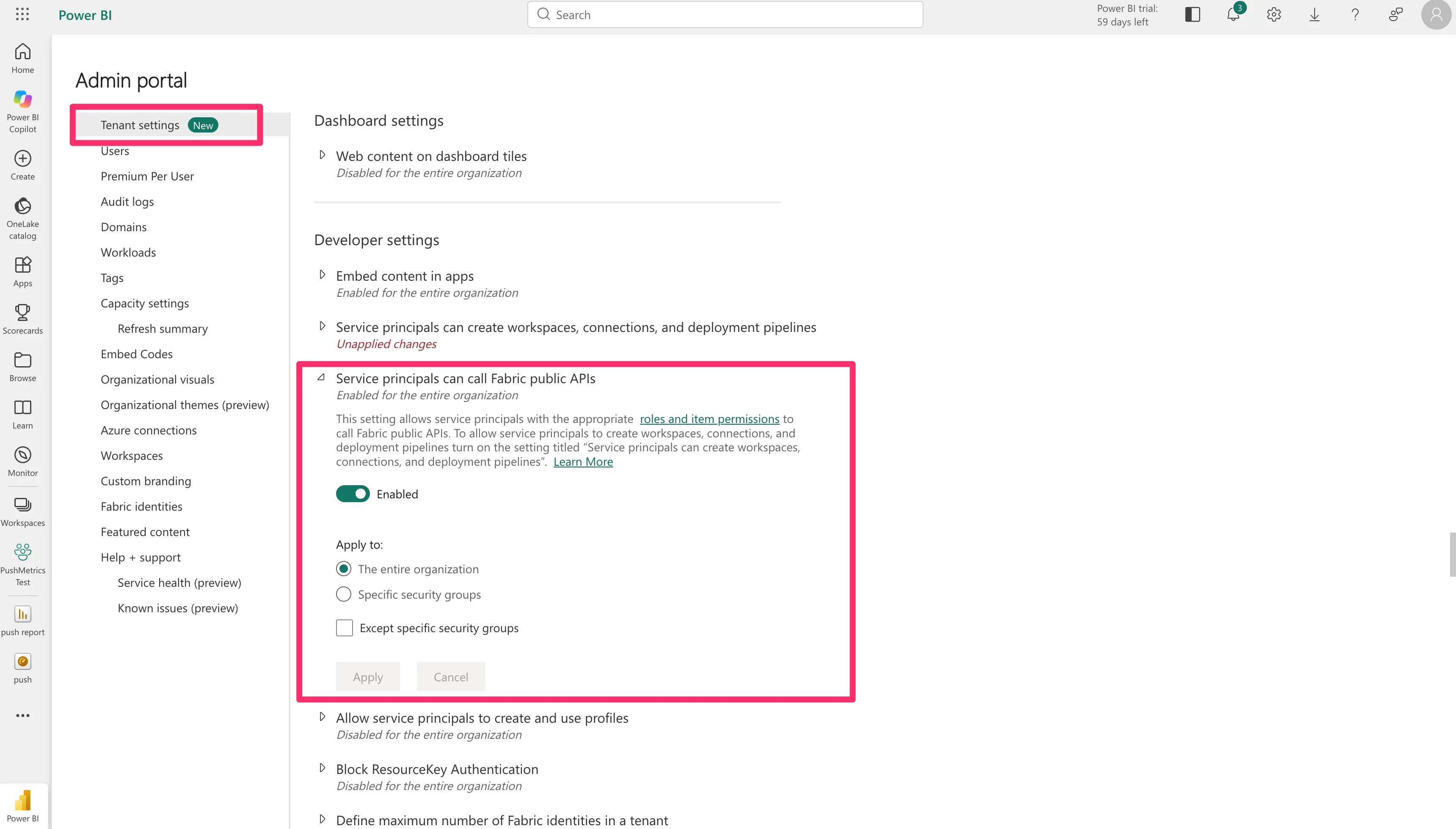
The setting can take several minutes to take effect.
3. Add the application to your Power BI workspace
Repeat this for every workspace whose reports you want to export:
- Open the workspace in Power BI and select Manage access → Add people or groups.
- Search for the application (or its security group) and give it the Member role. Admin also works.
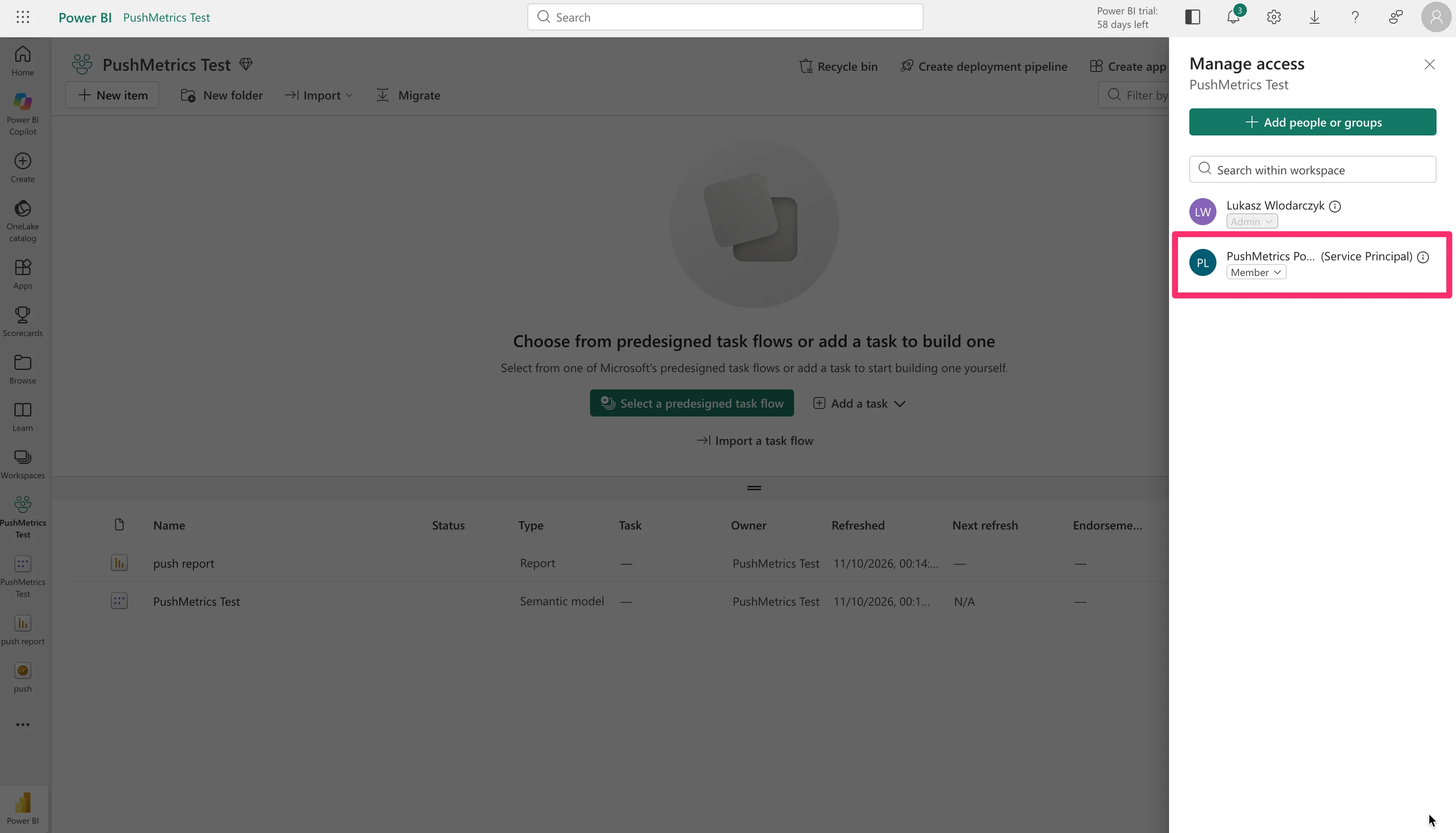
Personal My workspace can't be shared with an application, so keep the reports in a regular workspace. Reports in workspaces the application can't access don't appear in PushMetrics.
4. Fill in the Power BI connection details in PushMetrics
Navigate to Data & Integrations, select Discover New, and click Power BI. Complete the form:
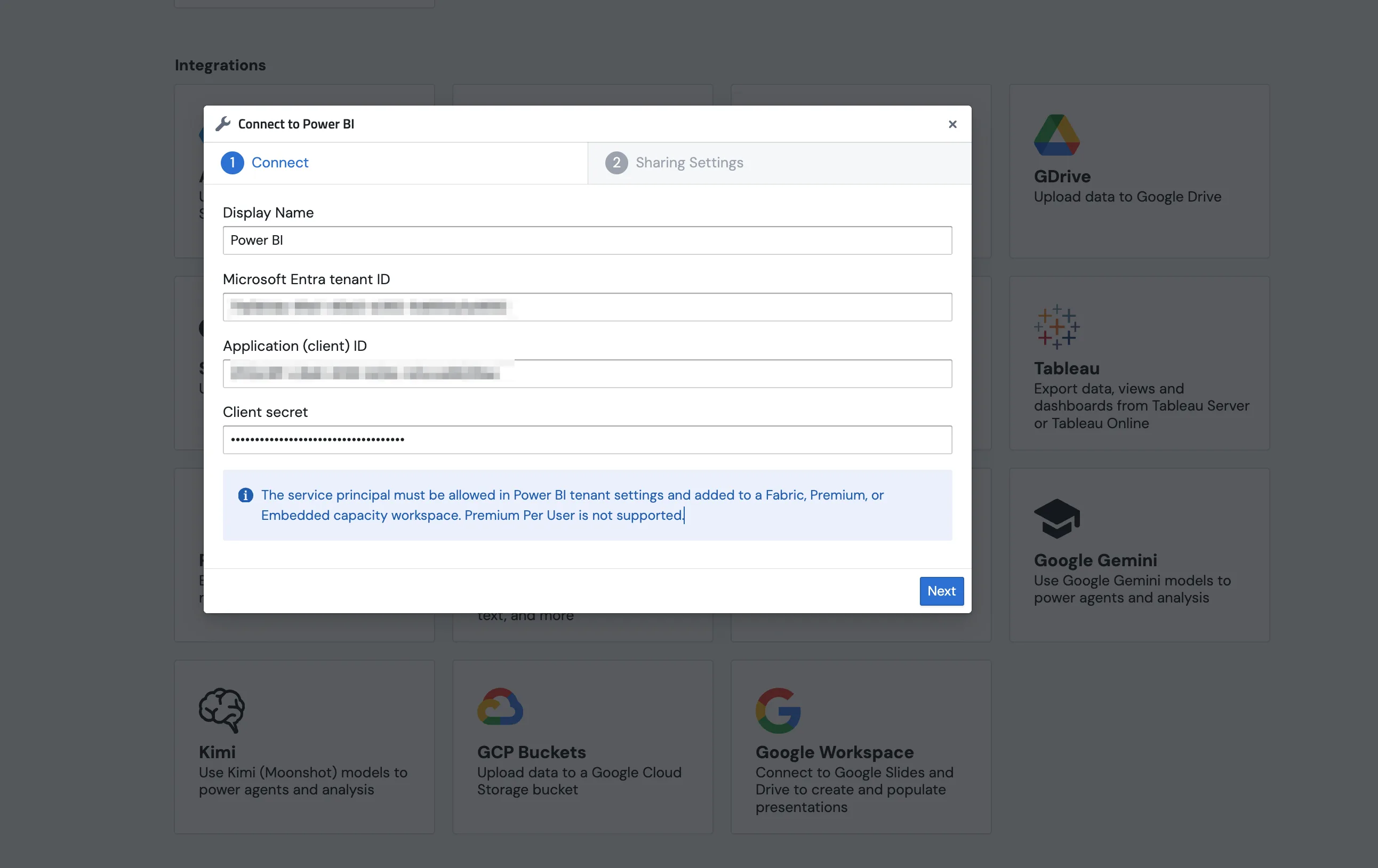
Display Name: A friendly name for your connection (e.g., Power BI).
Microsoft Entra tenant ID: The Directory (tenant) ID from the application's Overview page.
Application (client) ID: The Application (client) ID from the same page.
Client secret: The secret Value you copied in step 1.
Both IDs are in the form 00000000-0000-0000-0000-000000000000. For anything else the form shows Enter a valid Microsoft UUID.
5. Test & Save
Click Next. PushMetrics signs in as the application and lists its workspaces to check the connection, then saves the integration. The client secret is stored encrypted and is never sent back to the browser.
If the connection test fails
When Microsoft rejects the sign-in, the form says which value to fix:
| Microsoft error | Message in PushMetrics |
|---|---|
AADSTS7000215 | The client secret is invalid. Paste the secret's Value from Certificates & secrets, not its Secret ID. |
AADSTS7000222 | The client secret has expired. Create a new client secret in Microsoft Entra and enter its Value. |
AADSTS700016 | No application with this client ID exists in this tenant. Check the Application (client) ID and the tenant ID. |
AADSTS90002 | Microsoft Entra tenant not found. Check the tenant ID. |
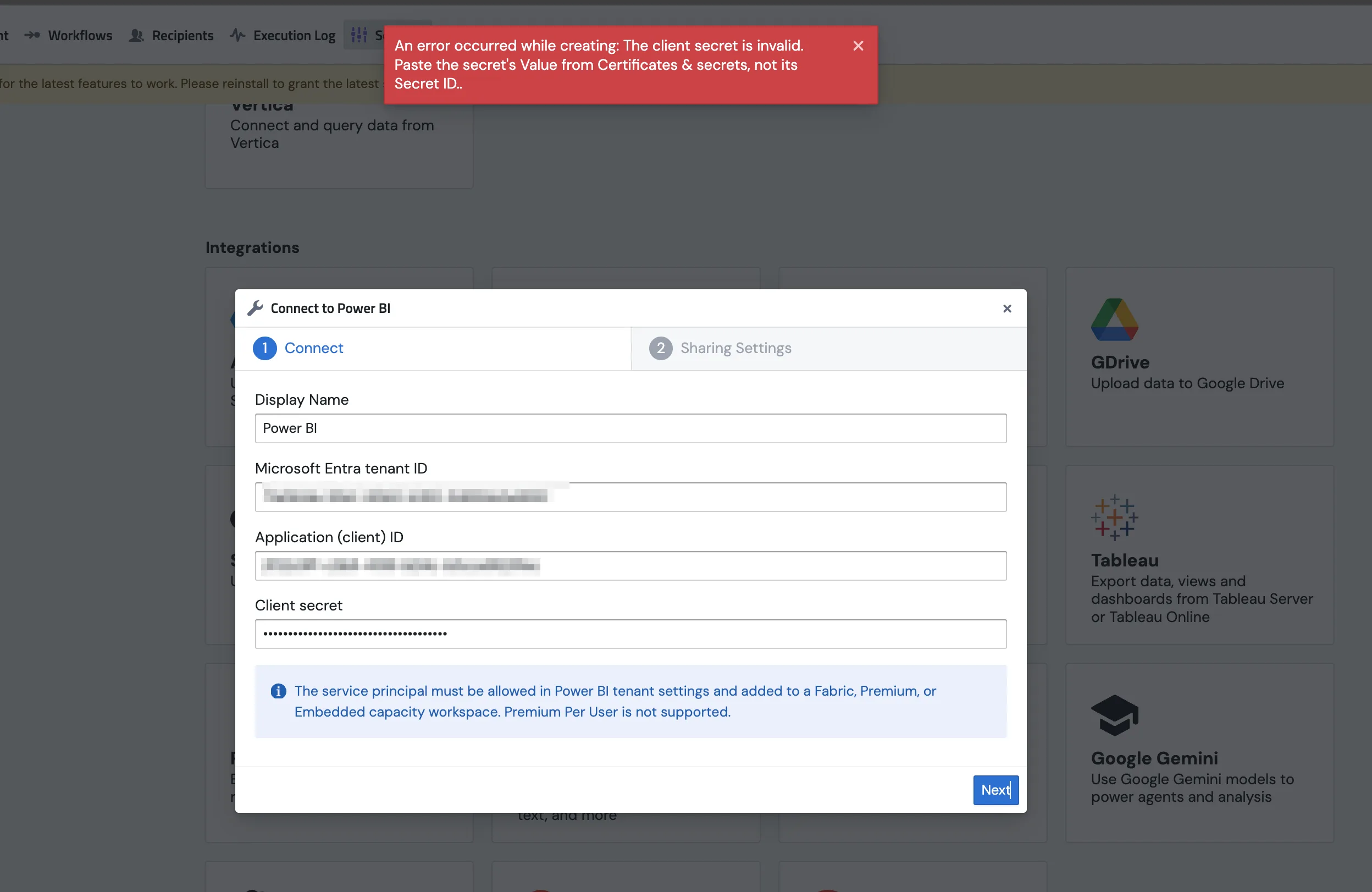
Other errors are shown as Microsoft returns them. If the test passes but the block later shows no workspaces, see Troubleshooting Power BI Exports.
Rotate an expired client secret
- Create a new client secret under Certificates & secrets in Microsoft Entra.
- In PushMetrics, open Data & Integrations and edit the Power BI integration.
- Click Update client secret, paste the new secret's Value, and save.
- Run an existing Power BI block to confirm it works, then delete the old secret in Microsoft Entra.
Editing the display name, tenant ID, or client ID without clicking Update client secret keeps the stored secret.