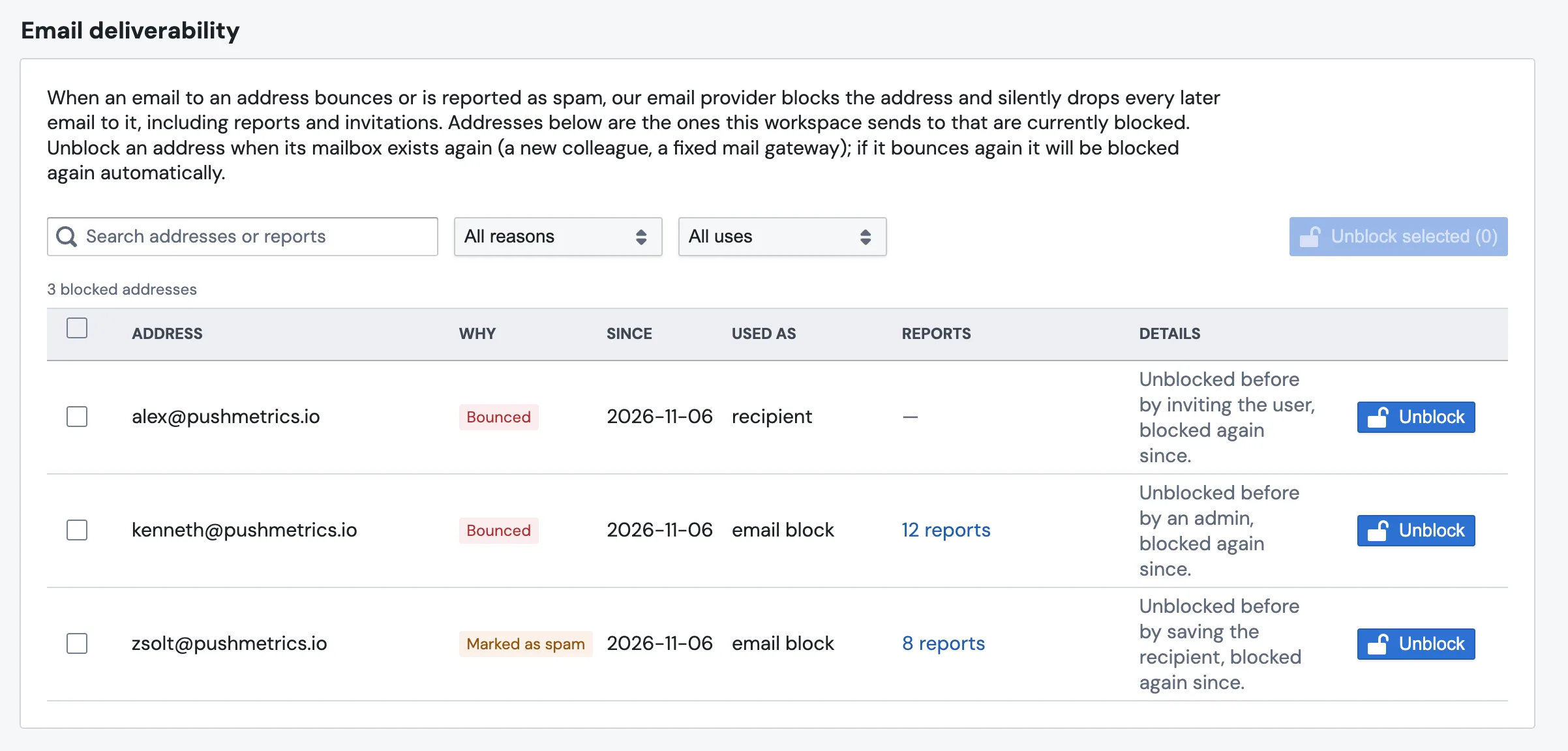
Email Deliverability shows you every address your workspace can no longer reach by email, and why. When a report email bounces (the mailbox does not exist, or a mail server rejected it) or a recipient marks a report as spam, the email provider blocks that address and then silently drops every later email to it — including scheduled reports and workspace invitations. Without this page, those emails just quietly stop arriving and no one is told.
The Email deliverability card in Account Settings lists exactly those addresses, tells you what happened and which reports are affected, and lets an admin unblock an address the moment its mailbox is working again.
Why addresses get blocked
PushMetrics sends email through Amazon SES. When a message to an address fails in a way that should not be retried, SES adds that address to a suppression list and drops all future mail to it. PushMetrics records two reasons:
- Bounced — the address rejected the email permanently. Usually the mailbox does not exist (a typo, or someone who left the company), a full inbox, or a mail server that refused the message.
- Marked as spam — someone who received a report clicked "Report spam" (a complaint). This is the more serious signal: continuing to send to an address that complained hurts the sending reputation for your whole workspace, so these are never retried automatically.
Blocking is automatic and happens at the email-provider level. You do not turn it on, and there is no configuration to manage — the page simply makes the blocks visible so you can act on them.
Why this matters. A blocked address receives nothing — not the report it was subscribed to, and not even a new invitation to the workspace. The send looks successful from the report's side, but the email never leaves the provider. This page is how you find and fix that.
Read the blocked list
Each row is one blocked address:
| Column | What it tells you |
|---|---|
| Address | The email address that is currently blocked. |
| Why | Bounced or Marked as spam — the reason the provider blocked it. |
| Since | The date the address was first blocked. |
| Used as | How your workspace uses this address — as a recipient, a user (a workspace member), and/or inside an email block in a report. An address can be more than one. |
| Reports | The reports whose email delivery would reach this address. Click a report to open it. |
You only ever see addresses your own workspace sends to. The suppression list is shared across the email provider, but PushMetrics shows you just the addresses that appear among your recipients, your members, and your reports' email blocks.
Search and filter
- Search by address or by report name to narrow a long list.
- All reasons filters by Bounced or Marked as spam.
- All uses filters by how the address is used — recipient, user, or block.

Unblock an address
Unblock an address when its mailbox is reachable again — for example a colleague has returned, a typo has been corrected on the recipient, or a mail gateway has been fixed.
To unblock one address: click Unblock on its row. You will see a confirmation that the next email to it will be delivered, and the row drops off the list.
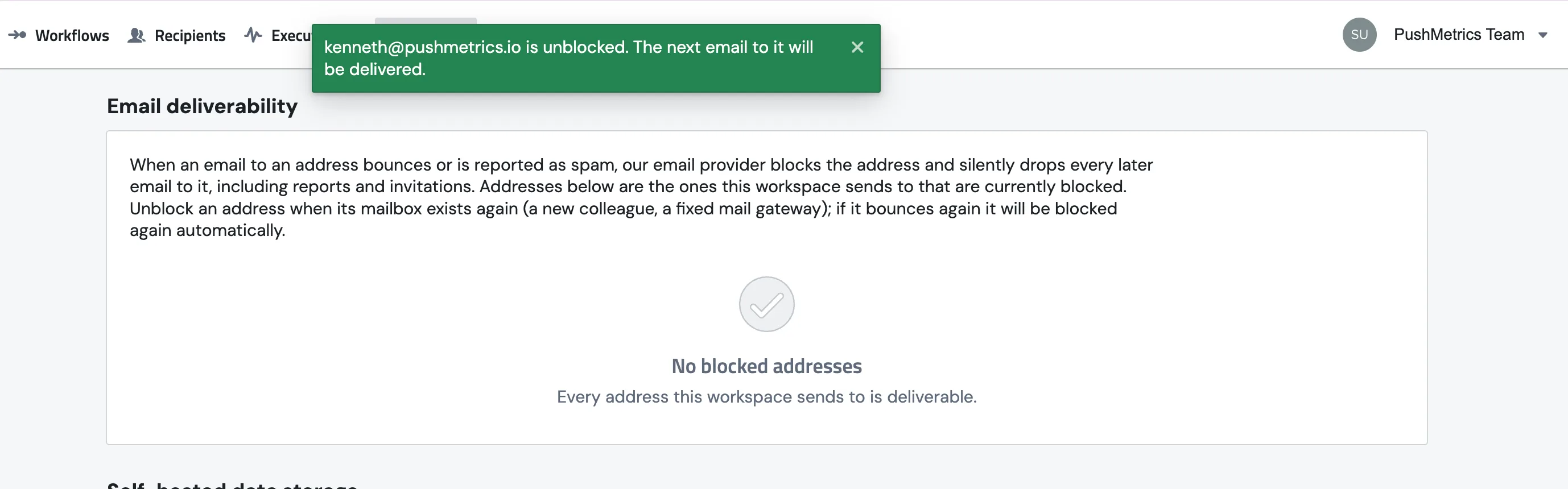
To unblock several at once: tick the checkbox on each address (or the header checkbox to select all that match your current filters), then click Unblock selected. The button shows how many are selected.
Unblocking is admin-only. Workspace admins see the Unblock buttons. Other members can view the list but cannot unblock. If the email provider is not set up on a deployment, the card shows a short "not configured" message instead of the table.
If an address bounces again, it is re-blocked
Unblocking tells the provider to deliver the next email. If that email bounces again — because the mailbox genuinely does not exist — the address is blocked again automatically. Unblocking a dead address does not fix anything; use it only when you have a reason to believe the mailbox now works.
The "Bounced" badge in Recipients and Users
You do not have to open Account Settings to notice a blocked address. The same block is surfaced wherever the address appears:
- In Recipients, a blocked email destination shows a red Bounced (or Marked as spam) badge next to it.
- In Users, a member whose address is blocked shows the same badge, so you can see at a glance that their invitations and reports are not getting through.
Admins can unblock directly from the badge's popover, without leaving the list.
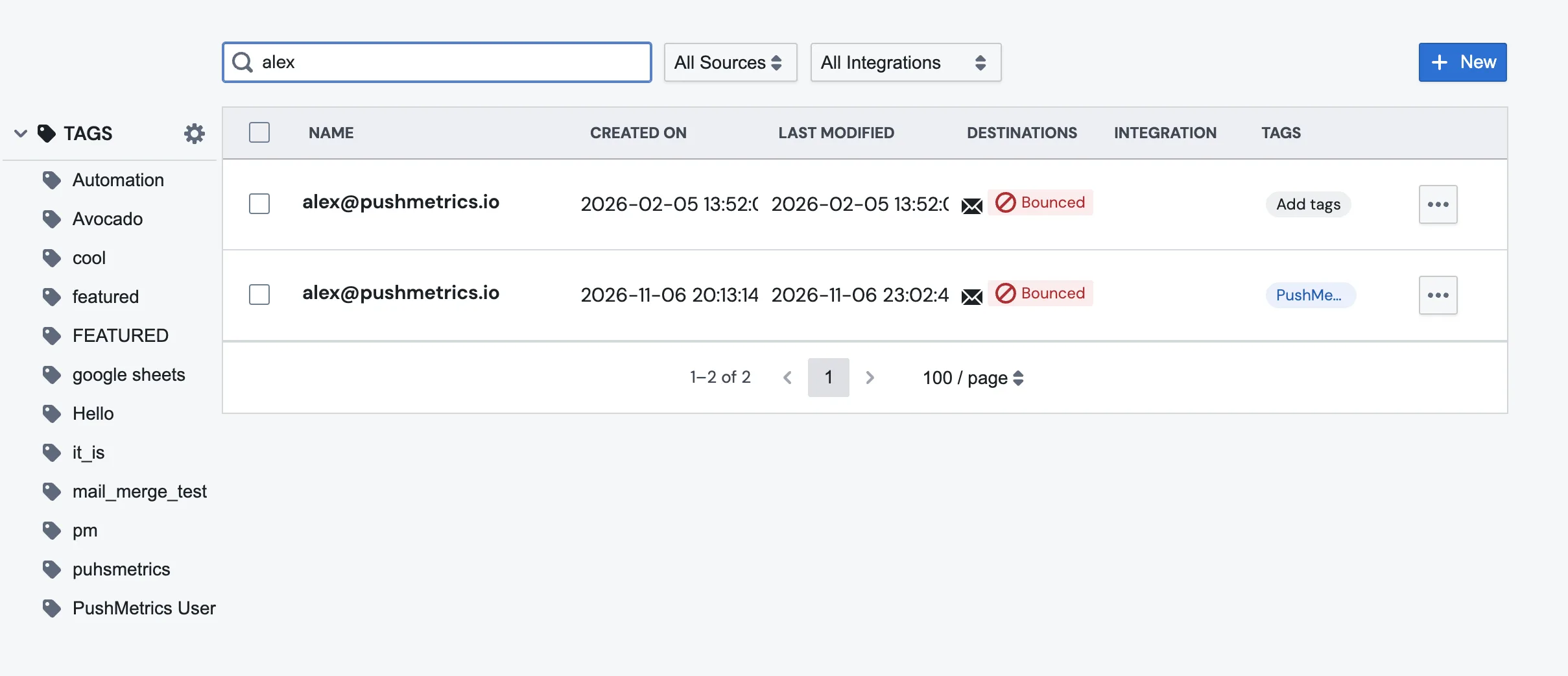
The same badge appears in User Management → Users next to any member whose email is blocked.
Invitations to blocked addresses
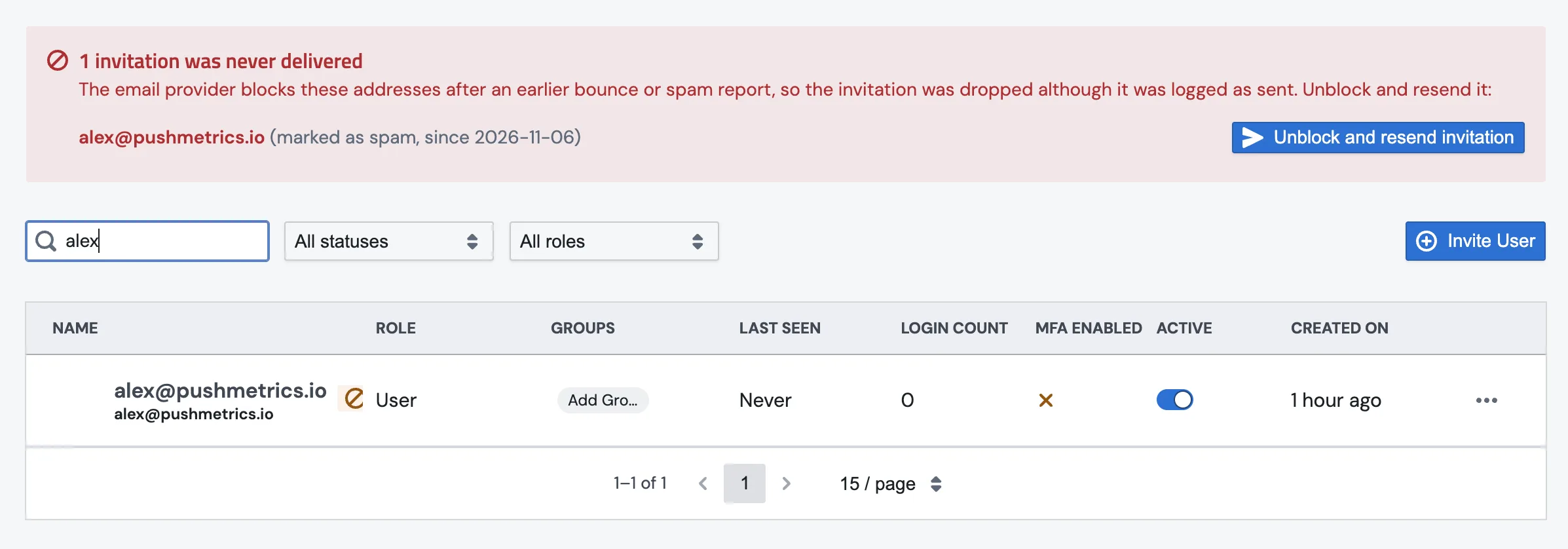
Because a block drops every email, a workspace member whose address is blocked never receives a new invitation either. The Users page shows a callout at the top — "1 invitation was never delivered" — listing those members, with an Unblock and resend invitation button that clears the block and re-sends in one step.
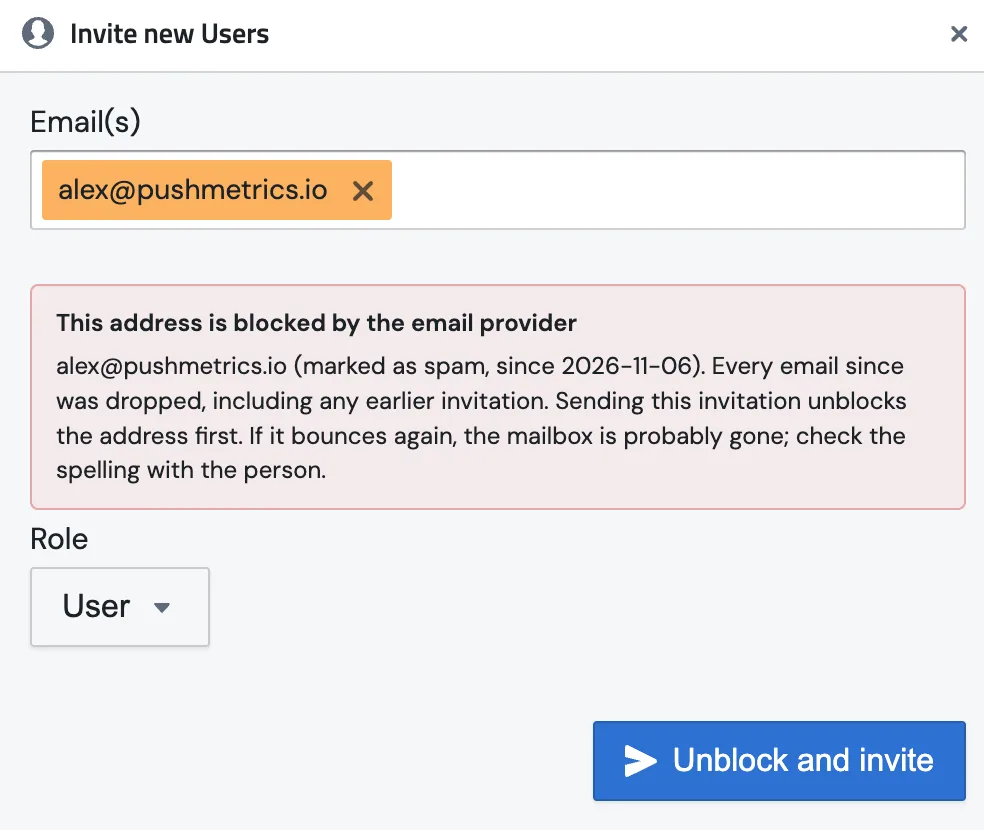
When you invite or re-send an invitation to such an address, PushMetrics clears the block first and then sends — so an invite to a previously bounced address goes through without a separate unblock step. Saving a recipient with a blocked email destination clears it the same way.
Frequently asked questions
Do I need to do anything for blocking to work? No. Bounces and spam complaints are detected and blocked automatically. This page only adds visibility and the ability to unblock.
Is a blocked address blocked for every workspace? The provider's suppression list is shared, but each workspace only sees and can only unblock the addresses it sends to. Unblocking from your workspace tells the provider to deliver the next email again.
I unblocked an address but it came back. Why? The next email to it bounced again, which means the mailbox still rejects mail. Confirm the address is correct and the mailbox exists before unblocking.
An address was marked as spam. Should I unblock it? Be cautious. A spam complaint means the recipient actively flagged your mail. Only unblock if you are confident it was a mistake and they want the reports — repeated complaints harm deliverability for your whole workspace.