Domain Join lets your teammates find their way into your existing workspace on their own. When it is enabled, anyone who signs up with a verified email address on your company domain — for example @acme.com — automatically joins your workspace instead of accidentally creating a separate, empty PushMetrics account.
This solves a common situation: a colleague hears about a report built in PushMetrics, signs in with Google using their work email, and ends up in a brand-new blank account instead of your team's workspace. With Domain Join enabled, that same sign-in lands them right where their team already works.
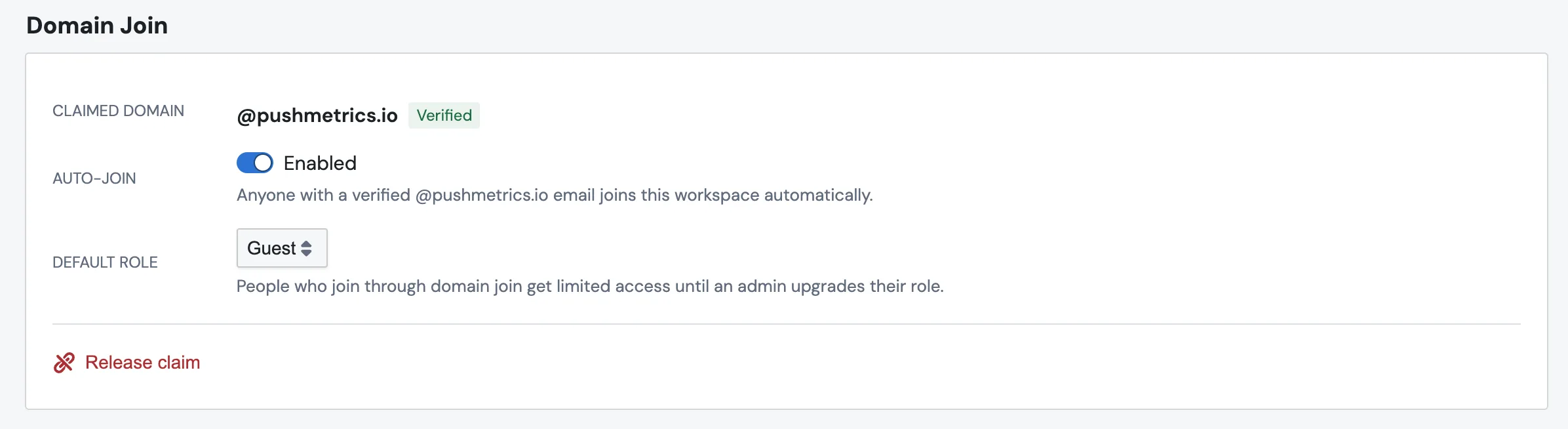
Rolling out gradually. Domain Join is being enabled workspace by workspace. If you don't see the card in Account Settings yet and would like it switched on, contact support via the in-app chat.
How it works
- A workspace admin claims your company's email domain in Account Settings and turns auto-join on.
- From then on, when someone signs up with a verified email on that domain — with Continue with Google or Sign in with Slack using their work account, or with email + password after confirming the verification code — PushMetrics adds them to your workspace instead of creating a new account.
- New joiners start with the Guest role, so they can look around but can't change anything until an admin gives them a proper role.
- Every admin of the workspace receives an email notification each time someone joins this way, so nothing happens silently.
Slack and Hex offer a similar "anyone with @yourdomain.com can join" setting — if your team has used those, this will feel familiar.
Before you start
- Domain Join is available on the Professional plan (see pricing). Turning auto-join off and releasing an existing claim always work, on any plan.
- You need workspace admin rights to claim a domain or change Domain Join settings.
- Your own login email must be on the domain you want to claim. You can only ever claim your own company domain — the one you demonstrably use.
- Shared email providers (gmail.com, outlook.com, and so on) can't be claimed.
Claim your domain
- Go to Account Settings and find the Domain Join card.
- The card shows the domain derived from your admin email — for example Claim @acme.com. Click it.
- Flip the Auto-Join toggle to enable joining.
- Optionally, change the default role new joiners receive. Guest (recommended, the default) gives view-only access; User lets them start creating content right away. Domain Join never grants the Admin role automatically — an admin can still promote a joiner manually later, like any other member.

A domain can only be claimed by one organization — first come, first served. If someone at your company already claimed it for another PushMetrics account, you'll see a message to contact support.
You can pause auto-join at any time with the toggle, or click Release claim to remove the claim entirely. Existing members are never affected by either action.
What new joiners see
Someone who auto-joins gets guest access: they can sign in and view what's shared with them, but they can't edit or create content. A banner at the top of the app tells them so, with a Request access button.

Clicking Request access emails every admin of the workspace with the requester's name and a link to the Users page. To avoid noise, each person can send at most one request per 24 hours.
The banner — and the ability to request access this way — is only shown to members who actually joined through Domain Join. Guests you invited yourself don't see it; they already have an admin who knows about them and can change their role directly.
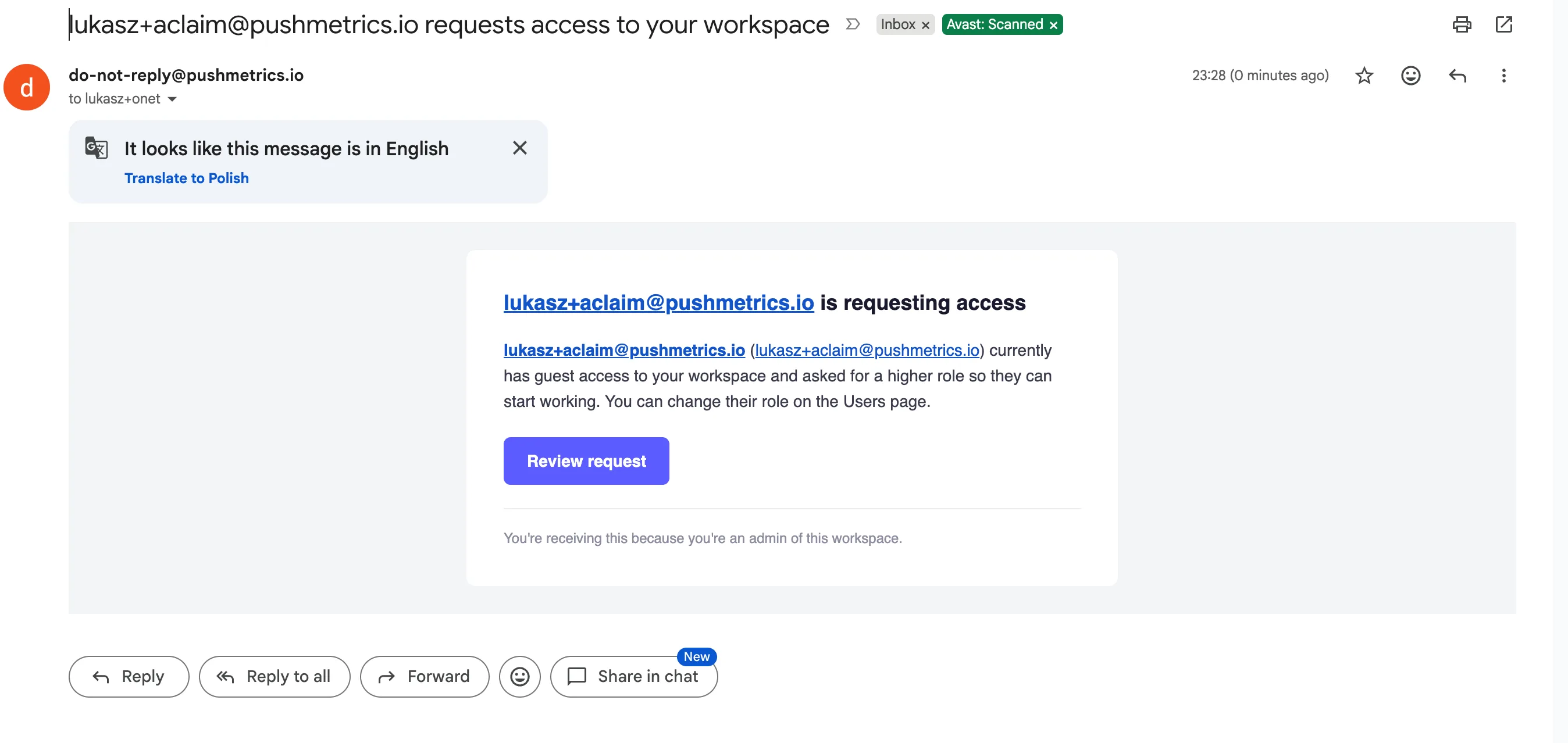
Responding to an access request
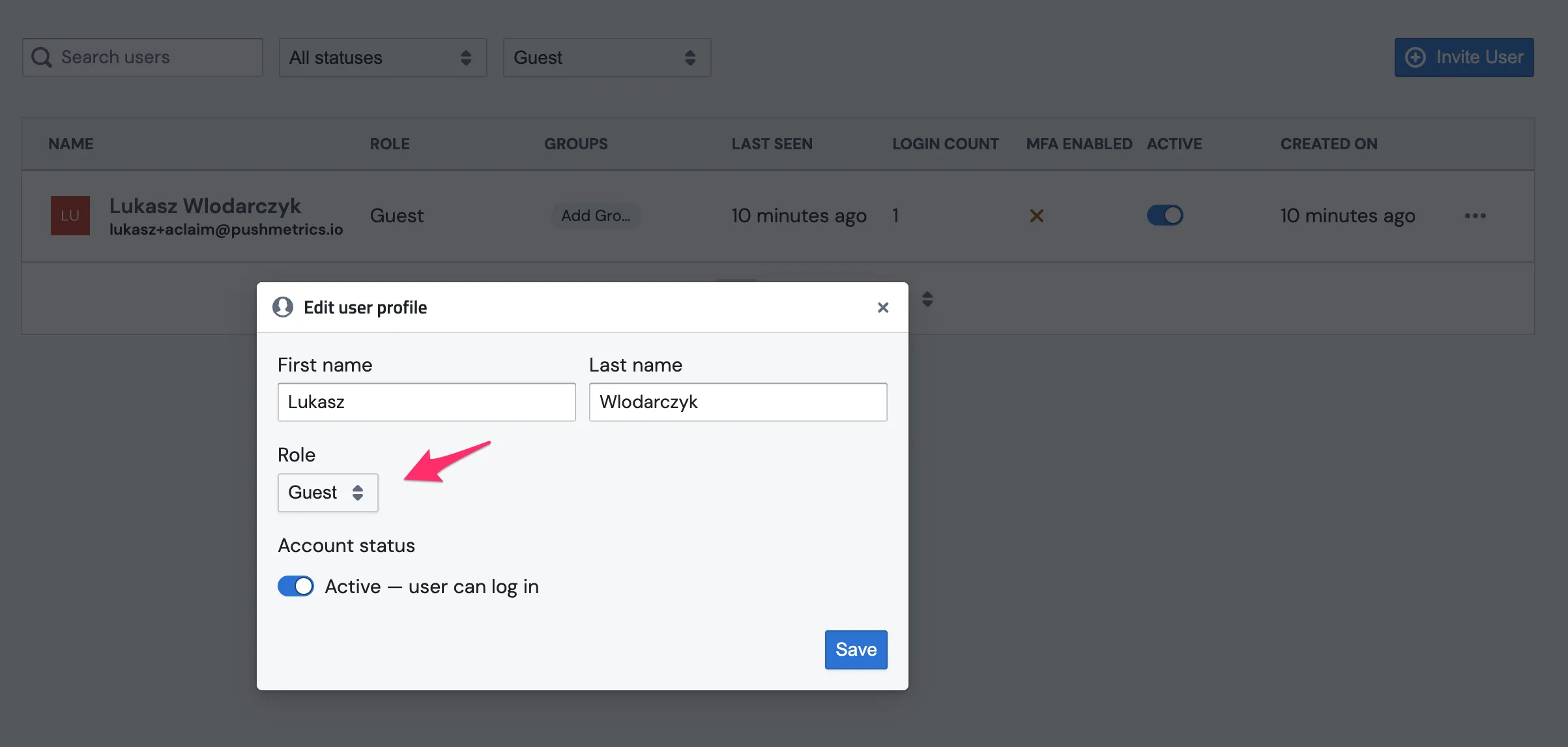
Granting more access works exactly like any other role change: open Account Settings → Users, find the person, and change their role from Guest to User (or Admin). See User Management for the details on what each role can do.
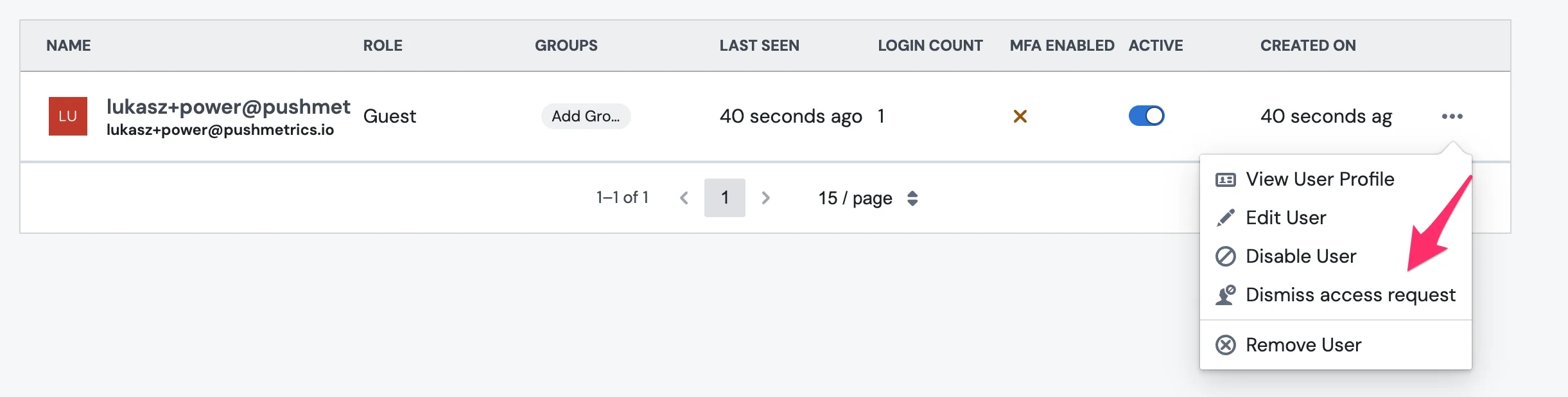
If you'd rather not grant more access, you can dismiss the request instead: on the Users page, open the row menu (⋯) next to the guest and choose Dismiss access request. Their banner disappears and they won't be able to send further requests. A dismissal is final from the guest's side — but you can still promote them at any time by changing their role directly, like any other member.
Staying in the loop
Every auto-join triggers an email to all workspace admins, naming the person, their email address, and the role they received:
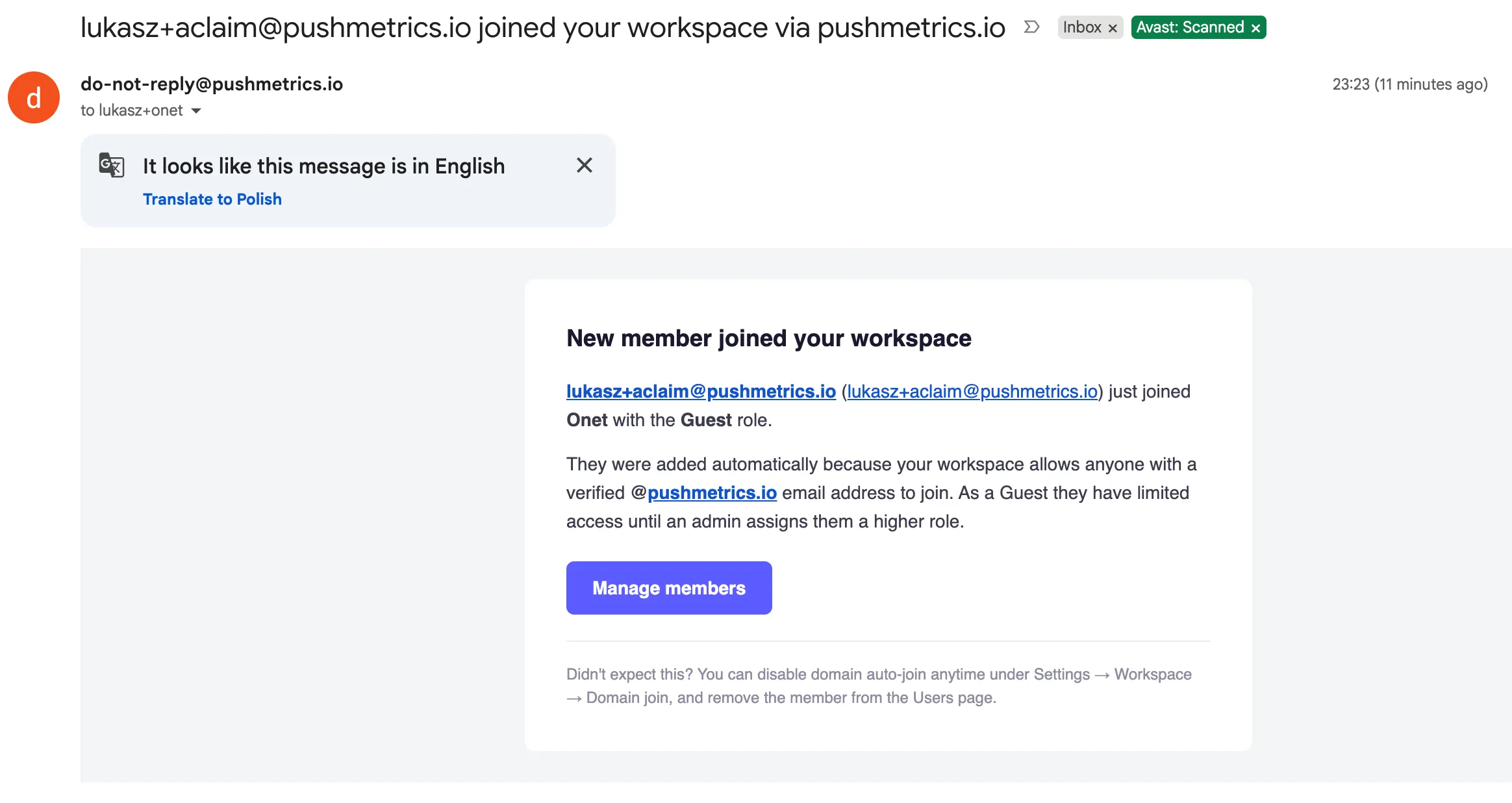
If a join ever looks unexpected, you can remove the member on the Users page and switch auto-join off — the toggle takes effect immediately.
Security
Domain Join is designed so that having an email address string on your domain is never enough to get in:
- Verified emails only. The joiner's identity provider must confirm they actually control the mailbox. Someone merely typing
ceo@acme.cominto a signup form does not get in. - Trusted sign-in methods only. Auto-join applies to Google sign-in, where a work email requires a real account on your company's Google Workspace; to Slack sign-in, where Slack confirms the mailbox before the account can be used; and to email + password signups, where PushMetrics' login provider first verifies the mailbox with a one-time code emailed during signup. In every case, nobody gets in by merely typing an address.
- Exact domain match. Subdomains and lookalike domains never match your claim.
- Least privilege by default. Joiners get the configured default role (Guest unless you change it) and are never automatically granted admin rights.
- Full visibility. Every join notifies your admins, and joins are additionally monitored on our side for unusual patterns.
Note what auto-join deliberately does not change: invitations keep working exactly as before, existing members are untouched, and nobody is ever moved between workspaces retroactively.
Troubleshooting
- "This domain is already claimed by another organization." Only one organization can hold a claim per domain. If a colleague set up a separate account and claimed it there, contact support and we'll help you consolidate.
- A teammate signed up but didn't join the workspace. Check that auto-join is toggled on, that they signed up with their work email (not a personal address) and completed email verification, and that their email is on exactly the claimed domain. When in doubt, just invite them — invitations always work.
- The Domain Join card isn't visible. The feature is rolling out gradually; contact support to have it enabled for your workspace. Also note that only workspace admins can change its settings.
- A joiner needs more than Guest access. Change their role on the Users page, or set the default role for future joiners to User in the Domain Join card.