Importing Recipients from Slack
After connecting an integration for Slack to your PushMetrics workspace, you can import Slack channels and users as recipients for your reports.
How to Import Slack Recipients
1. Navigate to Recipients Page:
- Go to the Administration section in the left sidebar
- Click on Recipients
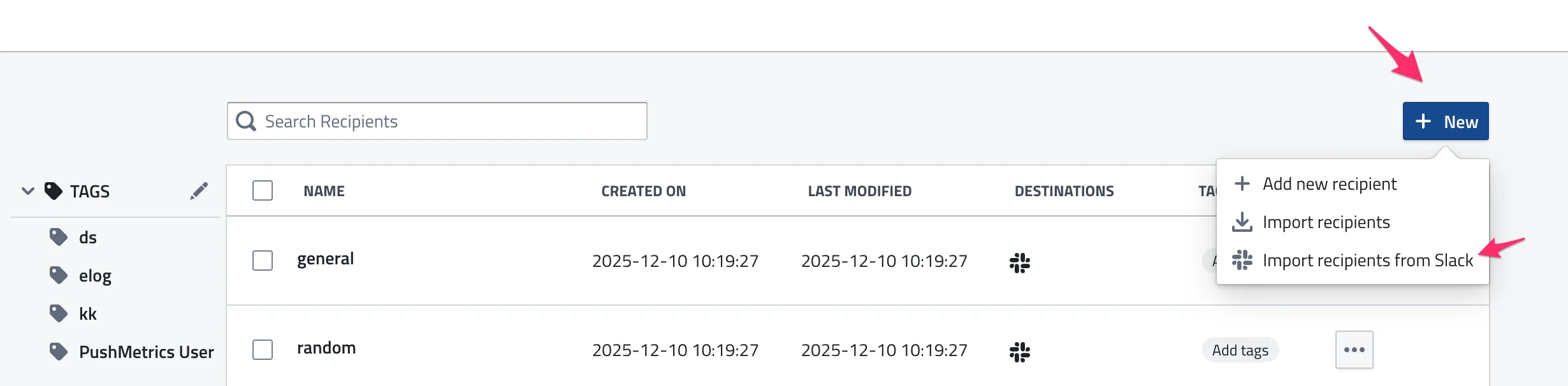
2. Start Import:
- Click the "New" button in the top right corner
- Click the "Import Recipients from Slack" button
- A dialog will appear showing your available integrations for Slack
3. Select Integration:
- Choose which integration for Slack (workspace) you want to import from
- If you have multiple integrations for Slack connected, make sure to select the correct workspace
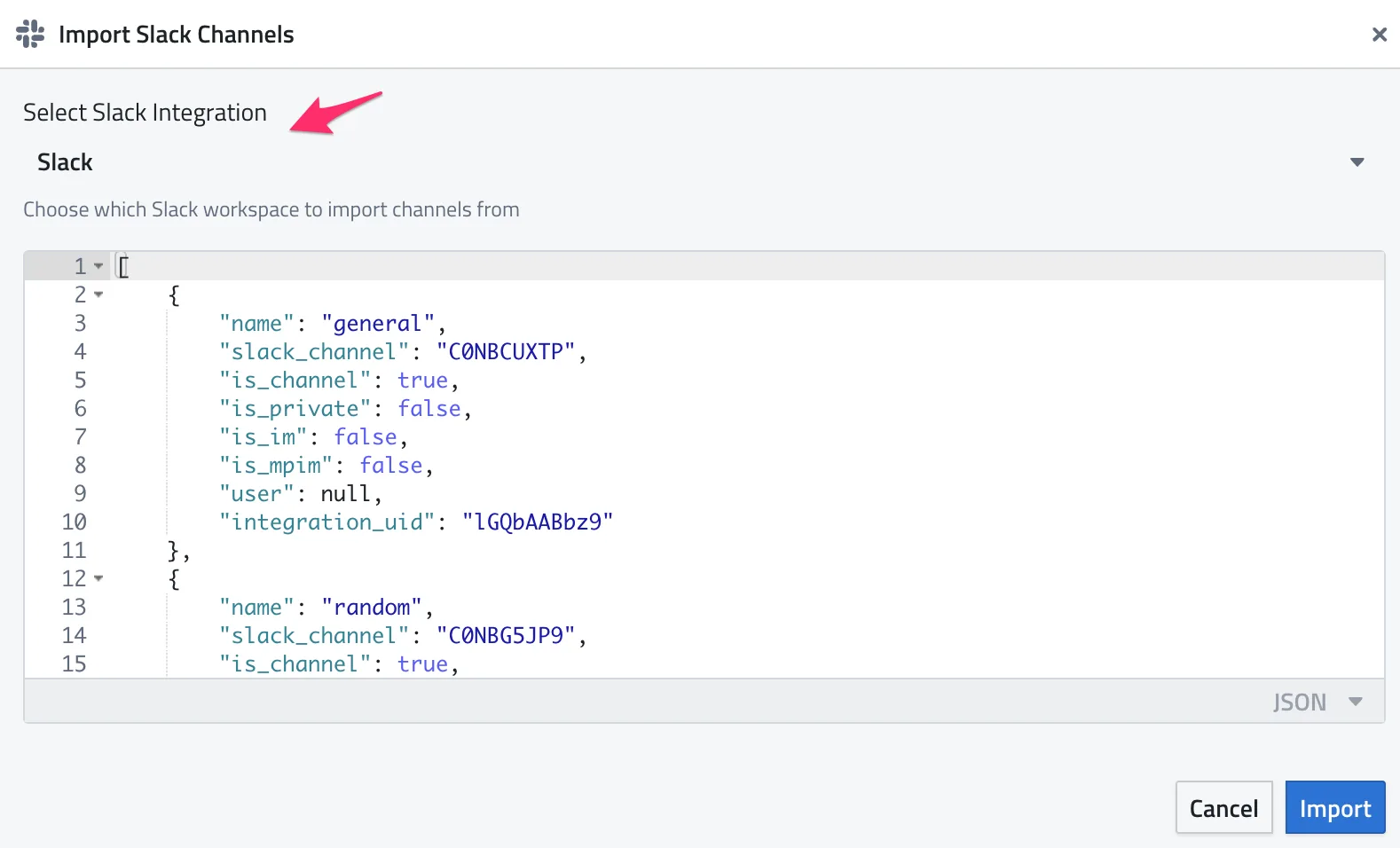
4. Select Recipients:
- The dialog will display available channels and users from the selected Slack workspace
- Public Channels: All public channels visible to the PushMetrics bot
- Private Channels: Private channels where the PushMetrics bot has been invited
- Users: Individual users for direct message delivery
5. Import:
- Select the channels/users you want to import
- Click "Import" to add them to your recipients list
Understanding Multi-Workspace Support
If you have multiple integrations for Slack connected to different workspaces:
- Channels are workspace-specific: A #general channel from Workspace A is treated separately from #general in Workspace B
- No duplicates: When you import channels, PushMetrics tracks which workspace each channel belongs to
- Automatic filtering: When creating reports, only channels from the selected integration will be shown in the recipient dropdown
Using Slack Recipients in Reports
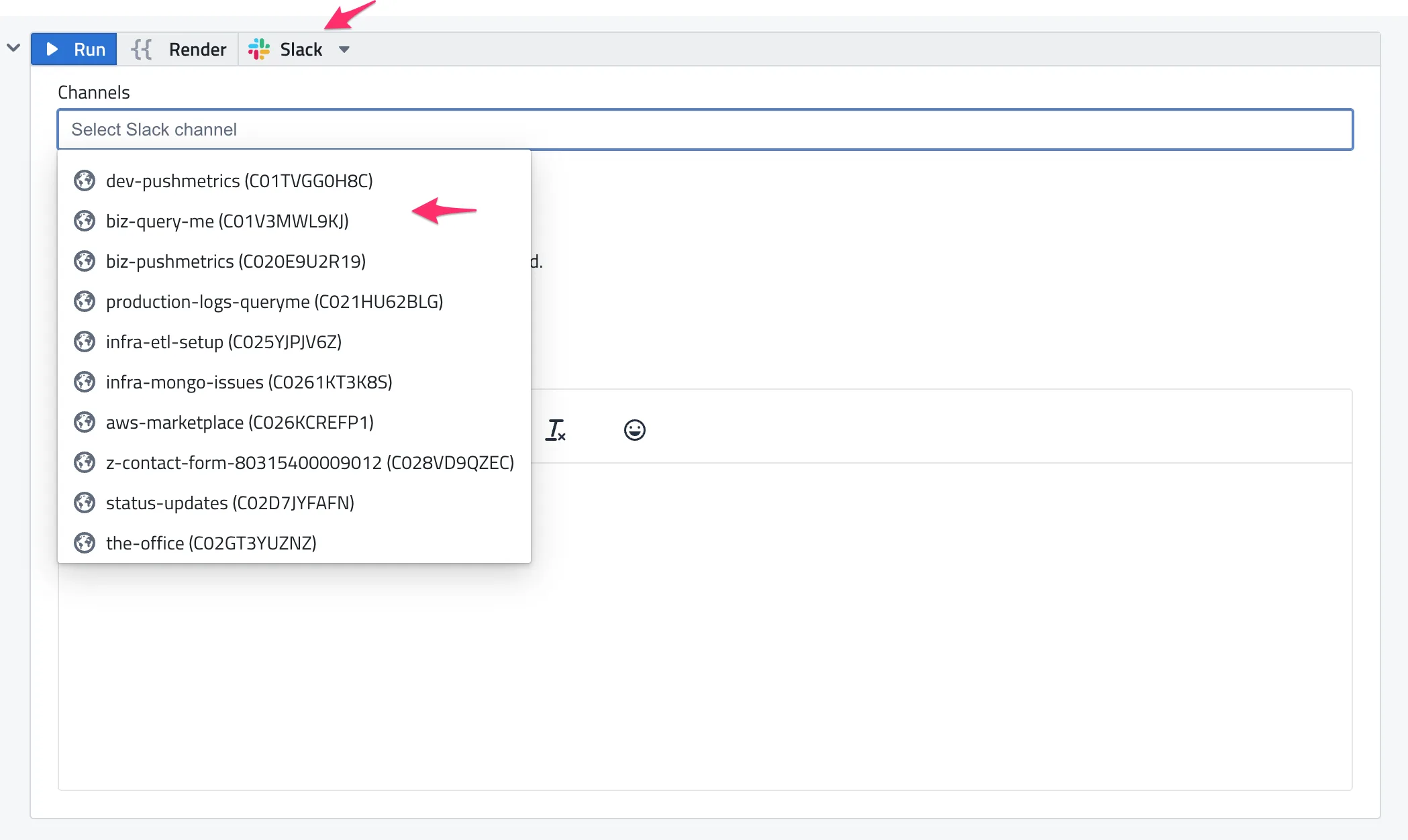
When configuring a Slack delivery block in your report:
1. Select Integration: Choose which integration for Slack to use for delivery
2. Select Recipients: The recipient dropdown will automatically filter to show only channels/users from the selected integration
3. Dynamic Updates: If you change the integration, the recipient list updates automatically
Important: Integration Deletion and Recipients
What Happens When You Delete an Integration for Slack
When you delete an integration for Slack from PushMetrics, all associated recipients are automatically deleted. This includes:
- ✅ All Slack channels imported from that integration
- ✅ All Slack users imported from that integration
- ✅ Any direct message (DM) recipients from that workspace
- ✅ Any multi-person DM (MPIM) recipients from that workspace
What This Means for Your Reports
If you delete an integration for Slack:
1. Recipients are removed: All recipients associated with that integration are permanently deleted from PushMetrics
2. Reports may be affected: Reports configured to deliver to those recipients will no longer have valid delivery destinations
3. Re-importing required: If you reconnect the same Slack workspace later, you'll need to import recipients again
4. Historical data: Past report deliveries remain in the history, but the recipient references will be removed
Before Deleting an Integration
Before deleting an integration for Slack, consider:
1. Check active reports: Review which reports are using recipients from this integration
2. Alternative deliver*: Update reports to use recipients from a different integration if needed
3. Backup configuration: Note which channels/users were configured for easy re-import if needed
4. Team communication: Inform your team that recipients from this workspace will be removed
Best Practices
- Disconnect vs Delete: Use "Disconnect" if you plan to reconnect later - this keeps the integration entry and recipients
- Multiple integrations: If you need to switch workspaces, add the new integration first, then migrate reports before deleting the old one
- Test workspace: Consider using a separate test integration for development that can be safely deleted without affecting production recipients
Troubleshooting
Recipients Not Appearing After Import
- Verify the PushMetrics bot has been invited to private channels
- Check that the integration is properly connected
- Refresh the recipients list in your report
Can't See Channels from Specific Workspace
- Ensure you've selected the correct integration in the Slack delivery block
- Check that the integration hasn't been deleted
Duplicate Channel Names
- If you see multiple channels with the same name, they're from different workspaces
- The integration name will help you identify which workspace each belongs to
- When filtered by integration, you'll only see channels from that specific workspace