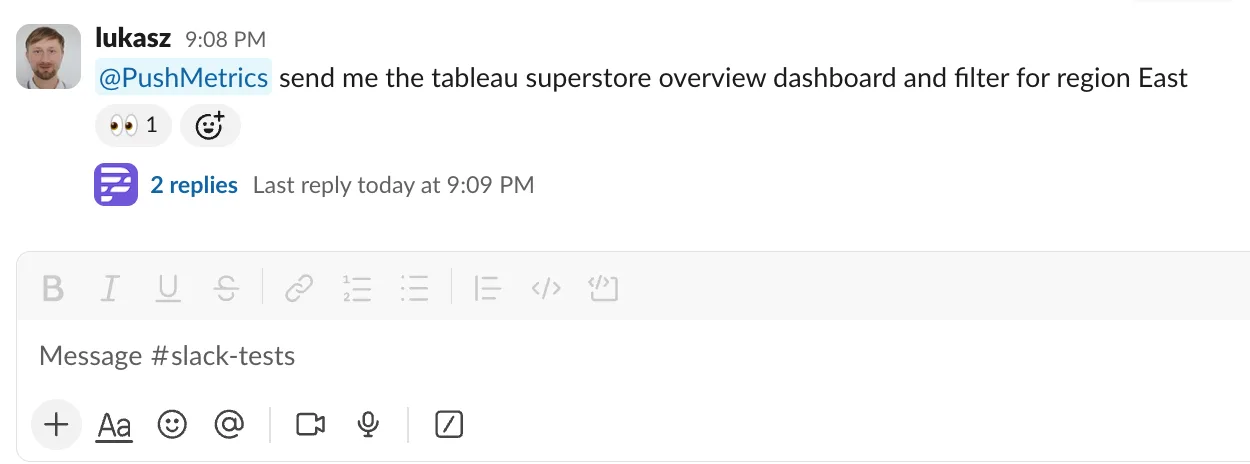
Someone @-mentioning the PushMetrics agent in a Slack channel

Agents work just as well from Slack as they do from the PushMetrics web app. Your team can @-mention the agent in a connected channel and have a real conversation with it, right there in the thread, without ever opening PushMetrics.

This page covers both directions: agents posting to Slack from a conversation, and your team talking to an agent in Slack.


Talking to an agent in Slack

Once your workspace has the Slack integration set up and an agent is mapped to a channel, anyone in that channel can @-mention the agent and start a conversation. The agent reads the message, does the work, and replies in the same thread.
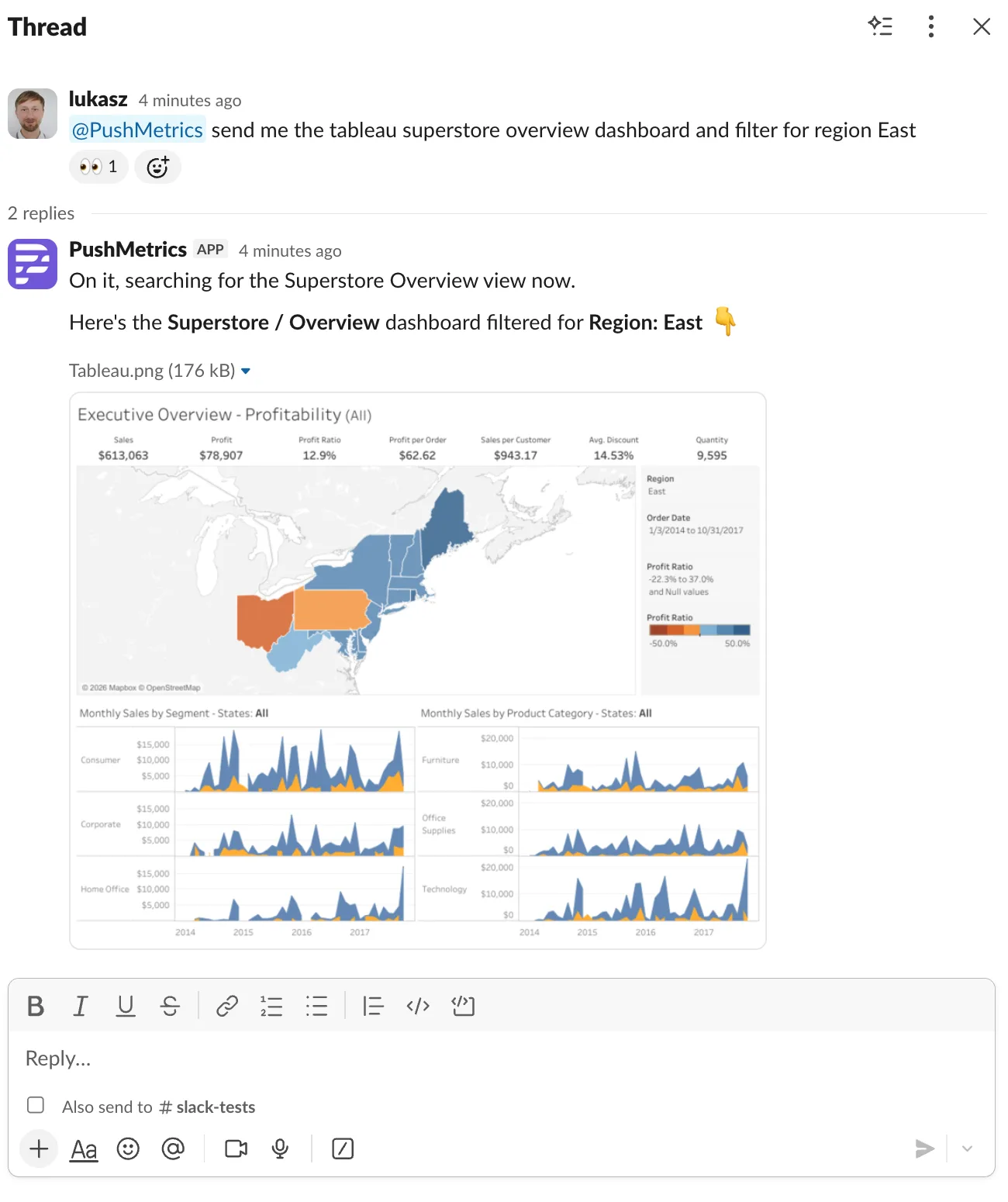
The agent replying in a Slack thread with a chart attached

Here's what happens behind the scenes:

  1. Someone @-mentions the agent in a connected channel, or sends it a DM if direct messages are enabled.
  2. PushMetrics opens a new conversation for that thread. The Slack user becomes the requester. If the agent is joining an existing thread, PushMetrics first pulls the recent messages so it has context.
  3. The agent does the work: querying data, building charts, drafting an answer.
  4. The reply lands in the same Slack thread as a normal message. Charts and CSVs are attached as Slack files. The conversation also lives in the PushMetrics Requests page, so anything that happened in Slack shows up there too.

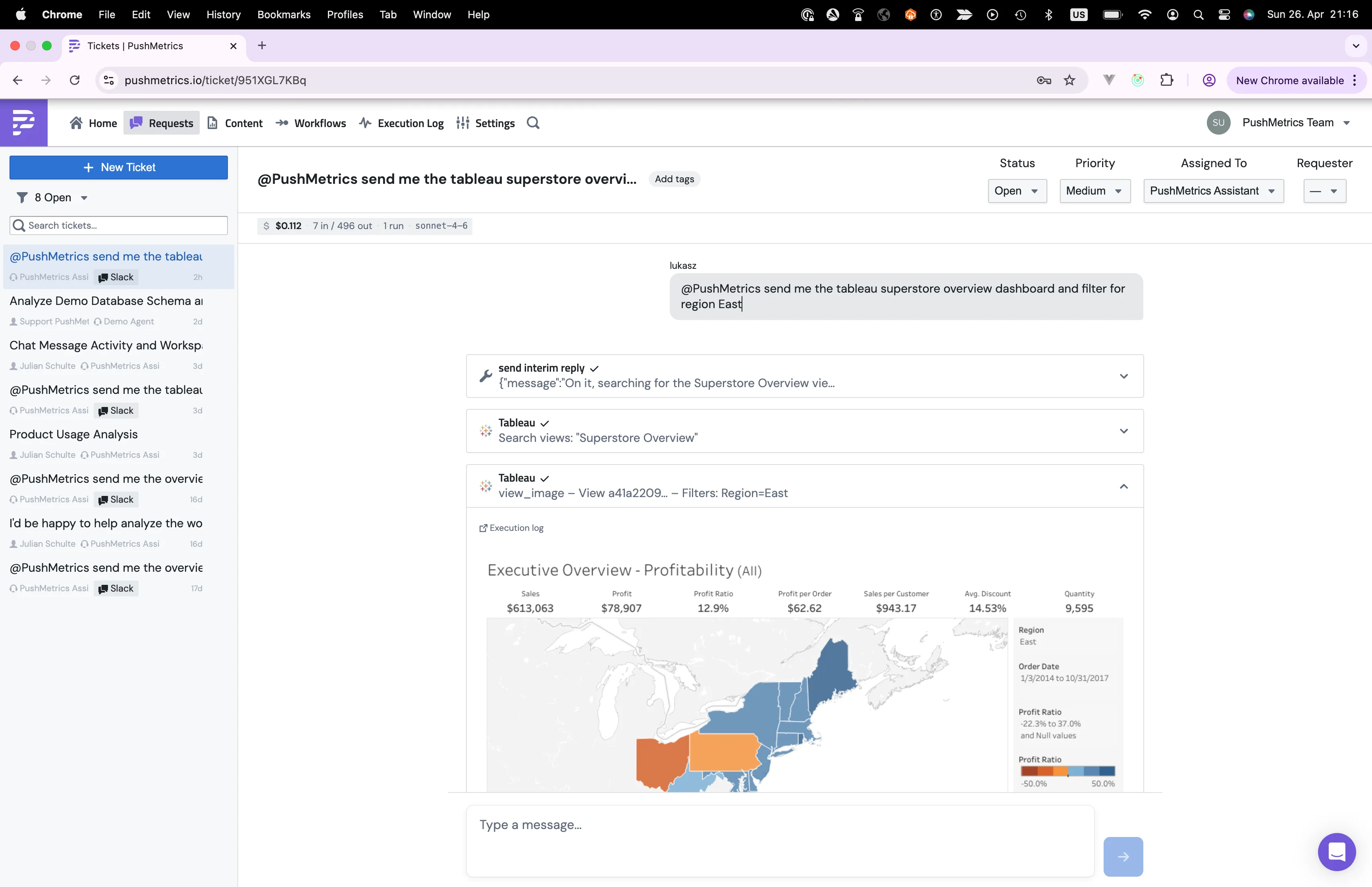
Conversations that started in Slack get a small Slack icon next to them in the Requests list, so you can tell them apart from web ones. Click into one and you'll see the full thread on the PushMetrics side, including every tool the agent used to come up with the reply.

A Slack-originated conversation opened on the Requests page in PushMetrics, showing the original Slack message and the agent's full work

This is handy for two reasons. You get the full picture (queries, charts, and intermediate steps) that doesn't fit cleanly into a Slack thread, and you can keep working on the conversation from the web app if you'd rather not type long follow-ups in Slack.


What the agent can do in Slack

The agent uses the same set of tools whether it's running in the web app or in Slack. The only differences are how messages are formatted and a couple of Slack-specific behaviours.

Reply in the same thread
When the conversation came from Slack, the agent posts back in the same thread automatically. You don't have to tell it where to reply.
Attach charts and CSVs
Charts get uploaded as images, query results as CSV files. Both show up inline in the thread.
Format messages properly
Agent markdown is translated to Slack's mrkdwn (bold, italic, code, lists). Long replies are split into multiple posts so they don't hit the Slack 4,000-character limit.
Send a "still working" update
For long jobs, the agent can post a short status message early so the channel knows it's still going. The thinking message updates in place once the real reply is ready.
Ask a follow-up question
If the agent isn't sure what you meant, it can post a Block Kit message with up to five buttons to pick from, or just ask in plain text.
React with an emoji
A 👀 reaction goes on your message as soon as the agent picks it up, and a ✅ when it's done. Lightweight signal that you can ignore until it's finished.
Stay quiet when needed
In a busy thread the agent can decide a message wasn't meant for it and not reply. More on this below.

Sending Slack messages from a conversation

Even if the conversation is happening in the PushMetrics web app, the agent can post to Slack. To make that work, you share a Slack block with the agent.

A Slack block is a saved Slack destination: which workspace to post to, the default channel, and how the message should be formatted. Once it's shared with an agent, the agent can use it to:

  • Post formatted messages to a channel (or several).
  • Reply in a specific thread, including the thread that started the conversation.
  • Attach CSV files (from query results) and chart images.
  • Customise the wording while still going to the right place.

So you can ask the agent for "today's pipeline summary, posted to #sales-updates", and that's exactly what shows up in the channel.


When several people are in the thread

Slack channels are noisy. Several humans might be chatting in the same thread the agent is in, not all of it directed at the agent. The agent knows the difference and stays out of the way when a message clearly wasn't meant for it.

When the agent joins a thread that's already in progress, it pulls in the recent messages first, so it understands the context before it answers.

🤫
This is one of the most useful Slack-specific behaviours. Without it, an agent in a busy channel would chime in on every single message, which gets old fast.

Things you should know

A few details that aren't obvious but make a real difference.

  • One thread, one conversation. Replies in the same Slack thread always continue the same PushMetrics conversation. A fresh thread starts a fresh one.
  • Slack users get auto-added as recipients. The first time a Slack user @-mentions an agent, PushMetrics adds them to your recipient list so the agent can mention them, email them, or reply privately later.
  • Direct messages are off by default. A workspace admin can switch them on per-channel mapping. Same for public-channel mentions.
  • The agent only sees channels you've explicitly mapped. If a channel isn't connected to an agent, mentions in it are ignored.
  • Mentions get resolved. When you write <@U123> or #sales-updates in a message, the agent sees real names, not Slack IDs.

What happens between Slack and PushMetrics

You don't need to know any of this to use Slack agents, but if you're curious about what PushMetrics does behind the scenes when a Slack message arrives, here it is.

1. Verify it's really from Slack
Every event is checked against the workspace's Slack signing secret. The timestamp must be within 5 minutes of now. Anything that fails is rejected.
2. Skip duplicates
Slack sometimes sends the same event more than once. PushMetrics keeps a small Redis log of recent events for a few minutes so the agent only ever runs once per message.
3. Find the right agent
Each connected channel can be mapped to a specific agent (a route). If there's no route for the channel, the workspace's default agent picks it up.
4. Read the thread first
If the agent is joining an ongoing thread, PushMetrics pulls the previous messages in so the agent knows what people were talking about.
5. Open a conversation
A new conversation is created in PushMetrics, with the Slack user as the requester and a link back to the original thread. If the same thread already has a conversation, that one is reused.
6. Run and reply
The agent uses its tools just like in a web conversation, then posts the answer (and any attachments) back into the thread.

Inbound Channels: routing Slack messages to the right agent

Slack mentions don't all need to go to the same agent. A workspace can have a Sales Assistant, an Engineering Helper, and a generic FAQ bot, each handling different channels. Inbound Channels is where you wire that up.

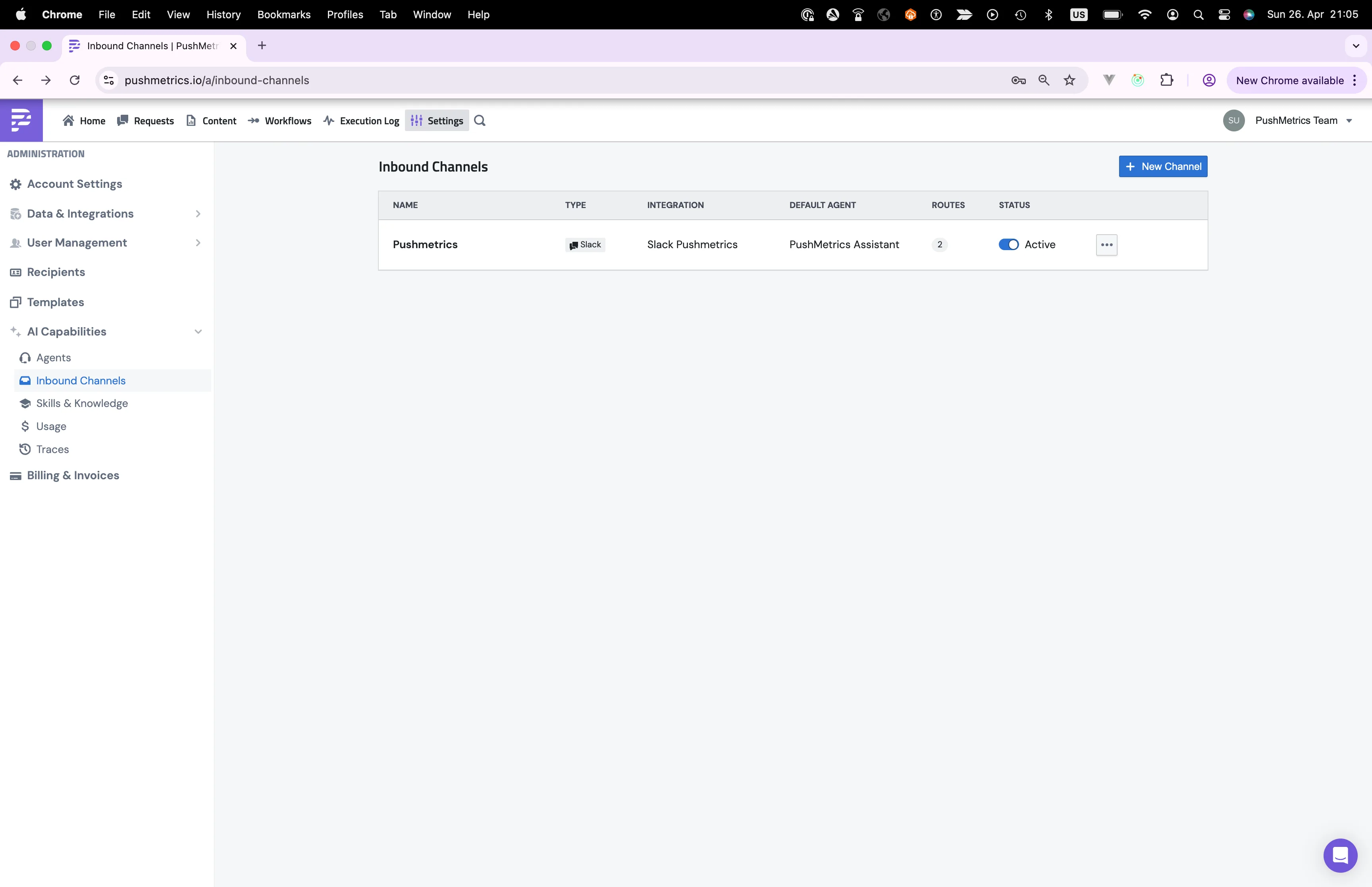
Open Settings → AI Capabilities → Inbound Channels to manage them.

The Inbound Channels list in PushMetrics, showing one Slack channel mapped to a default agent with two routes

The list shows each connected Slack workspace with its default agent, the number of routes it has, and whether it's currently active. The Active toggle pauses or resumes the whole channel without deleting any of its routes.

What's in an inbound channel

Click into a channel and you'll see two halves: general settings (which Slack workspace it talks to and which agent runs by default) and access controls (who's allowed to message the bot, and whether DMs and @-mentions are accepted).
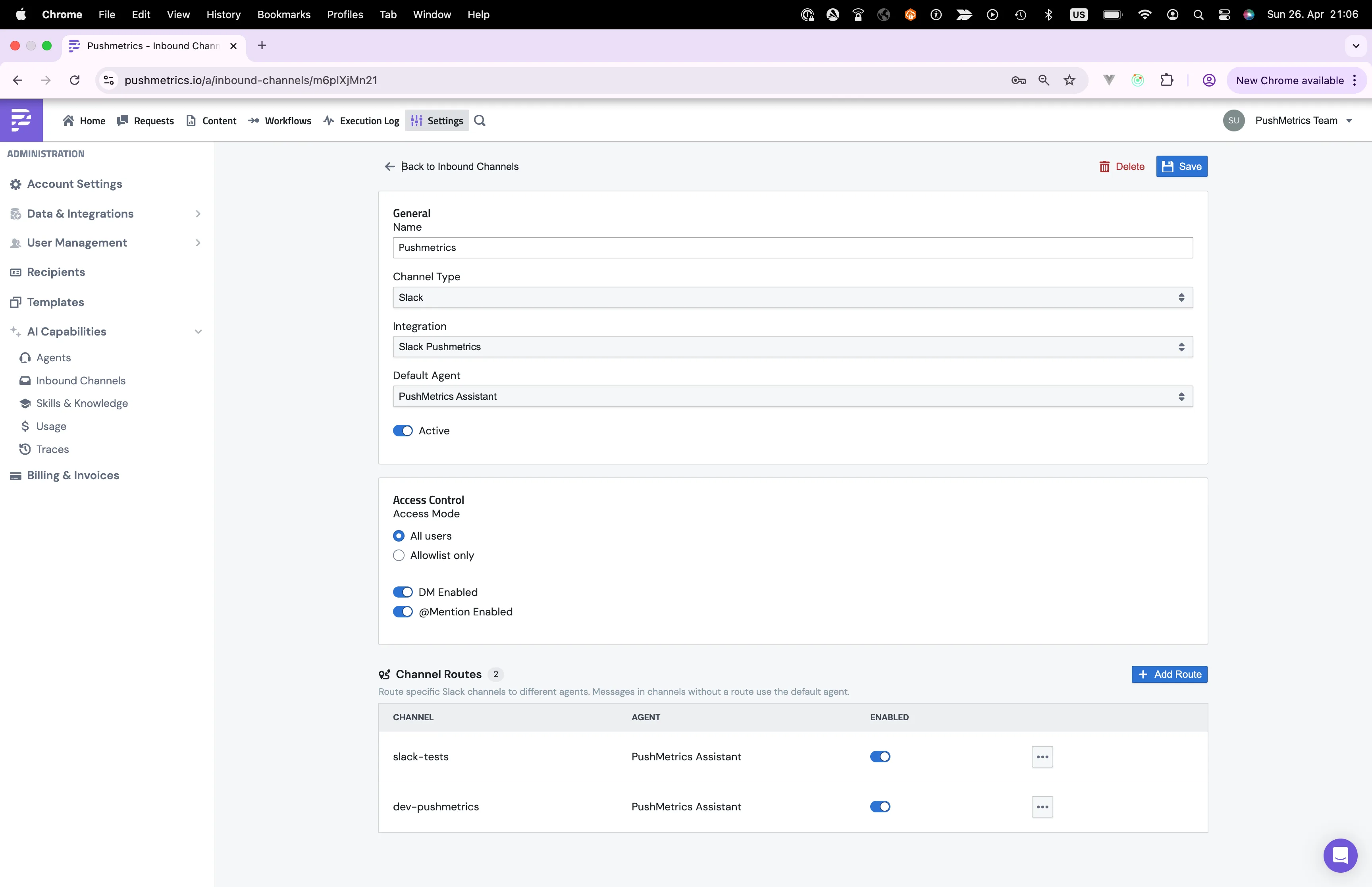
The detail page for an inbound channel, with general settings and access control sections
Name
A label for this channel that only you see, like "Engineering Slack" or "Customer Support".
Integration
Which Slack workspace integration this channel uses. You set this up once on the Slack Integration page.
Default Agent
The agent that picks up any message that doesn't match a more specific route. Every channel needs one.
Access Mode
All users lets anyone in the Slack workspace message the bot. Allowlist only lets you pick specific Slack users; everyone else gets a polite "you don't have permission" reply.
DM enabled
If on, people can send direct messages to the bot. If off, DMs get a "DMs aren't enabled" reply.
@Mention enabled
If on, the bot replies when @-mentioned in a channel. If off, it ignores the mention.
Status
Active or Paused. A paused channel stays configured but stops accepting messages until you flip it back.

Routes: send specific channels to specific agents

A route says "messages from this Slack channel go to that agent". Without any routes, every message in the workspace goes to the Default Agent. Add a route to send a particular channel somewhere else.
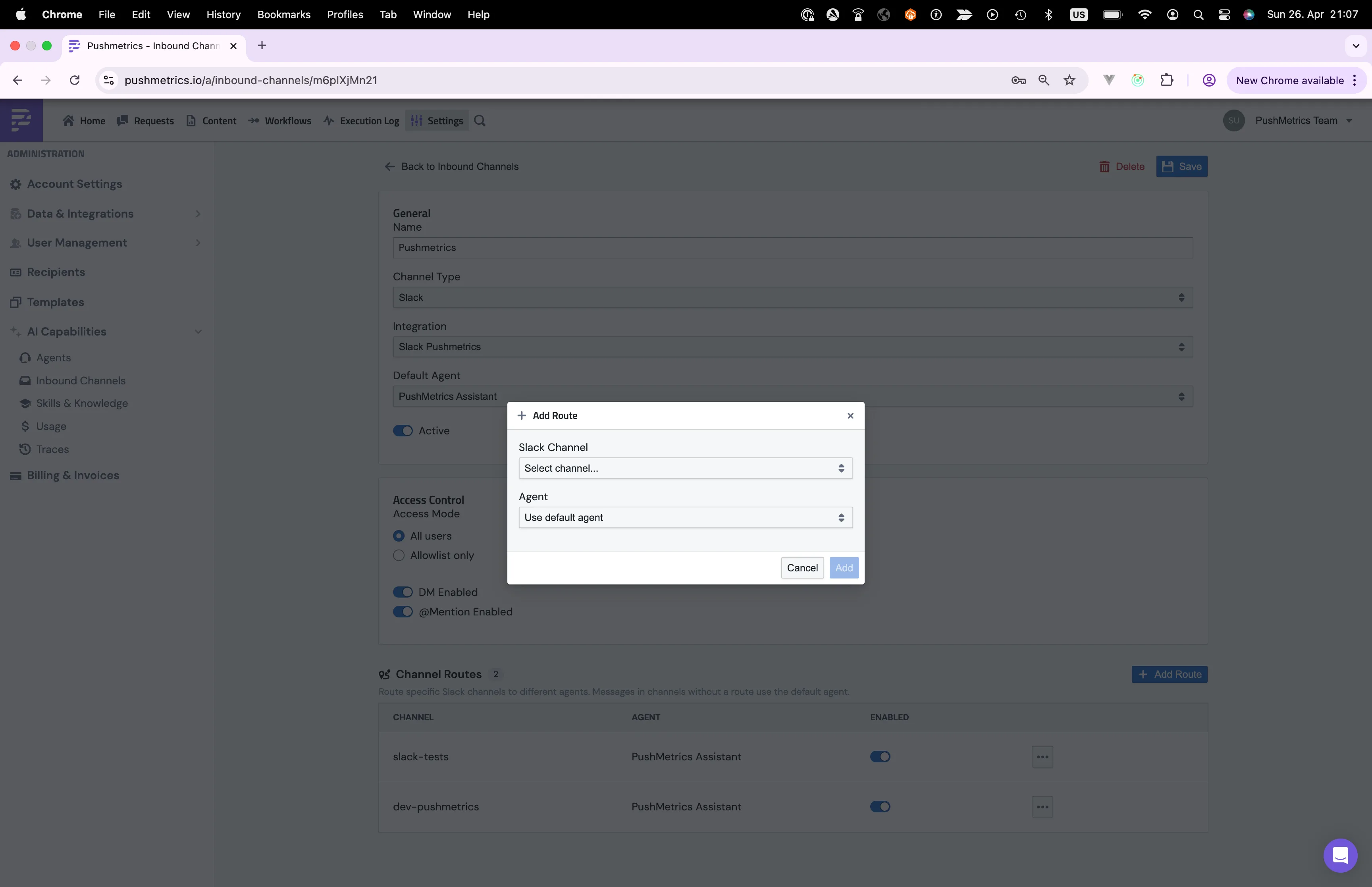
The Add Route dialog: pick a Slack channel and the agent that should handle it

When you click Add Route:

1
Pick the Slack channel. The dropdown lists every public and private channel in the connected workspace. Both regular and private channels work.
2
Pick the agent that should handle it. Leave it blank to fall back to the channel's Default Agent.
3
Save. The route is active right away. You can disable it later without deleting it.
🧭
How routing actually works. When a Slack message arrives, PushMetrics looks for a route matching the channel ID. If there is one and it's enabled, that route's agent runs. If there isn't, the channel's Default Agent runs. If access controls (allowlist, DMs, mentions) reject the message, it never reaches an agent.

Setting up Slack for an agent

1
Connect Slack to PushMetrics. See Slack Integration for the one-time setup.
2
Create the Slack blocks your agents need. A Slack block is a saved destination (workspace + default channel + formatting) that an agent can post to.
3
Share those Slack blocks with the agent. Now it can post to them.
4
Connect Slack channels to your agent. Go to Settings → AI Capabilities → Inbound Channels and map each channel to the agent that should handle it. This is what makes @-mentioning the agent in a channel actually start a conversation.

Example: smart Slack alerts

Combine an agent skill with Slack and you've got a smart alert. Instead of a fixed cron job that posts the same template every day, the agent can:

A daily anomaly check
Run a SQL query to look for KPIs that have crossed a threshold.
If something looks off, build a chart that shows it.
Post a Slack message with the chart and a short note about what changed and why it might matter.

That last step is the difference between a generic alert and an actually useful one. The agent can describe what it's seeing in plain English ("revenue is down 14% week over week, mostly driven by a drop in trial conversions") instead of just sending a chart and leaving people to figure it out.