Mail merge in PushMetrics uses Dynamic Report Personalization to automatically generate and send individualized reports to a list of recipients. Each recipient receives a personalized version of the report with their own data, attachments, and message content.
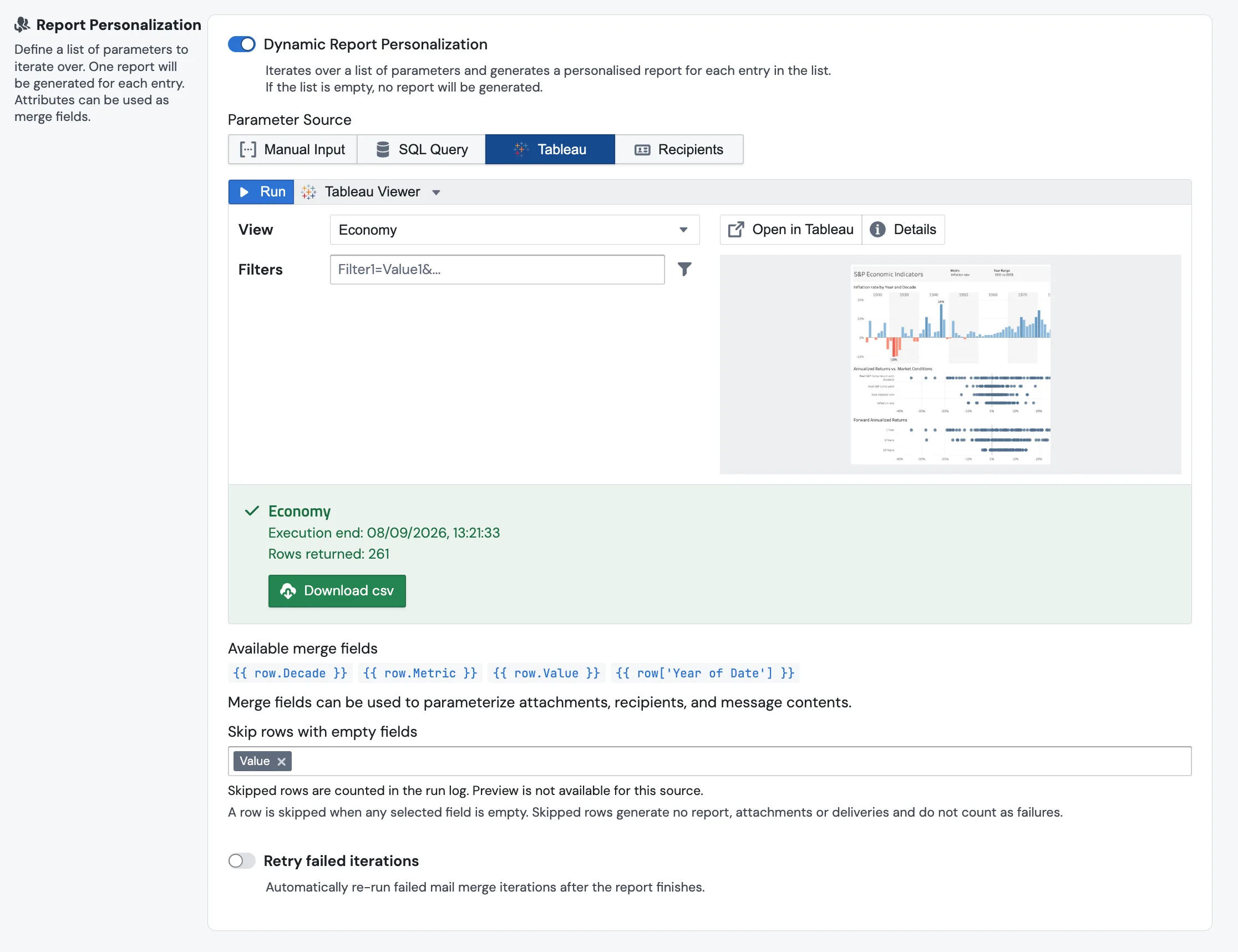
How It Works
Dynamic Report Personalization is a feature of Reports (not notebooks). When enabled, PushMetrics iterates over a list of parameters and generates a personalized report for each entry in the list. If the list is empty, no report is generated.
Each entry's fields are available as merge fields that you can use throughout the report — in email recipients, subject lines, message bodies, Slack channels, SQL queries, and any other block that supports Jinja.
Setting Up Report Personalization
1. Open Report Personalization
In the report editor, find the Report Personalization section. Toggle on Dynamic Report Personalization.
2. Choose a Parameter Source
Select where your recipient list comes from using the source tabs:
- Manual Input — define recipients directly as a JSON array. Useful for small, static lists or testing. You can also Import CSV to convert into JSON for easier data entry.
- SQL Query — use a SQL query that returns one row per recipient. The query runs at execution time, so the recipient list is always up to date.
- Tableau — use data from a Tableau export as the parameter source.
- Recipients — use a predefined recipient list.
3. Define Your Recipient Data
Each entry in the parameter source should include all the fields you need for personalization. For example, using Manual Input with JSON:
[
  {
    "email_recipients": "recipient1@example.com",
    "cc_recipients": "someone@example.com, admin@co.com",
    "first_name": "John",
    "last_name": "Doe",
    "region": "East"
  },
  {
    "email_recipients": "recipient2@example.com",
    "cc_recipients": "someone@example.com",
    "first_name": "Diana",
    "last_name": "Smith",
    "region": "West"
  }
]
4. Use Merge Fields
Once your parameter source is configured, PushMetrics shows the Available merge fields below the editor. For a SQL Query or Tableau source, the fields come from a result, so click Run on the source block first; Manual Input and Recipients show theirs right away.
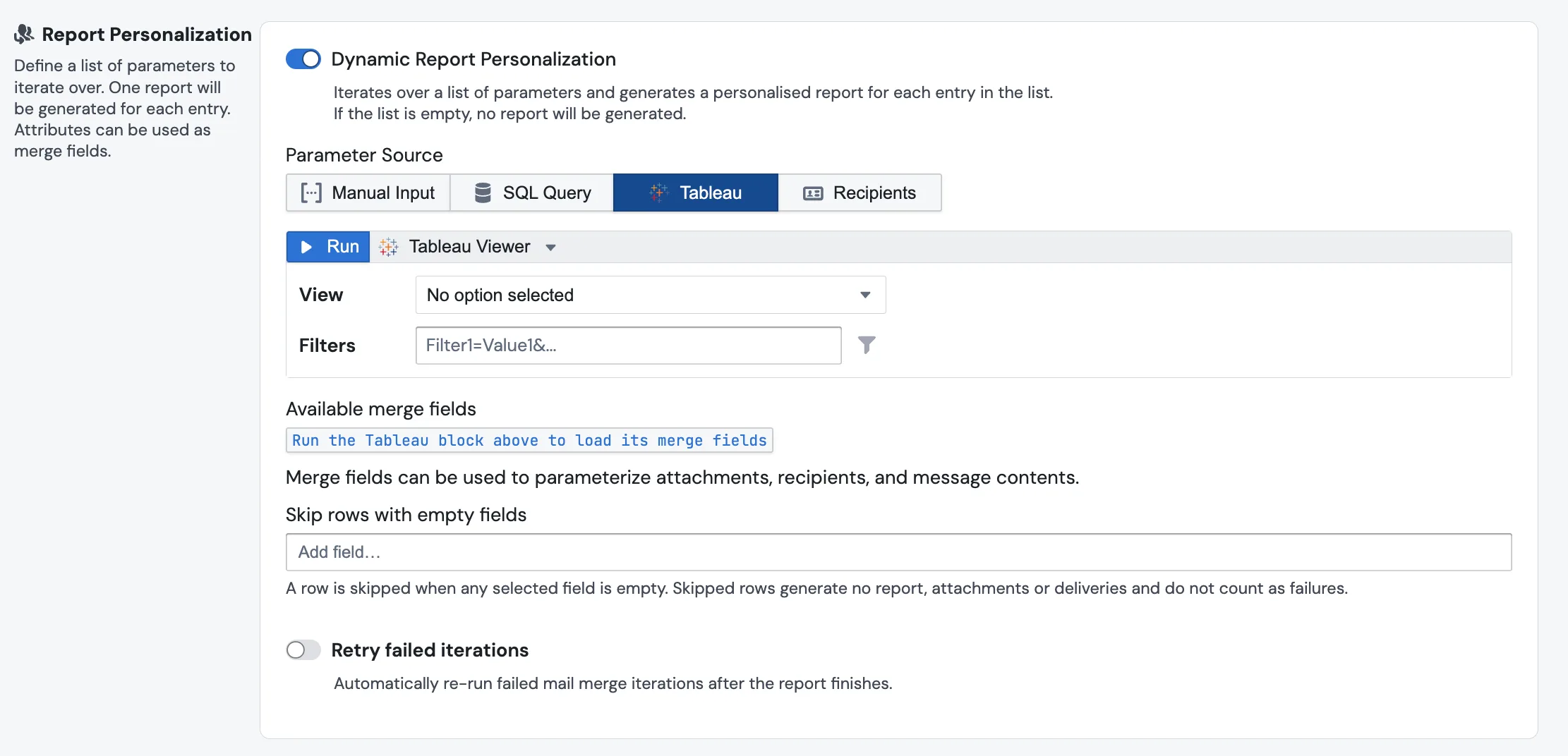
After the run, the fields are listed:
{{ row.email_recipients }} {{ row.cc_recipients }} {{ row.first_name }} {{ row.last_name }} {{ row.region }}
Use these merge fields anywhere in your report to personalize content for each recipient.
Using Merge Fields
Merge fields can be used to parameterize attachments, recipients, and message contents throughout the report.
In Email Blocks
- To:
{{ row.email_recipients }} - Cc:
{{ row.cc_recipients }} - Subject:
Weekly Report — {{ row.region }} - Body:
Hi {{ row.first_name }}, here's your weekly summary...
In SQL Queries
Filter data to show only the current recipient's information:
SELECT date, revenue, orders
FROM daily_metrics
WHERE region = '{{ row.region }}'
  AND date >= CURRENT_DATE - INTERVAL '30 days'
ORDER BY date
Each report iteration runs the query with the current recipient's values, producing personalized data.
In Slack Blocks
- Channel:
{{ row.slack_channel }} - Message: Personalized content using any merge field.
In Render (DOCX) Blocks
Use merge fields inside a Render block to generate personalized Word documents per recipient.
Parameter Source: SQL Query
For dynamic, always-current recipient lists, use a SQL query as the parameter source:
SELECT
    email AS email_recipients,
    manager_email AS cc_recipients,
    first_name,
    last_name,
    region,
    client_id
FROM client_contacts
WHERE active = true
ORDER BY last_name
Each row returned by the query becomes one report iteration. All column names are available as merge fields via {{ row.column_name }}.
Skip Rows with Empty Fields
Some entries in a parameter source are not really recipients: a contacts view where a few rows have no email address, a SQL result where a region has no manager yet. Without a filter each of those rows still runs every block of the report and then fails at delivery with "No execution because no recipients found", which marks the whole run as failed even though every other recipient was served.
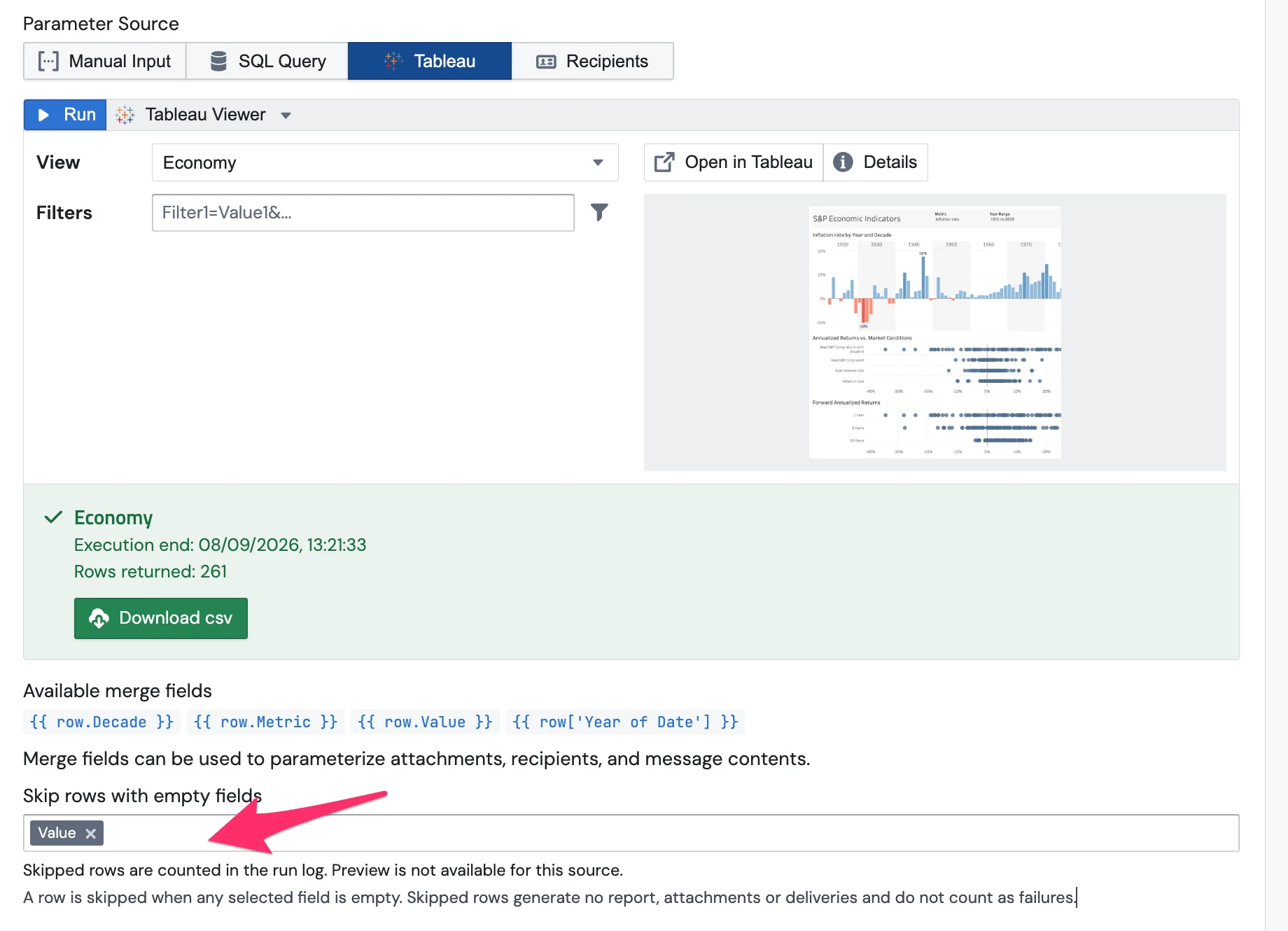
Skip rows with empty fields, in the Report Personalization section below Available merge fields, lets you name the merge fields a row must have. Pick one or more fields from the list (Add field…). A row is skipped when any selected field is empty; with several fields selected, only rows that have a value in all of them run.
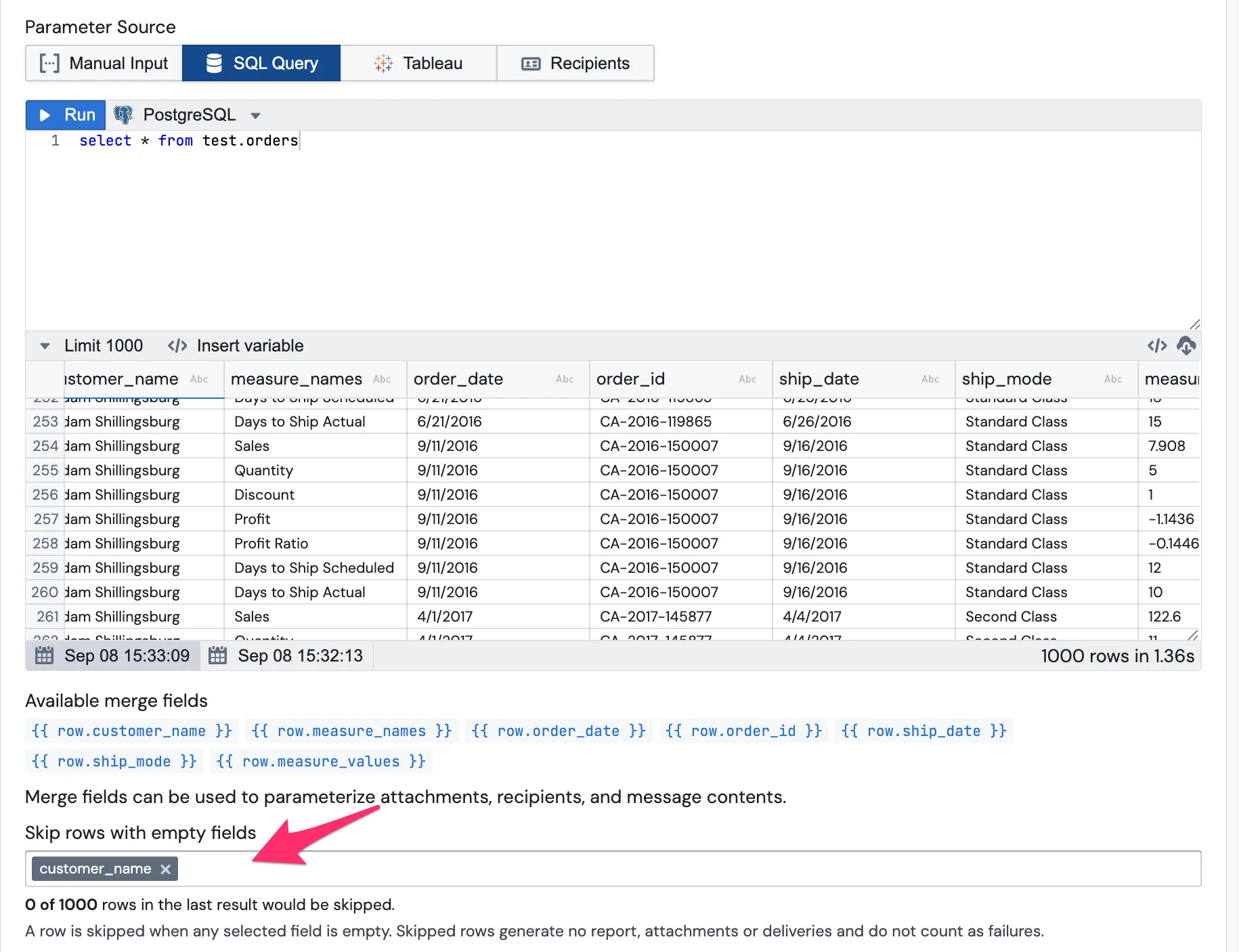
Skipped rows never enter the loop: no report is generated for them, no attachments are produced, nothing is delivered, and nothing is counted as failed. The run finishes successfully for the remaining rows. This is different from Don't send if any attachment is empty on the Email block, which still runs the row's blocks and then decides not to send.
What counts as empty
- A missing field, a null value, or a value that is empty or only whitespace is empty.
0,"0"andfalseare values, not empty. Rows with those are kept.- If a selected field no longer exists in the source (for example the column was renamed), it counts as empty for every row, so the report skips all rows and the run finishes successfully with nothing sent, rather than failing on every row. The field's chip is marked Not in the last result so you can spot it.
Which sources it applies to
The filter works for every parameter source: Manual Input, SQL Query, Tableau and Recipients.
What differs is the preview in the editor. For Manual Input and SQL Query the editor has the rows of the last result, so the section shows how many rows would be skipped, for example "10 of 50 rows in the last result would be skipped", and Show rows lists them. A Tableau result only carries a row count in the editor, and Recipients are resolved at run time, so for those the count appears in the run log instead.
The loop line in the Execution Log ends with the count, for example 248 iteration(s), 13 row(s) skipped by the row filter:

Changing the parameter source clears the selection, because the field names belong to the old source.
Retry Failed Iterations
Enable Retry failed iterations to automatically re-run any mail merge iterations that failed after the report finishes. This is useful for handling transient errors (e.g., temporary email delivery failures) without re-running the entire report.
Use Cases
- Weekly client reports — send each client a personalized email with their KPIs, charts, and data filtered to their account.
- Sales team updates — deliver individualized pipeline summaries to each sales rep.
- Invoice delivery — generate and email personalized DOCX invoices per customer.
- Manager dashboards — send each department head a report filtered to their team's data.
- Regional reporting — automatically split a company-wide report by region and send each version to the regional lead.
Tips
- Start with Manual Input and a small JSON array (2-3 entries) to test your merge fields before connecting a SQL query.
- Use the Import CSV option in Manual Input to convert a spreadsheet into JSON format easily.
- Include
email_recipientsandcc_recipientsfields in your parameter source to control delivery per recipient. - Every SQL query, chart, and block in the report can use
{{ row.field }}merge fields — use them in WHERE clauses to filter data per recipient. - If all recipients should receive the same content (only the recipient changes), you can still use Report Personalization — just include only the email/channel fields in your parameter source.
- If your source can contain rows without a recipient, add the recipient field under Skip rows with empty fields so those rows are skipped instead of failing the run.