The Report Health Digest gives workspace admins a bird's-eye view of every report in the workspace. The Personal Digest is the same idea, scoped to you: a daily or weekly email about the scheduled items you created, whether they are reports, notebooks, or agent runs. It goes to your own inbox and nobody else's.
If you own a handful of scheduled reports and just want to know whether your stuff ran this week, this is the email for you. You don't need to be an admin.
What's in the digest
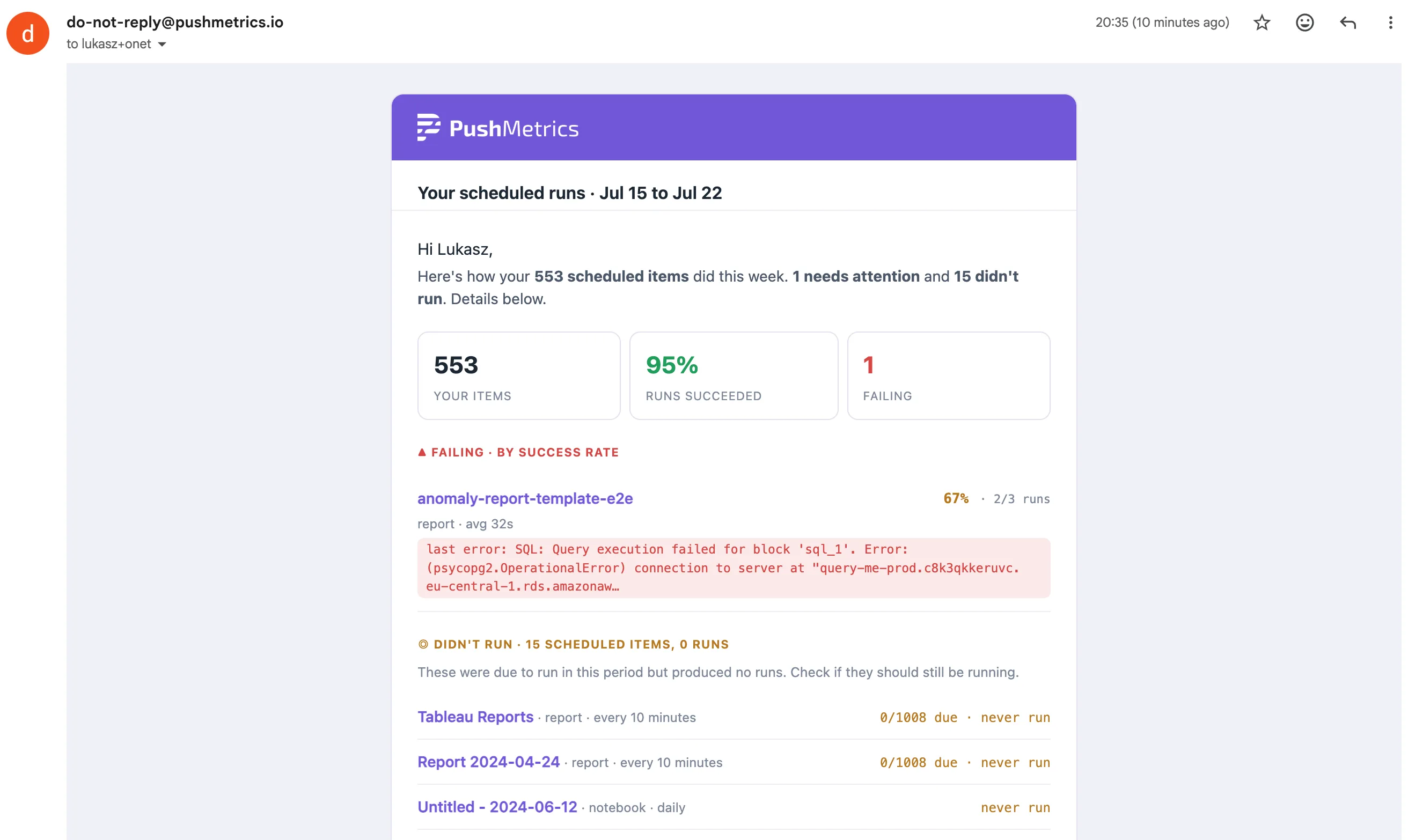
Each digest covers the last day (daily) or the last 7 days (weekly) and only looks at items you created. It has three sections:
- Failing, ranked by success rate with the worst first. Each entry shows the name, schedule, run counts, success percentage, and the most recent failure reason.
- Didn't run: items with an active schedule that were due in the period but produced zero runs. A monthly report that simply wasn't due doesn't count. These never show up in any run log, because there is no run to look at.
- All your scheduled items: a table of everything you have on a schedule, with name, type, schedule, last run, success rate, and average execution time. Problems sort to the top.
The header sums it up at a glance: how many items you own, the overall success rate, and how many are failing.
Turning it on
Any workspace member can enable it. Guests don't have scheduled items, so they won't see the option.
- Click your avatar in the top-right corner and open your profile.
- Find the Email Digest section, right below Security.
- Turn the digest On and pick a Frequency: Daily, or Weekly (sent on Mondays).
- Choose when to hear from it under Send:
- Always sends the full overview table even when everything is green. This is the default.
- Only when something needs attention stays silent on all-green periods.
- Pick a Send time. The hour is interpreted in your workspace's timezone.
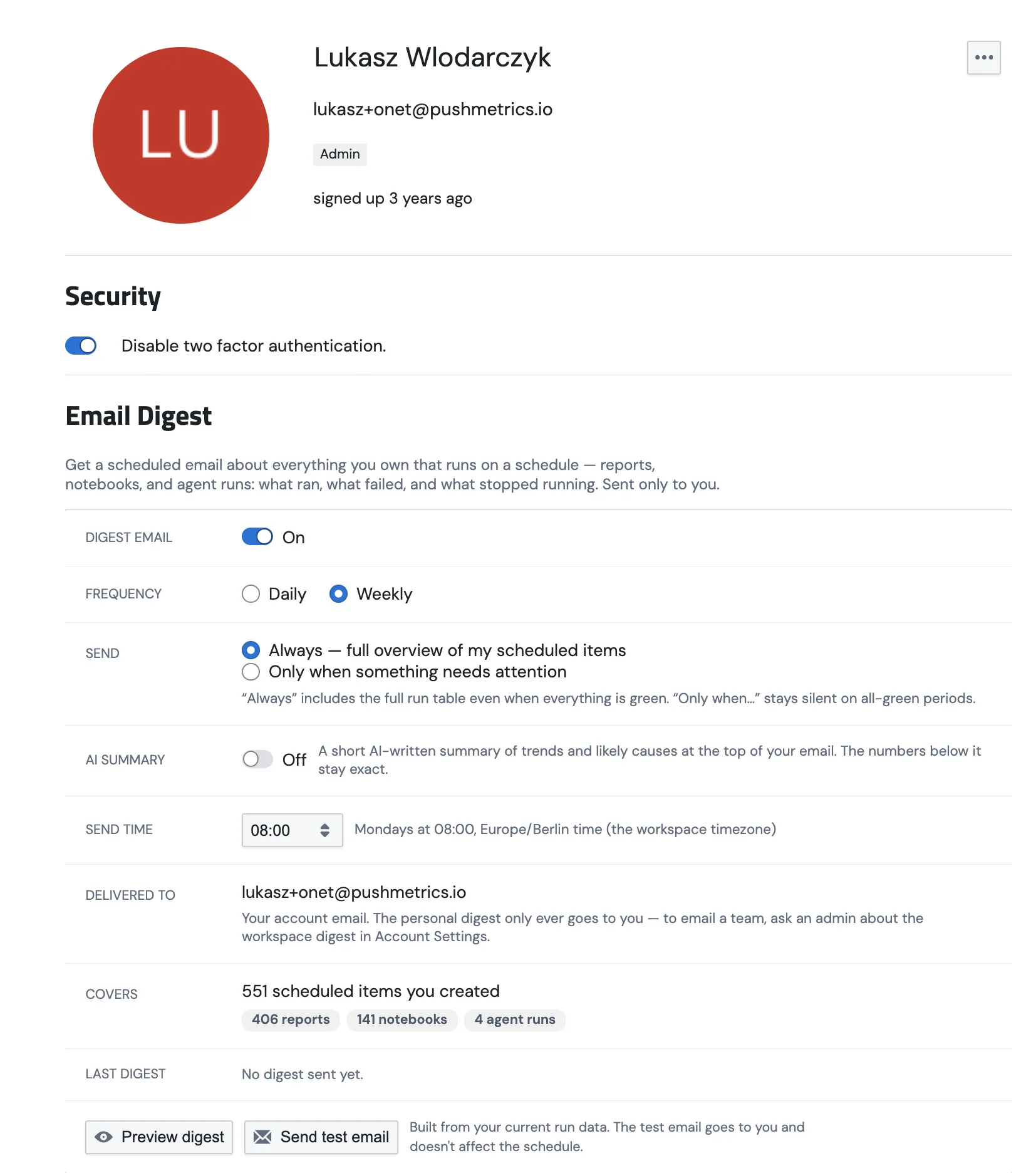
Delivery always goes to your own account email. There is no recipients list on purpose: if you want a whole team to get a workspace-wide summary, ask an admin about the Report Health Digest in Account Settings.
The Covers row on the card shows live counts of what the digest will report on, broken down into reports, notebooks, and agent runs.
Previewing and testing
You don't have to wait for the schedule:
- Preview digest renders the exact email in the app from your live run data. Nothing is sent.
- Send test email delivers a real digest to you right away. It sends even when there is nothing to report, so you can always verify delivery. Test sends don't affect the regular schedule.
The card also shows a Last digest status: when the last one went out and what it found, or the error if a send failed. Failed sends retry automatically on the next hourly check.
The AI summary (optional)
On AI-enabled plans you can switch on an AI summary: a short paragraph at the top of your email covering trends and likely causes. Think "your two Tableau exports failed all week, probably an expired credential" instead of a wall of numbers. The health numbers themselves are always computed directly from your run history. The AI writes the narrative on top, never the figures.
The digest itself works on every plan. Only the AI summary requires the AI plan.
API access
Everything the digest shows is also available as JSON, authenticated with a Personal Access Token (create one under Settings, Access Tokens):
GET /api/v1/user_config/personal_digest/data?window_days=7
The response contains the same numbers as the email: totals, the item list
(name, type, schedule, last run timestamp, run counts, success rate,
average execution time in seconds), and the failing and stopped subsets with
the most recent error message per failing item. The item list covers up to
1,000 items; if you own more than that, items_overflow tells you how many
were cut. window_days accepts 1 to 90. The endpoint is scoped exactly like the email: it only ever returns
items the token's user created.
The full walkthrough, including token creation, the exchange step, response fields, and curl and Python examples, lives on the Digest API guide, linked from Settings → Access Tokens in the app.
Personal vs. workspace digest
| Personal Digest | Report Health Digest | |
|---|---|---|
| Who can enable it | Every member, on their profile | Workspace admins, in Account Settings |
| What it covers | Items you created | All reports in the workspace |
| Who receives it | Only you | Any configured recipients |
| All-green periods | Your choice: full overview or silence | Silent |
The two are independent. You can receive both, and many people do: the workspace digest for the big picture, the personal one for your own items.
Related
- Report Health Digest, the workspace-wide version for admins.
- Auditing Reports, Recipients, and Run Status for per-run failure alerts on individual reports.