A report run finishing with a green success used to mean one of two very different things: the email went out, or every destination was skipped because there was no data and nobody received anything. Both looked identical in run history. The only way to tell them apart was to open the run and read each task's status one by one.
That gap is now closed. A successful run that delivered nothing is marked as such — everywhere you'd look for it.
This is about visibility: it changes how runs are displayed, not when your reports send. The one behaviour change that came with it is described in When a query returns no rows below.
Why a run can succeed and send nothing
Skipping is often exactly what you asked for. A few settings deliberately stop a destination from sending:
- Don't send if any attachment is empty on an Email or Slack task — the message is held back when the data is empty.
- Conditional attachments — an attachment's condition doesn't pass and the file is left out.
- An alert-style report that only mails you when there's something to report.
In all of these the run did its job correctly, so it ends as success. Nothing failed. But if every destination on that report skipped, the practical outcome is that no recipient got anything — and that's worth being able to see at a glance.
Run history: the gold bar
On the report list, each report shows its last runs as a row of small bars. A run that completed but delivered nothing is now gold instead of green.
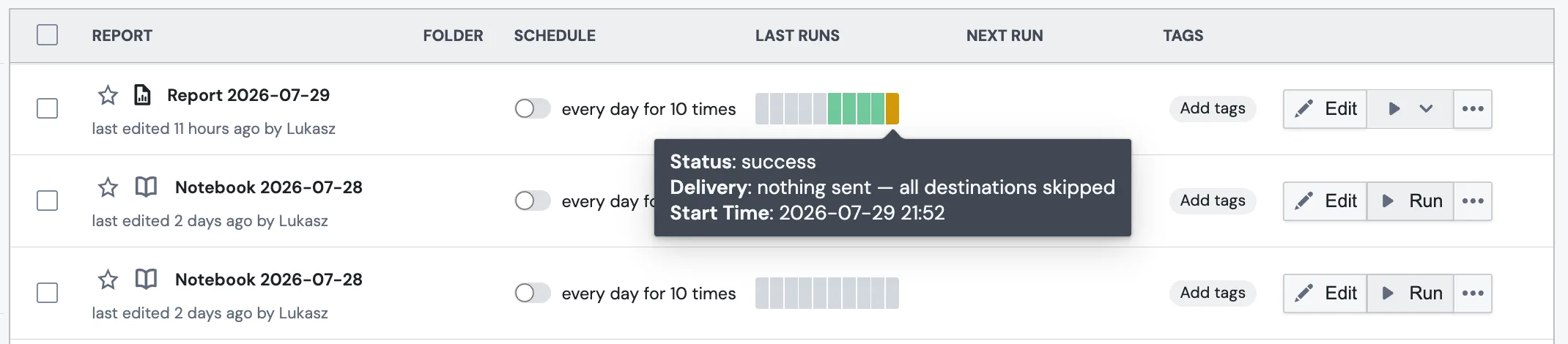
Hover any bar for the details. Runs where something was skipped now carry a Delivery line:
- nothing sent — all destinations skipped — no recipient received anything. This is the gold bar.
- partially sent — some destinations skipped — at least one destination did send. The bar stays green, since something genuinely went out, and the tooltip carries the nuance.
Failed runs keep their own red colour and are never re-coloured to gold — a failure is still a failure.
Execution Log: the "Nothing was sent" tag
In the Execution Log, affected runs get a marker in the status column. Hover it for the full explanation:
- Nothing was sent — all 1 destination was skipped (no data).
- Partially sent — 1 of 3 destinations skipped.

If the run was stopped by a report-level Condition Check, you'll see that tag instead. The Condition Check already explains why the run stopped, so only one marker is shown per run.
What counts as a destination
Every task that delivers something out of PushMetrics counts: Email, Slack, Webhook, SFTP, AWS S3, Google Drive, Google Cloud Storage, and Azure Blob Storage.
A few things to know:
- Reports with no destination at all — a notebook, or an ad-hoc SQL run — are unaffected. There is no delivery to report on, so no tag or gold bar ever appears.
- A destination that was served from cache counts as sent. Cached delivery means the message had already gone out; it isn't a skip.
- Runs from before this feature shipped display exactly as they always did. Nothing was backfilled.
When a query returns no rows
Alongside the new visibility, one long-standing bug in Don't send if any attachment is empty was fixed.
The option is on the Email and Slack tasks, under Advanced Options:
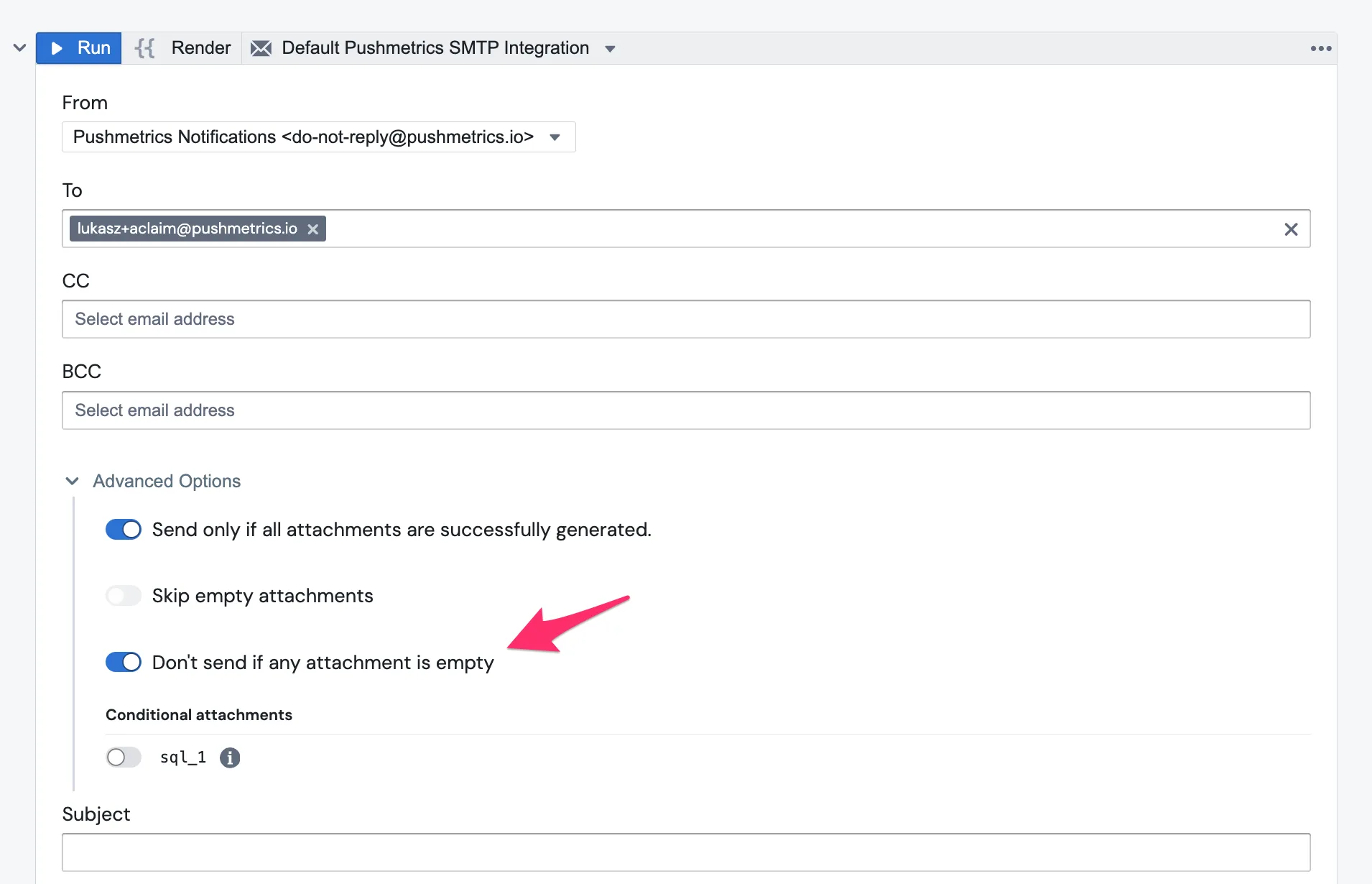
It used to only catch the narrower case where a file exists but has no data rows — a CSV with just a header. When a query returned zero rows, no file was produced at all, and the message went out anyway with no attachment on it. Which is the opposite of what the setting is for, and the most common way to have no data.
It now behaves the way the label reads: if a task asked for attachments and none could be produced, the message is not sent. The destination is recorded as skipped, and the run picks up the gold bar and tag described above.
This changes what some existing reports do. If you have a report with this option on and a query that regularly comes back empty, it was previously sending an empty message each time — and will now correctly stop sending it. If those empty messages were serving as a "still running" heartbeat for someone, turn the option off for that report, or use scheduled success notifications instead.
Reports without the option enabled are unaffected.
Checking delivery in bulk
For a workspace-wide view rather than a per-report one:
- The Report Health Digest emails a daily or weekly roll-up of every report that's failing or silently sending nothing.
- The Run History API returns one JSON record per execution if you'd rather query run status yourself. The guide is linked from Settings → Access Tokens in the app.
Related
- Conditional Attachments — leave a single empty file out and send the rest of the report.
- Condition Check — stop the whole run with a SQL gate, and get notified when it stops.
- Execution Log — the full run history, with per-task detail.
- Auditing Reports and Run Status — error and success notifications for scheduled reports.