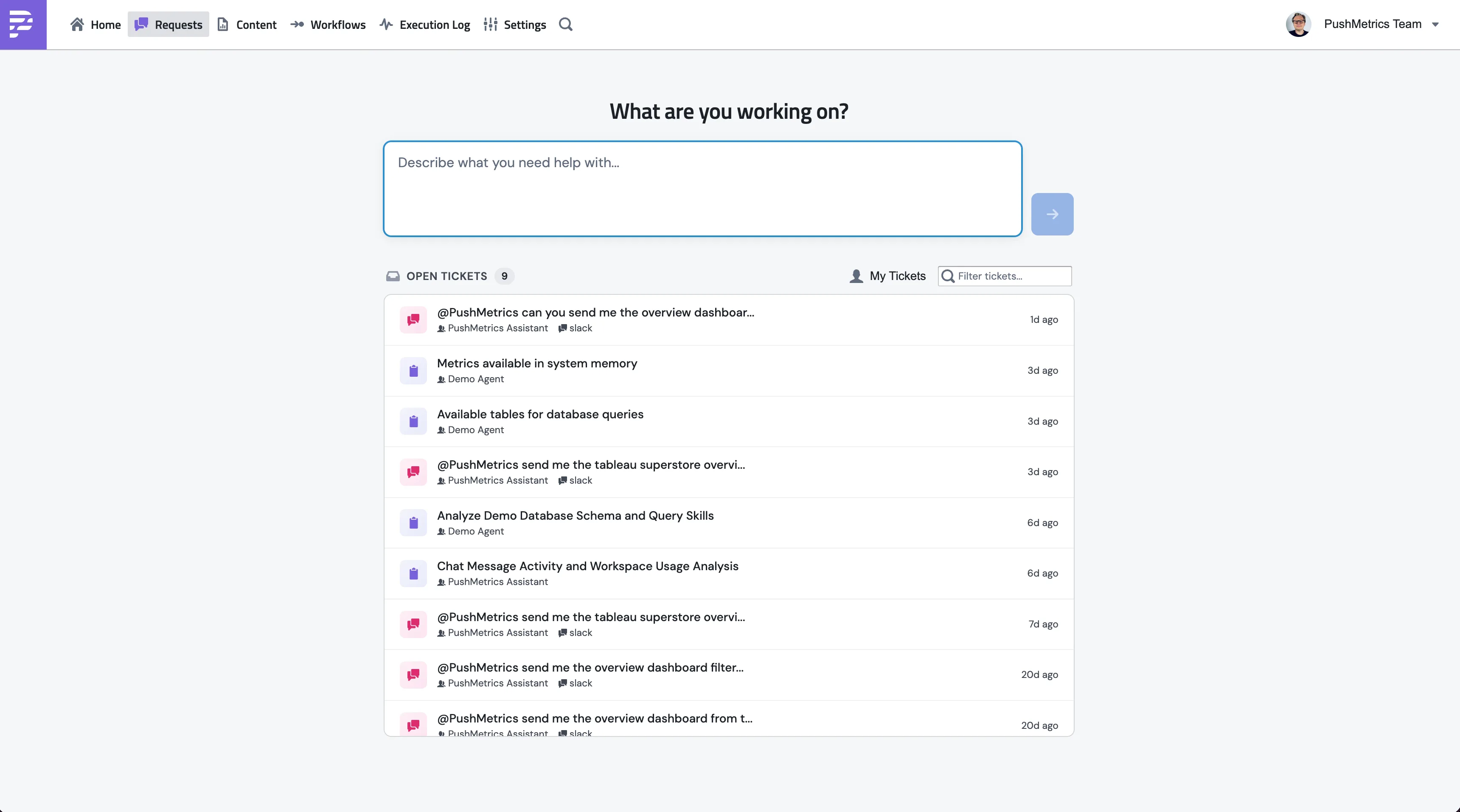
The Requests page is where you actually talk to agents. It's in the top nav, next to Home. Everything you've ever asked an agent lands here, so you can come back to old work, pick up a paused thread, or pass a result to someone else.
Starting a conversation
Once you're on the Requests page:
- Type into the message box to kick off a fresh conversation.
- Click anything in the sidebar to continue something you started earlier.
- Flip My Tickets to filter out everyone else's chats and just see yours.
- Past five conversations, a search box appears. It looks at titles and message bodies, so you can hunt down that thing you asked last week.
There's no save button. Everything's kept automatically.
What you see in the chat
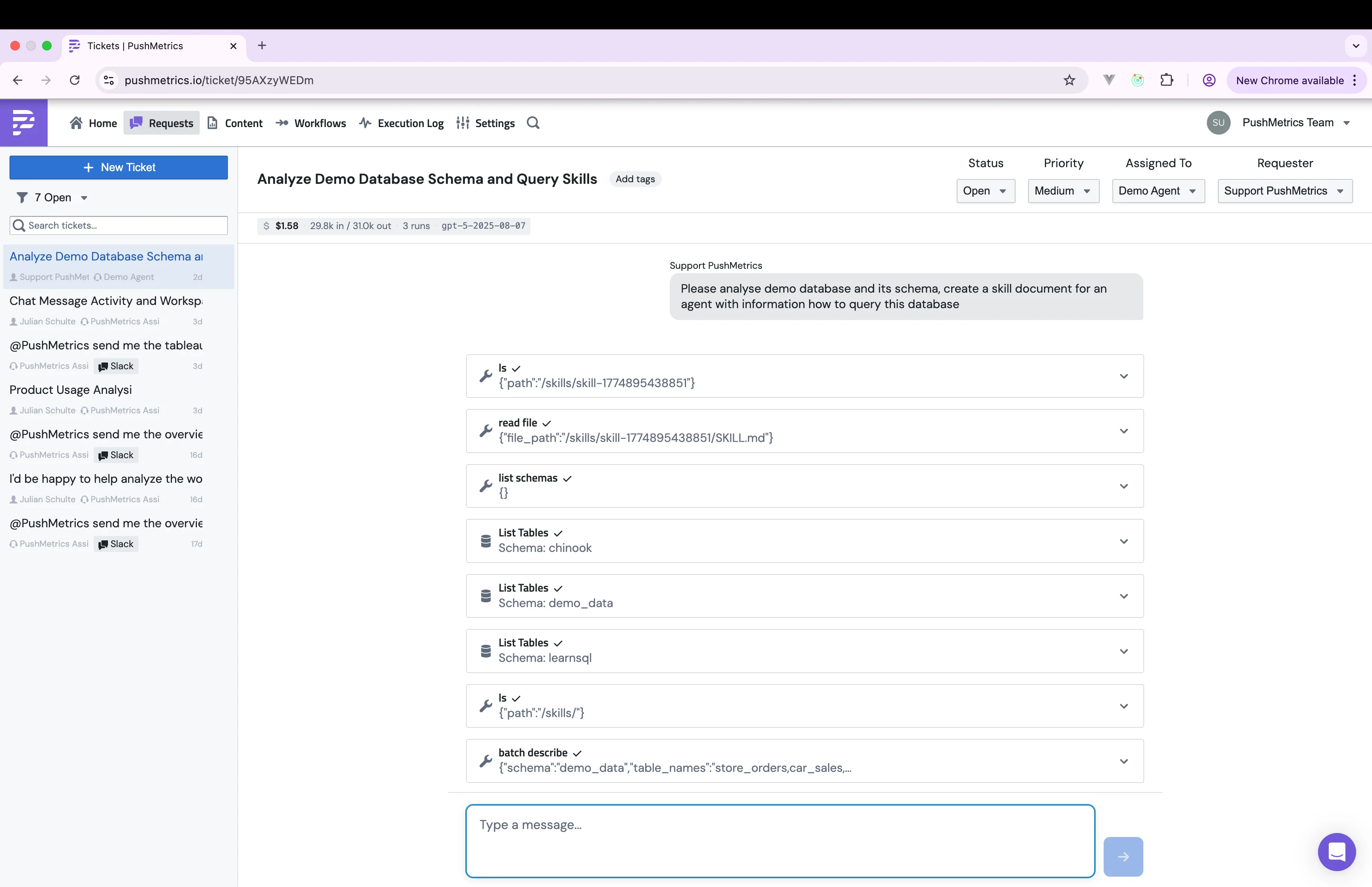
The page is split three ways. Once the layout clicks, it's pretty self-explanatory.
The list on the left
Every conversation you can see, newest first. Each row tells you:
- The title. The agent writes one off your first message; you can rename it any time.
- A green dot if the agent is still working in that conversation.
- A source icon: for the web app, for Slack.
The messages in the middle
The actual conversation. Four kinds of things show up here:
- Your messages with your avatar.
- The agent's replies, plain text mixed with code blocks, tables, and links wherever they help.
- Tool cards that fire in real time as the agent runs a query, draws a chart, or sends an email.
- Thinking steps. Collapsed by default; click to peek at how the agent worked through the problem.
The message box at the bottom
Type, hit Enter. The agent gets going immediately and the reply streams in word by word.
Tool cards
Every time the agent reaches for a tool, a card lands in the chat with what it just did. Nothing's hidden. The popular tools have their own custom card. Everything else (creating or querying a metrics view, recipient lookups, memory and skill edits, and so on) falls back to a generic wrench-icon card showing the call inputs and the result.
Conversations as tickets
Under the hood, every conversation is also a ticket. That's how each one ends up with a few extra fields straight out of help-desk territory. It's also what lets you keep web chats, Slack threads, and scheduled runs in one place without losing track of which is which.
Conversation status
Open or Closed, that's it. New ones start Open and stay that way until you decide you're done. Closing one clears it out of your active list, and you can flip it back to Open later if something else comes up.
Something's still in flight, or you've parked it waiting for someone to act.
Done with it. Still fully readable, and one click brings it back to Open.
Chat stats
Right under the title is a small strip with the cost and usage for this conversation. Lets you keep an eye on spend without leaving the chat.
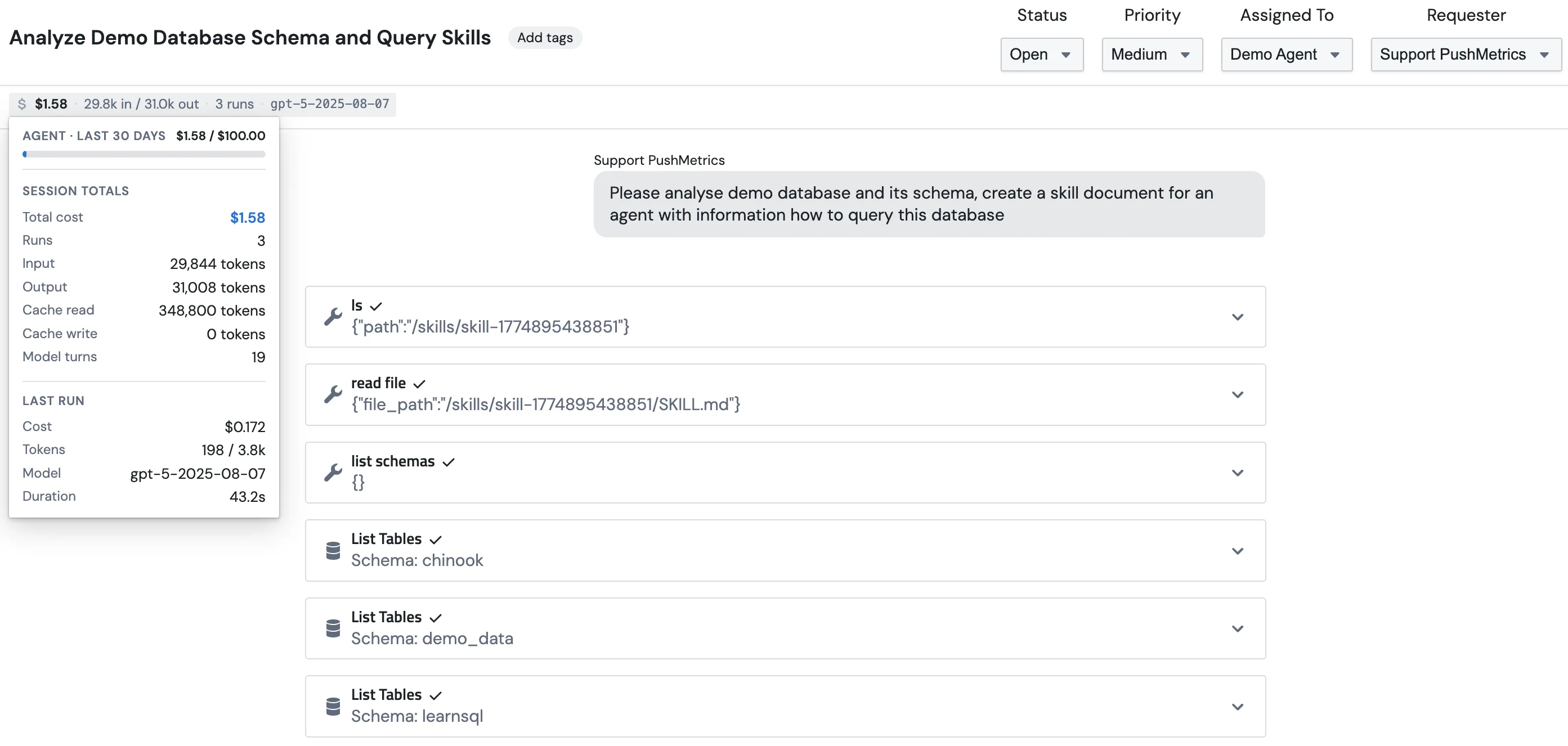
You'll see:
- Cost so far in this conversation, in dollars.
- Tokens in / out across all LLM calls.
- Runs: how many times the agent went off and actually did work.
- Model used in the most recent run.
Working with conversations
Once a conversation's running, here's what you can do:
- Delete it. With a confirmation step, so you don't nuke something by accident.
- Edit your messages. Change one of your past messages and the agent picks up from that point and answers again.
- Share a single message. Grab a permalink to a specific message and send it to a teammate.