Most Power BI export problems come from the Power BI side: capacity, tenant settings, workspace access, or a filter that doesn't match the report. This page lists the common ones and how to fix them. For setting up the connection, see the Power BI Integration guide.
No workspaces appear in the block
The block shows No workspaces visible. Add the app to a Power BI workspace as Member (not My workspace).
- Add the application (or its security group) to the workspace with the Member role, under Manage access in Power BI.
- Reports in My workspace can't be exported: move them to a regular workspace.
- Check that Service principals can call Fabric public APIs is enabled for the application or its security group. Microsoft renamed this setting; it was previously called Allow service principals to use Power BI APIs.
- Changes in Power BI can take several minutes to apply. Reopen the block afterwards.
If the block shows Could not load from Power BI. Check the integration and try again., open the integration under Data & Integrations and save it again to re-run the connection test.
The workspace isn't on a supported capacity
Power BI only exports to a file from a workspace on Fabric, Premium, or Embedded capacity (for example a Power BI Embedded A SKU). Premium Per User (PPU) and Pro workspaces are not supported, and the export fails with Power BI's capacity error.
Ask your Power BI administrator to assign the workspace to a capacity, or move the report to a workspace that has one.
Export to image is disabled for the tenant
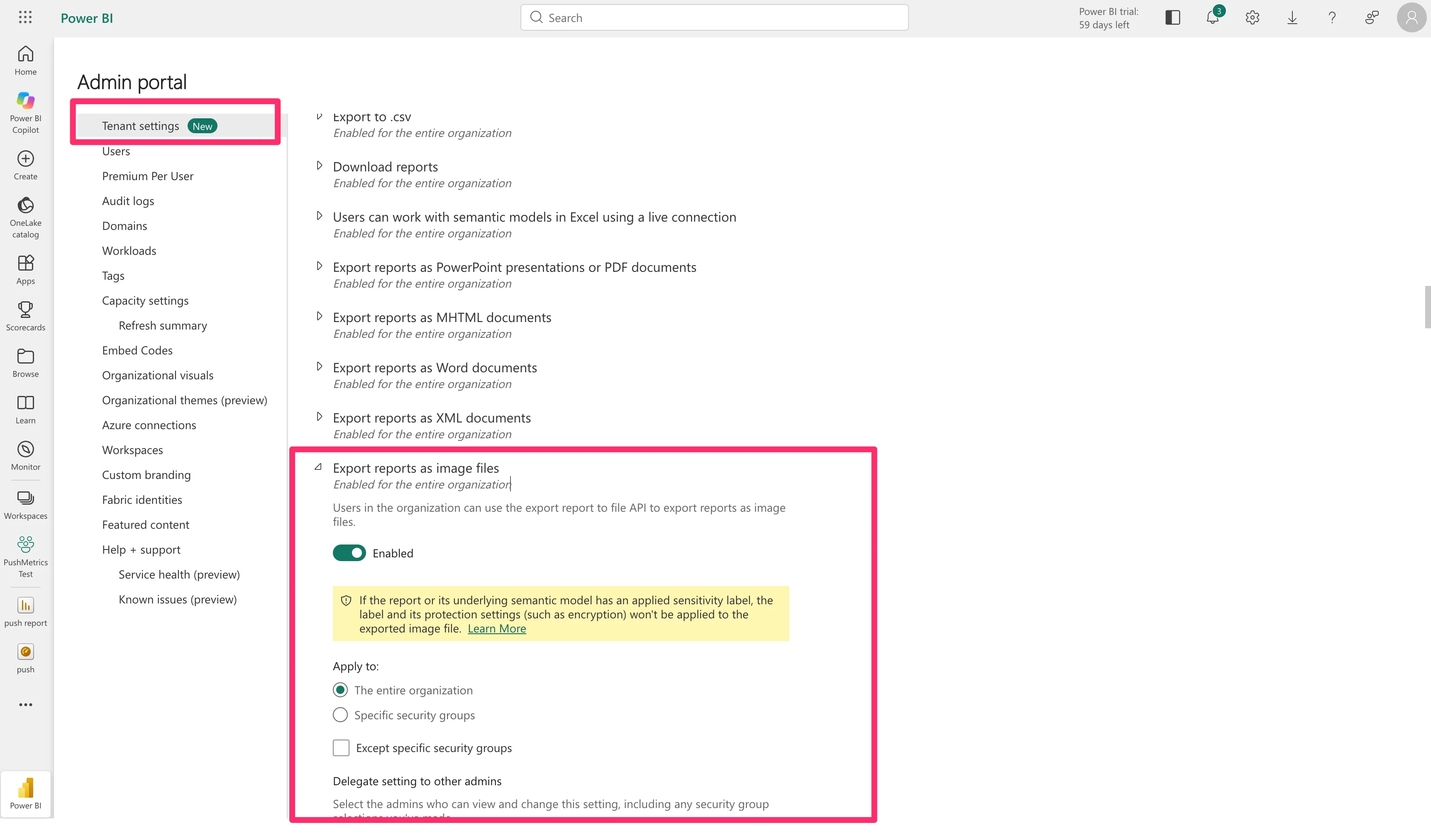
If the export fails with Export report to image is disabled on tenant level, a Power BI administrator needs to allow it:
- Open the Admin portal in Power BI and go to Tenant settings → Export and sharing settings.
- Enable Export reports as image files, for everyone or for the application's security group.
The filter is ignored
If a filter's table or column name doesn't match the report, Power BI ignores the filter and exports the whole report, without an error. For example, if the table is called Table, Sheet1/month eq 'jan' is ignored, while Table/month eq 'jan' filters.
- Use the table and column names from the report's Data pane, not the visual's title. According to Microsoft, names are case-sensitive and spaces are written as
_x0020_. - Test the filter in the browser first: open the report in the Power BI service and add
&filter=Table/month eq 'jan'(or?filter=...if the URL has no?) to its URL. A wrong name shows This field was deleted from the model and can't be used as a filter. See Filtering Reports.
The email shows a broken image
An image embedded in the email body only renders for a PNG export of a single page. A PDF, a PPTX, or a PNG of the entire report (a ZIP of pages) can't be shown inline, so the email shows a broken image.
In the Power BI block, set Export format to PNG and select one Page, or attach the file instead of embedding it. See Embed the report image in an email.
Sign-in errors (AADSTS…)
Sign-in errors come from Microsoft Entra and start with AADSTS. The most common are an invalid or expired client secret, a wrong client ID, or a wrong tenant ID. The connection test names which one: see If the connection test fails.
A secret that worked before and now fails has usually expired. See Rotate an expired client secret.
The export times out
A Power BI export that hasn't finished after 10 minutes fails with Power BI export timed out. Large reports and busy capacities take longer:
- Export a single page instead of the entire report.
- Run the export outside your capacity's busiest hours.
When Power BI asks PushMetrics to slow down, PushMetrics waits and retries automatically.
Still not working?
Try the same export directly in Power BI (File → Export) to rule out a problem with the report itself. If it works there but not in PushMetrics, contact support with the block's error message.