When a workspace runs dozens or hundreds of scheduled reports, checking the Execution Log report by report doesn't scale. The Report Health Digest is a daily or weekly email that rolls up the run health of all your reports into one message, so problems reach you without anyone having to go looking for them.
What's in the digest
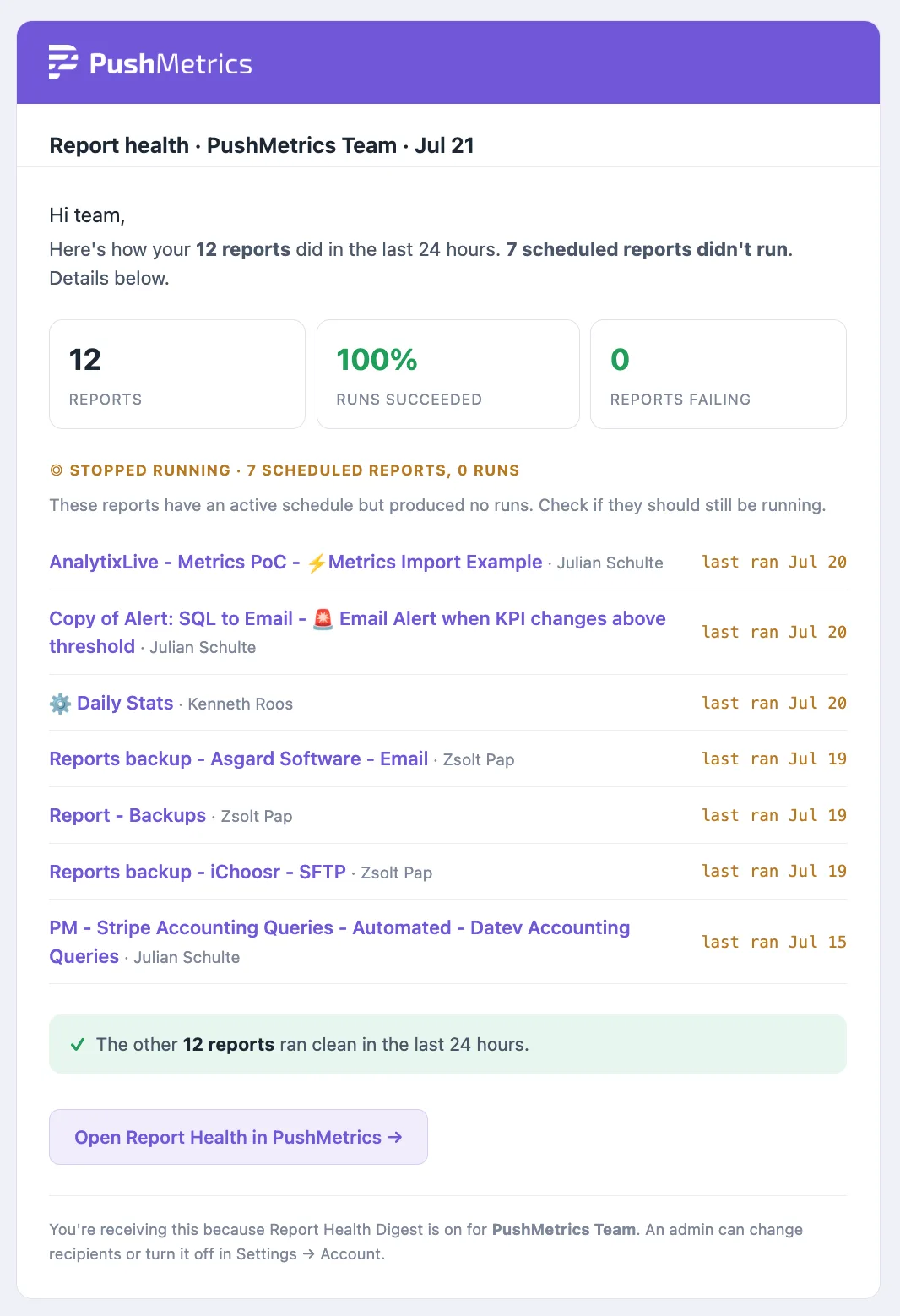
Each digest covers a fixed window: the last day for daily digests, the last 7 days for weekly ones. It has three sections:
- Failing reports, ranked by success rate with the worst first. Each entry shows the report's name, owner, schedule, how many runs happened, the success percentage, and the most recent failure reason. A report that failed 40 out of 40 runs shows up as 0% at the top of the list instead of being a single "failed" row buried in a log.
- Stopped running: reports that were due to run in the period, based on their schedule, but produced zero runs. A monthly report that simply wasn't due doesn't count, and runs that were skipped don't count as having run. No run log will ever show you these, because there is no run to look at. In our experience this is where the worst surprises hide.
- A clean bill of health: a one-line count of the reports that ran at 100%.
The header sums up the workspace at a glance: total reports, overall success rate, and how many reports are currently failing.
If everything ran clean and nothing stopped, no email is sent. The digest only shows up when there is something to act on. The settings card still records that the check ran, see "Keeping an eye on it" below.
Enabling the digest
You need to be a workspace admin.
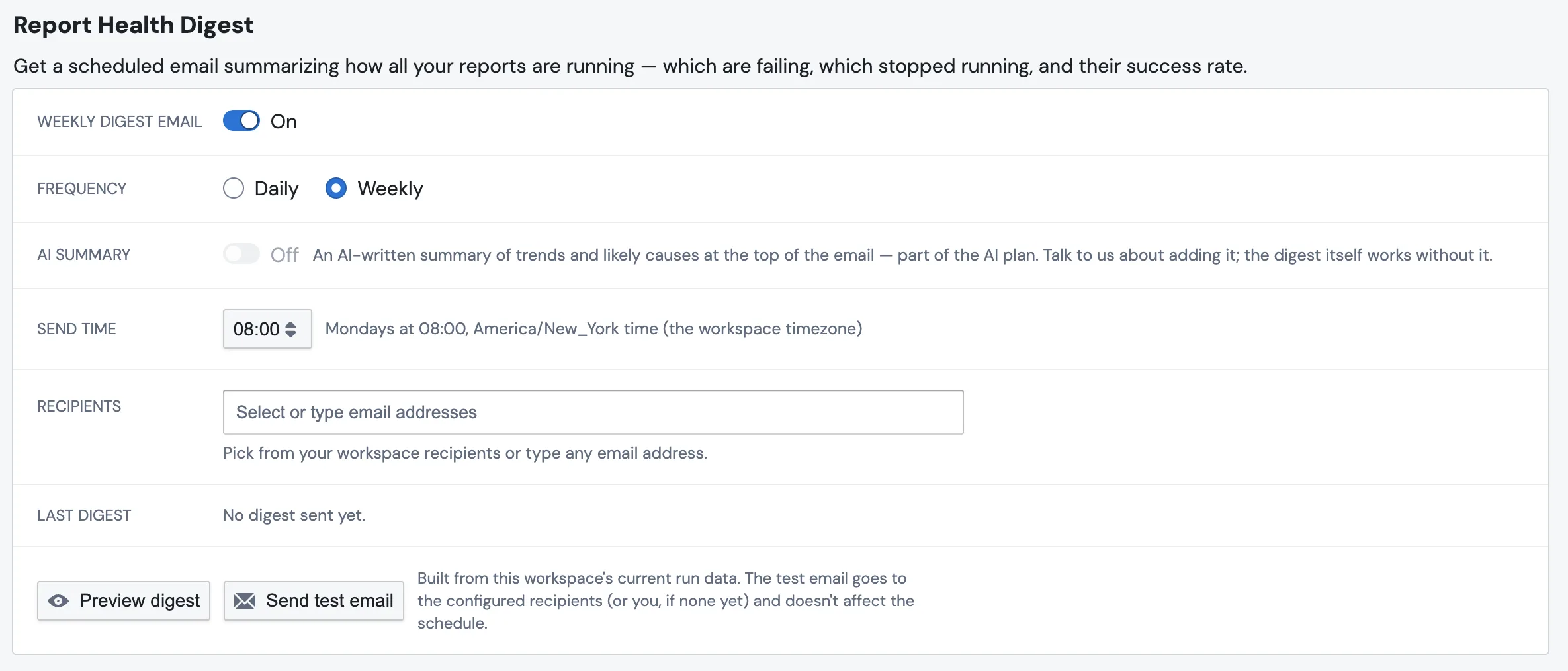
- Go to Account Settings and find the Report Health Digest card.
- Turn the digest On.
- Pick a Frequency: Daily or Weekly. Weekly digests go out on Mondays.
- Pick a Send time. The hour is interpreted in your workspace's timezone, so 08:00 means 8 AM local time for your team, not UTC.
- Add Recipients. Pick from your workspace's known recipients or type any email address.
That's it. The next due digest will arrive at the configured time.
Previewing and testing
You don't have to wait for the schedule to see what you'll get:
- Preview digest renders the exact email in the app, using your workspace's live data. Nothing is sent.
- Send test email delivers a real digest right away, to the configured recipients, or to your own email if you haven't added any yet. A test send doesn't affect the regular schedule. It also sends even when there is nothing to report, so you can always verify that delivery works.
The AI summary (optional)
On AI-enabled plans you can also switch on an AI summary: a short, plainly written paragraph at the top of the email that covers trends and likely causes. Something like "the same two Tableau reports failed again this week, probably an expired credential" instead of a wall of numbers.
The summary is written by a dedicated "Report Digest" agent that shows up in your workspace's Agents list, where you can tune its prompt. It keeps memory of previous digests, so it can tell you what changed since last time. The health numbers themselves are always computed directly from your run history. The AI writes the narrative on top, never the figures.
The digest itself works on every plan. Only the AI summary requires the AI plan.
API access (admins)
The digest's numbers are also available as JSON, authenticated with a Personal Access Token belonging to a workspace admin (create one under Settings, Access Tokens):
GET /api/v1/workspace_config/report_digest/data?window_days=7
The response mirrors the email: workspace totals, the failing reports
(name, owner, schedule, run counts, success rate, last error) and the
stopped-running reports, with overflow counts when a list was capped. Two
totals are worth reading carefully: reports_ran counts reports that
produced at least one run in the window, while scheduled_reports counts
everything with an active schedule, whether or not it ran. A big gap
between the two usually means silently stopped schedules.
The full walkthrough, including token creation, the exchange step, response
fields, and curl and Python examples, lives on the Digest API guide, linked
from Settings → Access Tokens in the app.
window_days accepts 1 to 90 and defaults to your configured cadence.
Because the payload spans every report in the workspace, non-admin members
get a 403 — for a user's own items there is the
Personal Digest API instead.
Keeping an eye on it
The settings card shows a Last digest status: when the last one was sent and to how many recipients, or that the last check found nothing to report. If a send failed, you'll see the error there, and the next hourly attempt retries automatically.
Related
- Every user can also enable a Personal Digest covering just the items they created. No admin needed, it lives on their profile page.
- Per-run failure alerts (email or Slack, per report) are covered in Auditing Reports, Recipients, and Run Status.
- For a run-by-run view, see the Execution Log.