You can connect one or multiple integrations for Slack to your PushMetrics workspace. Each integration is tied to one Slack workspace, so you may add more than one if you need to deliver reports to different workspaces or environments.
Navigate to Data & Integrations to create an Integration for Slack.
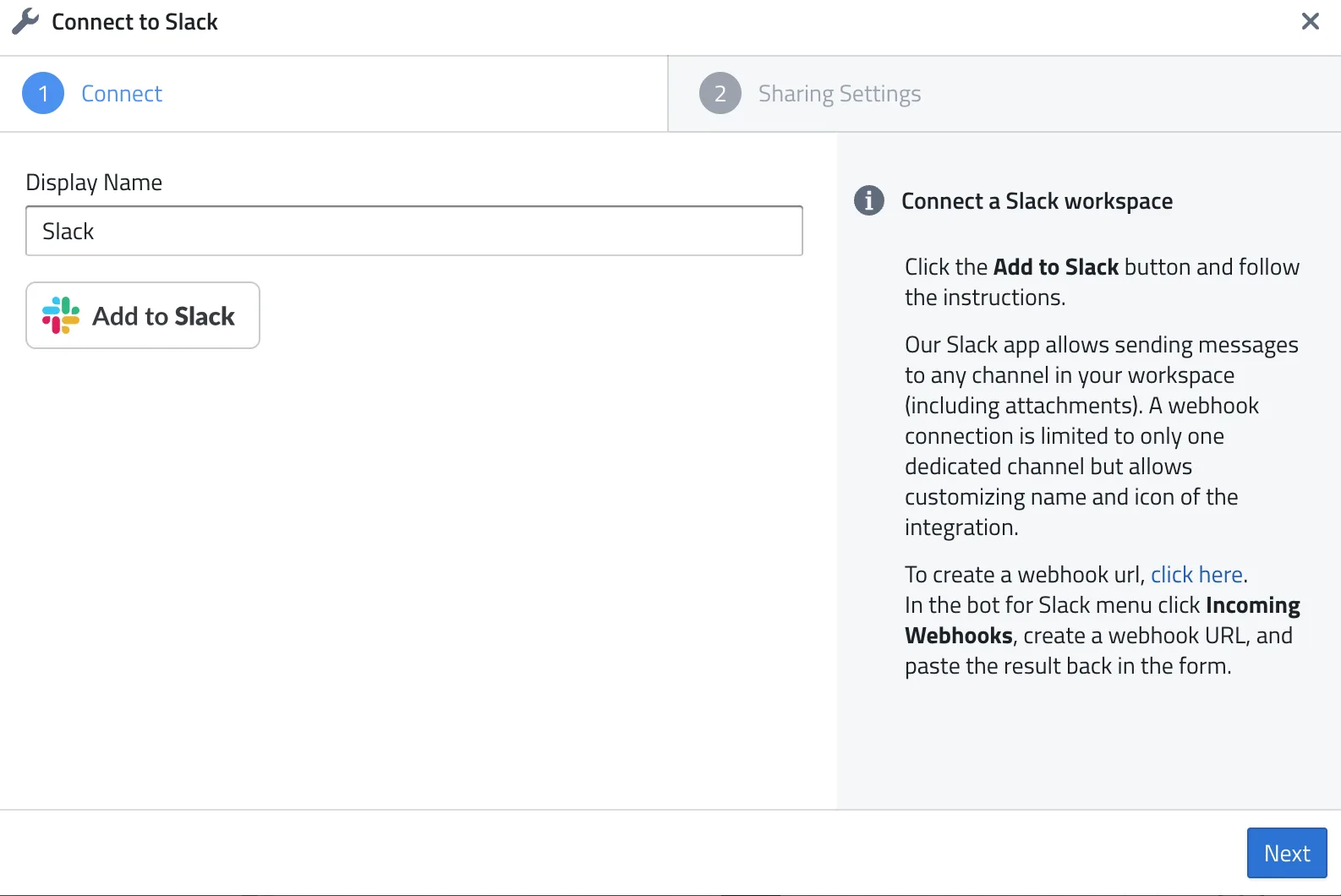
To install the PushMetrics app for Slack, first log in to your PushMetrics account. In the Data & Integrations page, select Slack and click Add to Slack. You will then be redirected to Slack to review the requested permissions and complete the installation.
Using the app for Slack requires you to add the PushMetrics bot to your workspace and grant certain permissions ("scopes") to the bot.
The PushMetrics app for Slack makes use of the following scopes:
Sending Reports & Messages
channels:join- This scope allows your app to join public channels in a workspace.channels:read- This scope allows your app to view basic information about public channels in a workspace, including the list of channels and their details like name, creation date, purpose, etc. Used to power the channel picker.chat:write- This scope allows your app to send messages as itself to channels it's a member of. The messages will appear as sent by the app, not as a user.chat:write.customize- Allows the app to post messages with a customized sender name and avatar (for example, using the report name as the sender), making it easier to recognize which report a message belongs to.files:read- This scope allows your app to view information about files stored in Slack, such as file type, size, and permalink. PushMetrics uses it only to fetch the metadata of files it has just uploaded.files:write- This scope allows your app to upload, delete and interact with files (for instance, create a public URL for a file) as itself. It can handle files it uploaded itself or ones uploaded by users in channels it's a part of.groups:read- Allows the app to view basic information about private channels (“private groups”) it is invited to. Required so PushMetrics can list available private channels for report delivery. The channel picker only shows private channels that the user who connected the integration is a member of.im:read- Allows the app to view basic information about a user’s direct message conversations with the PushMetrics bot. Needed so the app can confirm delivery and avoid opening duplicate DMs.im:write- This scope lets the PushMetrics bot create (or reopen) a 1-to-1 direct message conversation with a user. Required so PushMetrics can deliver reports and notifications directly to individual users via DM.mpim:read- Allows the app to view basic information about multi-person direct message (MPIM) conversations. Required so PushMetrics can deliver reports to small DM groups if configured.users:read- Allows the app to access user information for recipient selection and delivery.
Chatting with AI Agents in Slack
These scopes enable conversations with PushMetrics AI agents directly from Slack. The bot only processes messages that are explicitly directed at it — direct messages to the bot, @-mentions, and replies in threads the bot participates in. It does not read, process, or store general channel history.
app_mentions:read- Lets the bot receive an event when a user @-mentions the PushMetrics bot in a channel, so an AI agent can respond to the request.channels:history- Allows the bot to read replies in public-channel message threads it participates in, so an AI agent can follow the conversation after being mentioned.groups:history- Same aschannels:history, but for private channels the bot has been explicitly invited to.im:history- Allows the bot to read direct messages sent to it, so users can chat with an AI agent via DM.reactions:write- Lets the bot add emoji reactions to messages directed at it — for example 👀 to confirm a request was received and ✅ when the agent has finished responding.
User Token Scopes (Sign in with Slack)
PushMetrics also supports Sign in with Slack via Auth0, allowing users to log in to PushMetrics using their Slack identity. This uses OpenID Connect and requires the following user token scopes:
openid- Required for "Sign in with Slack" using OpenID Connect. Allows users to authenticate and log in to PushMetrics using their Slack identity, providing a seamless single sign-on experience.email- Used to identify and match the user's Slack account with their PushMetrics account during sign-in. The email address is needed to provision new accounts and link existing ones.profile- Used to display the user's name and avatar within PushMetrics after signing in with Slack. Workspace information is used to associate the user with the correct PushMetrics organization.
Creating a Slack Connection:
- Click "Slack" in the Data & Integrations screen
- Click "Add to Slack"
- Review scopes and click "allow"
- Choose a name for this integration, if you have more than one
- Click "next"
Editing a Slack Connection:
- Navigate to integrations tab of the Data & Integrations page.
- Click the edit button to the right of the integration you would like to edit.
- Click "Edit".
Disconnecting a Slack Connection
Users can disconnect the app for Slack directly from within PushMetrics:
1. Edit & Disconnect:
From the integration edit screen, click the red Disconnect from Slack button to revoke the Slack token and unlink the app while keeping the integration entry in PushMetrics.
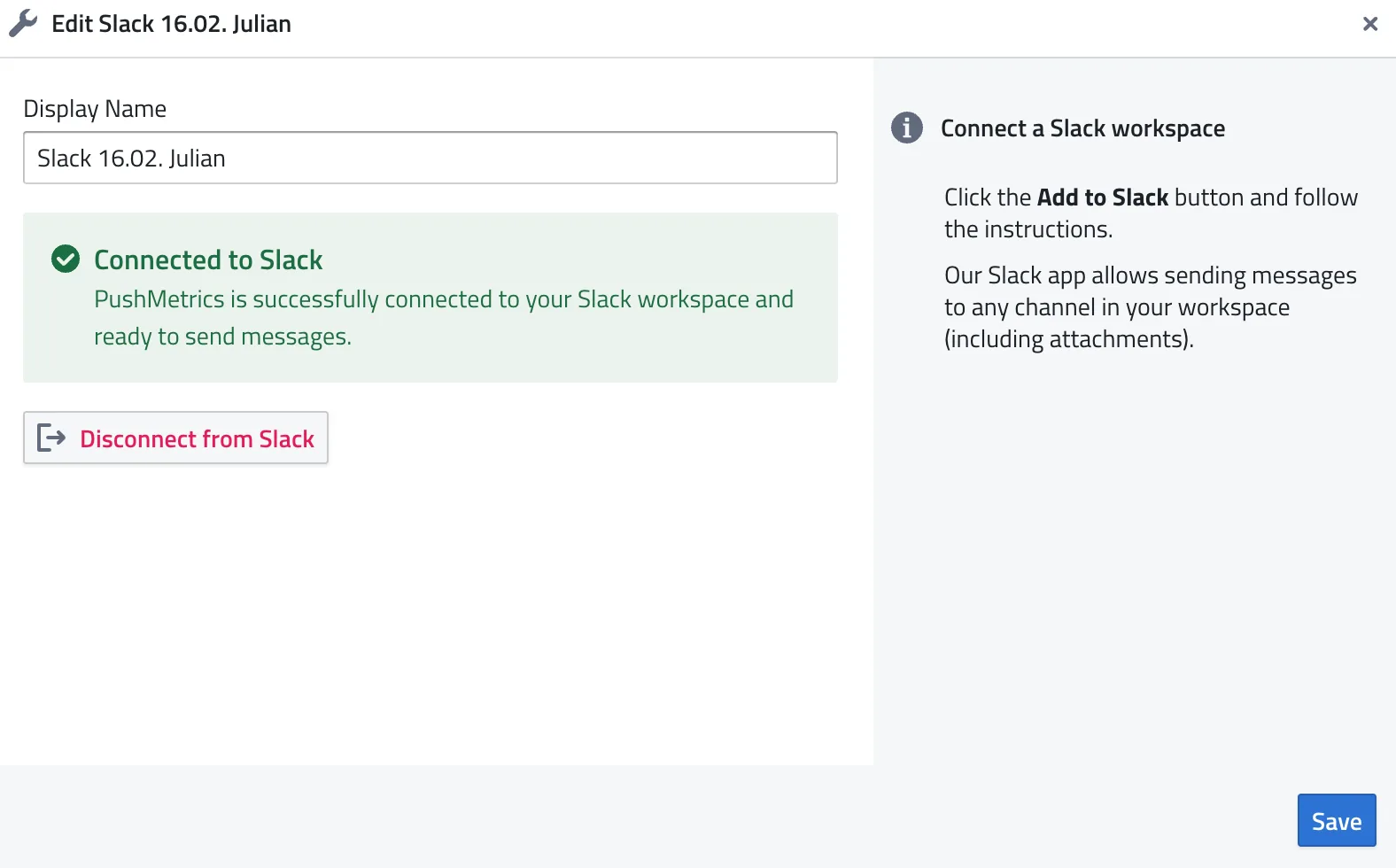
2. Delete the Integration:
- Navigate to the Integrations tab in Data & Integrations.
- Click Delete next to the integration for Slack.
- Once deleted, PushMetrics will automatically revoke the associated Slack token, fully disconnecting the app from your workspace.
App Capabilities
The PushMetrics app for Slack can interact with Slack in the following ways:
- Send messages to public channels, private channels, and directly to individual users.
- Upload files and attachments (e.g. exported reports, charts, CSVs) to Slack channels.
- Use interactive components like buttons and forms to reload reports or answer agent questions directly from Slack.
- Chat with PushMetrics AI agents by sending the bot a direct message or @-mentioning it in a channel.
- Provide a channel picker for easy recipient selection. The picker lists public channels, plus private channels and group DMs that the user who connected the integration is a member of — private channels the bot was added to but the connecting user is not part of are never shown.
- Optionally import selected channels and users as reusable recipients — you choose exactly which ones; channels are never imported in bulk.
- Send a welcome message when users first open the PushMetrics bot in Slack.
Privacy & Data Handling
- The bot can only post to private channels after being explicitly invited by a channel member.
- The bot never reads general channel history. Only direct messages to the bot, @-mentions, and thread replies in conversations the bot participates in are processed.
- Disconnecting or deleting the integration revokes the Slack token, removing the app's access to your workspace.
- See our Privacy Policy for details on how PushMetrics handles your data.