Closing your account permanently removes your PushMetrics organization and all of its data. Only an admin can do it, and there is a 30-day grace period before anything is deleted. Everything is locked as soon as you close the account, but the data stays intact for those 30 days. That means an accidental closure can be undone. This page explains what happens when you close an account, how to do it, and how to restore an account before the deadline.
Before you start
You will need:
- The Workspace Admin role. The Close account controls are hidden for non-admin members.
- To be prepared to lose all workspace data. If you want to keep anything (report definitions, query results, uploaded files), export or sync it to Git first.
If you only want to remove a single teammate rather than the whole account, use User Management instead.
What happens when you close an account
Closing an account has two stages: an immediate lock, and a permanent deletion 30 days later.
Immediately on closing:
- Your subscription is canceled. You are not billed again.
- All scheduled reports and webhooks are paused. Nothing runs or sends while the account is closed.
- Every member is signed out and can no longer sign in to the account.
- The account enters a 30-day grace period.
After the 30-day grace period:
- All data is permanently deleted: reports, notebooks, queries, data connections, integrations, files, chat history, and members. This cannot be undone.
During the grace period the account is fully locked, but all data is still intact. A Workspace Admin can restore it at any time before the deadline. Once the grace period ends and deletion begins, you can no longer restore the account.
Close an account
- Open Settings → Account Settings and scroll to the bottom of the page to the Danger Zone.

-
Click Close account…. A confirmation dialog opens, listing exactly what will happen and when the data will be deleted.
-
Read the summary, then type your account name into the confirmation field exactly as shown. The Close account button stays disabled until the name matches. This prevents an accidental click from closing the account.
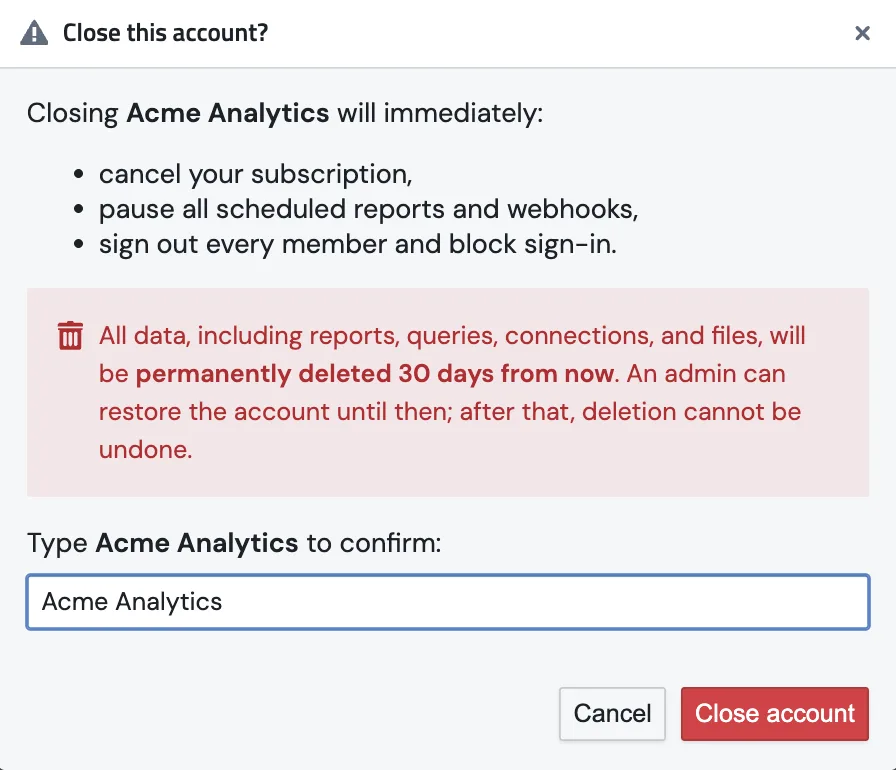
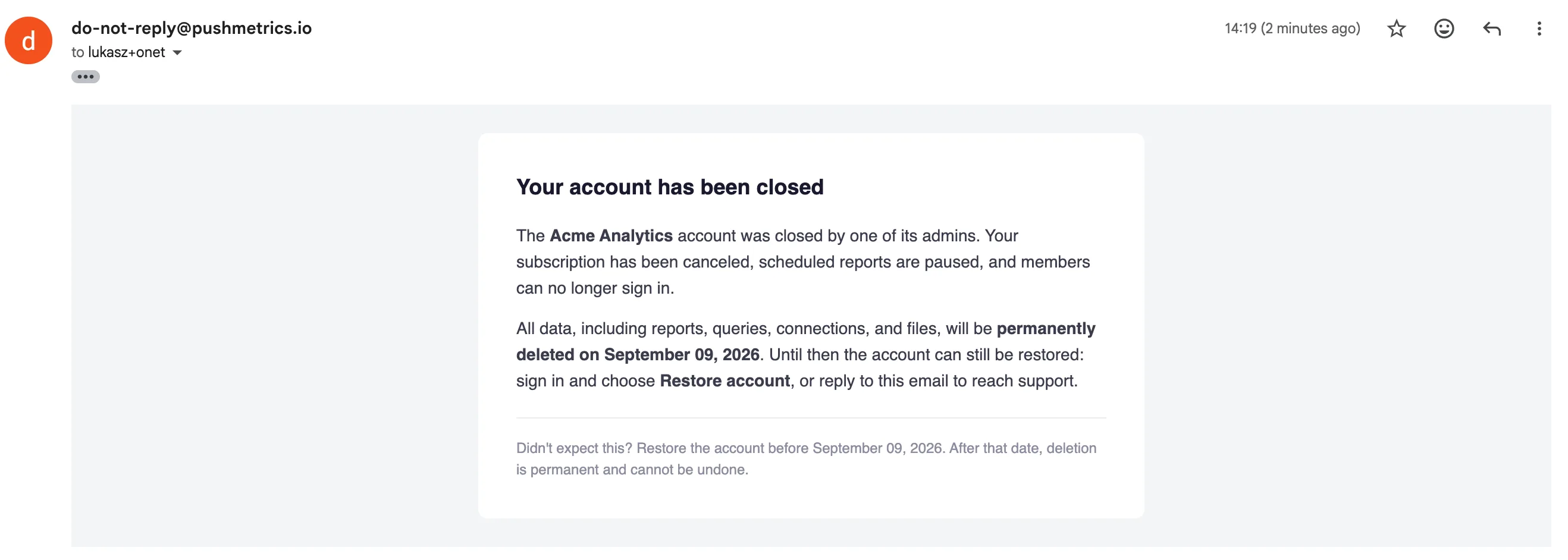
- Click Close account. You and every other admin receive a confirmation email noting the date the data will be permanently deleted.
Once the account is closed, anyone who tries to use it sees a locked screen with the deletion date. Admins can restore the account from here; members are directed to contact an admin.
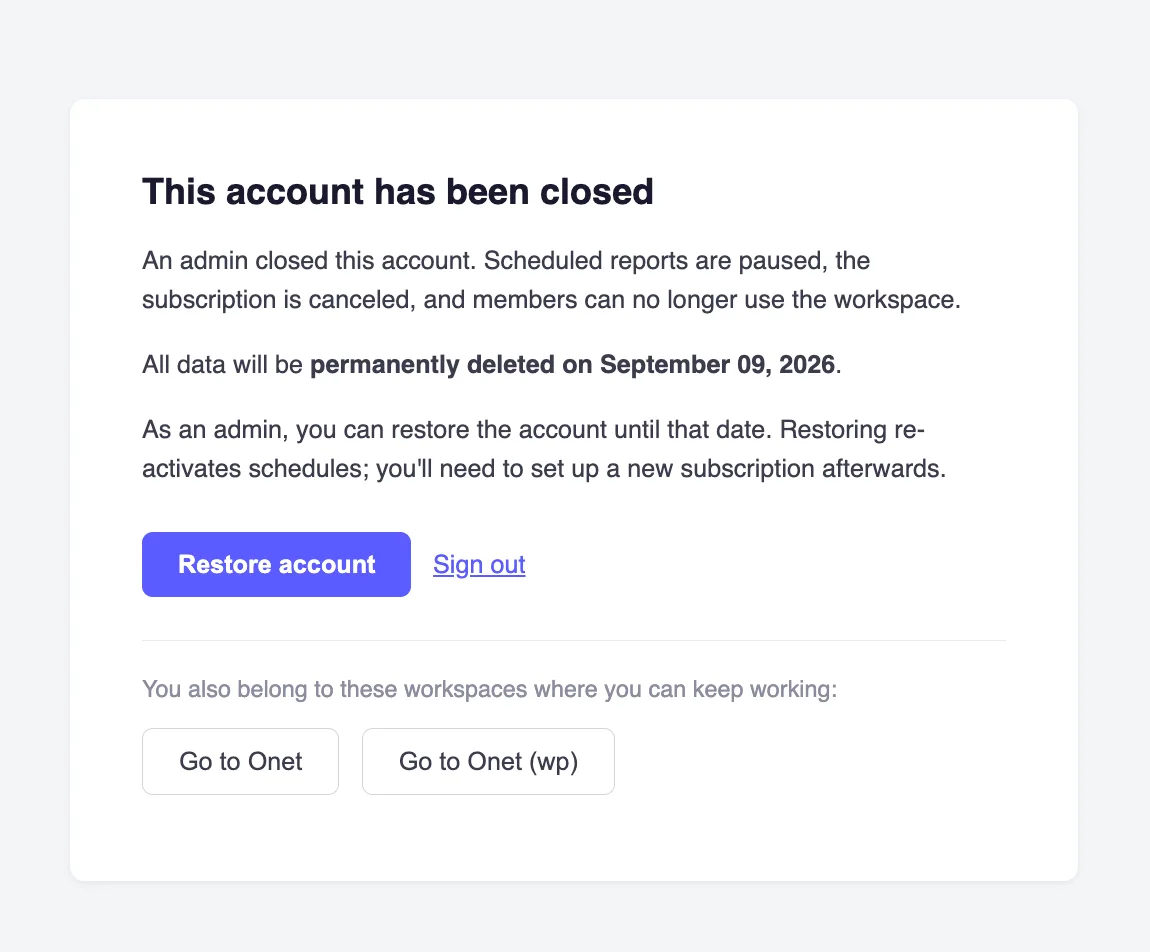
Members of more than one account: if you also belong to other PushMetrics accounts, the locked screen offers a shortcut to switch straight to one of those workspaces. You can keep working there as normal.
Restore a closed account
As long as the account is still within its 30-day grace period, any Workspace Admin can bring it back:
- Sign in. You are taken to the locked This account has been closed screen.
- Click Restore account.
The account unlocks immediately and the schedules and webhooks that were paused on closing are re-activated. You will see a confirmation that the account has been restored.
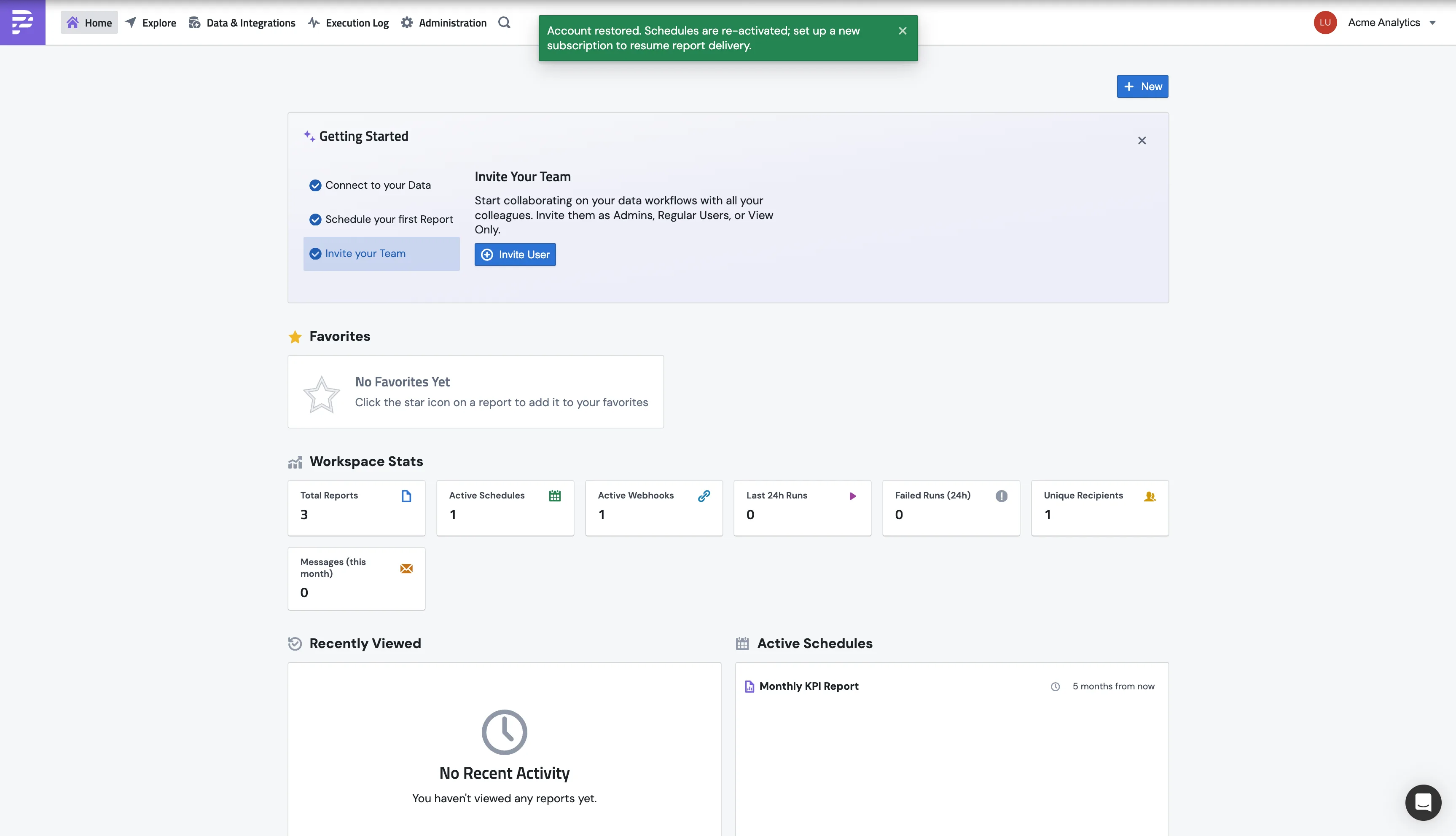
Closing canceled your subscription, so you will need to set up a new subscription after restoring before reports start delivering again. Visit Settings → Usage to choose a plan.
Restoring is only possible during the grace period. After the deletion date passes, the account and its data are gone permanently and cannot be recovered.
Frequently asked questions
Can I get my data back after the 30 days? No. Deletion after the grace period is permanent and irreversible. Export anything you want to keep before closing, or restore the account before the deadline.
Will I be charged during the grace period? No. Your subscription is canceled the moment you close the account.
What happens to teammates who belong to other accounts? Only this account is affected. Members who belong to other PushMetrics accounts keep those accounts and can continue working in them.
I closed my account by mistake. What do I do? Sign in as an admin and click Restore account on the locked screen before the deletion date shown. If the deadline has already passed, contact support.