PushMetrics can connect to Microsoft Power BI to export reports, single report pages, and paginated reports as files.
The exported files can then be used in subsequent tasks, e.g. sent in an email or Slack message, or embedded as an image in the email body.
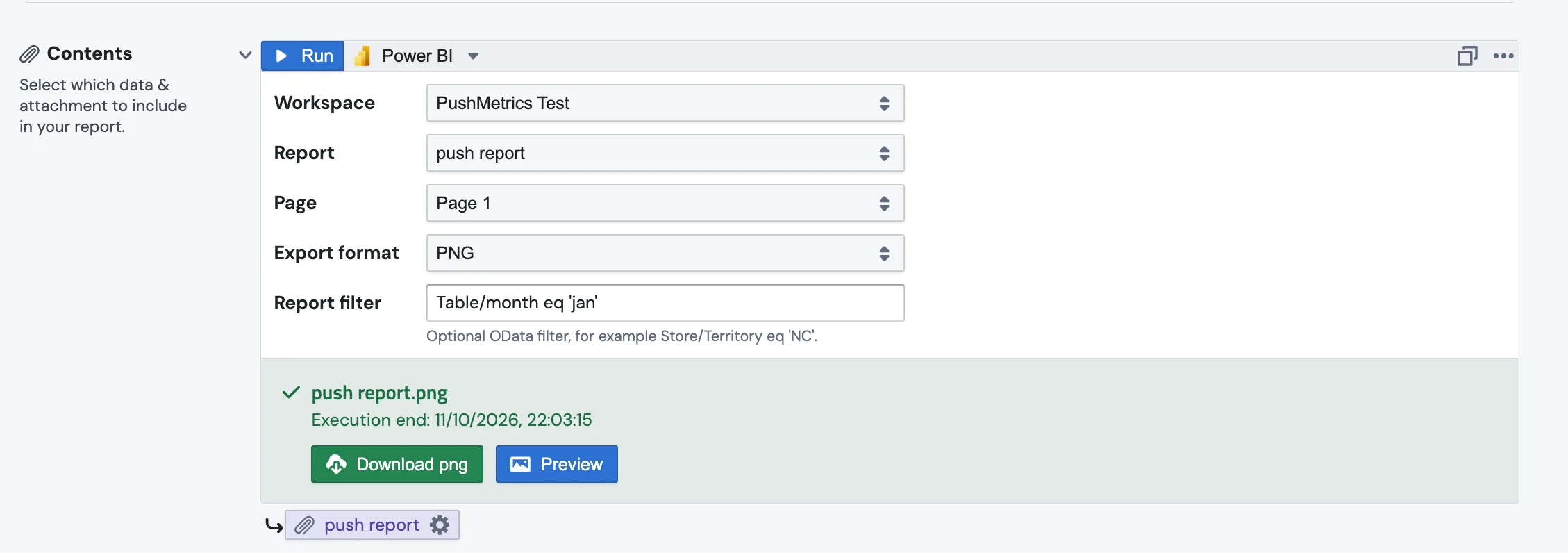
Creating a Power BI Export
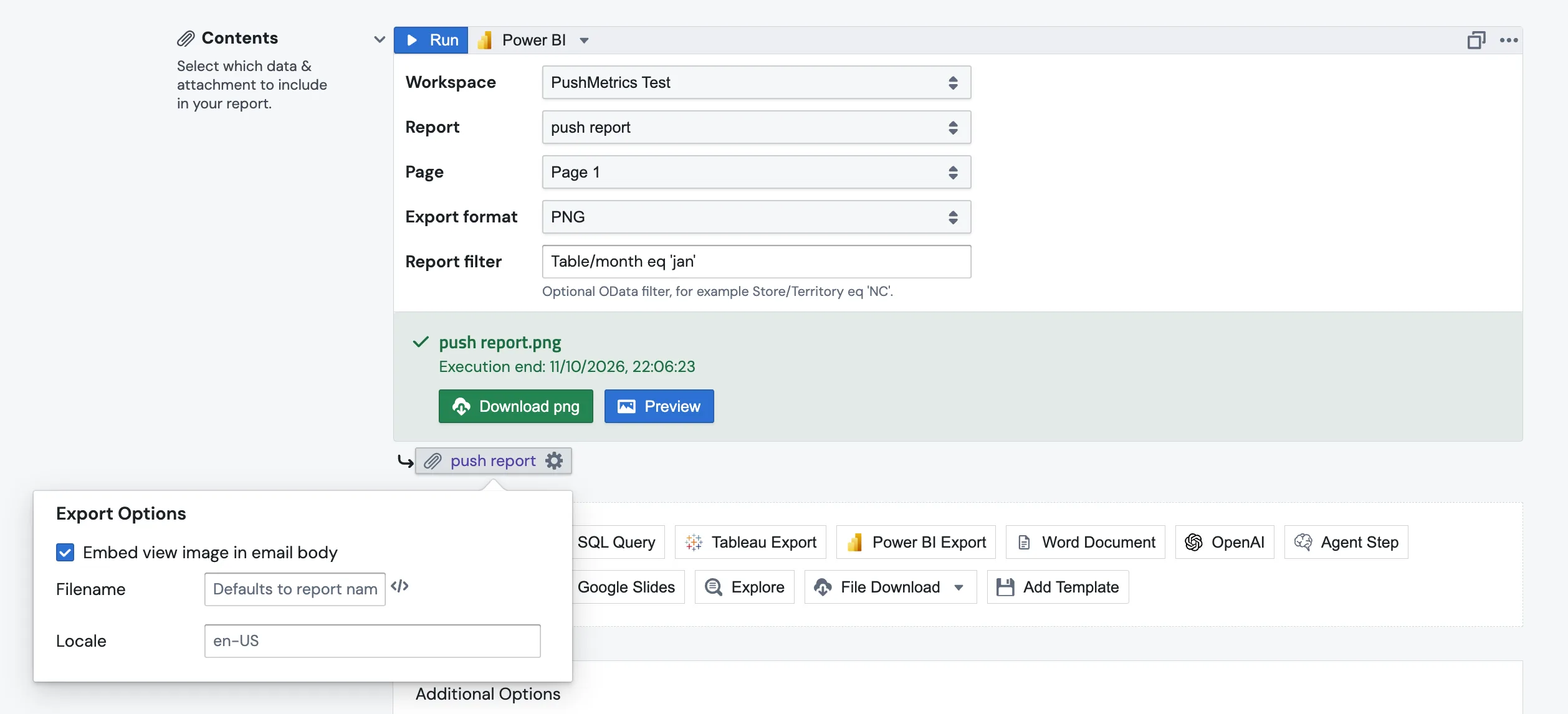
In a Notebook, add a Power BI block. In a Report, add a Power BI Export attachment. Then choose the integration and fill in the block:
- Workspace — the Power BI workspaces your application has access to.
- Report — the reports in that workspace, both standard and paginated.
- Page — for standard reports only. Entire report exports every page; pick a page to export just that one.
- Export format — the formats Power BI supports for the selected report type (see below).
- Report filter — optional, for standard reports only (see Filtering Reports).
If no workspace appears, the block says No workspaces visible. Add the app to a Power BI workspace as Member (not My workspace). See Add the application to your Power BI workspace.
Supported Formats
| Report type | Formats |
|---|---|
| Standard report | PDF, PPTX, PNG |
| Paginated report | PDF, ACCESSIBLEPDF, PPTX, PNG, IMAGE, XLSX, DOCX, CSV, XML, MHTML |
- PNG of a single page returns one PNG image.
- PNG of the entire report returns a ZIP file with one image per page.
- IMAGE (paginated reports) returns a ZIP file, or a single image if Power BI renders only one.
The format list updates after you select a report, based on its type.
Filtering Reports
You can pass a report filter to a standard report to export filtered data. PushMetrics passes it to Power BI as a report-level filter, which uses Power BI's URL filter syntax (OData).
- The general format is
Table/Column eq 'value', e.g.Table/month eq 'jan' - Use the table and column names from the report's Data pane, not the titles shown on visuals.
- You can use Jinja in the filter, e.g.
Table/month eq '{{ month }}'
Microsoft's URL-filter rules also apply. According to Microsoft:
- Table and column names are case-sensitive.
- To match several values, use
in, e.g.Store/Territory in ('NC', 'TN') - Other operators include
ne(not equal),gt/lt(greater/less than) andge/le, e.g.Sales/Units gt 100 - To combine filters, use
and, e.g.Store/Territory eq 'NC' and Store/Chain eq 'Fashions Direct' - Spaces in table or column names are written as
_x0020_, e.g.Store_x0020_Data/Territory eq 'NC'

Table, the filter Sheet1/month eq 'jan' is ignored, while Table/month eq 'jan' filters. Check the exported file after changing a filter, or test the filter in the browser first (below).Report filters are not available for paginated reports.
Troubleshooting Filters in Power BI
The quickest way to check a filter is in Power BI itself: open the report in the Power BI service in your browser and add your filter to the end of the URL, after ?filter= (or &filter= if the URL already contains a ?), e.g. &filter=Table/month eq 'jan'.
- If the report shows the filtered data, the same filter works in PushMetrics.
- If a name is wrong, Power BI shows This field was deleted from the model and can't be used as a filter. Fix the table or column name until the filter applies.
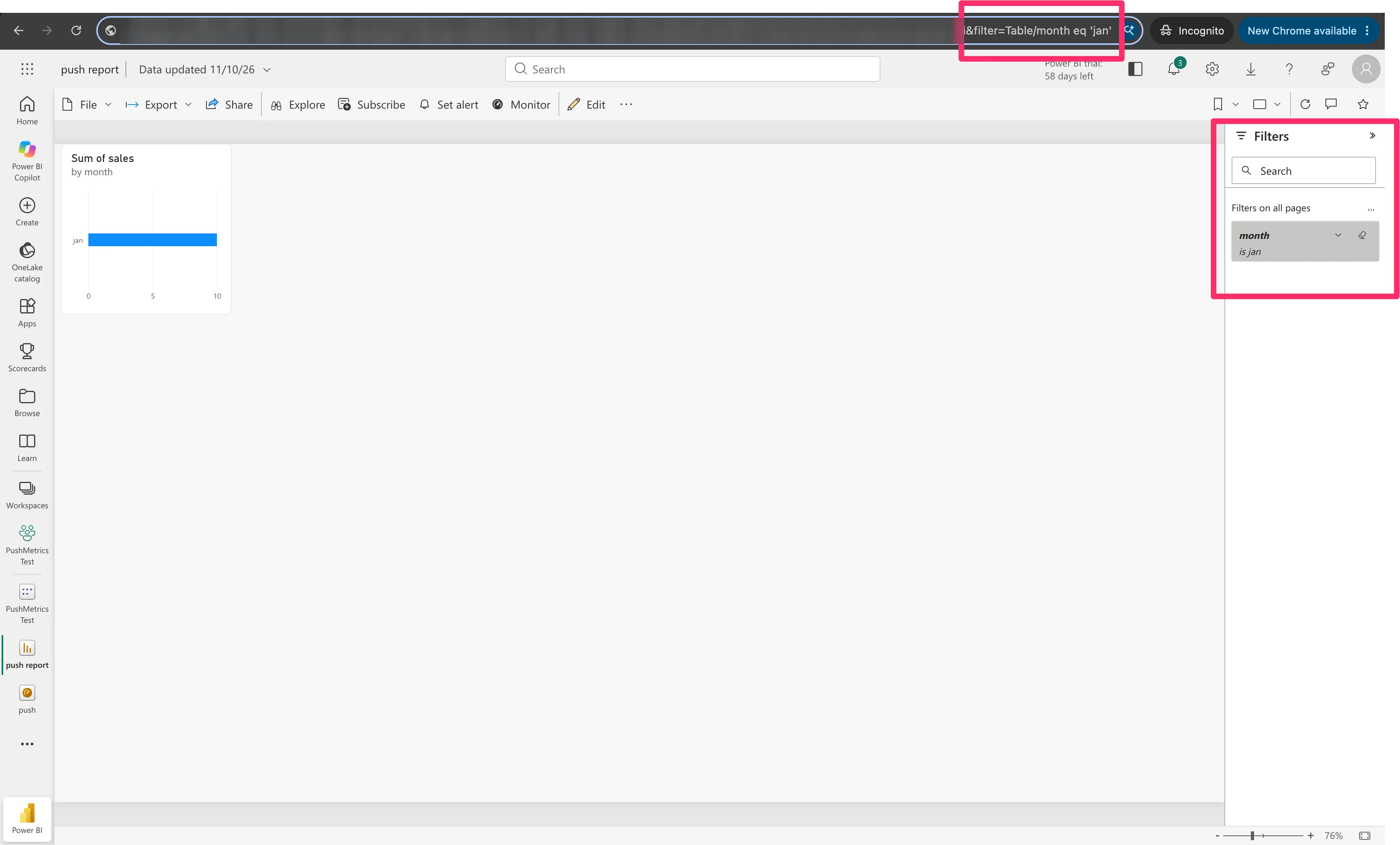
See Microsoft's Filter a report using query string parameters in the URL for the full syntax.
Export Options
Click the attachment chip below the block to open Export Options:
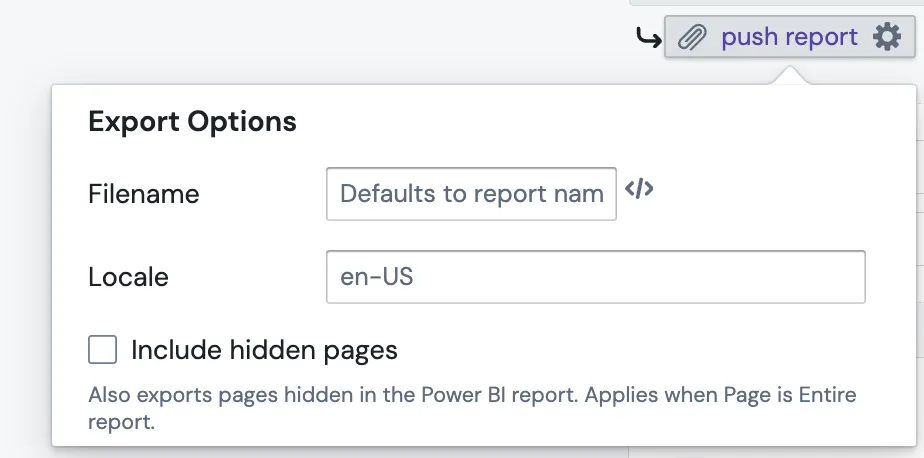
- Filename — the name of the exported file. Defaults to the report name. The file extension is added for you, and characters other than letters, digits,
.,_,-and spaces are replaced with-. You can use Jinja, e.g.Sales {{ today }}. - Locale — the language and number format of the export, e.g.
en-USorde-DE. - Include hidden pages — also exports pages hidden in the Power BI report. Applies when Page is Entire report.
- Embed view image in email body — in Reports, shows the exported image inside the email instead of attaching it. Only available for a PNG export of a single page (see below).
Task Execution
To execute the task, click the Play button. PushMetrics asks Power BI to render the export, waits for it to finish, and stores the file. Large reports can take several minutes; an export that takes longer than 10 minutes fails.
When the export finishes, the block shows the file name with a Download button (e.g. Download pdf) and, for PDF and PNG files, a Preview button.
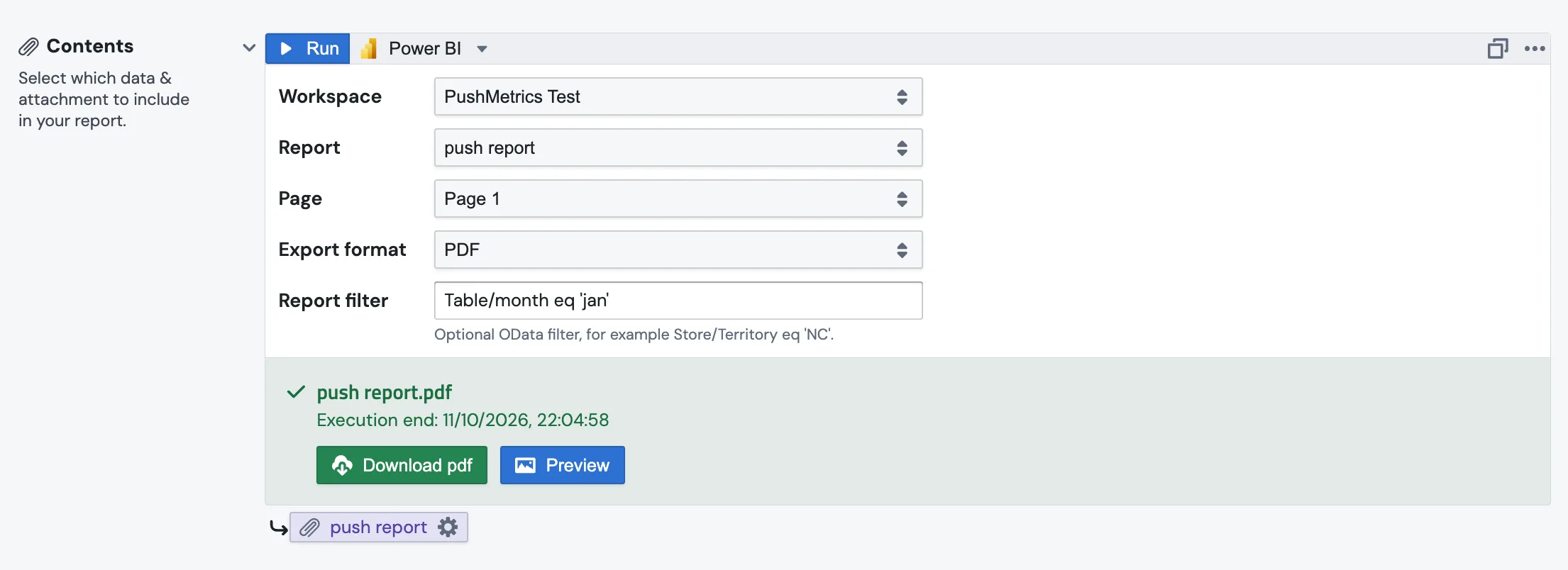
If the export fails, the block shows Power BI export failed with the reason Power BI returned. See Troubleshooting Power BI Exports.
Using exported files in other tasks
You can use the exported file in subsequent tasks, e.g. to attach it to an Email or Slack message, using the following method:
| Method | Description |
|---|---|
| .export() | returns a secure file URL of the most recent execution, e.g. |
| .data | the details of the most recent export: |
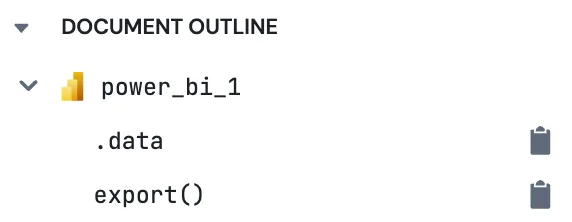
Replace power_bi_1 with your block's name. In a Notebook, the Document Outline lists both for every Power BI block; click to copy them.
Embed the report image in an email
A PNG export of a single page can be shown inside the email body instead of being attached:
- In a Report: open the Power BI attachment's Export Options and check Embed view image in email body.
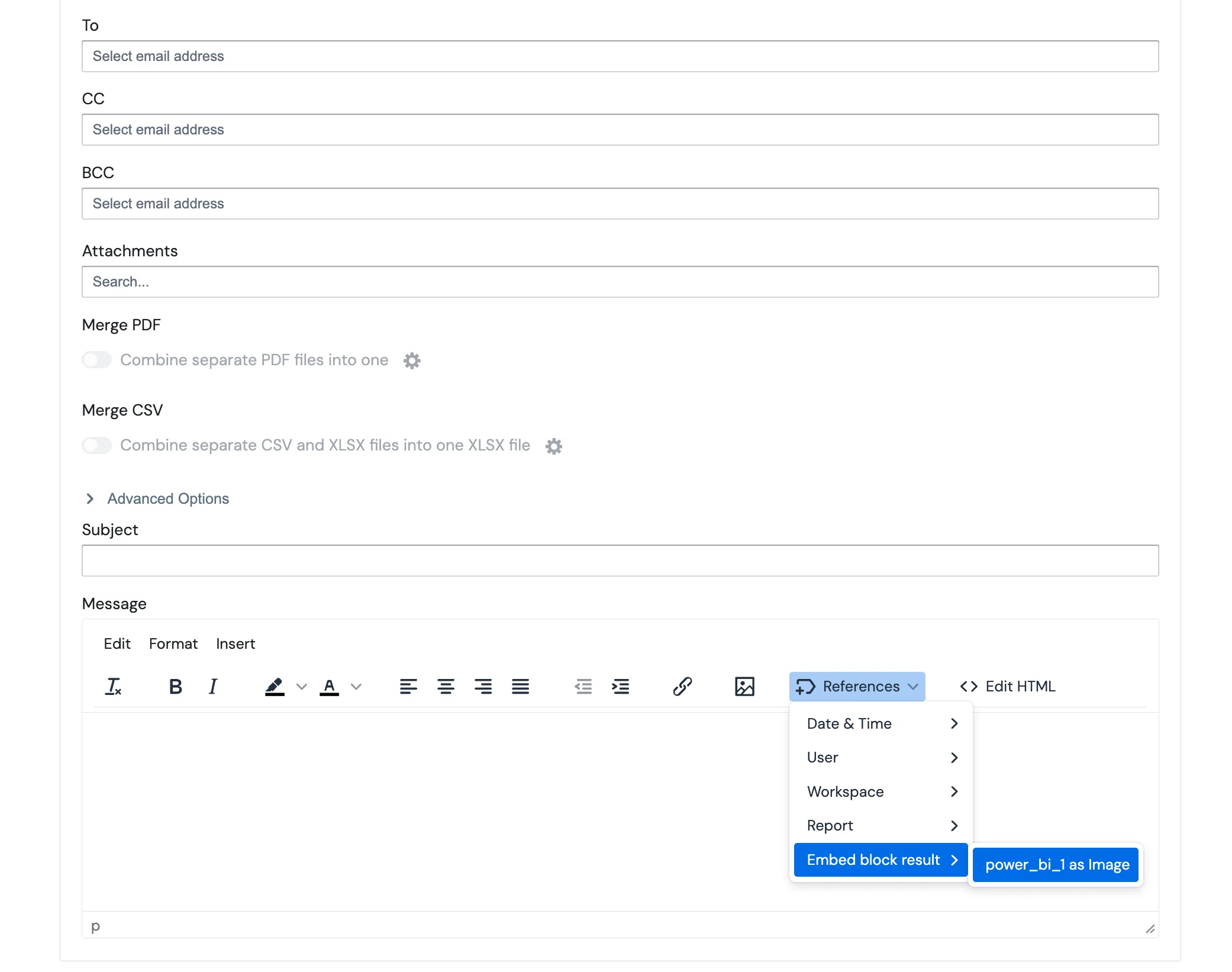
- In an email or Notebook: in the text editor, open References → Embed block result and choose power_bi_1 as Image.
For setup, permissions, and sign-in errors, see the Power BI Integration guide.