Use a webhook trigger to start the execution of a notebook or report from an external app or process. Whenever the webhook URL is called, a new run will be started.
Setting Up a Webhook
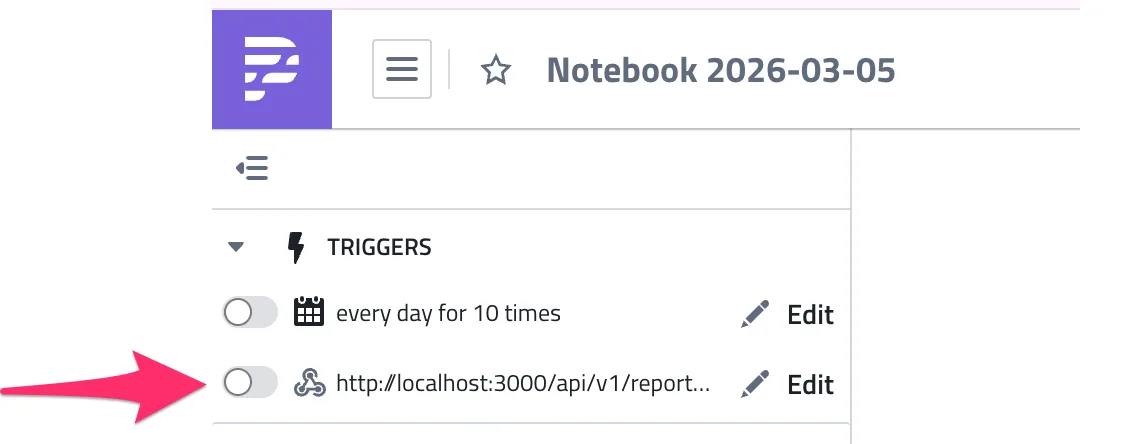
In a Notebook
Open the sidebar and look for the Triggers section. Click Edit next to the webhook URL to configure it.
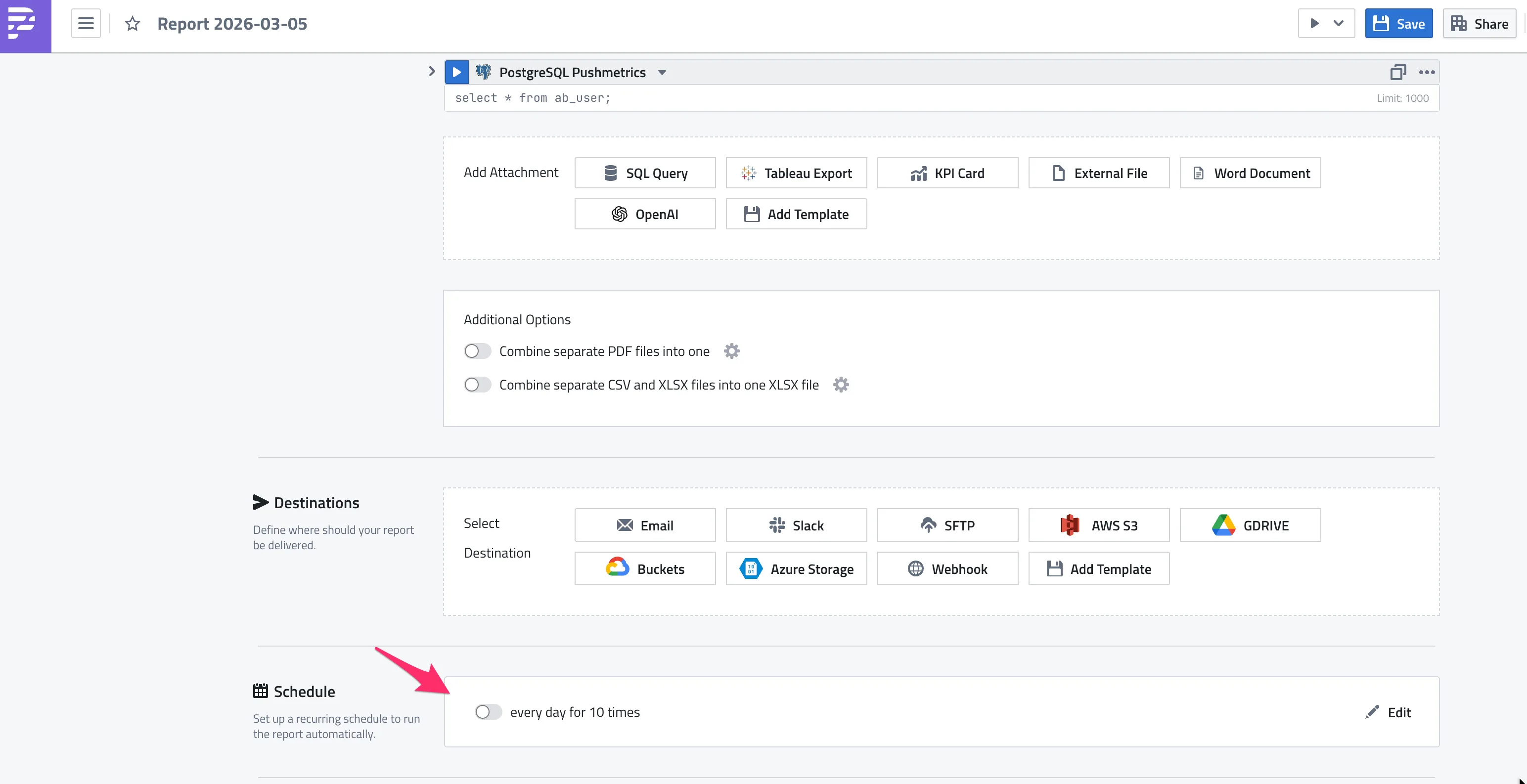
In a Report
In the report editor, scroll down to the Schedule section. The webhook trigger is managed alongside the schedule settings.
How It Works
When you create a webhook, PushMetrics generates a unique URL with a security token:
https://app.pushmetrics.io/api/v1/report/{report_id}/webhook?token={token}
Calling this URL (via GET or POST) triggers a new execution of the notebook or report. The execution runs asynchronously — the webhook returns immediately while the workflow runs in the background.
Passing Parameters
You can pass parameters via the webhook URL to control the execution flow. Any query parameters (besides token) are injected into the workflow and can override Parameter blocks.
Via query parameters:
https://app.pushmetrics.io/api/v1/report/{report_id}/webhook?token={token}&date=2026-01-01®ion=EMEA
Via POST body (JSON):
curl -X POST \
  "https://app.pushmetrics.io/api/v1/report/{report_id}/webhook?token={token}" \
  -H "Content-Type: application/json" \
  -d '{"date": "2026-01-01", "region": "EMEA"}'
Parameters passed via the webhook are available in your blocks just like regular Parameter blocks. If a parameter name matches an existing Parameter block, the webhook value overrides it.
Notifications
You can optionally configure notifications for webhook-triggered executions:
- Email notifications — receive an email on success or failure. Add one or more email addresses as recipients.
- Slack notifications — send a notification to a Slack channel when the execution completes or fails (requires an integration for Slack).
Managing Webhooks
- Enable/disable — toggle the webhook on or off without deleting it. Disabled webhooks return an error when called.
- Refresh token — generate a new token if the current one is compromised. The old URL will stop working immediately.
- Copy URL — copy the full webhook URL to your clipboard.
Use Cases
- Trigger from CI/CD pipelines — run a report after a deployment completes.
- External scheduler — use an external tool (Airflow, cron, etc.) to trigger PushMetrics workflows.
- Event-driven execution — trigger a report when new data arrives in your warehouse.
- On-demand reports — let an internal tool request a report generation via API.