In a PushMetrics notebook, you can use many different block types.
Some of them are executable and others simply display text or images.
Select the + button next to any existing block to toggle the Add Block Menu.
From the menu, select the block type you want to create.
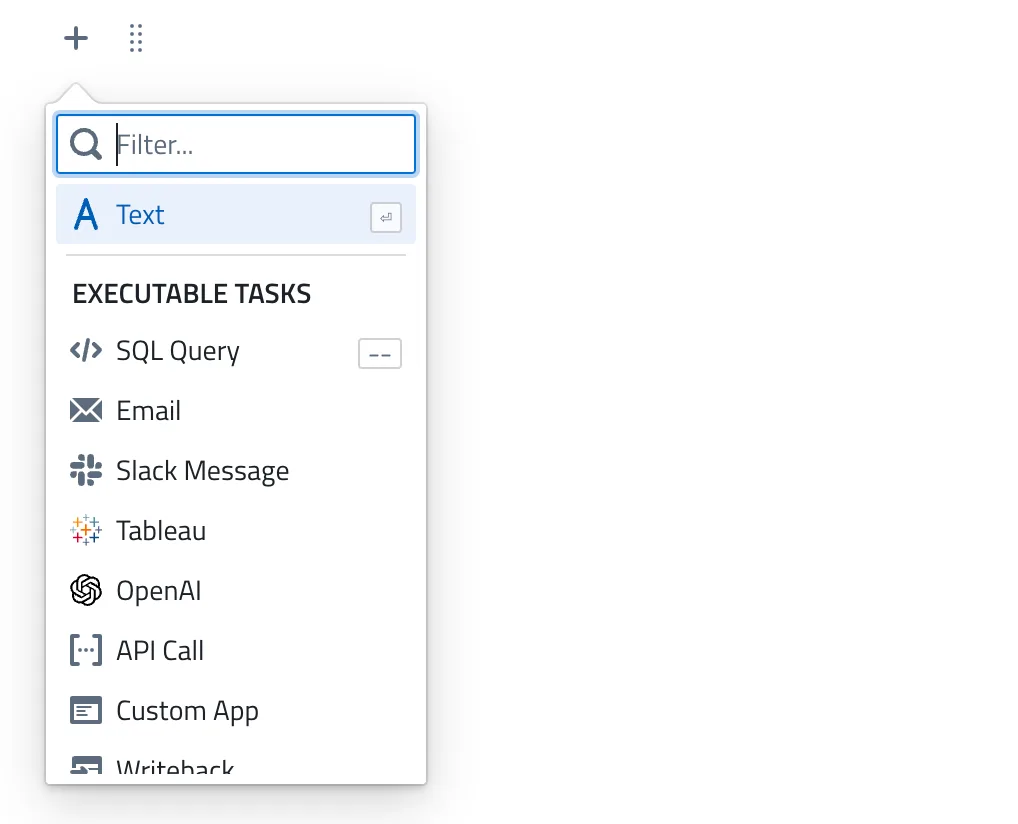
Executable Tasks
SQL Query
Use SQL tasks to write SQL and query almost any SQL database.
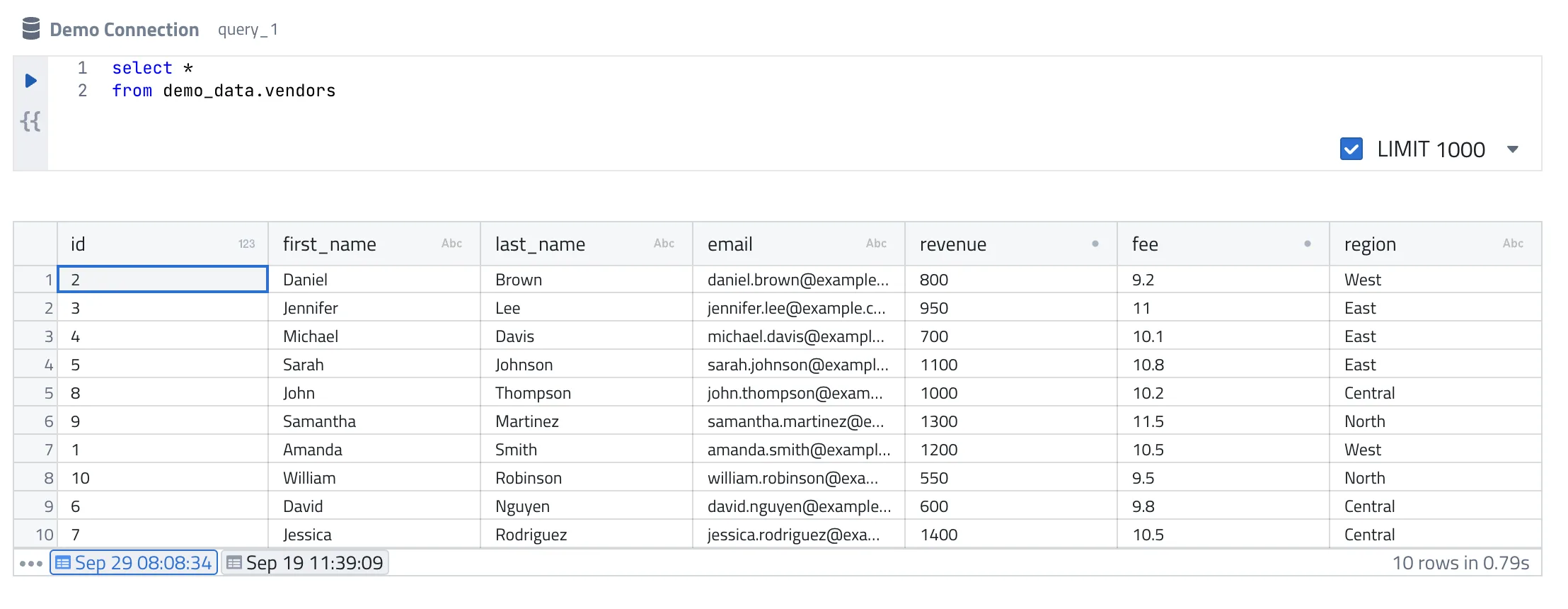
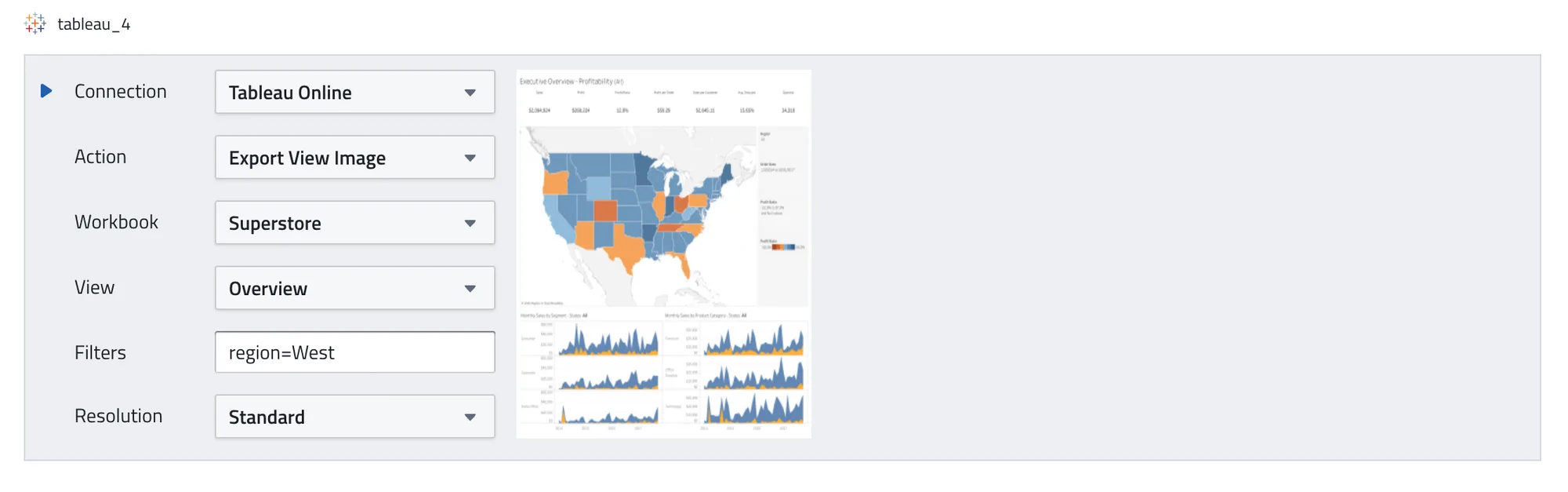
Tableau Export
With the Tableau Export, you can download images, CSV, PDF, Powerpoint, and Crosstab XLSX files from Tableau Server or Tableau Online.
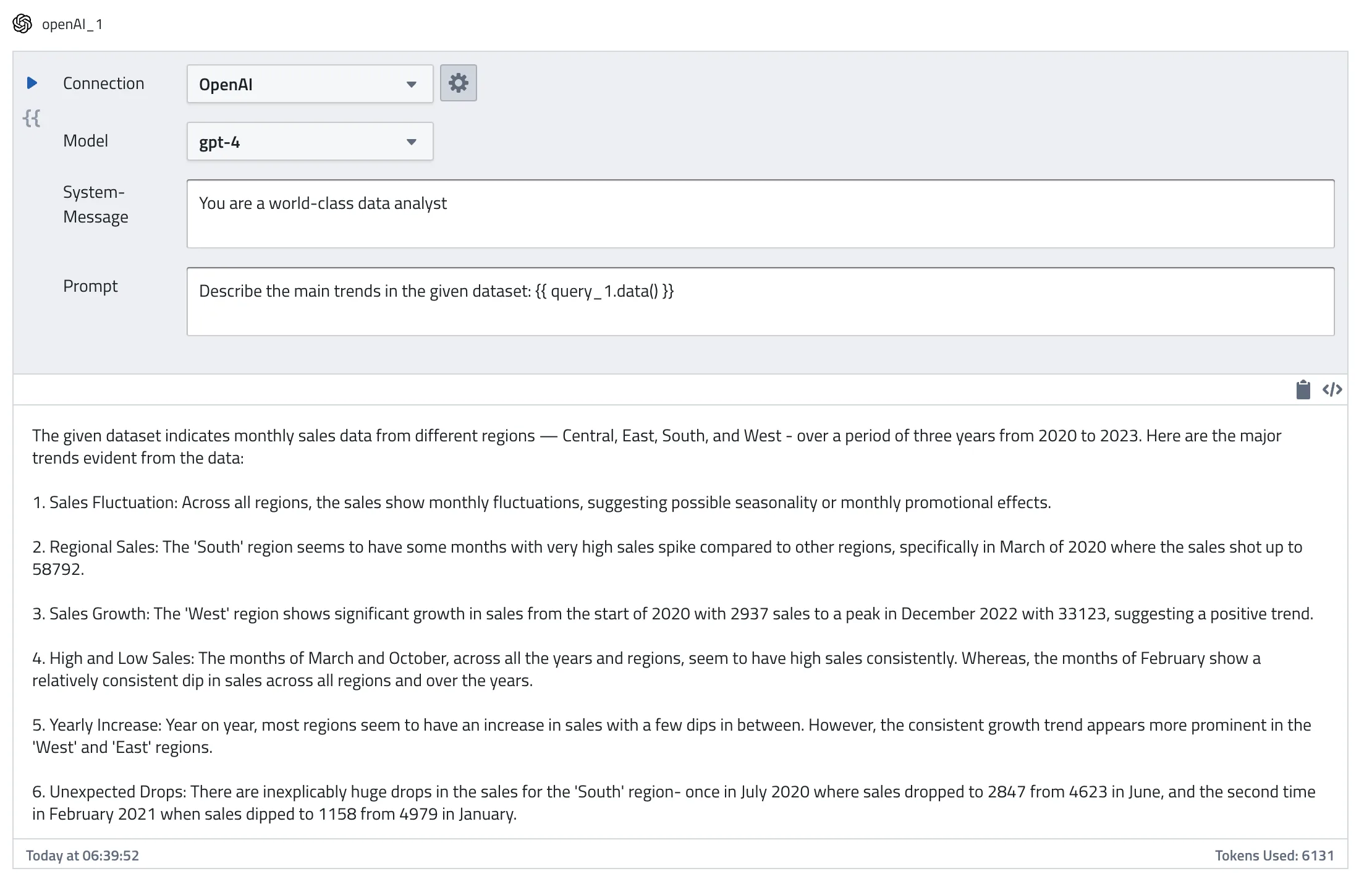
OpenAI Prompt
Use OpenAI's GPT models to create dynamic prompts and use the response in subsequent tasks.
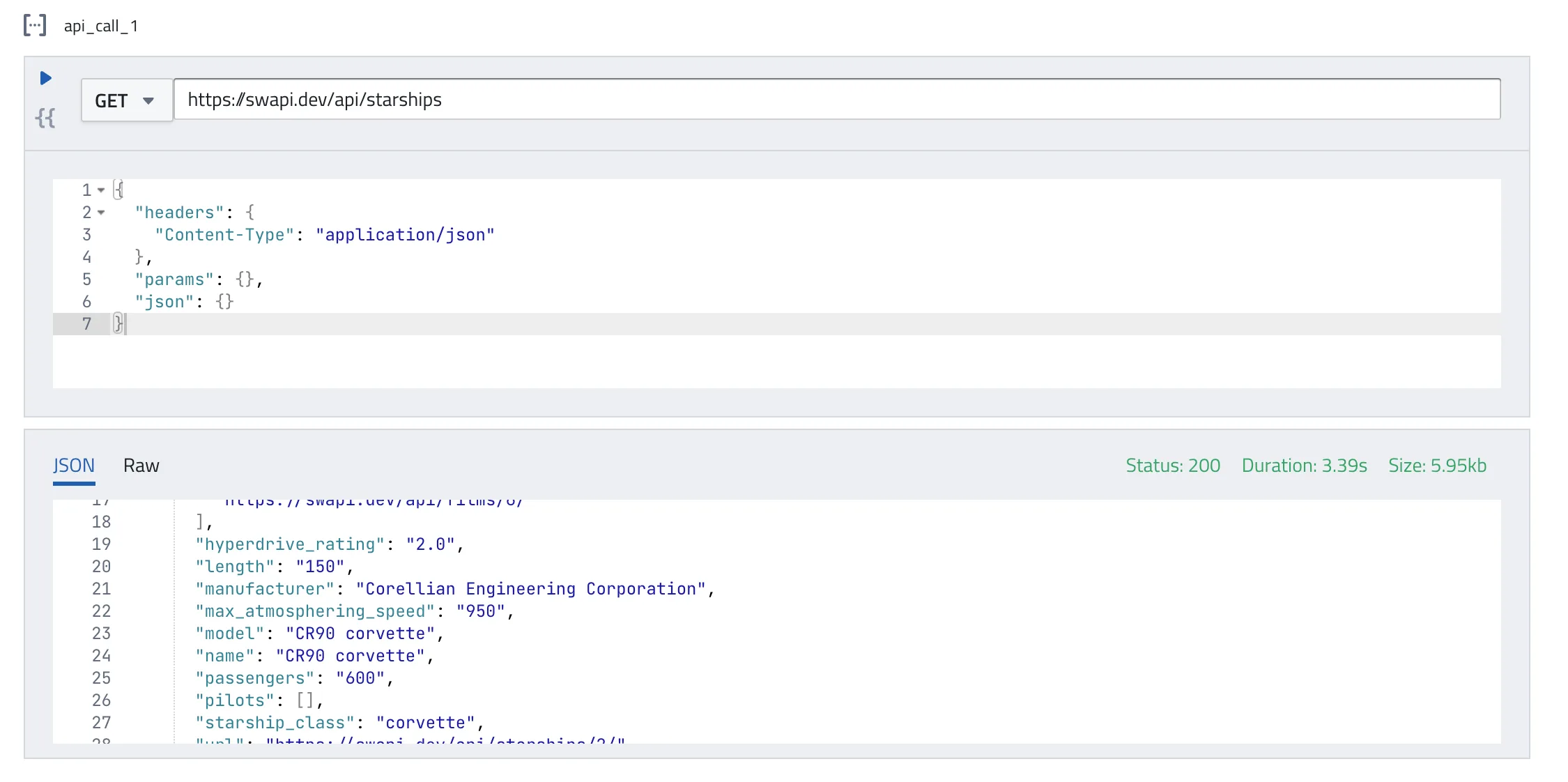
API Call
API blocks can be used to send any HTTP GET, POST, PUT, and DELETE request to any RESTful API endpoint. This can be used for both sending and receiving data.
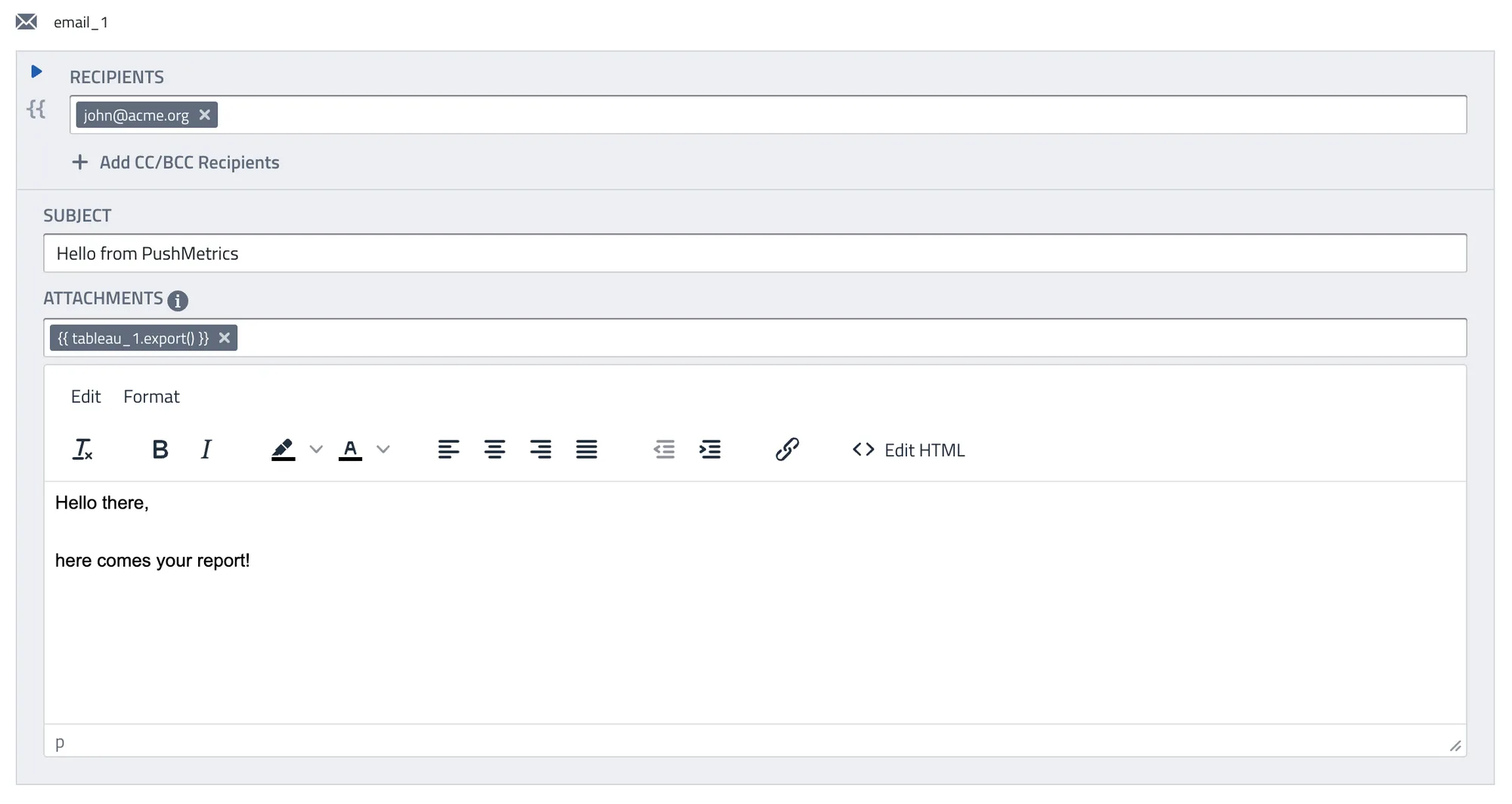
Send Emails using the Email block. Send to any email adress, use dynamic merge tags, and include attachments.
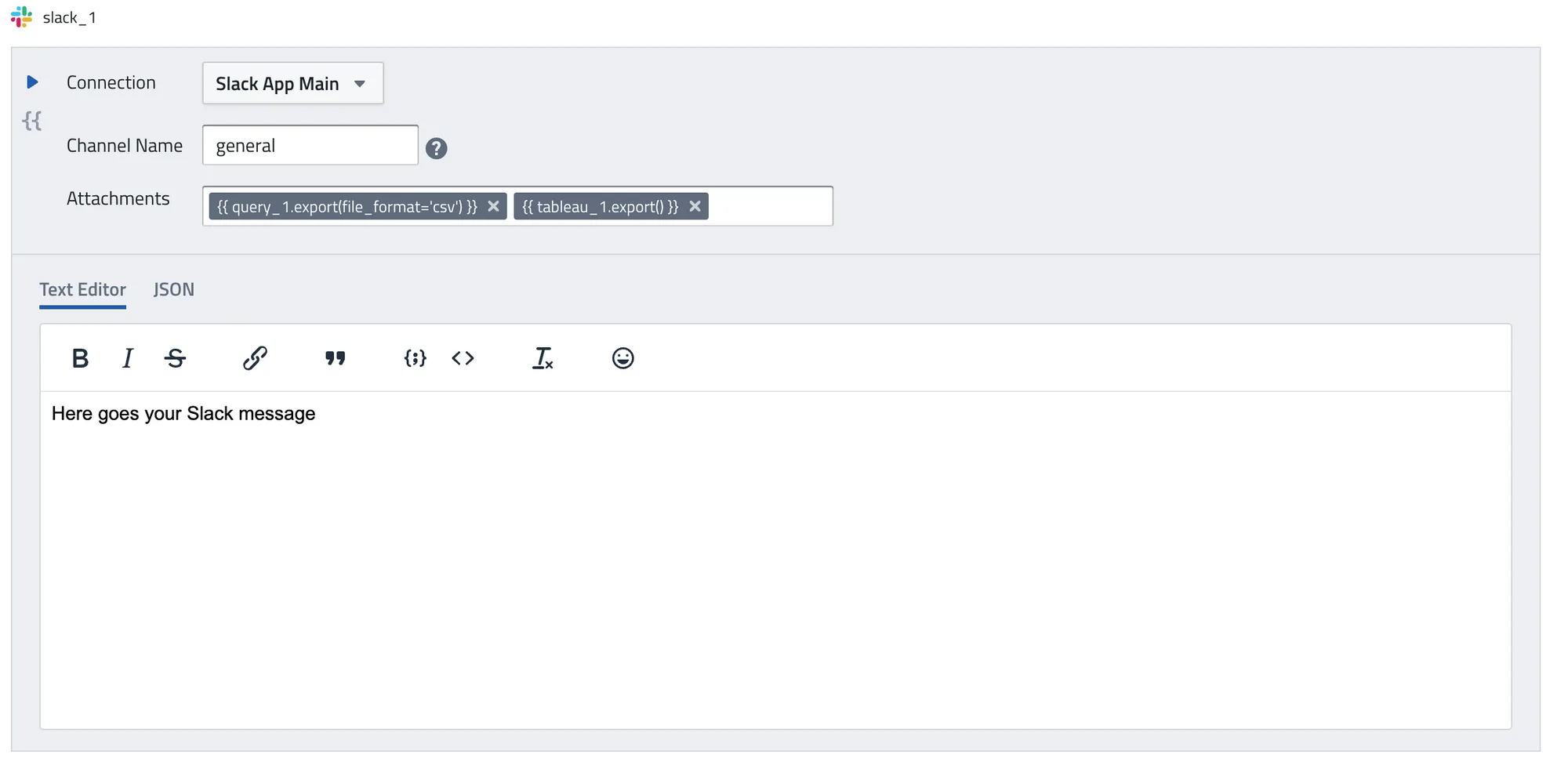
Slack Message
Similar to the Email block, you can send Slack messages and files to any channel using the Slack block.
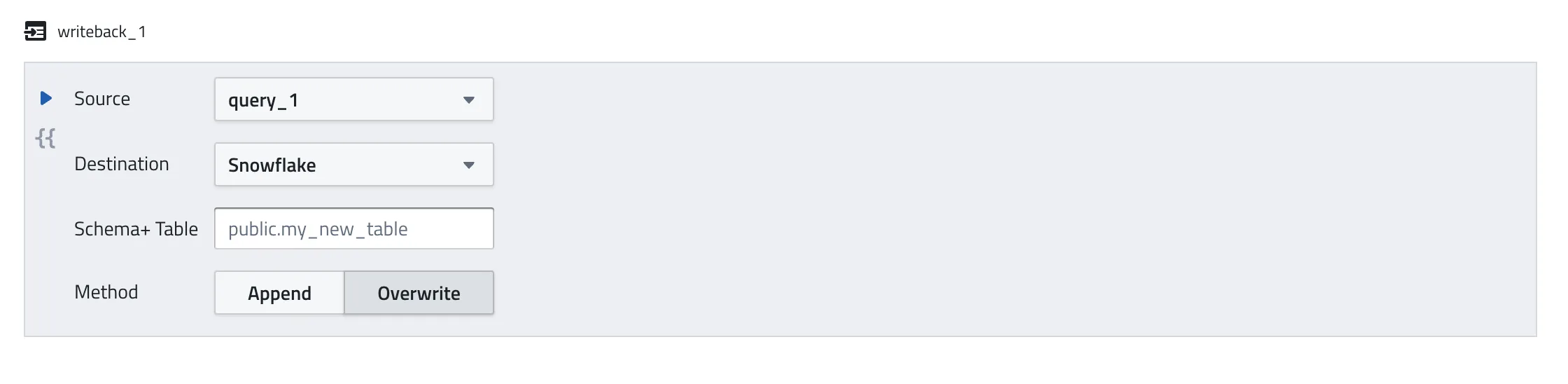
Database Writeback
With database writeback you can very easily write data from SQL query results, API responses, or CSV files into your database.
Google Drive Export
Upload files from your workflow to Google Drive. Export SQL results, charts, and reports to shared drives and folders automatically. Learn more

GCP Cloud Storage
Upload files to Google Cloud Storage buckets. Ideal for feeding data into cloud pipelines, archiving outputs, or sharing files with systems that consume data from GCS. Learn more

SFTP Upload
Upload files to any SFTP server for secure, automated file delivery to partners, vendors, or internal systems. Learn more

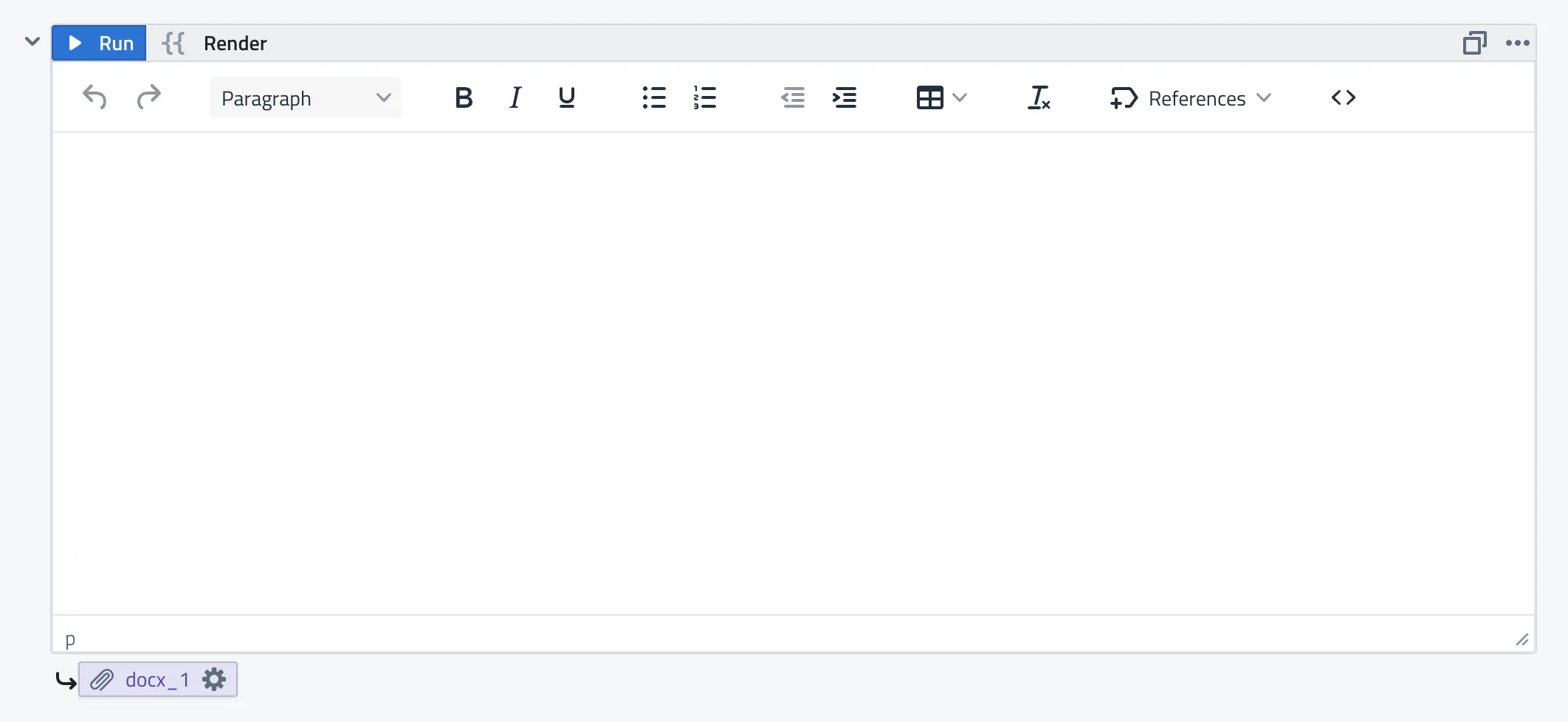
Render (DOCX Export)
Generate Word documents (.docx) using a rich text editor with Jinja templating. Create formatted reports, invoices, and documents with dynamic content. Learn more
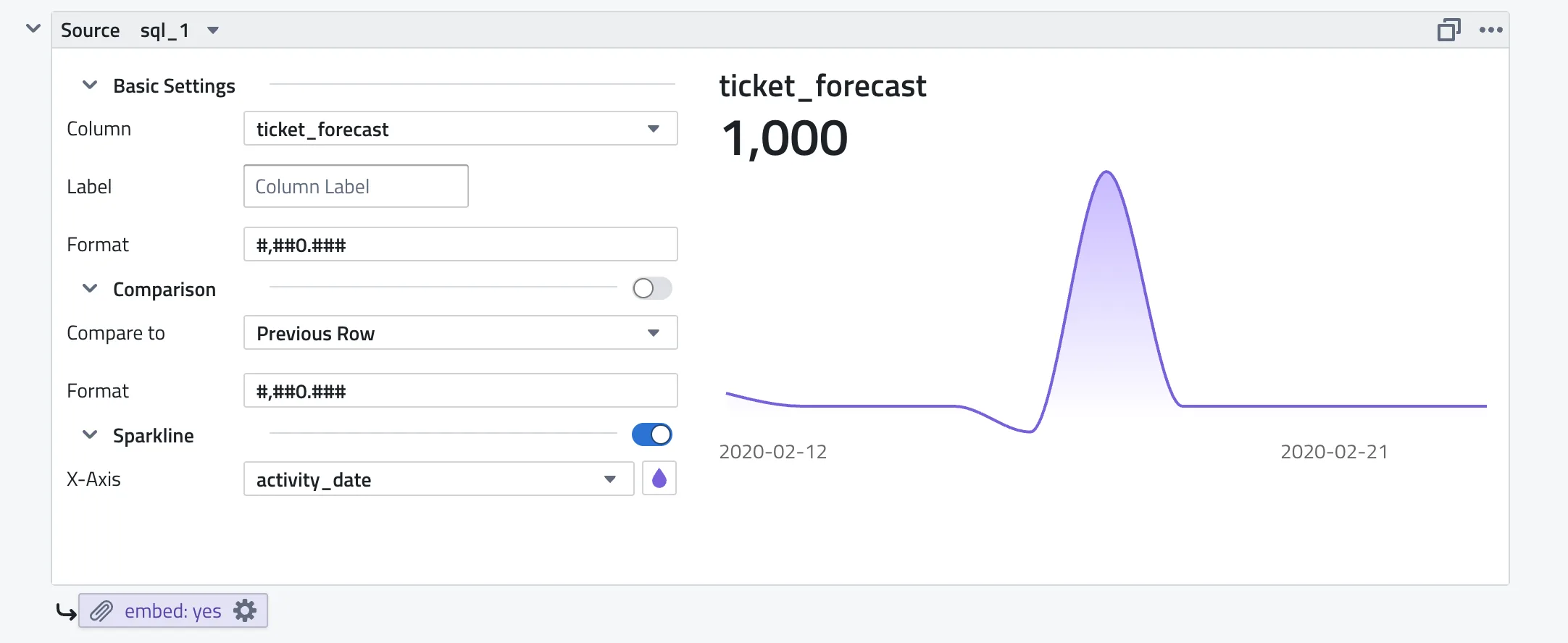
KPI Cards
KPI Cards display key metrics as prominent, visual cards in your notebooks and reports. They are designed to highlight important numbers — revenue, user counts, conversion rates — at a glance, with optional sparklines and comparisons. Learn more
Logic Blocks
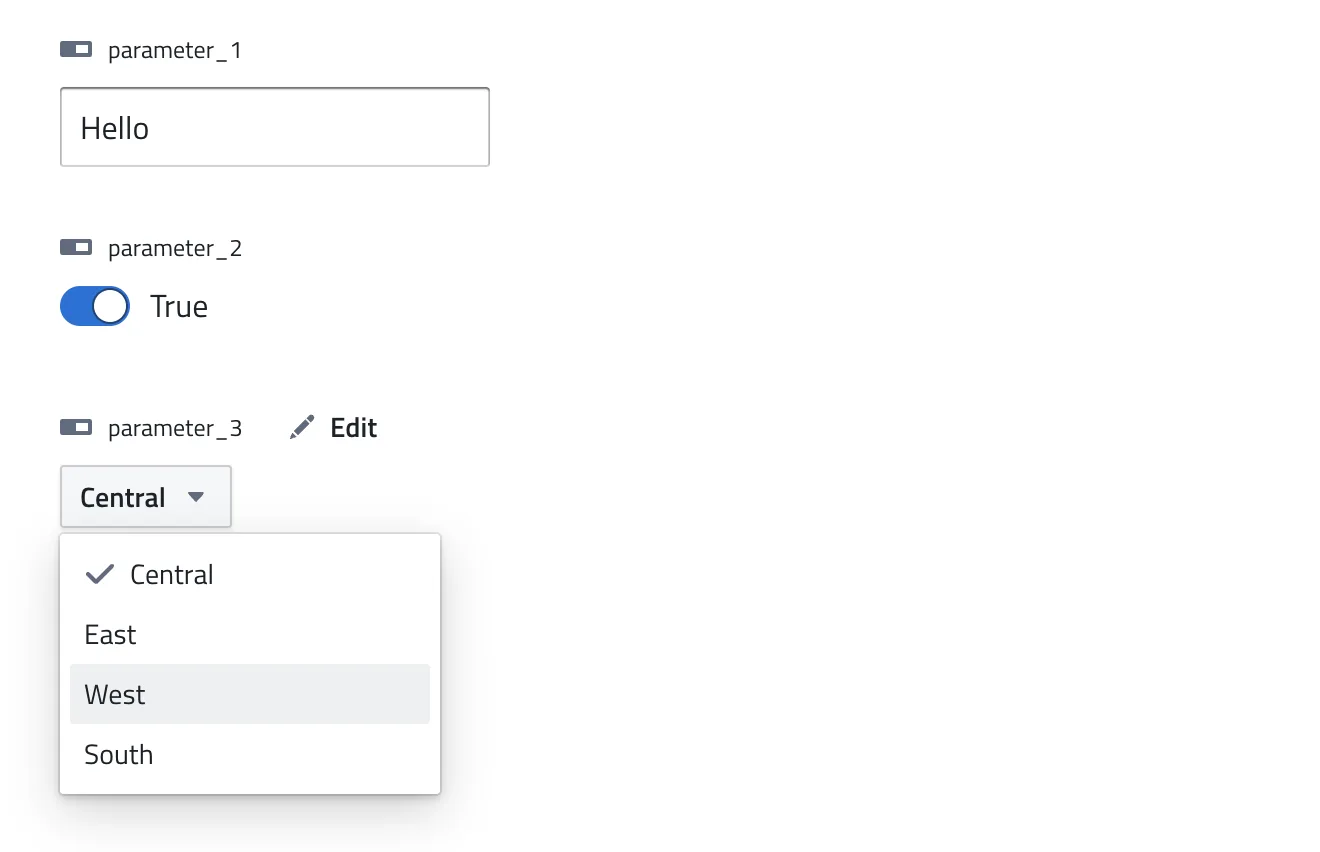
Parameter Inputs
Parameters are simple named values that you may reference in other blocks as needed. You can choose to have a free input or define values that will be available from a drop-down menu.
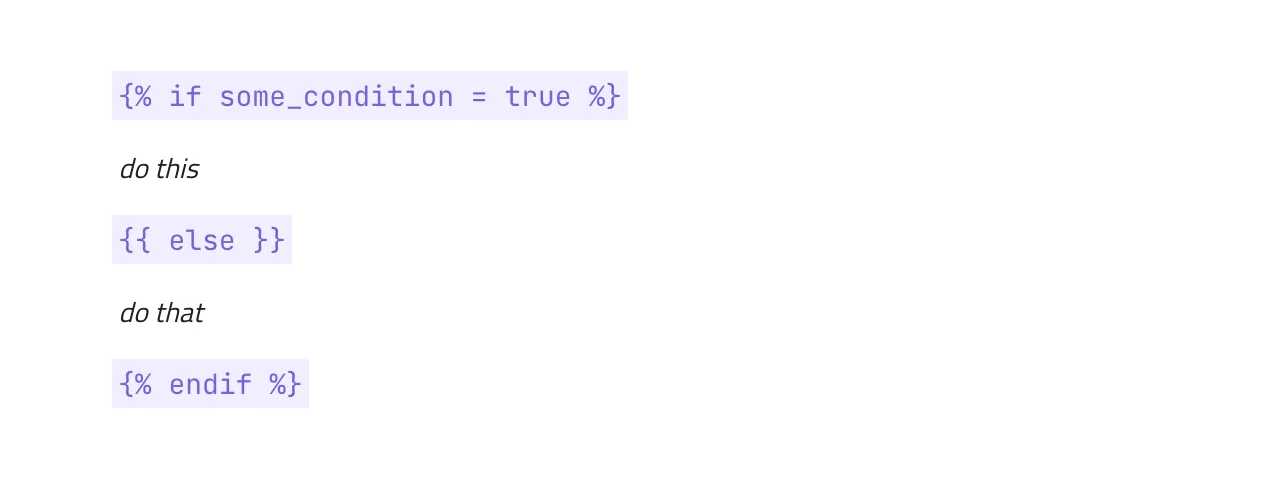
IF/ELSE
Using if else logic in your Notebook will serve as control structure when the entire Notebook is executed. The condition will be evaluated and only the tasks inside the part that is true will be executed.
FOR LOOP
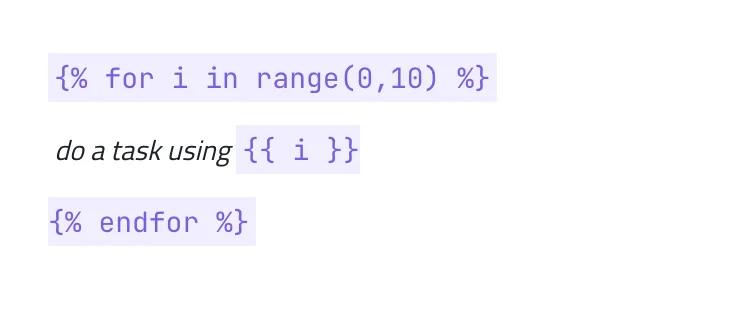
Similar to the IF/ ELSE logic above, for-loops serve as a control structure that is evaluated when the entire notebook is executed. You may use a for loop to iterate over query results, API responses, or simple lists.
Charts
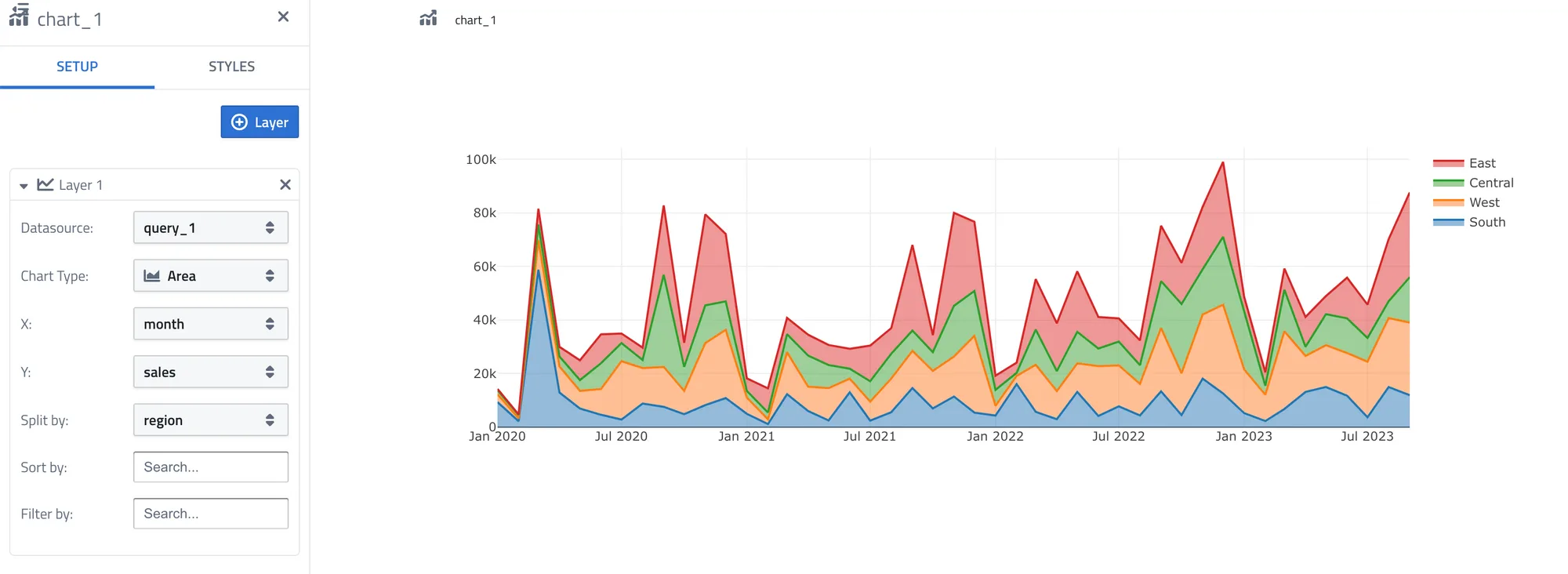
The Chart block allows you to visualize your data in a variety of ways, including bar charts, line charts, area charts, and more.
You can use data from SQL queries and customize the chart's appearance to suit your needs.
Text Blocks
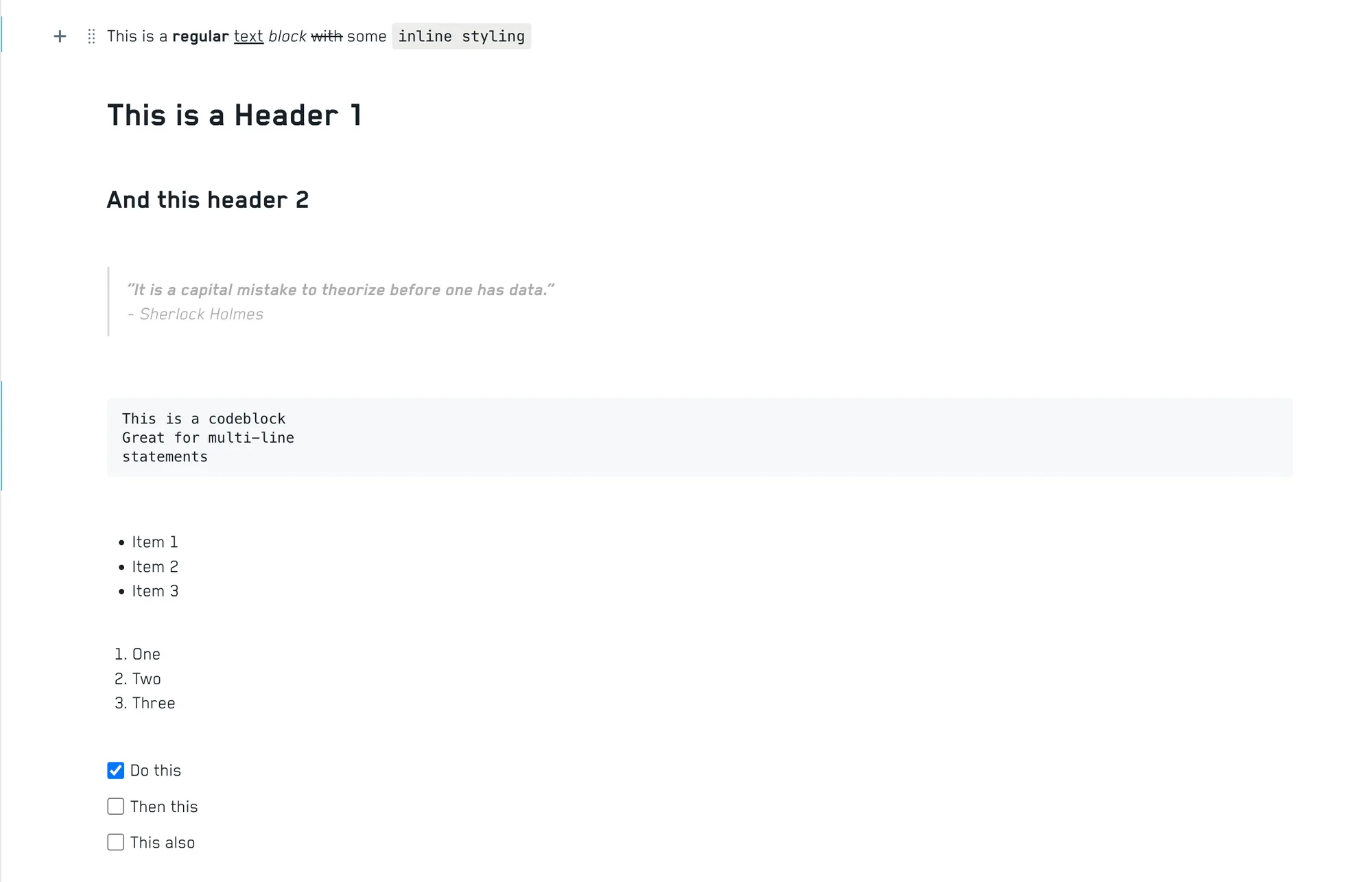
Text blocks are used to add notes, explanations, or any other text content to your notebook. They support markdown for formatting, so you can easily add headings, lists, links, and more.
Different types of text blocks
The following types are supported:
- Text Blocks
- Headings
- Blockquote
- Code Block
- Bullet List
- Ordered List
- ToDo List
Other Blocks
Image
The Image block allows you to add images to your notebook. You can paste an image from your clipboard or insert a link to an image on the web.

Media Embed
The Media Embed block allows you to embed videos, audio, and other media content in your notebook. You simply paste the URL of the media you want to embed, and it will be displayed in your notebook.

Divider Line
The Divider Line block is used to visually separate different sections of your notebook. It inserts a horizontal line across the page.
