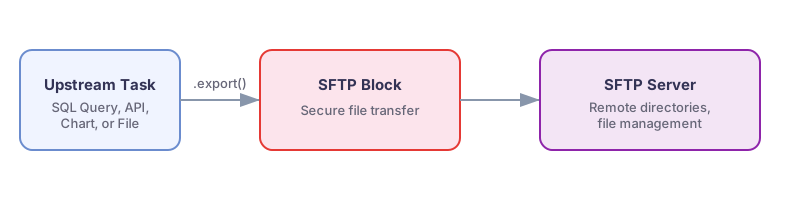
With PushMetrics, you can upload files to any SFTP server as part of your workflow. This enables secure, automated file delivery to partners, vendors, or internal systems that rely on SFTP for data exchange.
Setting Up the SFTP Integration
Before you can use the SFTP Server block, an admin needs to configure an SFTP connection in your PushMetrics workspace.
- Go to Data & Integrations in PushMetrics.
- Select SFTP from the list of available integrations.
- Fill in the connection details:
- Display Name: A friendly name for this connection (e.g.,
Partner SFTP Server). - Host: The SFTP server hostname or IP address (e.g.,
sftp.example.com). - Port: The SFTP port (default:
22). - Username: The SFTP account username.
- Authentication Method:
- Password — enter the account password.
- SSH Private Key — paste the private key for key-based authentication.
- Display Name: A friendly name for this connection (e.g.,
- Click Test Connection to verify the settings.
- Click Save to complete the setup.
Firewall Configuration
If your SFTP server requires IP allowlisting, ensure that inbound connections from PushMetrics are permitted: 18.156.113.81/32
Creating an SFTP Upload Task
Add an SFTP Server block to your notebook from the Add Block Menu.

The SFTP Server block has the following inputs:
- Path: The destination path on the SFTP server where the file will be uploaded (e.g.,
/uploads/reports/daily_export.csv). This field supports Jinja templating for dynamic paths.
The block automatically uploads any attachments from upstream tasks that are connected to it via .export().
Dynamic Paths with Jinja
Use Jinja templating in the Path field to create organized, date-based directory structures on the remote server:
/data/exports/{{ now().strftime('%Y-%m-%d') }}/daily_report.csv
/partner_delivery/{{ query_1.data[0].client_id }}/invoice_{{ now().strftime('%Y%m') }}.pdf
Supported File Types
You can upload any file type produced by upstream tasks:
- CSV — SQL query exports
- PNG / PDF — chart exports
- XLSX / CSV / PDF / PPTX — Tableau exports
- JSON — API call responses
- DOCX — generated Word documents
- Any file — from other tasks via
.export()
Use Cases
- Partner data delivery — securely deliver CSV or Excel reports to external partners on a schedule.
- Legacy system integration — feed data files into systems that watch SFTP directories for new files.
- Regulatory reporting — upload compliance reports to designated SFTP endpoints.
- Data exchange — exchange data files between organizations that use SFTP as their transfer protocol.
Notes
- PushMetrics connects to the SFTP server from IP 18.156.113.81/32. Ensure this IP is allowed in your server's firewall rules.
- If the remote directory does not exist, the upload will fail. Ensure the target directory is created beforehand.
- For large files, ensure your SFTP server has sufficient storage and that there are no file size limits configured on the server.