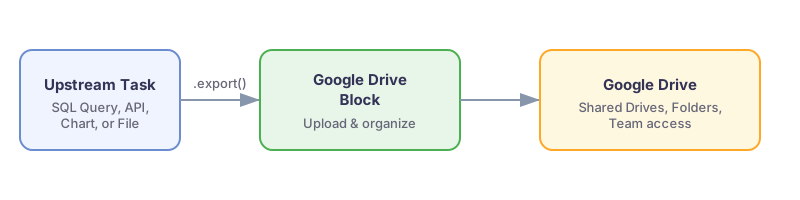
With PushMetrics, you can automatically upload files to Google Drive as part of your workflow. Export SQL query results, charts, reports, and any other task output directly to your team's shared drives and folders.
Setting Up the Google Drive Integration
Before you can use the GDrive block, an admin needs to connect Google Drive to your PushMetrics workspace.
- Go to Data & Integrations in PushMetrics.
- Select Google Drive from the list of available integrations.
- Click Connect and sign in with your Google account.
- Grant PushMetrics the required permissions to access your Google Drive.
- Click Save to complete the setup.
Creating a Google Drive Export Task
Add a GDrive block to your notebook from the Add Block Menu.

The GDrive block has the following inputs:
- File path: The destination path in Google Drive where the file will be uploaded. This field supports Jinja templating, allowing you to build dynamic paths with dates, query results, or parameters.
The block automatically uploads any attachments from upstream tasks that are connected to it via .export().
Dynamic File Paths with Jinja
Use Jinja templating in the File path field to create organized, dynamic file destinations:
/Reports/Weekly/report_{{ now().strftime('%Y-%m-%d') }}.csv
/Clients/{{ query_1.data[0].client_name }}/{{ now().strftime('%B_%Y') }}.pdf
This is useful for organizing files into folders by date, client, or any data-driven value.
Supported File Types
You can upload any file type produced by upstream tasks, including:
- CSV — from SQL query exports
- PNG / PDF — from chart exports
- XLSX / CSV / PDF / PPTX — from Tableau exports
- DOCX — from DOCX export blocks
- JSON — from API call responses
- Any attachment — from other tasks via
.export()
Use Cases
- Automated report delivery — upload weekly CSV or PDF reports to a shared team folder.
- Data archiving — store SQL query snapshots in Drive for historical reference.
- Cross-team sharing — export charts and dashboards to folders accessible by non-PushMetrics users.
- Compliance — maintain a file-based audit trail of scheduled report outputs.
Using the Output in Other Tasks
You can reference the Google Drive file link in downstream tasks:
{{ gdrive_1.data.webViewLink }}
This allows you to include a link to the uploaded file in an email or Slack message.