With PushMetrics, you can upload files directly to Google Cloud Storage (GCS) buckets as part of your workflow. This is ideal for feeding data into cloud pipelines, archiving report outputs, or sharing files with systems that consume data from GCS.
Setting Up the GCP Cloud Storage Integration
Before you can use the GCP Buckets block, an admin needs to connect a GCP service account to your PushMetrics workspace.
- Go to Data & Integrations in PushMetrics.
- Select GCP Cloud Storage from the list of available integrations.
- Upload or paste your GCP Service Account JSON key. The service account needs the following IAM roles on the target bucket(s):
roles/storage.objectCreator— to upload filesroles/storage.objectViewer— to list and read existing objects (optional, for folder browsing)
- Click Save to complete the setup.
Creating a Service Account Key
If you don't have a service account key yet:
- Go to the Google Cloud Console and select your project.
- Navigate to IAM & Admin > Service Accounts.
- Click Create Service Account, give it a name (e.g.,
pushmetrics-gcs), and assign the required roles. - Under the service account, go to Keys > Add Key > Create new key and select JSON.
- Download the key file and use it in the PushMetrics integration setup.
Creating a GCP Cloud Storage Task
Add a GCP Buckets block to your notebook from the Add Block Menu.

The GCP Buckets block has the following inputs:
- File path: The destination path in your GCS bucket where the file will be uploaded. Specify the full path including bucket and object key (e.g.,
my-bucket/reports/weekly/export.csv). This field supports Jinja templating for dynamic paths.
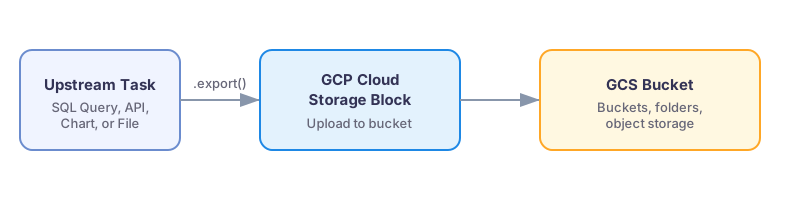
The block automatically uploads any attachments from upstream tasks that are connected to it via .export().
Dynamic Paths with Jinja
Use Jinja templating in the File path field to create organized, date-partitioned storage paths:
my-bucket/reports/{{ now().strftime('%Y/%m/%d') }}/daily_export.csv
my-bucket/data/{{ query_1.data[0].region | lower }}/metrics_{{ now().strftime('%Y%m%d') }}.json
This is especially useful for building partitioned data lakes or maintaining organized file hierarchies in your buckets.
Supported File Types
You can upload any file type produced by upstream tasks:
- CSV — SQL query exports
- PNG / PDF — chart exports
- XLSX / CSV / PDF / PPTX — Tableau exports
- JSON — API call responses
- DOCX — generated Word documents
- Any file — from other tasks via
.export()
Use Cases
- Data pipeline ingestion — land CSV or JSON files in a GCS bucket that triggers a Cloud Function or Dataflow pipeline.
- Data lake storage — archive query results with date-partitioned paths for downstream analytics.
- Cross-system sharing — make report outputs available to systems that read from GCS.
- Backup and compliance — store scheduled report outputs for audit trails.
Using the Output in Other Tasks
You can reference the GCS object URI in downstream tasks:
{{ gcp_buckets_1.data.uri }}
This lets you include the gs:// URI or public URL in emails, Slack messages, or API calls.