Importing Recipients from Slack
After connecting a Slack integration to your PushMetrics workspace, you can import Slack channels and users as recipients for your reports.
How to Import Slack Recipients
1. Navigate to Recipients Page:
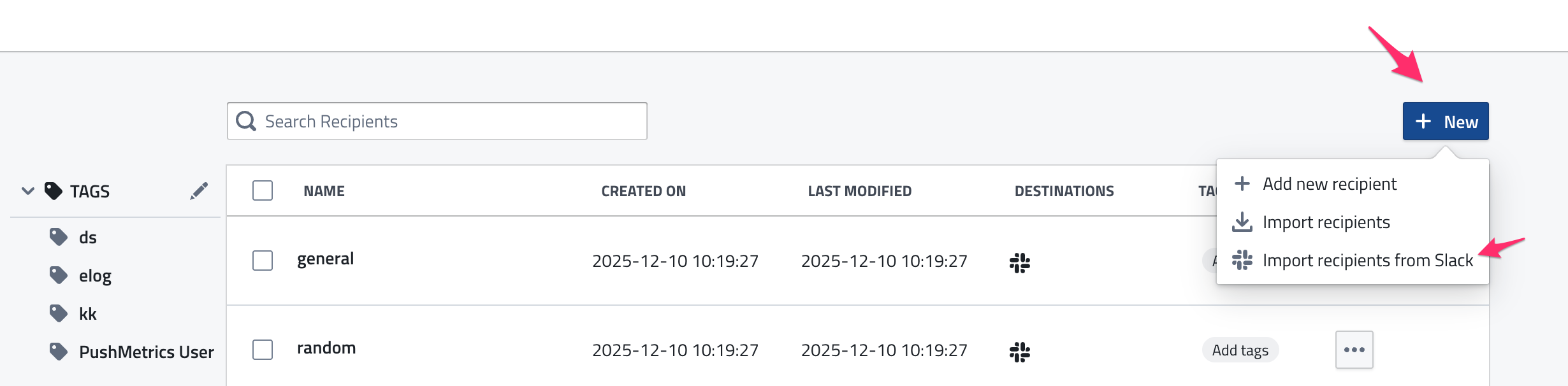
- Go to the Administration section in the left sidebar
- Click on Recipients
2. Start Import:
- Click the "New" button in the top right corner
- Click the "Import Recipients from Slack" button
- A dialog will appear showing your available Slack integrations
3. Select Integration:
- Choose which Slack integration (workspace) you want to import from
- If you have multiple Slack integrations connected, make sure to select the correct workspace
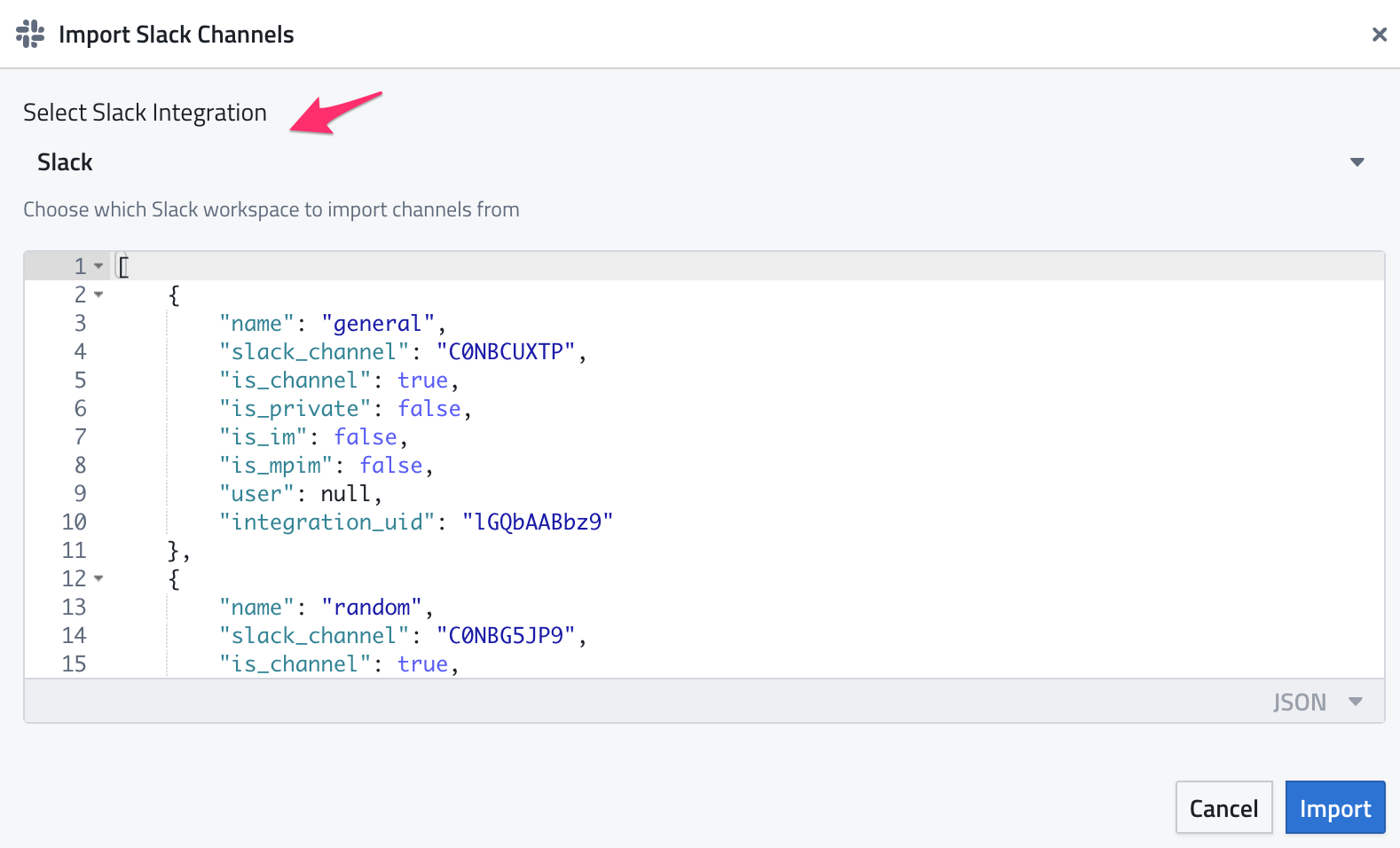
4. Select Recipients:
- The dialog will display available channels and users from the selected Slack workspace
- Public Channels: All public channels visible to the PushMetrics bot
- Private Channels: Private channels where the PushMetrics bot has been invited
- Users: Individual users for direct message delivery
5. Import:
- Select the channels/users you want to import
- Click "Import" to add them to your recipients list
Understanding Multi-Workspace Support
If you have multiple Slack integrations connected to different workspaces:
- Channels are workspace-specific: A #general channel from Workspace A is treated separately from #general in Workspace B
- No duplicates: When you import channels, PushMetrics tracks which workspace each channel belongs to
- Automatic filtering: When creating reports, only channels from the selected integration will be shown in the recipient dropdown
Using Slack Recipients in Reports
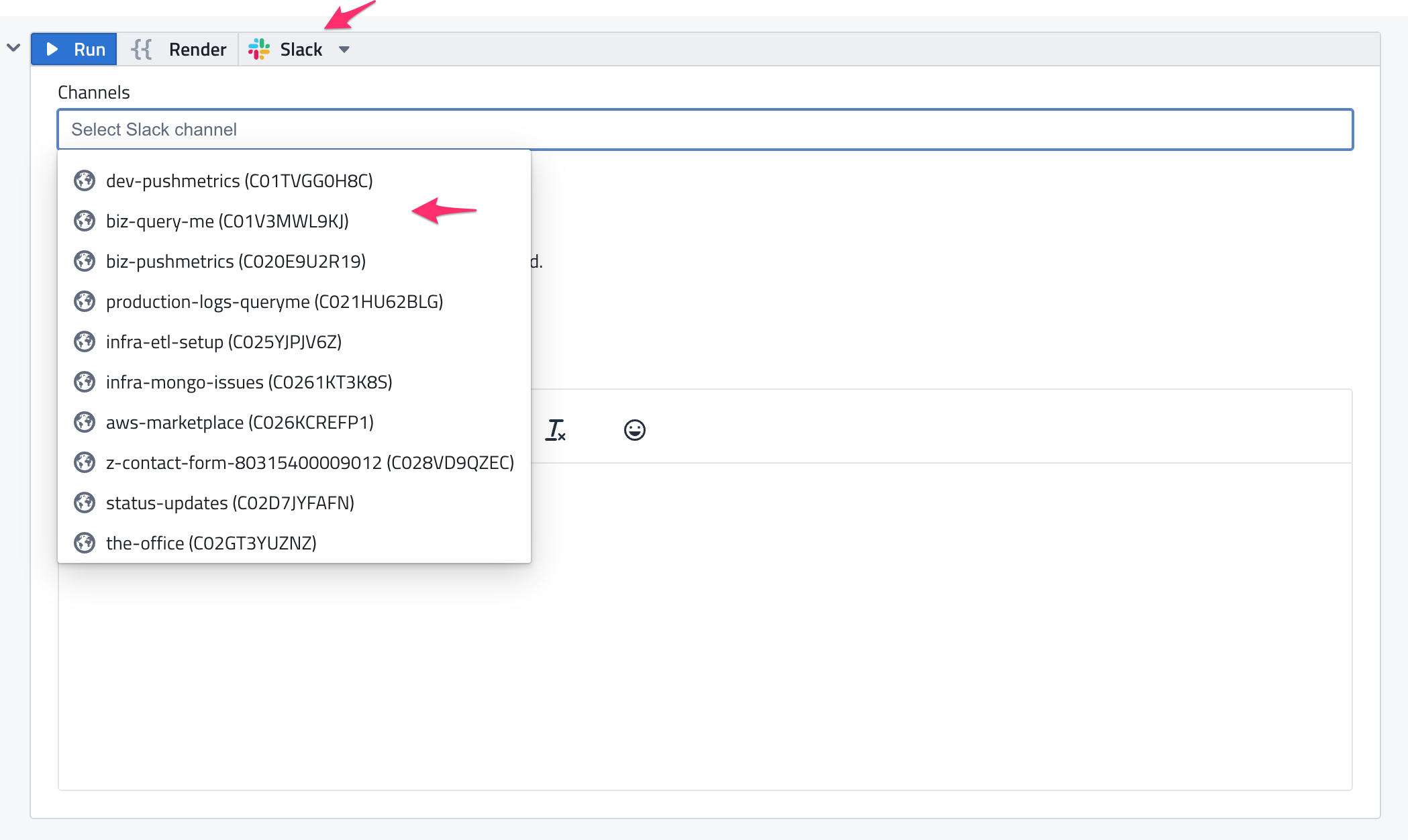
When configuring a Slack delivery block in your report:
1. Select Integration: Choose which Slack integration to use for delivery
2. Select Recipients: The recipient dropdown will automatically filter to show only channels/users from the selected integration
3. Dynamic Updates: If you change the integration, the recipient list updates automatically
Important: Integration Deletion and Recipients
What Happens When You Delete a Slack Integration
When you delete a Slack integration from PushMetrics, all associated recipients are automatically deleted. This includes:
- ✅ All Slack channels imported from that integration
- ✅ All Slack users imported from that integration
- ✅ Any direct message (DM) recipients from that workspace
- ✅ Any multi-person DM (MPIM) recipients from that workspace
What This Means for Your Reports
If you delete a Slack integration:
1. Recipients are removed: All recipients associated with that integration are permanently deleted from PushMetrics
2. Reports may be affected: Reports configured to deliver to those recipients will no longer have valid delivery destinations
3. Re-importing required: If you reconnect the same Slack workspace later, you'll need to import recipients again
4. Historical data: Past report deliveries remain in the history, but the recipient references will be removed
Before Deleting an Integration
Before deleting a Slack integration, consider:
1. Check active reports: Review which reports are using recipients from this integration
2. Alternative deliver*: Update reports to use recipients from a different integration if needed
3. Backup configuration: Note which channels/users were configured for easy re-import if needed
4. Team communication: Inform your team that recipients from this workspace will be removed
Best Practices
- Disconnect vs Delete: Use "Disconnect" if you plan to reconnect later - this keeps the integration entry and recipients
- Multiple integrations: If you need to switch workspaces, add the new integration first, then migrate reports before deleting the old one
- Test workspace: Consider using a separate test integration for development that can be safely deleted without affecting production recipients
Troubleshooting
Recipients Not Appearing After Import
- Verify the PushMetrics bot has been invited to private channels
- Check that the integration is properly connected
- Refresh the recipients list in your report
Can't See Channels from Specific Workspace
- Ensure you've selected the correct integration in the Slack delivery block
- Check that the integration hasn't been deleted
Duplicate Channel Names
- If you see multiple channels with the same name, they're from different workspaces
- The integration name will help you identify which workspace each belongs to
- When filtered by integration, you'll only see channels from that specific workspace