PushMetrics comes with a integration for Slack that makes it easy to send files and messages to any public or private Slack channel, as well as to individual users.
Learn more
Creating Slack Messages
The Slack task has the following inputs:
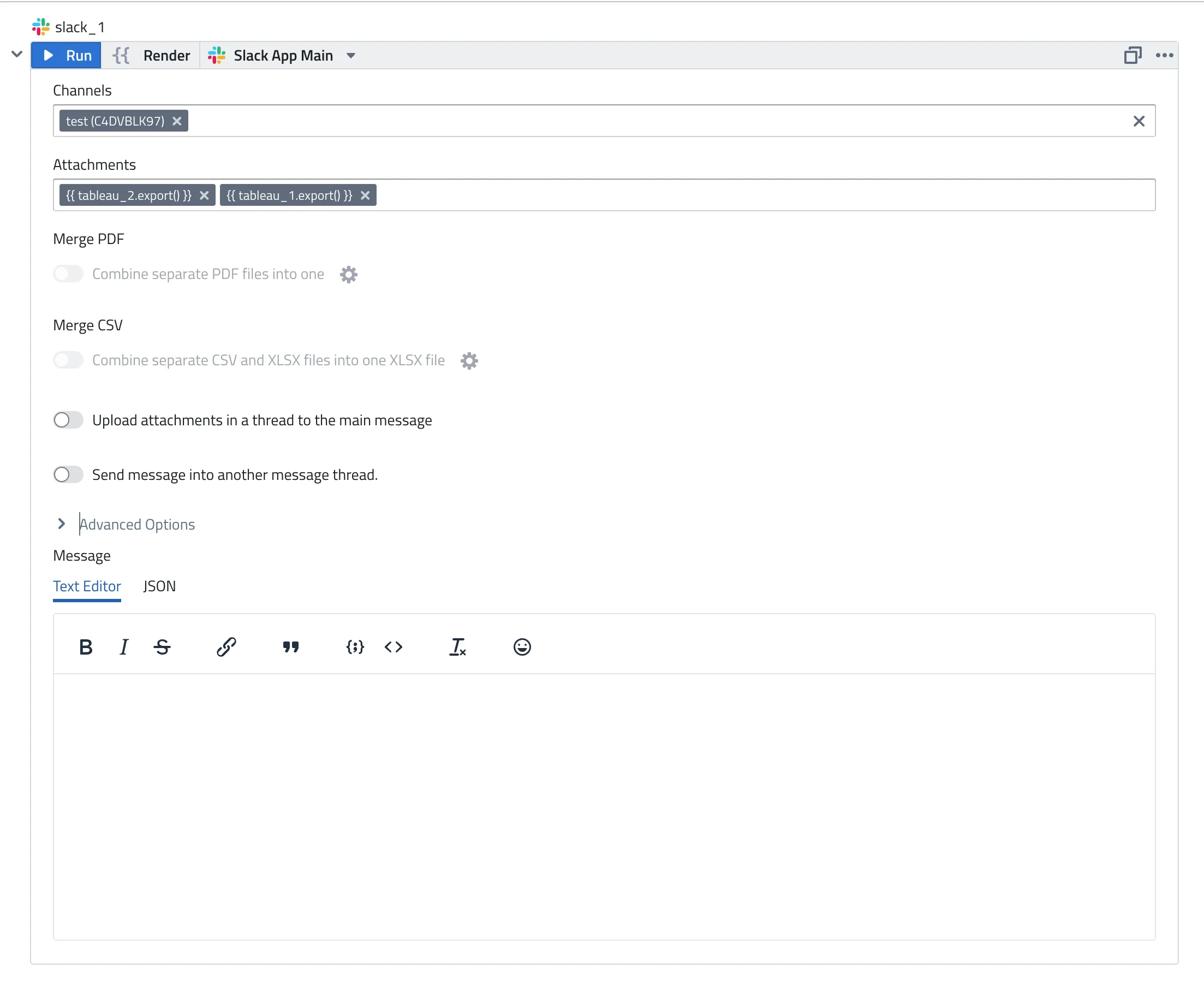
- Connection: If you have multiple integrations for Slack configured, you can choose which one to use here.
- Channels: Select one or more channels or users to send the message to using the channel picker dropdown.
- Attachments: Attachments generated by other tasks that will be uploaded to the Slack channel as files
- Text Editor or JSON: You can design your message using a simple WYSIWYG editor or, for more advanced styling use a JSON with Slack Block Kit elements.
Selecting Channels to send to
Use the Channels dropdown to select one or more destinations. The picker automatically lists all available channels and users from your connected Slack workspace.

You can send to:
Public Channels
- All public channels in your workspace are listed in the picker.
- The PushMetrics bot will automatically join a public channel when sending the first message.
Individual Users
- Users from your Slack workspace are available in the picker for direct message delivery.
Private Channels
- Private channels where the PushMetrics bot has been invited will appear in the picker.
- To add the bot to a private channel, go to the channel in Slack, type
/inviteand select "Add apps to this channel". Then, select the PushMetrics app from the list. - This will not allow the PushMetrics bot to read any of the messages in the channel.
Multi-person DMs (MPDMs)
- Group DM conversations are also available in the picker if the PushMetrics bot is a participant.
Sending to a Thread
You can send messages as replies to an existing thread instead of posting a new message to the channel. This is useful for keeping related updates grouped together and reducing channel noise.
To send to a thread:
- Thread Timestamp: Provide the
ts(timestamp) of the parent message you want to reply to. This identifies the thread. - Messages sent to a thread appear as replies under the parent message in Slack.
- If the parent message doesn't exist or the timestamp is invalid, the message will be posted as a new message to the channel instead.
Use Cases for Threading
- Follow-up reports — post an initial summary to a channel, then send detailed breakdowns as thread replies.
- Alert grouping — send an initial alert, then update the thread with resolution status.
- Multi-step workflow updates — post progress updates as a workflow executes, keeping them in a single thread.
You can capture the thread timestamp from a previous Slack block's output to create threaded conversations within a single workflow.
Attachments
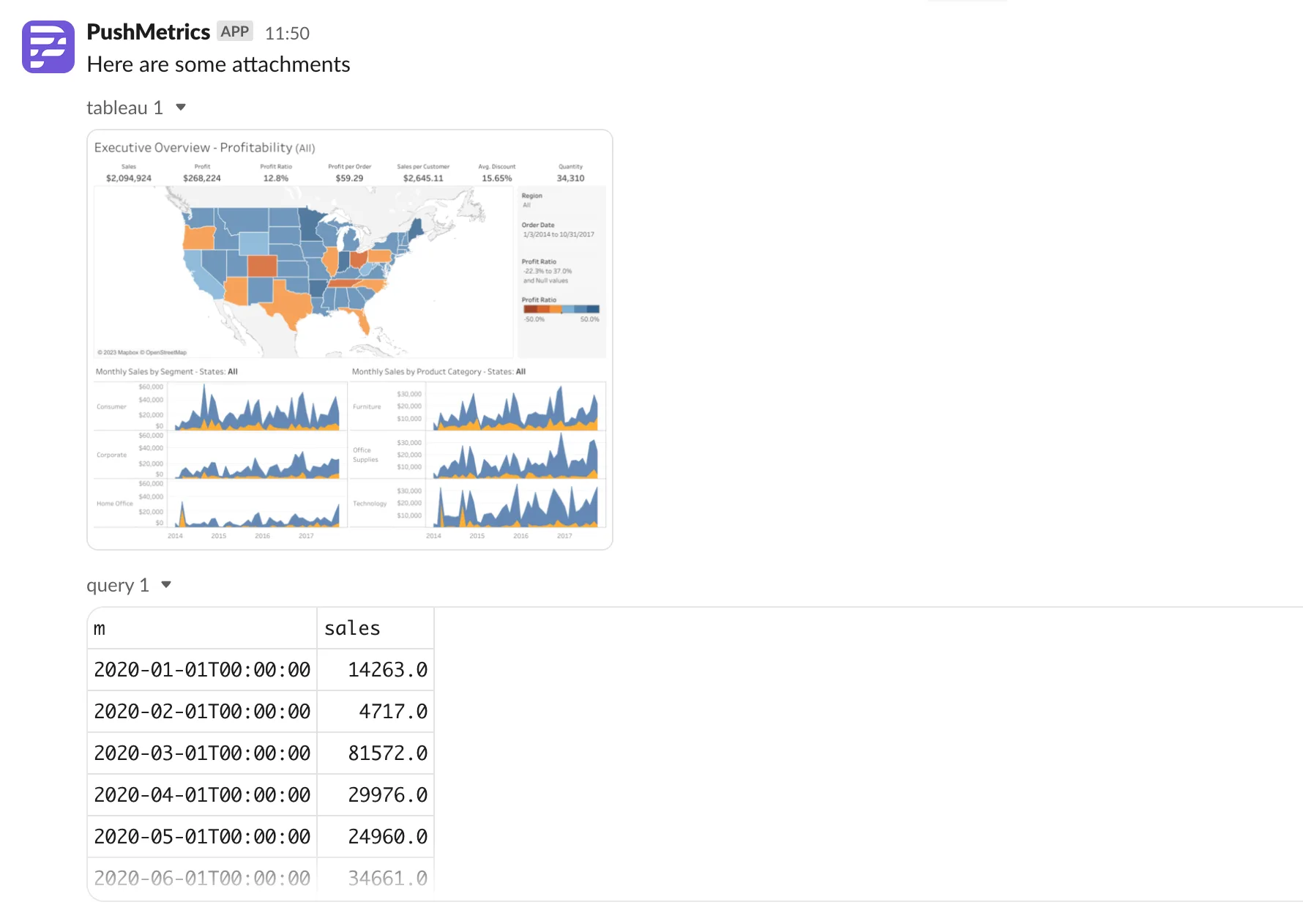
You can attach files generated by other tasks (e.g. SQL queries or charts) and upload them to Slack using the .export() function.

Once you send the attachment, your designated channel will receive a message containing the attachment.
Tables
SQL results can also be rendered directly inside the Slack message as a native, interactive table — no file attachment needed.
To include one, open the SQL task's export options and choose the HTML Table format. The same export renders as an HTML table inside Email bodies and as a native table in Slack messages, so one setting covers both destinations.
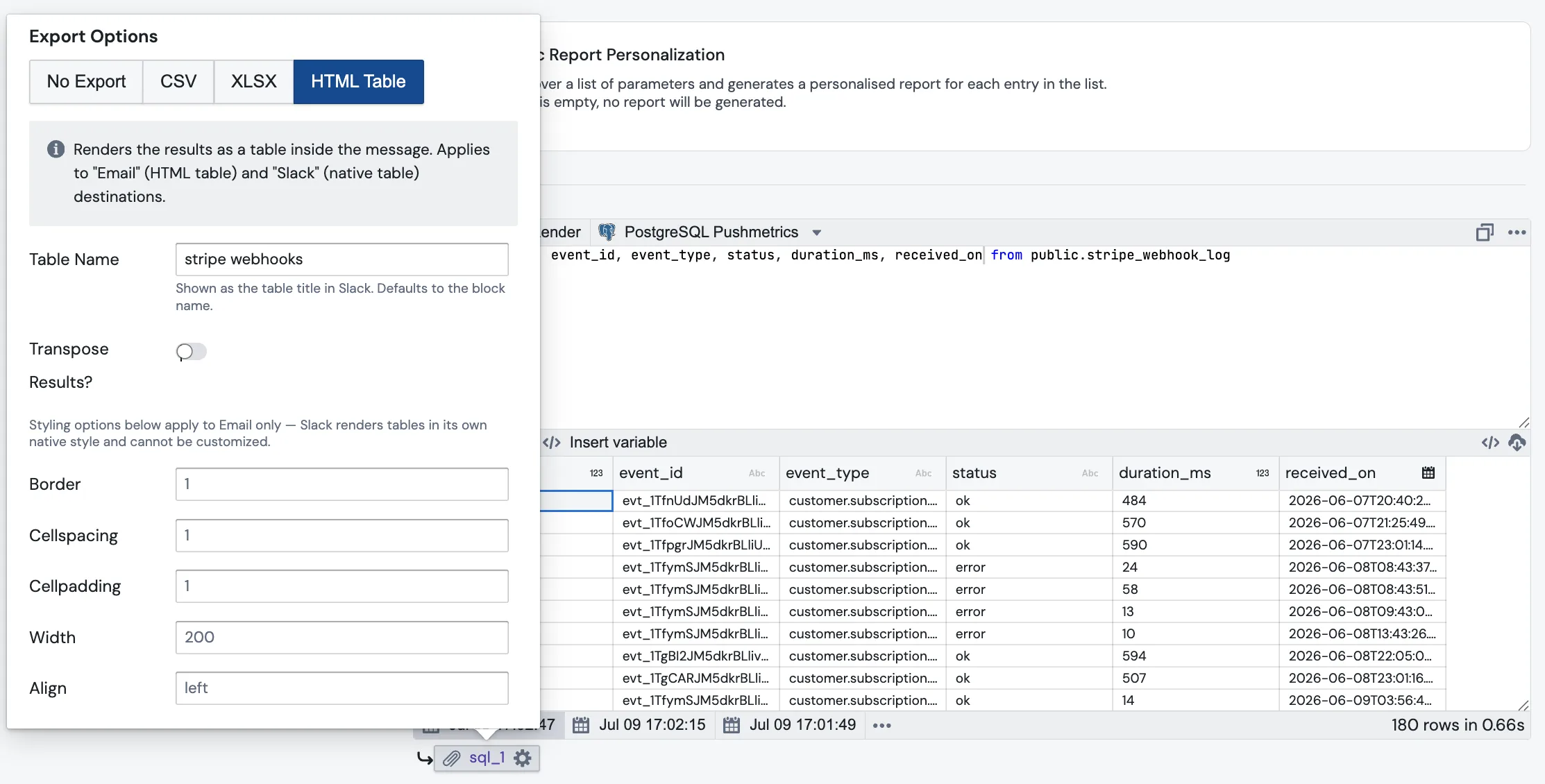
You can configure:
- Table Name — shown as the table's title in Slack. Defaults to the task name.
- Transpose Results? — swaps rows and columns, handy for single-row summaries with many measures.
- The styling options (border, cellspacing, cellpadding, width, align) apply to Email only — Slack renders tables in its own native style and cannot be customized.
In Slack, the table comes with built-in pagination (10 rows per page), click-to-sort columns, and a search box — readers can explore the result right in the channel.
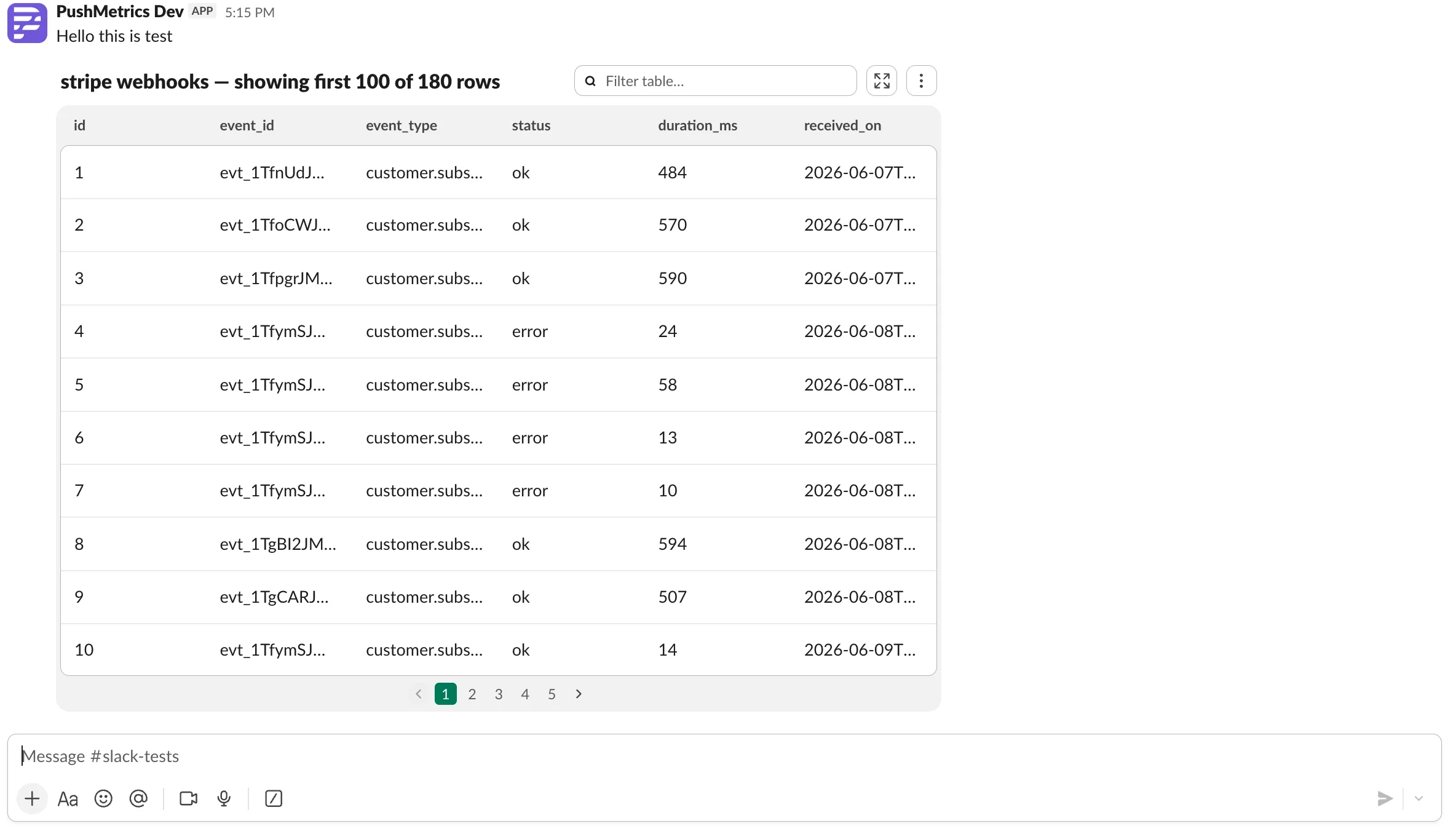
Slack caps native tables at 100 rows, 20 columns, and roughly 10,000 characters of cell text. Larger results are truncated, and the table title notes exactly what was cut (for example, showing first 100 of 180 rows above). For bigger datasets, attach the full result as a CSV or Excel file instead — or do both: a table for the highlights, a file for the detail.
Text Editor
The Text Editor allows you to create simple, formatted text messages.
It supports Jinja, allowing dynamic content with data from upstream tasks. You can incorporate variables and results from SQL queries to create personalized and data-driven messages.
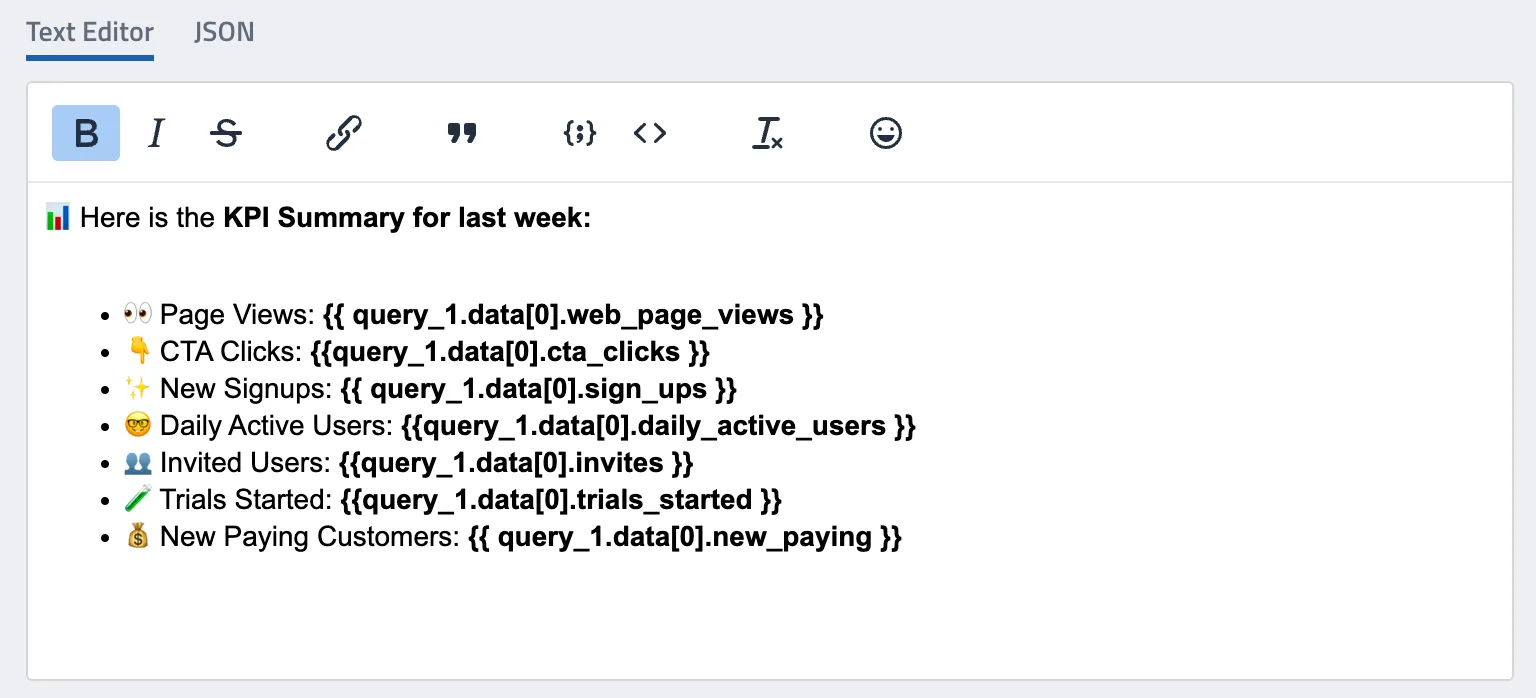
JSON - Slack Block Kit
The JSON editor allows you to create more advanced Slack messages using Slack Block Kit UI elements.
It also supports adding Jinja for dynamic messages.
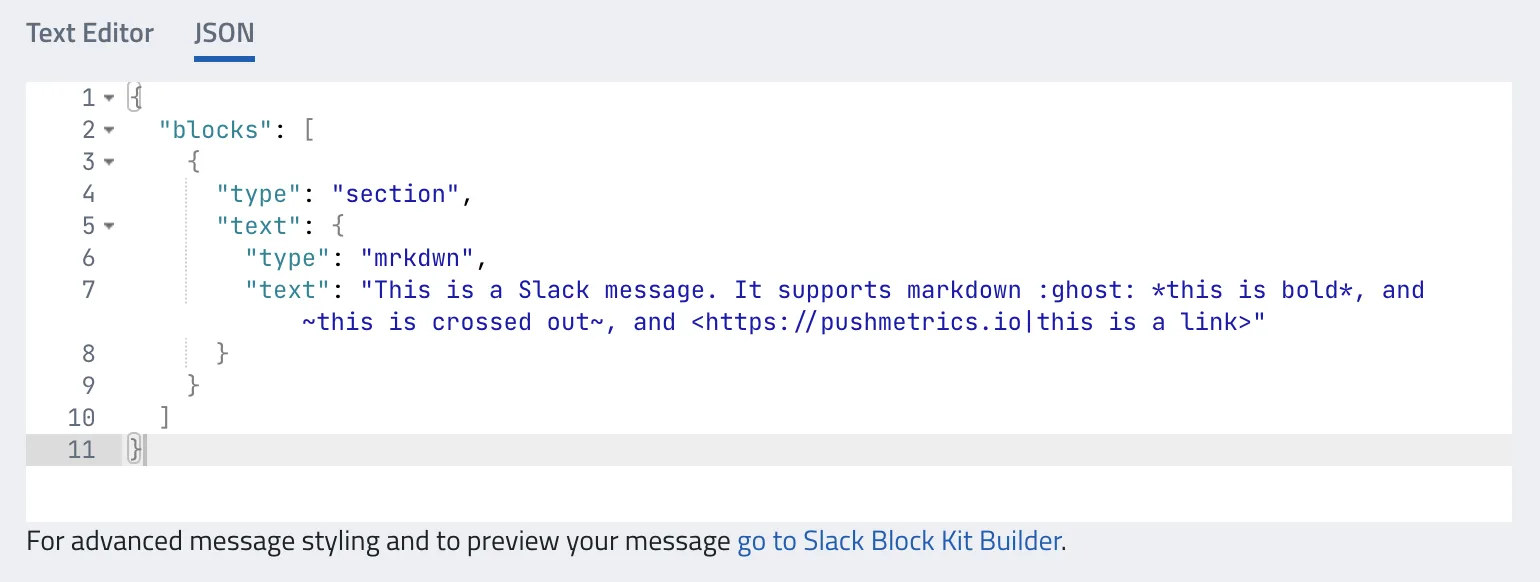
Slack Block Kit is a UI framework for designing and building rich, interactive messages in Slack. The Block Kit consists of "blocks", which are essentially building blocks you can stack vertically to create complex layouts. These blocks can be used to present information, capture user input, and more.
There are several types of blocks available, such as
- Section Blocks: Display text alongside things like images.
- Divider Blocks: Create visual breaks between different blocks.
- Image Blocks: Display an image.
- Actions Blocks: Add interactive elements like buttons or select menus.
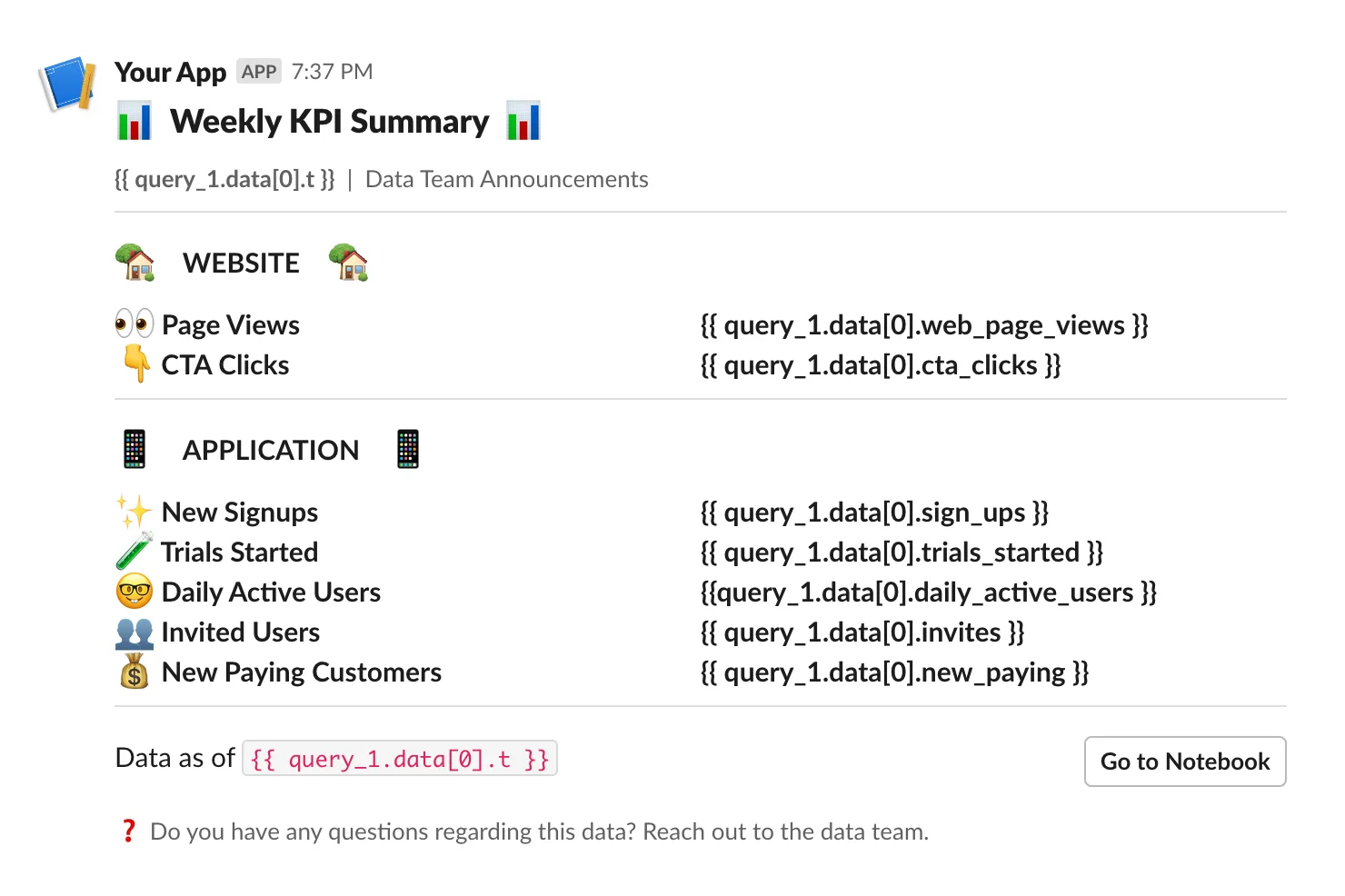
Link to Block Kit Builder
Slack provides an online tool called the Block Kit Builder. This tool allows you to design, preview, and prototype your Block Kit layouts. It's especially helpful for visualizing how your blocks will look and behave in Slack.
PushMetrics provides a link below the JSON input that opens your current message in the Block Kit Builder:

Click here for an example.